
Fix dasd Using 100% CPU on MacOS 27
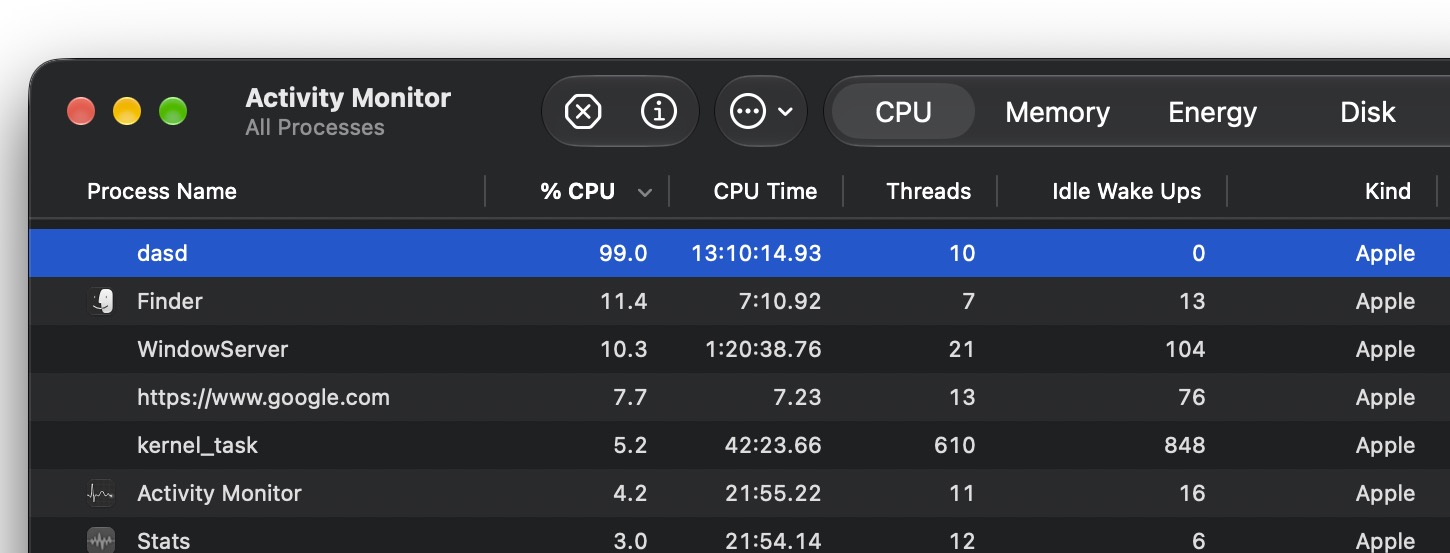
I ran into a peculiar issue recently where the ‘dasd’ process had been consuming 100% CPU for several days straight. Since dasd is a system process, my initial assumption was that there must be some important background task that was going on. But, after a few days of no change and dasd constantly hovering between 90-100% CPU usage, contributing to significant battery drain and resource misallocation, I decided to dive into troubleshooting dasd consuming large amount of processor specifically in MacOS 27 Golden Gate.
With the help of some tinkering around in Console and Terminal, an agent, and ChatGPT, I discovered the problem with dasd going haywire may be related to an issue with telemetry and the PowerLog background processing database in MacOS. And, as it turns out, clearing this particular database and then restarting the Mac can resolve the problem.
Be forewarned, these steps involve using the Terminal to delete a system file that is actively being written to, so something could always go wrong. Backup your Mac before beginning.
Troubleshooting dasd with all the traditional methods, to no end
First, I tried killing the ‘dasd’ process with Activity Monitor, which did nothing. I rebooted, that did nothing either, and dasd persisted with 100% CPU usage even after restart, unusual! Next I rebooted into Safe Mode, which also did nothing as the ‘dasd’ process continued to use excessive CPU even in Safe Mode. So I rebooted again, and after digging around in diagnostics and going back and forth between Console, sample, and tail, and ChatGPT to interpret and analyze, I arrived at this solution.
Identifying a database linked to stuck dasd
The database in question that dasd appears to be interacting with in some erroneous looping and stuck manner is located at the following system path:
/private/var/db/powerlog/Library/PerfPowerTelemetry/BackgroundProcessing/CurrentBackgroundProcessingDB.BGSQL
I backed up and erased this particular database, then restarted the Mac, and that finally resolved the problem, bringing dasd back down to 0% CPU as expected.
Backup your Mac, and the database file itself
If you have and use Time Machine for backups of your Mac, that’s probably sufficient, and you should absolutely make a Time Machine backup before continuing. Separately, if you’re like me and want to make a direct separate file backup as well (just in case!) on the same drive, here’s how you can do that.
From Terminal, and copy / paste or type the following command string to create a Folder on your desktop called “PowerLog-Backup” that contains a backup of the PowerLog database with permissions assigned to the current user:
sudo mkdir -p ~/Desktop/PowerLog-Backup | sudo cp -p /private/var/db/powerlog/Library/PerfPowerTelemetry/BackgroundProcessing/CurrentBackgroundProcessingDB.BGSQL* ~/Desktop/PowerLog-Backup/ | sudo chown -R "$(id -un)" ~/Desktop/PowerLog-Backup
If you’d rather break that into three separate commands you can do that with:
sudo mkdir -p ~/Desktop/PowerLog-Backup
sudo cp -p /private/var/db/powerlog/Library/PerfPowerTelemetry/BackgroundProcessing/CurrentBackgroundProcessingDB.BGSQL* ~/Desktop/PowerLog-Backup/
sudo chown -R "$(id -un)" ~/Desktop/PowerLog-Backup
Carefully Delete the PowerLog Database
Now it is time to reset the PowerLog database. This involves deleting a system file so if you are not comfortable with that, or if you do not have a full backup of your data, do not use this command. The command must be entered precisely to avoid accidentally deleting the wrong system file which could result in a bigger problem:
sudo rm \

  /private/var/db/powerlog/Library/PerfPowerTelemetry/BackgroundProcessing/CurrentBackgroundProcessingDB.BGSQL \

  /private/var/db/powerlog/Library/PerfPowerTelemetry/BackgroundProcessing/CurrentBackgroundProcessingDB.BGSQL-wal \

  /private/var/db/powerlog/Library/PerfPowerTelemetry/BackgroundProcessing/CurrentBackgroundProcessingDB.BGSQL-shm
Execute that command with root priveleges.
Restart the Mac right away, wait a few minutes and check CPU again
Then restart the Mac immediately, which you can initiate from the Apple menu or from Terminal with:
sudo reboot
After your Mac restarts, check CPU usage after the reboot settles, and again in 10 minutes or so. Now, if you review Activity Monitor, or returning to the command line with:
ps -axo pid,%cpu,etime,command | grep '[d]asd'
You should now find that CPU usage for dasd is back down to 0% or some minimal inconsequential amount.
–
The above steps are what worked for resolving high constant CPU usage of dasd for my Mac running MacOS 27.0.1, after the dasd process had been using 90% to 100% CPU for several days straight.
Not common, but problems with dasd and excess CPU and memory usage are not nonexistent
How prevalent this issue is, is not known, since it may be impacting more Mac users but they’re not actively finding the ‘dasd’ process in Activity Monitor, or don’t know to even look, despite battery draining a bit faster than normal, or their Mac feeling warm to the touch. The cause is also unknown.
If you happen to search around the web for this issue, you might discover that other Mac users around the web have complained of issues with dasd recently in MacOS 27 as well, so this could be a bug that will get ironed out in a future software update for MacOS.
Those discussions were on Reddit, MacRumors Forums (2), and Apple discussion boards. You’ll also find some solutions that were not effective for me, some focused on constantly killing the process, or unloading it with launchctl, the App Store, or Apple Arcade, none of which were related to dasd going haywire with CPU usage in my particular case.
There are other variations of this issue with ‘dasd’ and some users find the dasd process does not hog 100% CPU but instead dasd may consume hugely inordinate amounts of RAM, or that dasd is generating enormous log files.
It’s not entirely clear what is causing the issue with dasd, and while trial and error and troubleshooting led me to the PowerLog telemetry database, that could simply be downstream of something else. If you run into this problem with dasd (or a similar one), and find another solution, or use the solution here and it works, share your experience in the comments.





