
How to Use Edge Light in FaceTime on Mac
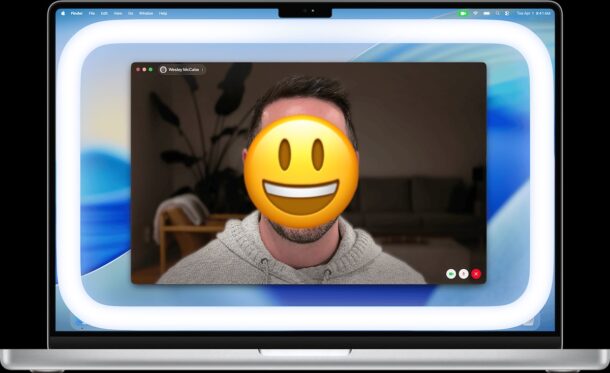
The Edge Light feature of FaceTime for Mac enables a virtual ring light on your screen during FaceTime calls, which helps to more evenly illuminate your face. This is particularly useful in lower light conditions, and it can improve the appearance of a FaceTime call quite a bit. Ring Lighting is commonly used in media for all sorts of portraiture and photography, and in the modern era of video conferences and video chat, it’s also quite popular for average users too, so it’s a nice addition to MacOS.
Edge Lighting is not typically enabled by default in FaceTime on the Mac, but it can be enabled or disabled at ease, as we’ll show you.
Edge Light / Ring Light system requirements: Note that you must have an Apple Silicon Mac running macOS Tahoe 26.2 or later (yes that includes MacOS Golden Gate 27.0 and newer), to have access to the Edge Light feature in FaceTime. If you want to have the feature to automatically enable Edge Light when low lighting is detected, you’ll need a 2024 or newer Mac.
How to Enable & Use Edge Light for FaceTime on Mac
- Open FaceTime on the Mac as usual, you don’t need to be on a FaceTime call yet to enable/disable this feature and test it out
- Pull down the FaceTime menu from the top of the screen (it looks like a FaceTime icon) and click on “Edge Light” to enable the feature
- Optionally, click on the arrow button to open more Edge Light settings, including a brightness / intensity slider, and a color temperature slider to change the ring light to more or less warm (yellow to blue)
- And also optional, you can choose to enable Edge Light automatically when starting a FaceTime call and ambient lighting is low, or manually
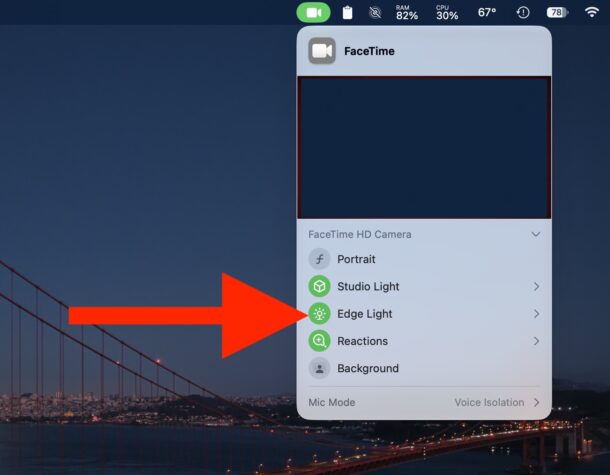
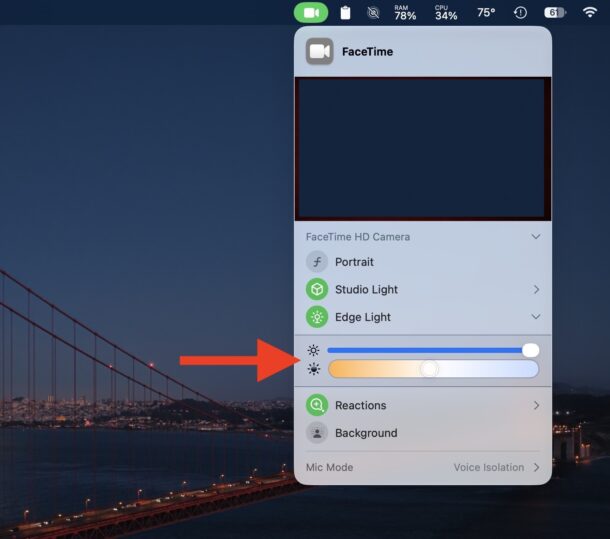
The Edge Light / Ring Light will appear on screen and is quite obvious – it’s a prominent bright white ring around your screen – but you will find that if you move your mouse around to access content the ring light effect will disappear under your mouse cursor. This allows you to select things on screen and interact with other content on your screen, without it being obstructed by the virtual ring light.
Note that if you take a screenshot during any FaceTime call with Edge Light enabled, the Edge Light feature will not be shown in the screenshot. The image shown here with Edge Light visible on the Mac laptop screen is courtesy of Apple.

How to Disable the Edge Light / Ring Light for FaceTime on Mac
- Open FaceTime on the Mac as usual
- When Edge Light is already enabled, pull down the FaceTime menu from the top of the screen, and select “Edge Light” to disable the feature
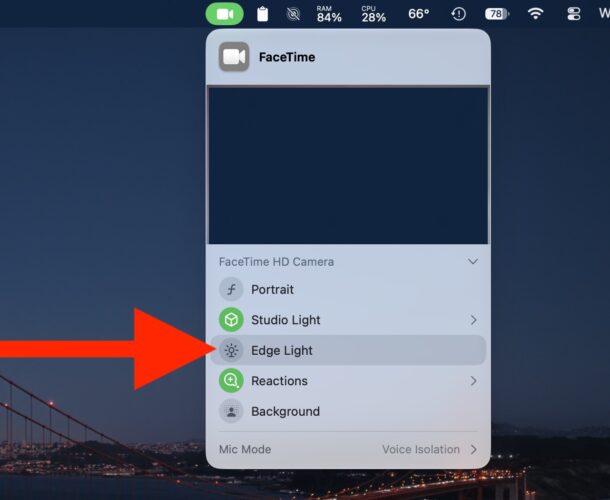
Now Edge Light is back off again. Some users may find that Edge Light has been enabled automatically on their Mac, while other Mac users discover they must manually turn the feature on.
If you don’t like this feature and turned it off, you might also appreciate knowing that you can also disable the FaceTime reaction gestures which includes things like thumbs up, fireworks, hearts, and other virtual reactions based on your hand motions.
The Edge Light / Ring Lighting feature is useful enough that it’s a little surprising it is not available on every Apple device with FaceTime, though aside from the Mac it is available on iPhone Duo. Perhaps down the road the virtual ring lighting will arrive on more Apple devices, including all iPhone and iPad hardware too.
Have you ever used the virtual Edge Light / Ring Light feature on Mac with FaceTime? What do you think?





