
How to Save Video Frame as Still Photo on iPhone & iPad
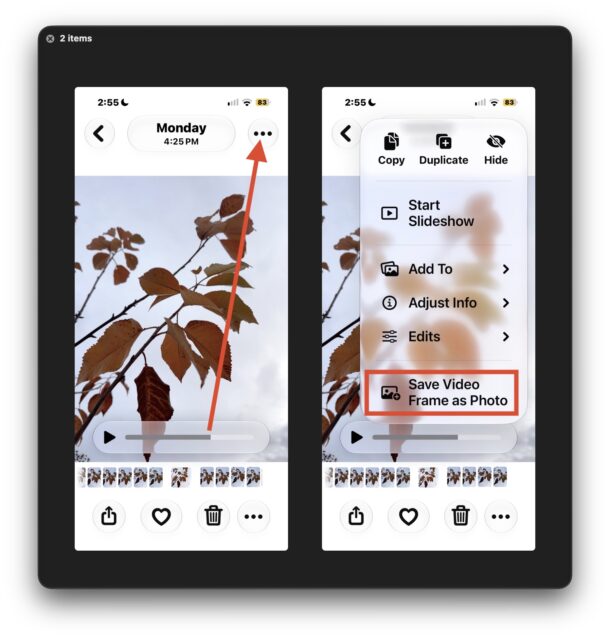
Ever wished you could easily capture a single frame of a video as a still photo? That’s now much easier to do on iPhone and iPad with the latest versions of iOS and iPadOS.
Longtime iPhone and iPad users have likely found themselves in this situation before; you recorded a video of something, maybe an event, or get together, and you decide you want to capture a still image from the video as a photo, so you then use the playback scrubbing tool to navigate to the frame of the video, then screenshot on your iPhone or iPad, to then crop the screenshot down to make the still photo. That has worked, but it’s cumbersome, and very much a workaround.
But with iOS 27 onward, you don’t need to go through that rigmarole just to get a still image from a video, as there’s now a super easy to use feature to accomplish the same feat.
How to Save a Video Frame as Photo on iPhone & iPad
Capturing a single video frame as a photo is now easier than ever, here’s how it works:
- Open the Photos app and then open the video that you’d like to capture a still photo from
- Pause the video if it’s playing, and use the scrub tool to find the exact frame you want to capture as a photo
- Tap the three dot button (…) in the top corner
- Now choose “Save Video Frame as Photo” from the dropdown menu options
- Return to your Photos camera roll to find the photo saved from the video
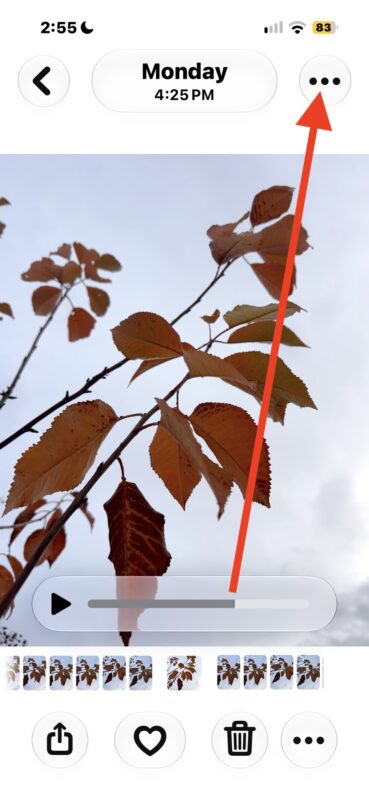
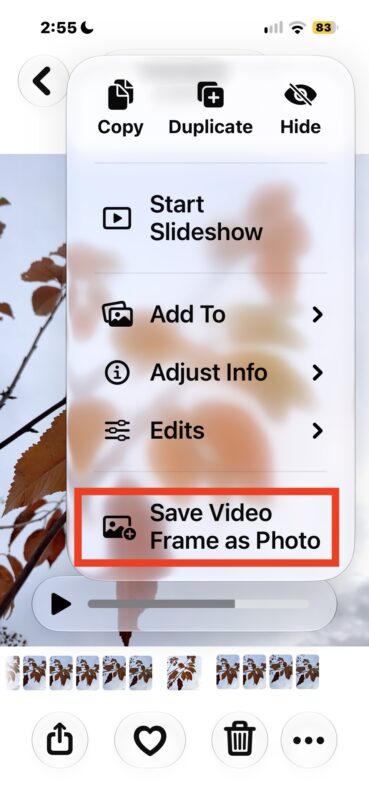
Nice and direct, and no need to screenshot and then crop the image like was commonplace until this direct export feature existed.
Obviously the higher resolution of your video, the higher resolution the resulting photo will be, so for best results you’ll want to be recording 4k video.
This was introduced in iOS 27 and is a nice feature, and guess what? This trick works basically exactly the same on Photos app for Mac too, where the requirements are MacOS 27 or later to be able to perform the same action.