
How to Enable Sound Glow on HomePod & HomePod Mini
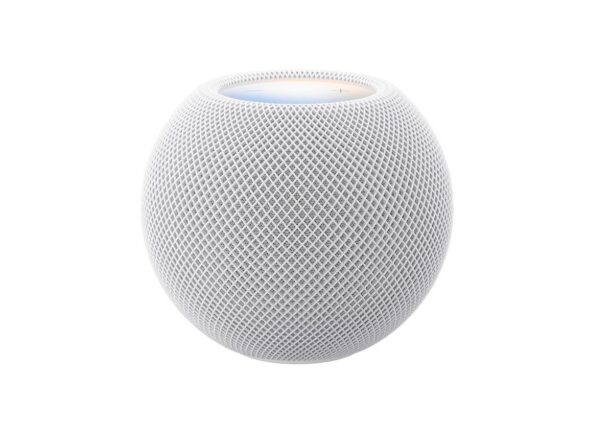
Sound Glow is a snazzy new feature introduced for HomePod (2nd gen and later), and HomePod Mini (1st gen and later) that allows the small display on the top of the smart speaker to show a fun little ambient light effect that reacts to the rhythm, beat, and color of whatever you are playing on the device. It adds a bit of character to the HomePod that is particularly enjoyable in a dimmer or dark room. Curiously, Sound Glow is not enabled by default, so if you wish to use the feature you will have to turn it on manually, which we will show you how to do here.
Sound Glow System Requirements
Sound Glow is compatible with HomePod (2nd gen and later), and HomePod Mini (1st gen and later). The first gen HomePod does not support the feature.
Additionally, Sound Glow requires you to update your HomePod to HomeOS 27.2 (or whatever they’re calling it). That’ll happen automatically if you have a paired iPhone or iPad with iOS 27.2, or a Mac with MacOS 27.2. If your HomePod is not yet updated, you can do that manually from a Mac or iPhone/iPad within the Home app.
You will also want to update Spotify, Podcasts, and other apps, so they can support the feature fully.
How to Enable Sound Glow on HomePod & HomePod Mini
Assuming you meet the requirements and have your devices updated, here’s how to enable Sound Glow, which curiously is not enabled by default:
- Open the “Home” app on your iPhone, iPad, or Mac running iOS 27.2 or MacOS 27.2
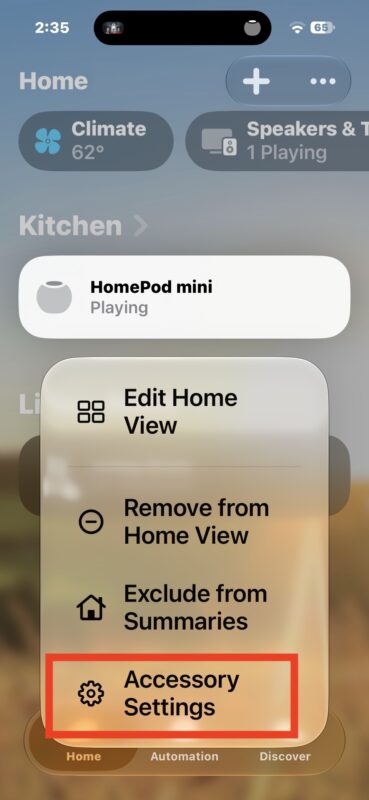
- Long-press or right-click on the HomePod and choose “Accessory Settings”
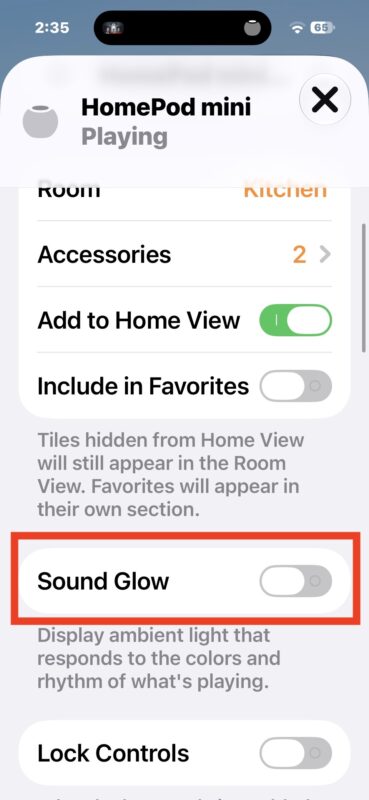
- Scroll down and look for the “Sound Glow” option and toggle it ON
- Exit out of Home app
- Now open Music.app, Spotify, Podcasts, or another similar compatible app, and play audio through the HomePod to see SoundGlow in action
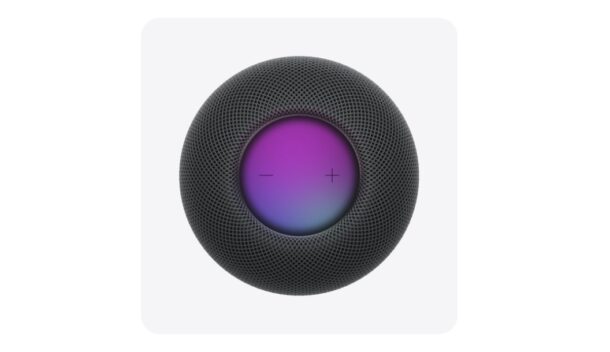
You should see the colors start to move and change on the little display atop HomePod right away, which will vary depending on the music and beat or what you are listening to.
The Sound Glow setting describes the feature as “Display ambient light that responds to the colors and rhythm of what’s playing.”
Note that some music and audio streams seem to be a little slower to adapt or catch onto Sound Glow, particularly through third party apps, so if you aren’t seeing immediate feedback you might try Music app or Podcasts app, and you’ll want to be sure to update Spotify and other apps to their latest versions just in case too.
If you have a HomePod, try it out yourself, it’s a fun new feature and worth enabling on your Apple smart speakers.
This is obviously for compatible HomePod devices, and it remains to be seen if HomeView will have a similar Sound Glow feature, perhaps on the screen itself, but we will find that out soon.