Lock the Dock in Mac OS X
If you need to prevent the Dock icons from changing or being modified on a Mac, you can use defaults command strings to lock down the OS X Dock and prevent any adjustments or changes to how it appears on screen.
The command line interface is an alternate method of interacting with macOS and Mac OS X, relying on text based command entry to execute commands and perform tasks. It is accessed on the Mac by using the Terminal application. Generally, the command line is considered advanced, and thus it’s usage tends to be more complex than many standard procedures on a Mac.
If you need to prevent the Dock icons from changing or being modified on a Mac, you can use defaults command strings to lock down the OS X Dock and prevent any adjustments or changes to how it appears on screen.
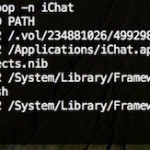
Using the command line tool ‘opensnoop’ you can track any Mac applications (or system process) usage of the file system. This is a very handy tool for administrators and troubleshooting! The simplest way to use it is as follows:
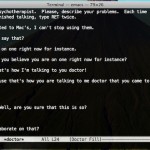
Need a therapy session? Your Mac has you covered. Yes, you read that right. You can use your Mac as a psychotherapist from the Terminal, thanks to emacs the text editor. Say what? If you’re confused don’t be, it’s an easter egg that has long existed and it’s easy to access.
Snow Leopard changed the way the Dock behaves when a Dock item has been clicked on and held down, since 10.6 it launches Expose for that specific application. You may recall how Leopard handled the click-and-hold though, which was to launch the contextual menu (the same one you get when you right-click in 10.6). Using … Read More
ASCII art is just one of those wonderful retro throwbacks to the earliest days of computing. So, if you’re looking for a nostalgic return to the the days of BBS, MUD, and IRC, and perhaps a little bored at school or work, why not watch the entirety of Star Wars Episode IV: A New Hope … Read More
Like many of us, I’m often busy and out of the home, leaving my Mac on a desk. I regularly use my home machine as a local fileserver though and other people in the household are dependent on it being up and running. Now here’s the situation I’m presented with: I leave town earlier than … Read More
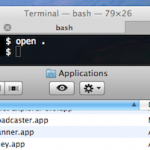
Finder, the Mac OS X file system browser, is ultimately just a nice looking GUI application, and it can be interacted with fluidly from the command line. This means you can jump to directories and open literally any Mac Finder window directly from the terminal by using a simple command string based upon the ‘open’ … Read More
With the pbcopy and pbpaste commands, you can use the command line to manipulate clipboard contents but also access your Mac OS X clipboard directly through the Terminal. Yes, that means you can access what you copied in a GUI app and use it in the command line seamlessly, and vice versa. We’ve shown a … Read More
One of the quickest ways to get your external IP address in Mac OS X or unix is by launching the Terminal and typing one of the following commands with curl. To be perfectly clear here, we’re looking for the external public IP address of the hardware in use, this is what broadcasts to the … Read More
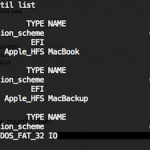
To list all mounted drives and their accompanying partitions from the Terminal on Mac OS X, you can use the diskutil command with the list flag. This approach will display all disks, drives, volumes, and containers on any drive connected to the Mac, including boot volumes, hidden volumes (like the Recovery partition), empty volumes, unformatted … Read More
Want to open a Finder window from the current directory location in Terminal? Mac OS makes this easy! From the Mac Terminal, you can immediately open whatever folder or directory you are working within into the Finder of MacOS and Mac OS X by simply typing the a short command string and executing it. To … Read More
Most Mac users who want to schedule a Mac to startup at a specific time will use the Energy Saver schedule tool in System Preferences, but for the more technically savvy, another option is to schedule the boot time of a Mac through the command line. We’ll show you how to use the pmset command … Read More
Did you know you can quickly copy a files path to the Terminal just by dragging and dropping the folder or file into the Terminal window? Try it out, open any terminal window then take something from the Finder and drop it into that Terminal, it’ll instantly print out the full path to the file, … Read More
If you have the Terminal application stored in your Dock on Mac OS X, you can quickly execute any new command by right-clicking (or control clicking) on the Dock icon and navigating up to “New Command” in the popup menu. This will prompt you for a command to run, which then launches into a terminal … Read More
Ever wanted to watch a movie in ASCII art? What’s that? You haven’t even thought about it before? In what might be the single most useless feature to ever grace a video player, VLC allows you to output any video playback as… ASCII art. Yes, the kind of ASCII art that was quite fancy on … Read More
The Mac OS X Dock becomes animated when an app is launching, with a continuous bouncing animation, and also when an app wants to get your attention, with a less consistent and more urgent animated bounce. Both of these can be effect alert methods, but they can also annoy some users. Regardless, you can make … Read More
Shell scripting is wildly useful and a powerful way to manipulate a lot of files and to automate behind-the-scenes tasks in Mac OS X. This guide is intended for Linux users but the Bash shell is also used in Mac OS X, and as far as I can tell everything in this bash shell scripting … Read More
If you’re a web developer you probably do a fair amount of development on your local machine using either the built-in Mac OS X Apache server or, in my case, something like MAMP. Because a local web server like this is really handy for testing this, you can make your local development life a bit … Read More