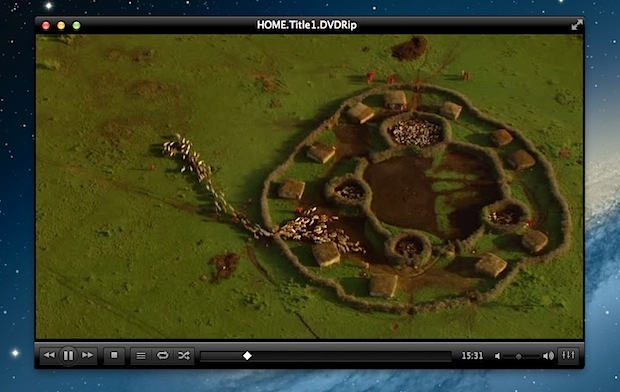
VLC 2.0 has been released, the powerful video playing apps new version supports even more video and audio formats and includes limited Blu-Ray playback, in addition to providing under-the-hood improvements for faster decoding with multi-core CPU’s and GPU’s.
If you’re unfamiliar with VLC or you don’t have it yet, you should add it to your app repertoire. VLC can open and play just about every conceivable video and audio file format thrown at it, making the days of hunting for appropriate codecs long gone. Furthermore, if the media in question is an obscure format, you can use VLC to transcode it to a more widely compatible format, from MPEG, DIVX, H.264, WMV, and more. It’ll often even open corrupted or partially downloaded movie files when many other apps fail to do so. The other benefit is that VLC is cross platform compatible, allowing you to use the same app on Mac OS X, Windows, and Linux, all available as free downloads.
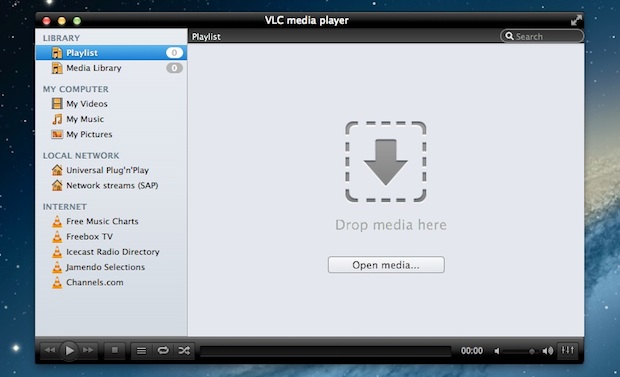
VLC 2 also brings an all new interface to the app, which looks like a combination of iTunes and Windows Explorer and winds up making it more of a media manager app than just a simple movie player. If you don’t want to use it for managing any files though you can still drag and drop media onto the app to play it as usual.
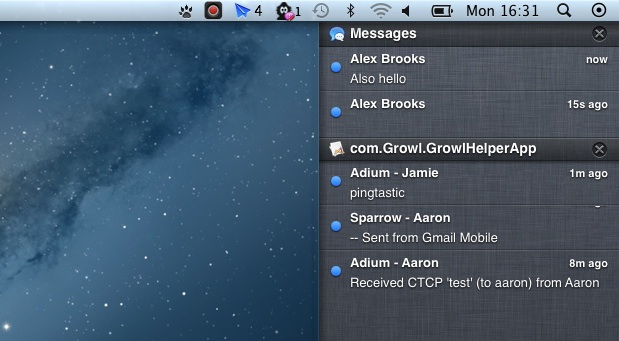
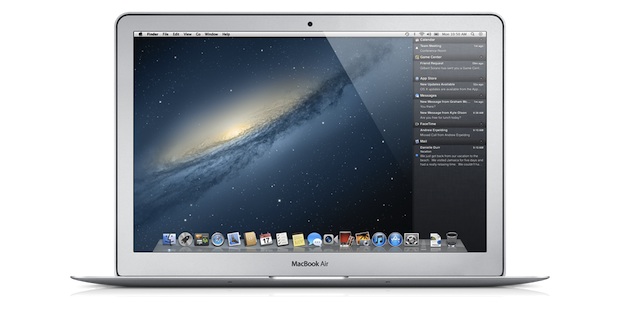
Make OS X 10.8 Mountain Lion‘s new Notification Center feature instantly more useful by grabbing Hiss, a free application that sends apps Growl notifications directly to Mountain Lion’s desktop notification panel.
There’s not much more to the app than that, but nonetheless it’s a great utility and worth downloading for those who are using the OS X 10.8 Developer Preview. Right now there simply aren’t that many apps that have Notification Center support tied in, although this will certainly change as we approach the Summer release date. Also, it’s worth keeping in mind that chances are reasonably high that Growl itself will end up tying similar functionality into future releases of their apps, but Hiss should bridge the gap for now.
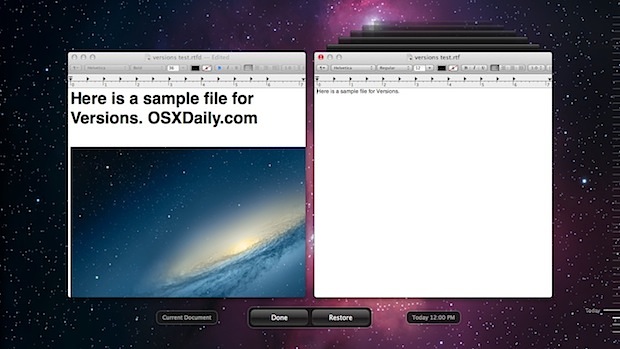
New versions of Mac OS X include the Versions feature and Auto-Save ability, this lets users restore back to previous editions of a file by creating a constant sequence of saved file states while they are being worked on.
All around, Versions and auto-save are useful, but they can also leave traces of sensitive documents and files you may not wish to keep around. Other than the privacy implications, this same technique can resolve some erroneous behavior with Versions as well. The simplest solution to these issues is to manually delete the Versions saved states cache directory.
Included below are new simple instructions for uninstalling modern versions of Xcode. Deleting old versions of Xcode is covered as well, this is a thorough guide to uninstall Xcode from any Mac regardless of version and Mac OS X release.
Xcode is Apple’s developer suite for iOS and Mac OS X, it’s necessary if you intend to be write apps for either OS and installing it includes a number of other useful utilities other than the main IDE itself. The additional aspects include things like the Interface Builder, iPhone Simulator, Quartz Composer, Dashcode, gcc, dtrace, perl, python, ruby, and much more that has use beyond core iOS and Mac OS X development, adding valuable utilities to tweakers and administrators toolkits.
Installing Xcode is just a matter of downloading it from the Mac App Store, but what if you want to remove Xcode?
How to delete Xcode depends on what version you are trying to remove from the Mac. We’ll cover removing newer versions of Xcode first, then cover deleting the older versions of the app as well. Read more »
OS X Mountain Lion is Apple’s latest Mac operating system that is complete with a bunch of new features that iOS users will find familiar. It’s looking like a great addition to the Mac OS family, but for the time being it’s still in Developer Preview, has a fair amount of bugs, and isn’t quite ready for prime time. For those who want to explore and develop for OS X Mountain Lion without losing their primary – and stable – OS X Lion installation, the best thing to do is create a dual boot set up. This lets you have both Mac OS X 10.7 and OS X 10.8 on the same Mac, which you can easily switch between with a reboot.
Back up the Mac within OS X Lion using Time Machine
If you already made an OS X Mountain Lion boot installer, you can use that, or you can partition directly from Disk Utility in Lion. It shouldn’t matter although OS X Lion can be pickier with partitioning the boot drive than prior versions of Mac OS X. After you have backed up your Mac, you can proceed.
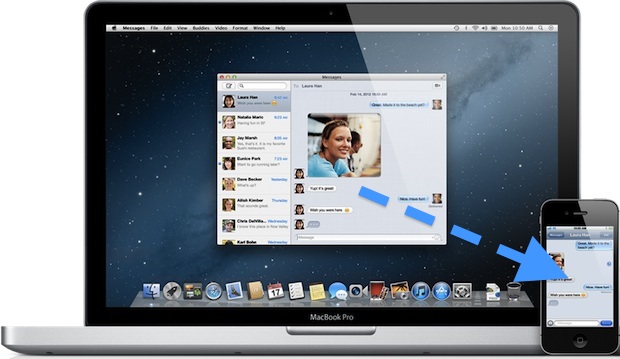
A little-known feature of iMessage lets any Mac send files to another iMessage user (or yourself) using an iOS device, and vice versa. Yes, this means iMessages can function as a full-fledged file transfer app for both Mac OS and iOS users, providing for simple transferring of files, pdf’s, text and rtf documents, movies, pictures, and just about anything else.
To use this awesome feature, you will need to be sure to have iMessage set up in iOS and/or the Messages for Mac client as well. Having both lets you send files between yourself and your Apple devices, but if you only have a Mac or an iOS device then you can still send files to other users through the messages apps. Once you have the necessary apps configured, using the feature is surprisingly easy, here’s how to do it:
If you want to delete all music from an iPhone, iPad, or iPod touch, you can handle the entire music removal process directly on the iOS device itself, you don’t need to sync to iTunes or do anything fancy. Do be warned however, this deletes every single song and album from the Music app and from the device, so be absolutely certain you want to do this!
So you definitely want to remove all music from an iOS device? That’s what we’ll show you how to do, it’s a few settings deep to prevent accidental access and removal of songs, but it’s easy to do in just a few steps.
If you read the OS X Mountain Lion system requirements and got discouraged that the next version of OS X won’t support your computer, don’t give up hope for that old Mac quite yet!
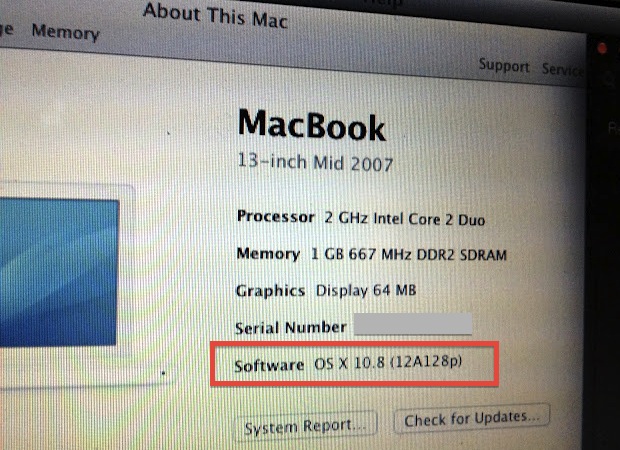
A crafty MacRumors Forums member has managed to get OS X Mountain Lion Developer Preview working on an officially unsupported mid-2007 white MacBook, a model with the unsupported Intel GMA 950 GPU, 2GHz Core 2 Duo CPU, and just 1GB of RAM. Not only does OS X 10.8 run on the old MacBook, it reportedly works very well and with full graphics acceleration. Read more »
This weeks Mac setup comes to us from Ben, a graphic and motion designer from Italy who spends his spare time composing music. The hardware he uses for these pursuits includes:
iMac 21.5″
Apple Wireless Keyboard
Magic Mouse
M-Audio KeyStudio 49 (Keyboard)
AKG – K66 headphones
Logitech speakers
Great Mac setup Ben, thanks for sending this in!
Submit pictures of your own Apple & Mac setups to osxdailycom@gmail.com – include some details on the hardware and what you use it for.
OS X 10.8 Mountain Lion will be offered exclusively through the App Store, familiar territory for Apple since OS X Lion was provided the same way. Thankfully it’s still possible to create a bootable OS X 10.8 Mountain Lion installer from any USB drive, be it a flash key or external hard drive.
By creating a bootable install drive, you can perform clean OS X 10.8 installs, install it on separate partitions, and install OS X Mountain Lion on Macs that don’t have internet connections. We’ll walk through the process here, but don’t forget to check OS X 10.8 system requirements for the destination Mac before beginning.
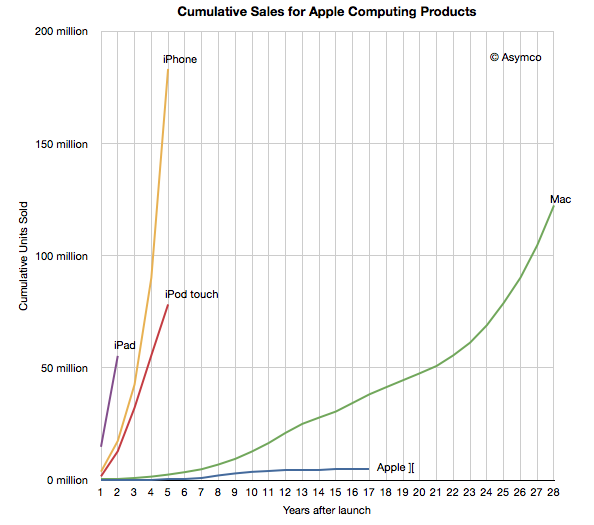
Growth of iOS, the mobile operating system that powers iPhones, iPads, iPod touch, and Apple TV, is exploding. To put iOS’s success into some context, Asymco crafted the above chart to demonstrate the growth curve relative to years of Apple products on the market. The most staggering observation? Apple sold 156 million iOS devices last year alone, that is over 30 million more units shipped than all 28 years of the Macs existence, where it has sold 122 million computers. Overall, the iOS platform totals over 316 million devices sold in a few short years.
Look to iOS to Understand Mac OS X
If you’re wondering why Apple has been pushing the Mac platform to more closely resemble iOS with the release of OS X Lion and OS X Mountain Lion, this is it. The simplicity, familiarity, and success of iOS is too much to resist. PC’s, and Macs too for that matter, are indeed becoming the “trucks” that Steve Jobs predicted several years ago at D8 2010, becoming greatly outnumbered by the “cars” (in this case, iOS devices). Jobs’ now famous quote from that conversation:
“When we were an agrarian nation, all cars were trucks, because that’s what you needed on the farm. But as vehicles started to be used in the urban centers, cars got more popular. Innovations like automatic transmission and power steering and things that you didn’t care about in a truck as much started to become paramount in cars. … PCs are going to be like trucks. They’re still going to be around, they’re still going to have a lot of value, but they’re going to be used by one out of X people. … I think that we’re embarked on that. Is the next step the iPad? Who knows? Will it happen next year or five years from now or seven years from now? Who knows? But I think we’re headed in that direction.”
The only thing Jobs’ was wrong about was how soon it would happen. As Asymco notes, it only took four years for iOS to overtake OS X.
Simplicity is the Future
None of this means the Mac is dead or dying though, in fact Mac sales are more impressive than ever before, but it does signify the changing roll of computers and how we define a PC. It makes us question who needs what hardware, and for what purpose. Frankly, for many users an iPad – or iPhone – is more than adequate to handle the routine tasks of daily technical life, be it reading or sending emails to browsing the web and listening to music. The Mac (and PC) will certainly still be around for those required to perform more complex tasks, but that market is undoubtedly smaller, and this has already been proven by the runaway success of iOS. As a result, traditional desktop operating systems are evolving towards simplicity. The Mac and PC are ultimately over-engineered and too powerful for the average users technical needs, this helps to explain Apple’s OS X strategy and Microsofts Windows 8 concepts, the power and underlying complexity is still there, but the experience is becoming simpler.
As DaringFireball noted when linking to the Asymco chart, “The lesson: simplicity sells.” If you have any doubts about this or where the industry is going, just look at that chart.
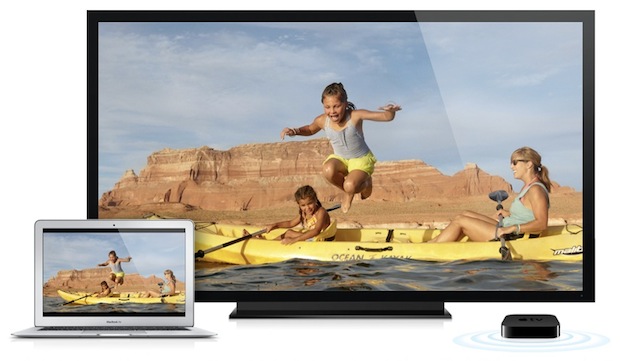
Apple TV owners have an extra incentive to upgrade their Macs to the latest versions of OS X; AirPlay Mirroring. With AirPlay Mirroring, you can stream the Mac desktop and whatever application is on screen to an HDTV wirelessly through the Apple TV, making it easier than ever to watch videos from a Mac or play games on a much larger TV screen from a couch.
This is an awesome feature that became supported on the Mac with newer versions of OS X, here is exactly what you’ll need to use it: Read more »
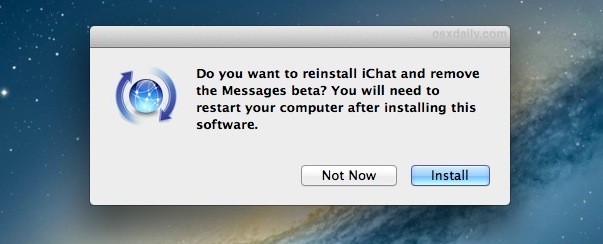
Alright so you downloaded iMessages for Mac beta and decided it was a little too beta for every day use, and now you want to use iChat again right? As you probably noticed, when you install Messages it replaces iChat, but that doesn’t mean that iChat is gone for good, and uninstalling Messages Beta is actually extremely simple.
Launch Messages from the Applications folder
Pull down the “Messages” menu up top and select “Uninstall Messages Beta”
Confirm that you want to uninstall Messages and reinstall iChat by clicking “Install”
Let the process finish and reboot the Mac to complete the restoration of iChat to OS X
Messages for Mac is a bit rough around the edges, which isn’t too surprising given that it is beta software. With how easy it is to remove though, it’s worth trying out. If you haven’t installed Messages beta yet, it’s best when it has another iOS device with iMessage configured to use alongside of it, otherwise it’s just a generic chat client with a new user interface
Messages Crashes Before I Can Uninstall, Help!
If Messages app continues to crash on launch, navigate to /Applications/ and right-click on Messages.app, choose “Get Info” and uncheck the option to open in 32-bit mode. Messages should now open and you can uninstall as usual.
Want to see OS X 10.8 Mountain Lion in action? Here are a few video previews to show off some of the new features and changes. The first is Apple’s official preview, unofficially rehosted on YouTube and embedded below although it’s best watched on Apple’s website in HD: Read more »
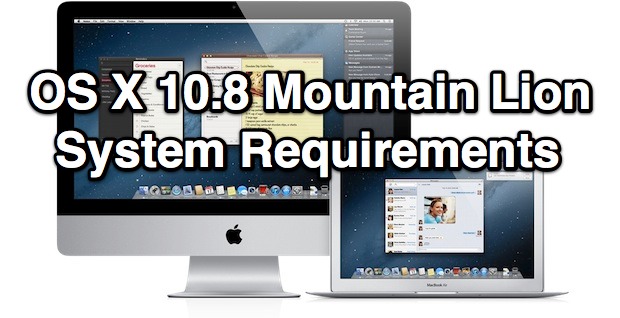
With every new version of Mac OS X comes new system requirements, and as expected a few machines are getting cut from the list of compatible Macs. The newer the Mac the better, but here is what we know so far about system requirements for OS X 10.8:
Basic System Requirements for OS X Mountain Lion:
64-Bit Intel Core 2 Duo processor or better required
Ability to boot into OS X 64-bit kernel
Advanced GPU chipset required
Internet connection required to download and install OS X 10.8
You can check for 64 bit kernel boot suport by typing “uname -a” at the command line, launch the Terminal to do this. The uname -a command will return something like this:
Darwin MacBookAir 11.2.0 Darwin Kernel Version 11.2.0: Tue Aug 9 20:54:00 PDT 2011; root:xnu-1699.24.8~1/RELEASE_X86_64 x86_64
Look for “x86_64” to verify that a Mac is booting into a 64 bit kernel. This will happen by default with most OS X Lion compatible Macs, but Snow Leopard users won’t necessarily boot into the 64 bit kernel by default and will have to verify compatibility with the list of hardware below.
Macs that will support OS X 10.8 Mountain Lion
As usual, the newer the Mac the better:
MacBook Pro – 13″ from mid 2009 or later, 15″ from late 2007 and newer, 17″ from late 2007 and newer
MacBook Air – late 2008 and newer
iMac – models from mid 2007 and newer
MacBook – 13″ aluminum from 2008, 13″ from 2009 and newer
Mac Mini – early 2009 and newer
Mac Pro – early 2008 models and newer
XServe – early 2009 models and newer
Macs that are NOT expected to support OS X Mountain Lion
Older Macs and those with weaker GPU’s will likely be left behind:
Anything with an Intel GMA 950 or x3100 integrated graphics card
Anything with an ATI Radeon X1600
MacBook models released prior to 2008
Mac Mini released prior to 2007
iMac models released prior to 2007
Original MacBook Air
This list of compatible and incompatible Macs and system requirements are based off of the first OS X Mountain Lion Developer Preview and may be subject to change, we will update when we learn more about the specifics. OS X Mountain Lion will be released this summer but presumably long before that we will know precise system requirements and what Macs are and are not supported by the new version of OS X. Stay tuned.
Apple has a knack for picking gorgeous desktop wallpapers, and the all new OS X Mountain Lion is no exception. As you’ve undoubtedly seen in the developer preview information and screen shots, the new default wallpaper is another beautiful space themed image of a swirling blue galaxy (maybe a white dwarf, actually), a bit more subtle than the Andromeda galaxy wallpaper found in OS X Lion. It’s offered as a whopping 3200×2000 pixel image and you can download it below:
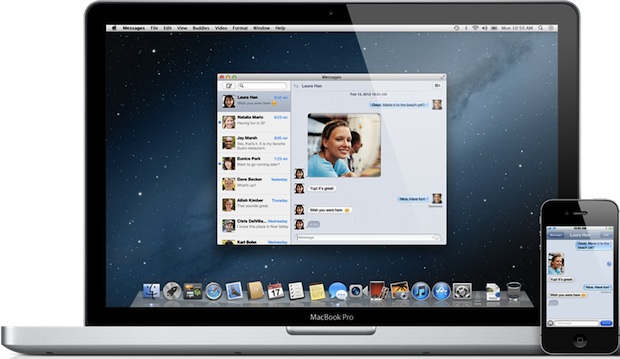
Messages is the all new iChat replacement coming to Mac OS X 10.8 Mountain Lion, it provides for the same unlimited messaging features that iPhone, iPod touch, and iPad users have right now, but brings this right to the Mac desktop. With Messages, you can send photos, videos, attachments, contacts, locations, and more, without any SMS or MMS fees, and you can initiate a FaceTime video chat with a click of a button.
Messages will ultimately replace iChat, but all iChat services and protocol support continues to work the same. You’ll still be able to use iChat accounts, AIM, Yahoo Messenger, Google Talk, Jabber, and FaceBook.
What are you waiting for? Grab Messages for Mac beta today. If you are a developer and plan on downloading the OS X Mountain Lion Developer Preview, Messages is already bundled and you won’t need to get it separately. Compatibility seems to be limited to OS X 10.7 Lion or later, so earlier versions of Mac OS X will need to update to use the new messaging client.