You can set Mac OS X to automatically display file and folder information directly within the Finder windows of the file system, much like the desktop of OS X.
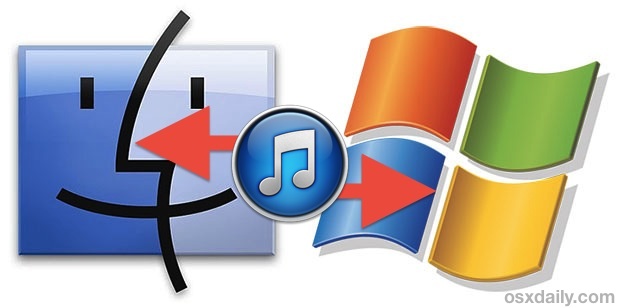
If you’re moving from a Windows PC to a Mac, then you’ll probably want to move your iTunes library with it. This lets you keep all of your music, apps, and downloaded media, and you won’t skip a beat.
This article will cover moving an iTunes library from a PC to a Mac OS X based machine using just about any version of iTunes, to insure everything is transferred over to properly you’ll go about consolidating all music files into a single transportable library that can then be copied directly to a Mac. This is by far the easiest way to transfer an iTunes library from Windows to Mac OS X (and even vice versa), and it’s entirely free – there is no need to download any of the third party apps or services that claim to do it for you.
Let’s get started copying your iTunes media over! Read more »
How about a nice shiny copy of: Michaelsoft Binbows!
What? I don’t know either. Several readers have sent this into us and I’ve seen it circulating around the web, but there doesn’t seem to be a backstory included with it. Maybe this is part of a new Microsoft rebranding campaign in Japan, but I doubt it. Whatever it is, it’s worth a laugh, and I think I’ll stick with Mac OS X.
Checking through web stats I noticed OS X Daily is getting frequent visits by individuals running Mac OS X 10.7, an operating system that generally nobody knows much about at the moment. Looking around on the web I found that we aren’t the only ones, with both MacRumors and MacNN reporting the same uptick in 10.7 user visits. Google Analytics shows the visitors as ‘Intel 10.7’ and it’s possible some are just user_agent spoofing but based on the wide reports I think it’s safe to assume it’s an early beta version being used by people inside Apple.
It really makes you wonder what 10.7 holds for Mac users future, there’s rumors of it being 64-bit only, having a new fancy GUI, more cloud integration and features, amongst other things, all of which are impossible to verify and are really based on nothing more than rumors and speculation. It’s safe to assume that Mac OS X 10.7 will probably not be called Ceiling Cat… but if MacRumors is right, perhaps we’ll get some more information and see a developer preview (sans new GUI, of course) at WWDC 2010?
It always fascinates me how people have their Macs setup. Here, it’s just a MacBook and an iPhone, you might say that’s minimalist but the busy surroundings suggest otherwise.
Apple has hidden an anti-piracy message within Mac OS system software as a kernel extension.
“com.apple.Dont_Steal_Mac_OS_X” is a kernel extension that runs within Mac OS X, it’s function is thought to insure that Mac OS X is running only on certified Apple hardware. And aside from the not-so-subtle name of the kernel extension, it includes a little anti-piracy poem too.
You can see this kernel extension yourself by going to the Terminal and typing:
kextstat | grep "Dont_Steal"
Apparently the following message gets loaded into memory somewhere:
Your karma check for today:
There once was was a user that whined
his existing OS was so blind,
he’d do better to pirate
an OS that ran great
but found his hardware declined.
Please don’t steal Mac OS!
Really, that’s way uncool.
(C) Apple Computer, Inc.
A rhyme to combat software piracy, nice huh? The ‘hardware declined’ message seems to suggest this is aimed at the Hackintosh community, which aims to run MacOS and Mac OS X on unofficial hardware by using commodity PC components.
I wonder if this is one of the kernel extensions that gets replaced or modified with various Hackintosh installs?
If you have any insight regarding the kernel extension, share in the comments!
Renaming a folder in Mac OS X is very easy, and there’s a few different ways you can do it. We’ll focus on the three most common tricks to quickly rename any file or directory folder on the Mac, two of which are done through the familiar graphical interface of the Finder file system, and another which is a bit more advanced for technically inclined users who like the command line approach.
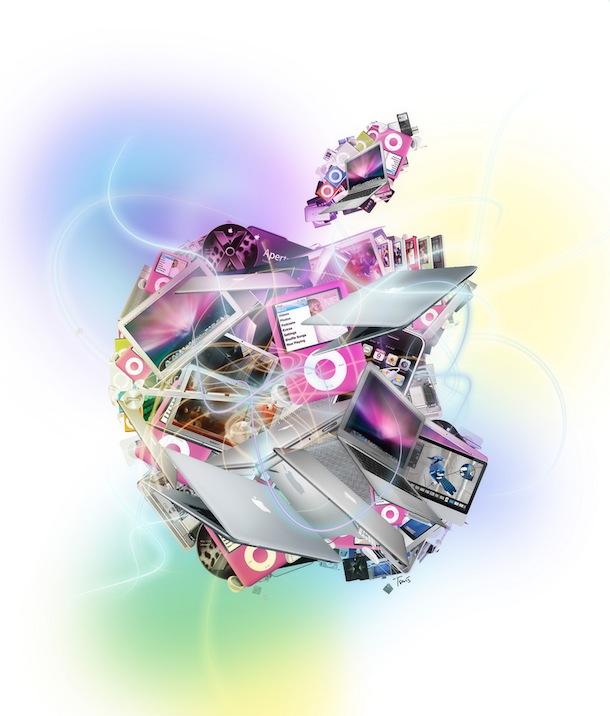
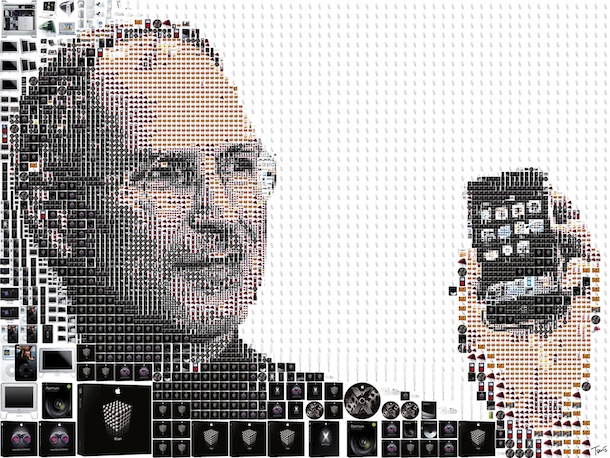
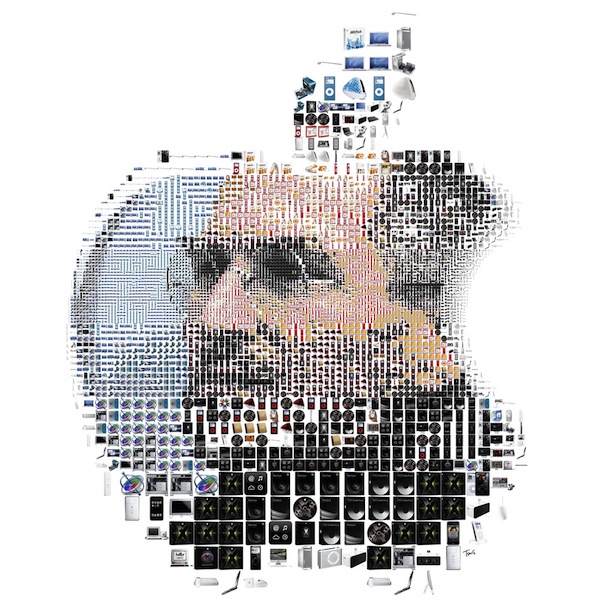
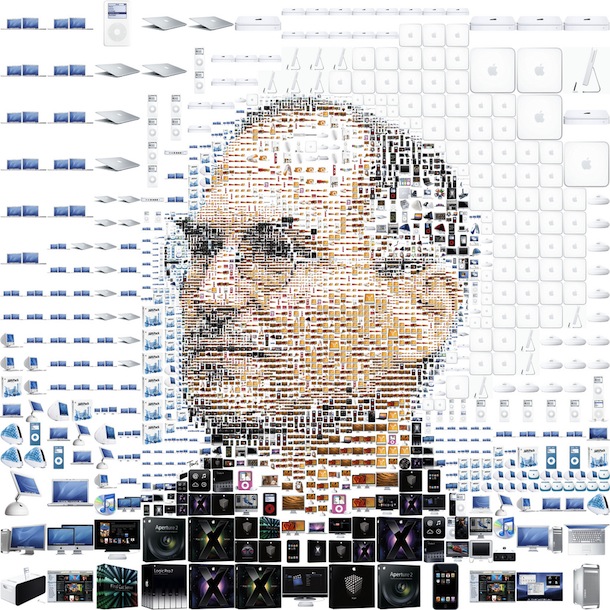
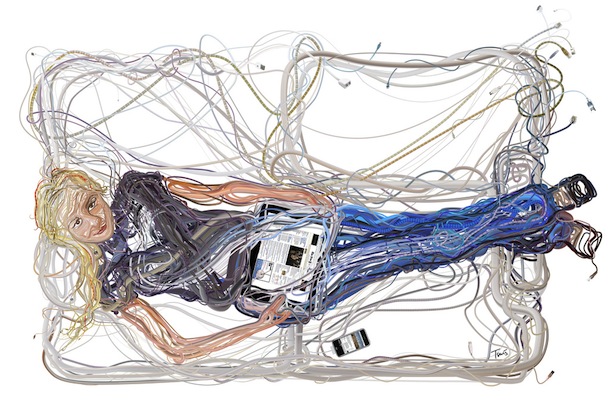
Charis Tsevis is an extremely talented digital artist who produced these stunning Apple themed photo-mosaic collages using his Mac with Adobe Photoshop, Synthetik Studio Artist, and QuickTime Pro. Without question, this is the coolest Apple themed art I’ve ever seen. Here are some favorites:
( Click on any image to see the original at Flickr )
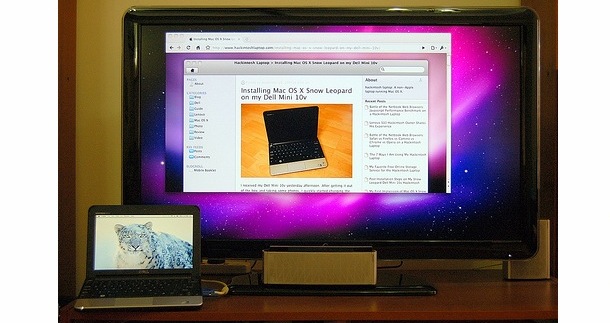
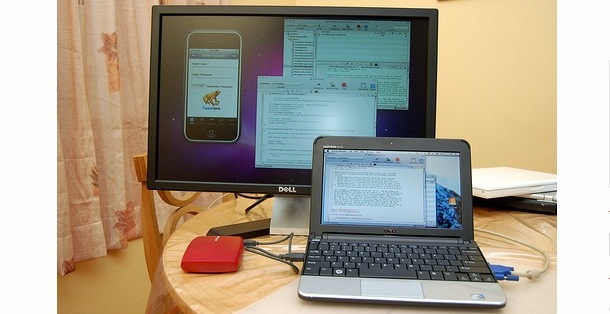
Here’s a unique Mac setup, a Hackintosh Dell Mini 10v hooked up to a 42″ LCD flat screen, and the same Mini with an external 22″ Dell display doing iPhone development! Ok ok, so it’s not really a Mac setup, but it’s running Mac OS X and it’s also our favorite Hackintosh netbook, so I had to include it.
If you want to get a Dell Mini 10v running Mac OS X yourself (How does about $215 for a Mac sound?) check out our guide to getting a cheap Hackintosh Mini. Don’t expect it to replace your main Mac in terms of power, but they make pretty great road warriors for writing, blogging, email, etc.
I recently came across the default wallpaper in Mac OS X Snow Leopard Server and I think it looks just fantastic with it’s blue hues, starry knight kind of aurora type theme.
Do you have two Word doc files that you need to see the differences between, and compare the two easily side-by-side to review changes?
You can easily compare Word documents against each other with the Microsoft Word app in Mac OS X and Windows, Word of course is part of the Microsoft Office Suite, and a very popular app for writing.
To get started, all you need is the Word app, and two documents you wish to compare. The rest is quite simple, so to quickly compare two versions of a Word document using Microsoft Word, just follow these steps below…
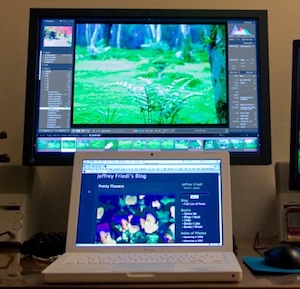
When shopping around for an external monitor, I was asked “What’s the maximum resolution I can get out of my MacBook with an external LCD display?” by a friend of mine. Well the answer depends on which MacBook you have, what video card it has, and what type of video interface you’re going to use (DVI, VGA, DVI-I, etc) to power the external display.
MacBook’s with shared GMA video cards can drive an external display with a resolution of up to 1920×1200 via DVI , or 1600×1200 via VGA
Newer MacBook’s (unibody included) with independent graphics cards can drive external displays with resolutions up to 2560×1600 via dual-link DVI
Both newer and older MacBook’s will support extended desktop as well as mirroring, but note the older MacBook’s with shared GMA video will have a slight performance hit when driving an external display, this is mostly noticeable when doing graphics intensive processing but rarely a significant issue. Either way be sure to get the proper mini-DVI to DVI adapter for your MacBook and external monitor.
One Mac Pro powering six monitors for a total of 9220×1600 pixels. Wow. Oh, and the Mac Pro has 8 cores, 12gb of ram, 8tb of disk space, and 3 video cards. Excessive? Maybe, but what a cool workstation. This guy is very serious about his working setup and has a ton of information about it on his website, it’s fun geek reading.
If you want to beef up the security on your Mac with a simple settings adjustment, you can enable the built-in software firewall. This offers a layer of protection by blocking many ports for common protocols, incoming connections, and other potential attack vectors. Generally, the Mac OS X Firewall is not necessary to use for the average Mac user who only uses their device at home behind a network firewall (like a router, for example), but it does offer a layer of security for users who are frequently on the go or using their Macs on shared networks with many other machines.
Turning on the firewall is simple, and you can also easily make configuration adjustments to control what apps, sharing protocols, and services respond and allow network access. Read more »
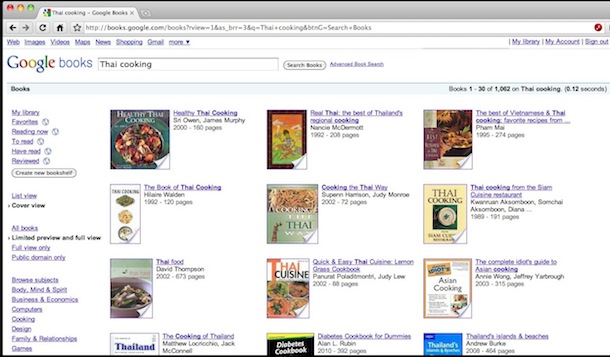
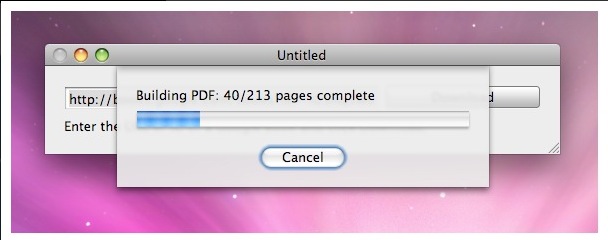
Google Books is a pretty amazing virtual library filled with who knows how many books, magazines, periodicals, and whatever else you might expect to find in a brick and mortar library. Some of the books can be downloaded and saved as a PDF with just a click, others are restricted, but thats where Google Book Downloader comes in. Simply give the program a Google Book URL or Book ID, and Google Book Downloader will generate a PDF of that book (or at least the portion that is accessible via the web). This is so useful for anyone who wants a virtual copy of a book stored locally on their Mac (or iPod Touch, or iPhone, or even the iPad!). This is about as easy as it gets.
Now just paste the URL or book ID into the application and it will start the download:
Your Google Book is now saved as a PDF and it can be read or viewed from anywhere, independent of the web and an internet connection. Awesome! Google Book Downloader is free and open source, so if you feel like poking around the code it’s freely available on the developers site.
The iPhone default audio settings are a little flat for some types of music, and if you’re not thrilled with the way it sounds you will find it remarkably easy to adjust thanks to the iPhone’s built-in equalizer option.
Technically the iPhone equalizer is part of the Music app, it’s not an equalizer in the sense of manual sliders that you can adjust on your own, but there are tons of preset options for a wide variety of music or audio needs, and you’ll certainly find one for your audio preferences, whether you’re listening to ebooks, rock, classical, electronic, podcasts, or anything in between.



 Checking through web stats I noticed OS X Daily is getting frequent visits by individuals running Mac OS X 10.7, an operating system that generally nobody knows much about at the moment. Looking around on the web I found that we aren’t the only ones, with both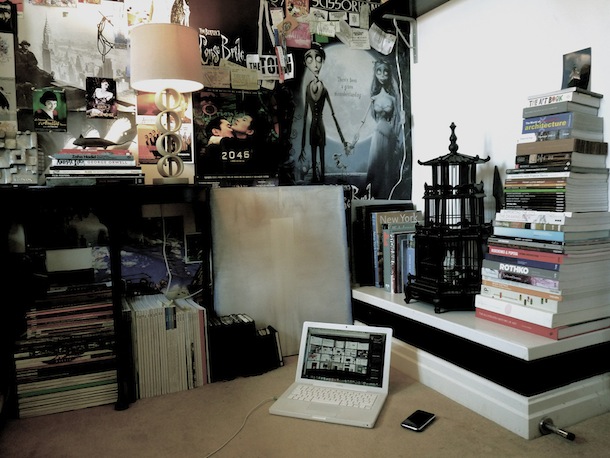

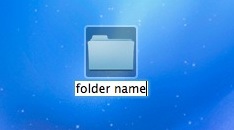 Renaming a folder in Mac OS X is very easy, and there’s a few different ways you can do it. We’ll focus on the three most common tricks to quickly rename any file or directory folder on the Mac, two of which are done through the familiar graphical interface of the Finder file system, and another which is a bit more advanced for technically inclined users who like the command line approach.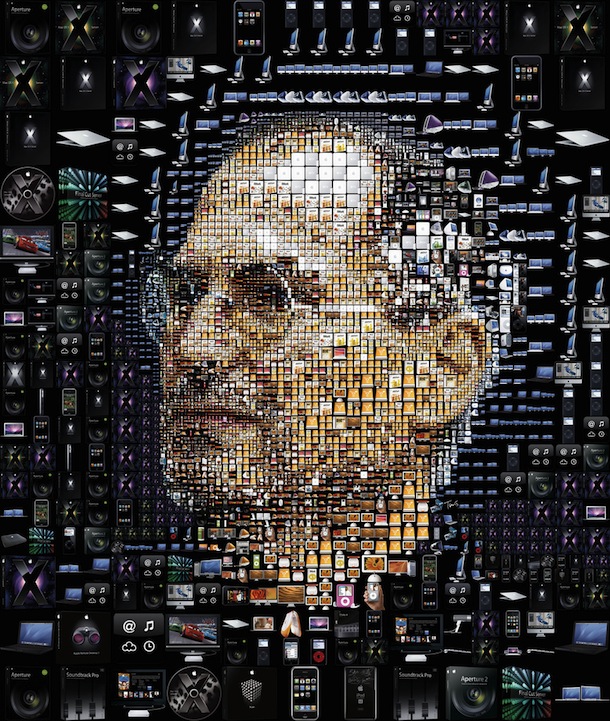



 When shopping around for an external monitor, I was asked “What’s the maximum resolution I can get out of my MacBook with an external LCD display?” by a friend of mine. Well the answer depends on which MacBook you have, what video card it has, and what type of video interface you’re going to use (DVI, VGA, DVI-I, etc) to power the external display.
 for your MacBook and external monitor.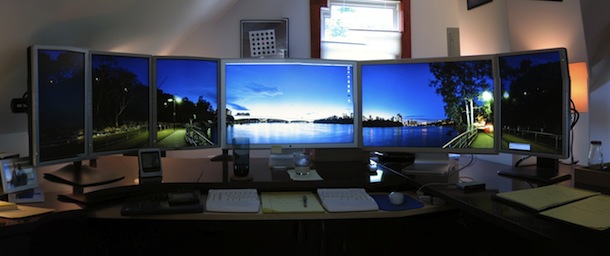
 If you want to beef up the security on your Mac with a simple settings adjustment, you can enable the built-in software firewall. This offers a layer of protection by blocking many ports for common protocols, incoming connections, and other potential attack vectors. Generally, the Mac OS X Firewall is not necessary to use for the average Mac user who only uses their device at home behind a network firewall (like a router, for example), but it does offer a layer of security for users who are frequently on the go or using their Macs on shared networks with many other machines.
 Google Books is a pretty amazing virtual library filled with who knows how many books, magazines, periodicals, and whatever else you might expect to find in a brick and mortar library. Some of the books can be downloaded and saved as a PDF with just a click, others are restricted, but thats where Google Book Downloader comes in. Simply give the program a Google Book URL or Book ID, and Google Book Downloader will generate a PDF of that book (or at least the portion that is accessible via the web). This is so useful for anyone who wants a virtual copy of a book stored locally on their Mac (or iPod Touch, or iPhone, or even the iPad!). This is about as easy as it gets.