
How to Fix Software Update when it freezes during “Configuring Installation” – 10.5
 I installed some Software Updates recently on an older Mac Mini and left my house to go on a run, I came back about an hour later to find that nothing was installed yet, my Mac Mini was stuck on “Configuring Installation” – hmm now what? Well, it’s a rare occurrence, but it can happen and thankfully it’s easily fixable. First, do not reboot the machine half installed! Follow these steps from Apple and you should be good to go:
Quit (or if necessary, Force Quit) Software Update.
Click the Finder icon in the Dock.
From the Go menu choose “Go to Folder”.
Type: /Library/Updates
Click Go. The /Library/Updates folder opens.
Select all contents of this folder and move them to the Trash.
Once the above steps are complete, use Software Update again to re-download and install the update.
Phew! Apple to the rescue! This hanging installation problem was supposedly fixed in 10.5.6 so anyone that has kept up to date thus far will probably not run into this problem… unless you’re like me and have older Macs that you neglect to update the software on more than once a year! Oops!
 If you’ve ever wanted to know what’s being executed, which packages are being installed, and the installation directories and file locations of a Mac OS X system install, then you’ll enjoy this tip sent to us on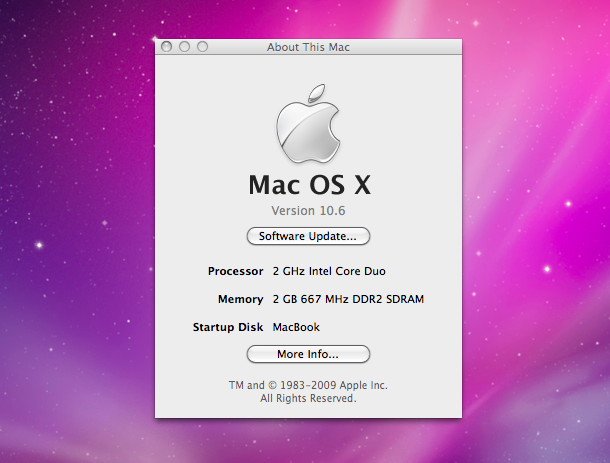
 today, and the upgrade from 10.5.8 went without a hitch, finishing in about an hour. A couple Snow Leopard install tips:
 This is somewhat controversial because it is against the Apple EULA, but apparently you can save $140 if you’re a Tiger 10.4 user and run the 10.6 Snow Leopard upgrade without a problem. To make things even more interesting, popular Mac writer
  A friend of mine that is new to Macs couldn’t figure out how to get a CD to eject, after some frustration he then complained that his MacBook doesn’t have the paperclip hole to forcibly eject a disc from the superdrive. After some discussion I realized he’s probably not alone in his confusion of how eject a stuck disk on a Mac, so here’s a few different ways to do it, ranging from easy to more advanced. If a disk is still stuck in the drive after these methods have been exhausted, you may have an actual hardware problem.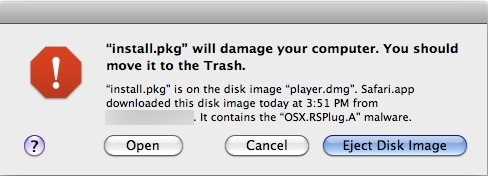
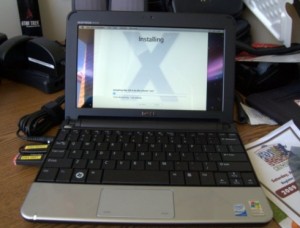 The Hackintosh community is rather controversial but increasingly popular, and some of the most appealing Hackintosh machines are those based around Netbooks, tiny lightweight laptops that fill a niche Apple has yet to dabble in. The Dell Mini 9 has long been the cream of the Hackintosh Netbook crop, but it looks like the Dell Mini 10v is giving it a run for it’s money, the internals are largely the same but it has a 10″ screen. (Note that the Dell Mini 10 and 10v are completely different units with different hardware, the 10v is Hackintosh compatible, the 10 is not). It’s worth noting that installing Mac OS X on something other than Apple hardware is against the Apple OS X EULA, so the legitimacy of the entire Hackintosh movement is dubious at best, but morals aside…
 The Mac world is really heating up with anticipation for the upcoming Snow Leopard release, due this Friday.
  Making a RAM disk prior to Mac OS X was quickly accomplished through a control panel, or you can make one from the command line too, but since OS X this ability has been lost without
  The best thing about a sour economy are the price wars that benefit consumers, and in this case
  , or better yet pick up a useful companion book like
  . The price was also dropped 10% on the
  . Sweet!
 I have an external drive partitioned in various ways, one of the partitions is formatted to FAT32 and I don’t need access to all the time. So how do I keep that from showing up needlessly when I plug the drive in? Using the command line to create an /etc/fstab entry and a bash script, you can do precisely this, thanks to a tip I found on
  , and the
 Apple’s QuickTime is the go-to Mac OS X app for video playback, but there’s more to QuickTime Player than meets the eye. You can rewind and fast-forward movies, increase the audio level beyond the slider limit, and even scrub frame by frame through the movie like you can in Final Cut Pro! Check out these 15 useful and largely hidden keyboard shortcuts for QuickTime Player, they are sure to improve your QuickTime movie viewing experience… and you’ll probably learn something new!
 Microsoft officially stopped developing Internet Explorer for Mac’s a few years ago, but you can still download and run Internet Explorer on your Mac using either an older version of the software or a few different tools. We’ll cover how to run Internet Explorer under Mac OS X using a tool called WineBottler, which allows you to run windows apps like IE6, IE7, or even IE8 on your Mac. Now I don’t know anyone that wants to run Internet Explorer 6 for personal use, but if you’re doing any kind of development work for the web, you likely are required to check for IE6 compatibility. Many Mac users install Windows in VMWare or Parallels to get the ability to check their work in IE, but that’s not needed thanks to WineBottler. WineBottler is dependent on Wine to be able to run Internet Explorer 6, IE7, or even IE8 on your Mac and it’s included in the WineBottler download package.



