Whenever you log in to your Mac, you’re greeted by the familiar login screen with the Mac OS X logo, the computer name, and a list of users. You can actually get useful system information from this login screen by clicking on the computer name, which cycles through a series of statistics and info on your Mac, ranging from build version to IP address.
Whenever you launch the Terminal in Mac OS X, you may get a little message: “Welcome to Darwin!” or a “Last Login” time – well, after you’ve seen it a few hundred times you might be sick of it, or perhaps you’d prefer something more amusing, meaningful, or even useful to yourself and other computer users. That little message you’re seeing is the MOTD, otherwise called a Message of the Day, and it’s a simple text file located at /etc/motd.
We will show you how to change the MOTD in the Mac OS X Terminal to whatever you want, easily.
If there’s one annoying thing about the QuickTime Player on earlier versions of Mac OS X it is the lack of fullscreen movie support by default. Fortunately modern versions solve that problem, but if a Mac is running a prior version of OS X and has an older version of QuickTime Player, what should you do?
Typically, if you want to play QuickTime movies at full screen you have to shell out $30 for QuickTime Pro for those older versions of Mac OS X pre Leopard, or use a third party application like VLC. Don’t pay the $30 and don’t download the extra software if you don’t need to though, and thanks to a very simple three-lined AppleScript that scales the movie to your screen size, you don’t have to. Very crafty!
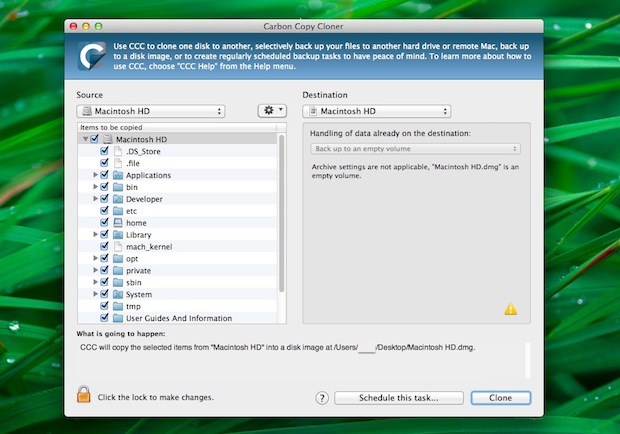
Backups. A dreaded word because it is tedious and boring. You say it and people go fleeing in all directions plugging their ears. So what do you do? Have no fear Mac users, Carbon Copy Cloner is here for you to make Mac backups easy.
Say hello to your newest friend, Carbon Copy Cloner. Carbon Copy Cloner creates a bootable clone of your hard drive, perfect for full system backups of a Mac. With an easy interface and simple backups, and it’s donation ware (or a free trial, depending on the version), that means you don’t pay unless you like it. Just another reason to love your Mac and the development community.
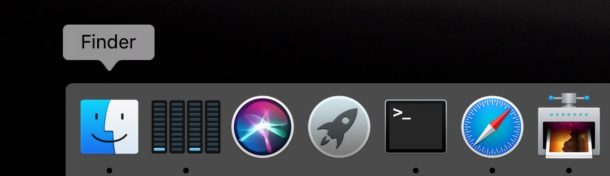
Navigating around Mac OS X is significantly easier than competitive operating systems, and that’s largely thanks to the Dock, Expose (Mission Control), Spotlight, and the improved Finder, which is the OS X file system. Of course there are also third party apps that people swear by, such as Quicksilver, but with so many great features built into OS X, it’s usually not necessary to install any third party software if you’re just looking to optimize your workflow and move around more. Instead, simply dig deeper and learn a few new tricks.
With that mind, here are a handful of some great keystrokes for Mac OS X that once you learn, will make navigating around even easier. These will be presented in the format of “action” followed by the accompanying keystroke to achieve the desired result.
This is a fun little program that quickly gives you information on when and where your Mac and iPod were built (it claims to check any Apple products based on serial number, but we couldn’t test this feature). There’s also an ability that allows you to check your serial number against a database to see if your Mac was reported stolen, which could be useful for those who have purchased a used Mac or iPod via Craigslist and eBay. If the Coconut name sounds familiar, its because the developer also makes CoconutBattery, a great app for Mac laptop owners. Read more »
Regardless of your thoughts on Apple’s switch to the Intel architecture, we are now in a transition period where many apps are either PowerPC, Universal, or Intel only. While most new applications are at least Universal binaries, some are PowerPC, and running these through Rosetta on your Intel Mac can cause a performance decrease. So how do you know what architecture type each application is? There’s multiple ways to tell, but we’ll give you two of the easiest.
We all know that Photo Booth is great fun and is sure to entertain our friends and family with the goofy effects. But what if you want to take pictures using your iSight from the command line? Unfortunately Apple doesn’t provide this option (at least that we know of), but thanks to a crafty individual named Axel Bauer, we have a command line tool available for the task. Being able to capture images from the command line opens up many interesting possibilities, and we name a few potential uses.
Have you ever wanted to change the short username in Mac OS X? Dig around in the System Preferences and you’ll soon find it’s not as easy as just typing in a new name. Apple has some directions on how to do it, but the instructional document is painful just to look at, let alone implement. Fortunately, there’s an easier way with a shell script aptly called ChangeShortName. There’s even an accompanying helper app that automates the process for you.
Ever wondered what happens during the Mac OS X boot and startup process? With Mac OS X it’s a bit more complicated than things once were, and long gone are the days of Classic Mac OS (System 9, 8, 7, 6), where watching our Macs boot up with a series of extensions and control panels that we could always identify by their icon alone, and then go dig around in the Extensions folder to easily adjust what is loading and occurring on Mac boot. Today with the Unix underpinnings of Mac OS X, many users are entirely unaware of what is going on behind the scenes.
So what exactly happens during the Mac OS X boot process? You can always get a better look by booting a Mac in Verbose Mode, but that doesn’t necessarily explain all of what you see. Fortunately an excellent explanation is available via segment at KernelThread, which carefully lists the sequence of Mac OS X boot events, from start to finish. It is fairly thorough and worth a read, repeated below for the inquisitive Mac users out there.
We are all excited for this springs release of Mac OS X Leopard 10.5, and each new developer release can give us hints of what is in the pipeline. The Mac speculation site MacRumors says that the latest seed of Leopard includes a few new features that have been suggested, including tabbed window support in Terminal. Also, it looks like Terminal has the ability to run across various workspaces. It doesn’t look like anything too ground breaking has appeared yet (such as the rumored new interface), but little feature improvements here and there.
Hidden from the casual Mac user is a spiffy command line utility that allows you to view, configure, and troubleshoot your Mac’s wireless connection, entirely from the Terminal of MacOS and Mac OS X. This command has a help file but is otherwise but not much documentation, and judging by the obscure location of the command, Apple probably didn’t think it would be too useful for the average Mac user. But the hidden command line airport tool is very useful indeed, particularly for more advanced Mac users who want to have full control over their wi-fi hardware directly from the command line in Mac OS X.
With that in mind, here is how to access the amazingly useful yet little-known airport tool, and how you can use it for some networking tasks too.
Safari is my browser of choice in Mac OS X, I like Chrome and FireFox a lot but it doesn’t have the same Apple polish to it, and page rendering seems speedier in Safari (my opinion, no intention on sparking a browser war here).
If you’re a Safari user, here are some key strokes that you should know about that will make web browsing a speedier and more pleasant experience. These keyboard shortcuts are particularly useful for laptop users since the hands tend to be situated on the keyboard more often.
There are quite a few ways to listen to the radio on your Mac, through iTunes, Safari, various Dashboard widgets, but RadioTuner is probably the best way yet.
For those of us who have ever played Quake, this is an easy one to explain. Remember hitting the tilde (~) key would bring down the Quake terminal? Well that is what Visor does for Mac OS X. You assign a hotkey, and when Visor is triggered, a nice Terminal slides out of the top of the screen for immediate use.
A variety of keyboard shortcuts and commands can be used during a Mac system startup to access various features, systems administration utilities, and troubleshooting tricks. Some of these startup keys may be slightly different on PPC and Intel Macs, but many of the features remain the same, whether it’s accessing safe-boot mode, hardware tests, single-user mode, boot from a DVD, or more.
Check the list below for ten absolute essential startup commands that every Mac user should know, particularly for that older hardware!
The Dock is a major part of most Mac OS users daily lives, used for everything from application launching, to storing of minimized windows and apps, where the Trash is located, and more.
But the Mac Dock has more tricks up its sleeve than what is readily visible, and with the help of key command modifiers, you can gain access to some very useful Dock tricks and shortcuts.
The list below of Dock shortcuts and key commands can help you to get the most out of the Mac Dock.
The startup sound on a Mac is cool and all, but if you’re in a quiet library, office, or classroom, that sound can be a bit obnoxious to yourself and others as it blasts throughout the speakers and into whatever room you’re in. Sure, you can mute the sound by holding down the keyboard Mute button during Mac system boot, or you can stick some headphones into the jack if you’re quick on the draw, but what if you don’t want to do that all the time? What if you forget to do that? What if you would rather it just be a bit quieter, rather than really loud?
A nice solution for this on supported Macs, is a free utility called StartupSound. This is a simple preference pane addition that enables you to adjust the sound level of the startup sound, or even mute it entirely, in much the fashion that you can adjust other system volume, you just have a little slider to move around as you see fit.
Installation is easier than pie, and the interface is as simple as it gets too. So save yourself the embarassment of public boot sounds and check out StartupSound! Read more »

 Whenever you log in to your Mac, you’re greeted by the familiar login screen with the Mac OS X logo, the computer name, and a list of users. You can actually get useful system information from this login screen by clicking on the computer name, which cycles through a series of statistics and info on your Mac, ranging from build version to IP address.
  Whenever you launch the Terminal in Mac OS X, you may get a little message: “Welcome to Darwin!” or a “Last Login” time – well, after you’ve seen it a few hundred times you might be sick of it, or perhaps you’d prefer something more amusing, meaningful, or even useful to yourself and other computer users. That little message you’re seeing is the MOTD, otherwise called a Message of the Day, and it’s a simple text file located at /etc/motd.
 Navigating around Mac OS X is significantly easier than competitive operating systems, and that’s largely thanks to the Dock, Expose (Mission Control), Spotlight, and the improved Finder, which is the OS X file system. Of course there are also third party apps that people swear by, such as Quicksilver, but with so many great features built into OS X, it’s usually not necessary to install any third party software if you’re just looking to optimize your workflow and move around more. Instead, simply dig deeper and learn a few new tricks.
  This is a fun little program that quickly gives you information on when and where your Mac and iPod were built (it claims to check any Apple products based on serial number, but we couldn’t test this feature). There’s also an ability that allows you to check your serial number against a database to see if your Mac was reported stolen, which could be useful for those who have purchased a used Mac or iPod via Craigslist and eBay. If the Coconut name sounds familiar, its because the developer also makes
  Regardless of your thoughts on Apple’s switch to the Intel architecture, we are now in a transition period where many apps are either PowerPC, Universal, or Intel only. While most new applications are at least Universal binaries, some are PowerPC, and running these through Rosetta on your Intel Mac can cause a performance decrease. So how do you know what architecture type each application is? There’s multiple ways to tell, but we’ll give you two of the easiest.
 Have you ever wanted to change the short username in Mac OS X? Dig around in the System Preferences and you’ll soon find it’s not as easy as just typing in a new name. Apple has some directions on how to do it, but the instructional document is painful just to look at, let alone implement. Fortunately, there’s an easier way with a shell script aptly called ChangeShortName. There’s even an accompanying helper app that automates the process for you.
 Hidden from the casual Mac user is a spiffy command line utility that allows you to view, configure, and troubleshoot your Mac’s wireless connection, entirely from the Terminal of MacOS and Mac OS X. This command has a help file but is otherwise but not much documentation, and judging by the obscure location of the command, Apple probably didn’t think it would be too useful for the average Mac user. But the hidden command line airport tool is very useful indeed, particularly for more advanced Mac users who want to have full control over their wi-fi hardware directly from the command line in Mac OS X.
  Safari is my browser of choice in Mac OS X, I like Chrome and FireFox a lot but it doesn’t have the same Apple polish to it, and page rendering seems speedier in Safari (my opinion, no intention on sparking a browser war here).
 A variety of keyboard shortcuts and commands can be used during a Mac system startup to access various features, systems administration utilities, and troubleshooting tricks. Some of these startup keys may be slightly different on PPC and