
When and How to Reset Mac SMC (System Management Controller)
“Ahhhh my Mac isn’t working! I need to reset the SMC!” You have tried rebooting, you’ve reset the PRAM, you’ve done it all, but your Mac is still behaving strangely. What next? In certain circumstances, resetting your Mac System Management Controller (SMC) can be a solution. This is sometimes necessary to restore normal lower level system functionality to your Mac, particularly for power and hardware related troubles.
We’ll show you exactly how to reset the SMC on any type of Mac (and any version of Mac OS X) and the type of problems that it may resolve.
When & Why Reset SMC on a Mac? Some Common Hardware Reasons
Typically, an SMC reset helps to resolve many power and hardware related issues that are otherwise unresponsive to troubleshooting techniques. Resetting a Mac SMC is particularly effective if you’re having the following types of problems:
* Issues with your Mac cooling fans and fan management: the fans run constantly at high speed, fans run high despite low CPU usage and adequate ventilation, fans not working at all, etc
* Power management and battery problems: Mac isn’t turning on, sleep isn’t working, random shutdowns and reboots, battery isn’t charging, Mac won’t wake from sleep, etc
* Light problems and improper lighting management: battery indicator lights aren’t working, display backlighting isn’t adjusting to ambient light changes, keyboard backlights not working, etc
* Video and external displays not working: display brightness functionality not working properly, target video mode isn’t working properly, external display isn’t working, etc
* General performance and functionality problems: abnormally sluggish behavior despite no CPU or disk usage, external ports not working, airport & bluetooth aren’t showing up, external devices are not being found, etc
 If those type of issues describe the problem encountered on the Mac and you have concluded that you need to reset your SMC, we will show you how to do it on any MacBook, MacBook Pro, MacBook Pro with Retina display, iMac, Mac Mini, and Mac Pro. Do notice that the System Management Controller reset instructions are different for some Macs, including MacBook and MacBook Pro’s if the machine has a T2 security chip, as well as an internal battery versus a detachable battery, and additionally the procedure is different for some newer desktop Macs than older ones, and different than Mac laptops.
How to Reset SMC on Newer T2 MacBook Air, MacBook Pro with Touch Bar
On the latest model Mac laptops with security chips, Touch ID, and Touch Bar, resetting the SMC is performed as follows:
- Shut down the Mac
- On the laptop keyboard, press and hold the following keys, this sometimes causes the Mac to turn on:
-
- Control on the left side of keyboard
- Option / Alt on the left side of keyboard
- Shift on the right side of the keyboard
- Continue holding those keys for 7 seconds, then in addition also press and hold the power button – if the Mac is on, it will turn off as you hold the keys
- Continue holding all four keys for another 7 seconds, then release them concurrently
- Wait 3-4 seconds, then press the Power button again to turn on the Mac
The Mac will now boot as usual with the SMC freshly having been reset.
Reset SMC of a MacBook Air, MacBook Pro Retina, or MacBook Pro’s with an internal non-removable battery
This is how to reset SMC on Mac laptops with a non-removable battery:
- Shutdown your MacBook Air / MacBook Pro
- Connect the power adapter to the Mac
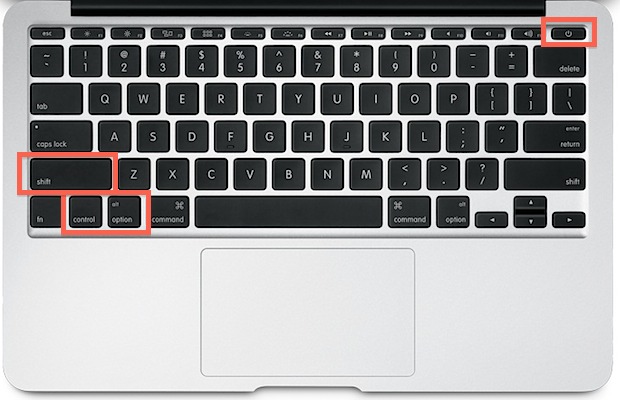
- On the MacBook / Pro’s keyboard, hold down the Shift+Control+Option keys and the Power button at the same time
- Release all keys and the power button at the same time – the little light on the MagSafe adapter may change colors briefly to indicate the SMC has reset
- Boot your Mac as usual
Here’s the key sequence to hold down:
Do keep in mind that by resetting the SMC you will lose power specific settings, like the time it takes to sleep a Mac and other customizations to power settings. No big deal, but if you have made many changes to your hardware behavior you will want to adjust stuff like sleep behavior again.
The boot time after resetting a machines SMC can be a bit longer than usual, that is normal.
How to Reset SMC on Newer iMac, iMac Pro, Mac Pro, Mac mini with T2 Chip
Resetting SMC is different for non-portable Macs, but it’s still easy enough and the problems it addresses are the same. For newer Mac desktop models with a security chip (t2 or otherwise) you can reset SMC as follows:
- Shut down iMac, then unplug the power cord
- Wait 15 seconds, then plug the power cord back in
- Wait 5 seconds, then press the power button to turn on your Mac
Reset SMC of an older iMac, Mac Pro, Mac Mini
On older model desktop Macs without security chips, here is how you reset the System Management Controller:
- Shut down your Mac
- Disconnect the power cord
- Press and hold the Mac’s power button for 5 seconds
- Release the button
- Reattach the power cables and boot the Mac as usual
Reset the SMC of a MacBook or MacBook Pro’s with detachable batteries
 Older MacBook laptops, indicated by having a removable battery, can reset SMC with the following approach:
- Shutdown the MacBook/Pro and remove the battery
- Disconnect the power adapter, hold the Power Key for 10 seconds
- Release the power key and reconnect your battery and power adapter
- Turn your Mac on
- Let boot as usual
What is SMC anyway?
SMC stands for System Management Controller, a critical low-level component on Mac hardware. Much like the name sounds, the SMC controls and managements system hardware for power consumption, battery charging and battery function, thermal activity and fan activity, LED lighting for keyboards and displays, GPU functionality with video mode changes and video output, sleep and wake, and other core hardware functionality on a Mac.
–
Now that your Mac SMC has been reset, the hardware issue you were encountering should be resolved, unless there is a greater problem or a different issue that needs to be troubleshooted separately. Sometimes resetting the Macs PRAM can be effective too, though there are times when further action is necessary as well. Do note that only Intel Macs have an SMC controller.
Hopefully that will clear up your problems, if not it might be worth a visit to the Apple Store or a certified repair center.
Did resetting your Macs SMC fix your problem? Let us know in the comments!






Hi..
I’m using Macbook pro 15″ Retina MID2015.
Since the battery has been replaced from outside market(Shopee), my macbook needs to press shift+control+option and power button every time I open my macbook without magsafe adapter and the screen is showing a icon running out of battery power despite the battery is 95% full. Once it’s opened then it does not need to press shift+control+option and power button, but when it is idle for around 2-3 hours then it needs to press shift+control+option and power button again without magsafe adapter.
If plug in magesafe adapter, it can open without pressing shift+control+option and power button.
It has been done the SMC & PRAM Resetting and Apple Diagnostics has no issue found *code:ADP000.
Could it be the problem of the battery from outside market? I bought it from Shopee.
I very appreciate your value idea and sharing with me because it can save time for sending it to Apple Service Center.
Thanks in advance.
MP 3,1 Early 2008, 8 core 2.8 gHz. Option boots to SL and El Cappy (and I still get crap internet.)
Well, it’s too bad I have very expensive legacy multimedia production software because this 40 lb paperweight needs to go to the dump.
Started with flashing sleep light. Apparently most of my memory sticks failed. (2x 1gb Kingston, 2x 1gb Nanya? 4x 2gb “stock” sticks. All 800MHz.)
Then I discovered my CPU fans aren’t working. I can now boot w/ 4gb “stock” RAM.
I did reset PRAM as suggested. I did the old pull the plug and hold the power button trick.
Front fans not blowing.
Trash it, or throw $ parts $ at it?
Hey just wanted to ask that is there a problem if my macbook air 2017 (bought it a year ago) reboots on its own whenever i put it to charge,even though the lid is closed, dont know whats wrong what am i supposed to do now
Oh, to my prior query on Reset-SMC for iMac : i.p., mine is 2009, OSX 5.7?
Your reset of SMC –for iMac– differs from Apple Support’s, which reset method is:
Shut down iMac, then unplug the power cord.
Wait 15 seconds, then plug the power cord back in.
Wait 5 seconds, then press the power button to turn on your Mac.
But you say to shut down & unplug, THEN HOLD POWER BUTTON FOR 5 SECONDS, then … must plug in and hope all’s well!?
Advice on this, please?
(I have a fan-running-fast issue. I had it previously but forget which method I used : I RECALL trying the SMC reset (per Apple), and doing so multiple times (so it must NOT have worked, at least a few times if not all); I’m not sure if I then tried resetting the NVRAM/PRAM, but **vaguely** remember that I tried something different that DID work. –would that I’d kept notes!)
Thanks!
The procedure for resetting SMC can vary depending on Mac model, if the iMac is a new model with the security chip then the approach you mention is the way to go.
Thanks. I’m in a bloody jungle and tried everything in the article. I was ready to surrender to the tigers in my despair when I read your fix. Just the shift key! Thanks.
It’s likely your GPU is fried. Extremely common on that model. You can disable it. To get to OS hold the shift key while booting. Then look for dosdude1’s GPU disabler. Ultimately, you will have to hardware disable or repair the GPU
Hi Andrew,
I have that exact late 2011 MBP w/ AMD gpu you mention owning on your comment and have tried every “layman” type fix on it, to the point I’m about to give up, and was hoping you might be able to point me towards the online resource/post you mentioned helped you fix yours?
It gets stuck on the loading screen (usually around 75%) and then goes to either a (usually) white, black, or blue screen. I took it to Apple and 2 hours later they said it must be the “motherboard” and to buy a new one, but I revived it for a few weeks after doing “Cmd + R” and reinstalling OSX from time machine, before it crashed again, and am confident I can fix it if pointed in the right direction.
I’ve even run the Apple Hardware Test’s extended test (pressing “D” when booting) multiple times, and it keeps coming back without finding any issues.
I’m very interested in how you fixed your MBP and would greatly appreciate your help on this!
Worked like a charm on an older MacPro, thanks!
Thank you so much this worked perfect !!!! Saved me $80 from replacing the charger !
My 10-year old Macbook Pro has worked great, but a couple months ago I started experiencing random reboots, fearing that a hard-drive failure was imminent or some other power-related breakdown that I wouldn’t be able to fix. I tried the SMC reset technique mentioned here, and the problem seems to be gone. I’m thrilled that that’s all it took!
my left control key does not function! how can i even try to reset the smc when pressing the right control key isnt in the instructiom
So I have the MBP Non-Retina (2012 MacBook Pro 9,1) and for months I have been having issues with the power adapter not charging it, sudden shut downs and in certain random instances the battery would show the charging sign but the percentage was still dropping. Ive tried the SMC reset before and it never worked so I can across this thread and decided to try it again. Upon booting up my MBP today after not using it for months since the issues started, I had the power adapter plugged in but it wasn’t charging, wasn’t showing any LED indicator lights and in “system report” and under the battery information, it STILL says it is not charging. And this is all while the power adapter is plugged in and it shows the electric sign on the battery on the home screen indicating that it’s charging (WEIRD!). Also idk if this helps to note, but I randomly plugged in the power adapter while it was off last night and my MBP happened to charge to 50% (which is miraculous to me to say the least), but that’s still odd because you would figure if it charged over night, that it would be charged to 100%. SMH. Can anyone help? Thanks.
SMC resetting solved my Macbook air’s touchpad not clicking problem. Still a little bit stiff but a lot better. Thanks guys. I was about the replace it.
It worked. Thank you.
That was incredibly concerning.
I had the “Service Battery” alert in the drop down when I clicked on the battery icon in the top tool bar. I followed the steps above to reset the SMC, and the alert is gone now that I’ve rebooted. Battery seems to be charging “normally” as well. Thanks for the tip!!!
What a lifesaver! Thank you.
Doing this SMC reset saved me a trip to Apple store. Battery was showing X even though fully charged. Fan was running on high speed. No light on charger plug. Wouldn’t sleep. And more…. All sorted now!. It worked perfectly on my very old MacBook Pro. 👍
I have a mid 2011 MacBook Pro and the fans run high when Dropbox is running and syncing files. The bottom on the laptop is hot also. I’ve already removed the back panel and used a can of air to blow out all dust. The steps provided here to hold down the control, option, shift and power butting for 10 seconds while the laptop is off and powered in did not result in a light Flickr from the power cord. Upon powering up the laptop, the power setting in system preferences were not reset. Is there another way to reset the smc?
Doesn’t the mid-2011 Macbook Pro model have a removable battery?
This helped out my Mid-2013 MacBook Air for a few months before i started having battery issues again. My Mac will have its battery anywhere from approximately 21% to 5% and just turn off and report the battery is dead. This mainly happens in the teens %’s. Coconut battery reports that I have 962 cycles and 72.6% capacity remaining. Hoping this second time can make a difference again.
I’m fairly confident that I need to reset this. I’m having fan and speed issues exactly as described. I followed all of the steps listed. When I turn off my computer and press the 3 buttons and the power button, my computer just turns on. I’ve searched a million message boards and have seen tons of comments with the exact same problem, but zero solutions to this. Is there an alternative way to reset the SMC? I’m running a MacBook Air (11-inch, Mid 2013)
Cheers,
Shut down the Mac. Plug in the power cable.
Then you must hold the keys Shift + Control + Option and the Power button at the same time for 10 seconds, count them out, to reset SMC on MacBook Air.
Keep holding them until you see the light flicker on the MagSafe power adapter and then you can boot the Mac as normal.
That does the trick, I have to reset SMC on a Mac fairly often, including MacBook Air and MacBook Pro and it works just as described.
I’m running Sierra on a Macbook Air and I had the same problem as Kevin when I didn’t leave the power cord plugged in. The only way I could do the SMC was to leave the power cord in the entire time.
I once read that these resets don’t do anything anymore as Apple has changed things since these resets first came out. Now I’m beginning to think that maybe true.
My 13″ 2017 MacBook Pro stopped charging yesterday. My first thought was the wall charger had blown. It was down to 3% battery and I was looking at a 3-day wait for Apple Genius Bar support.. but I need the laptop for work tomorrow!
This SMC-reset thing worked perfectly.
It’s now 8% and charging. It’s a little concerning however that a high-end laptop that’s less than one year old is having such low-level problems..
Did not work at all. In fact I now have after logging in a white screen with a grey do not enter type sign circle with diagonal inside it. The Apple logo intermittently flashes and that it is. The last time I will use this web site. I never got o the second “solution”.so now it must go into a repair shop ! Thanks a lot !
Hello there, I have just read this and am hopeful of my Mac book removal battery, I opened it up for cleaning and removing the disc stuck in the cd rom, but on putting bacj the keyboard and other parts together as before, it refused to power on, so am headed to try this now, am hopeing it works am really stressed up
Thank you so much!!! All fixed
Did not fix my problem on osx Yosemite 10.10.4
I tried this to fix my bluetooth issue (not detecting the speaker) after doing your BT debug solution and the PRAM reset.
Nothing worked.
My rig is a late 2009 macbook (white).
My USB ports would not charge my iPhone, it was thrashing them like it could not maintain correct current. Resetting this cleared the problem.
I have an old MacBook Pro, Screen has gone black, can’t fix it with standard recommends! Please help.😞
Sorry to come to this so late!
Which ‘old’ MacBook Pro do you have?
I wonder if it is one of those with the AMD graphics cards which notoriously fail. The screen going black is one of the common symptoms.
Do an Internet search for the model you have and the symptoms and see what results you get. Then, depending on where you live and your skill level, there are some repair options available.
If I’m correct, then that’s a similar problem I had with my 2011 MBP. It’s now running again, three years after the failure. And running better than my late 2012 Mac Mini.
How do I know if my Macbook Pro’s battery is detachable or not?
Yes, it did. Thanks a ton. I am so relieved now that my macbook pro 2017 is working again. Thank you seriously
I bought a new charger for my 2009 Apple
Macbook and it won’t charge. It’s stuck on “0” percentage. Is my battery dead?
This post just saved my sanity!!! Thank you!!!!!!!!!!!
I have a
MacBook Pro (Retina, 15-inch, Mid 2014)
I tried resetting the SMC, but I did not see the power LED blink. How can I tell if it got reset or not?
Thank you.
Mid-2010 MacBook- won’t charge with either of my chargers which both work fine with another Macbook. Charger light won’t come on in any color – can only use when plugged in, and it stays at just 1% battery while connected. Tried SMS and PRAM resets, nothing changed. Have cleaned up around prongs on charger and on computer beforehand. Assuming maybe a new battery needed? Help!
Resetting SMC worked for me on MacBook Air 2017
Very old laptop here on it’s last legs, battery has had trouble for the last 9 months – used to need to be plugged in at all times, and then after a long period of being plugged in, it started to behave normally. The other night it died (at 28%) while not plugged in. Turning it back on showed the dreaded X. Did this reset and it seems to be ok now! No more X, no more fans. I think that has bought be a bit more macbook life, yay!
Even Apple need you to buy new computers now and again you know!
2010 13″ MacBook white. Battery says “do not remove”… Why??? I’ve tried everything else on this and other forums/sites/howtoguides, ever since my charging light won’t turn on, as well as my computer. Oh f#@%!!! So I was thinking about removing the battery, and trying powering on with only power cable. This always worked with previous PC laptops when batteries took a $#!+. What’s the worst that can happen? I got no money for those Mac “Geniuses” at the Mac “Store”. Please help. I will be forever indebted to anyone who can shed some light on this predicament. Thanks
This really works and fast !!! My MacBook Pro’s fans were running very hard it wouldn’t sleep and the battery wasn’t being recognized but this fixed everything super fast !! Thanks
It worked! kinda of worked
iMac don’t like the official keyboard being used with extension usb cable, as plugged in directly and other usb devices, but as soon as usb extension cable went in, stopped working.
Although, other usb ports don’t die after extension cable attached, just the fourth.
This did not work at all. Tried both SMC & PRAM but nothing changed. Wifi still not working. Any other solutions?
Thank you guys!!! I was in shock when my new MacBook didn’t want to start! You save me!!!
Plugging the power adapter on my MacBook Air charges the battery for about one minute then stops recharging. I tried the SMC reset but didn’t help. Any idea what else can be done besides trying a new adapter?
Thanks
This error appeared after updating to the latest version of OS. Cannot fix it with the reset. I can’t connect to my iPhone at all, and it’s the iPhone giving me the error. I have been using the two in tandem forever. though it does allow the CD burner. It is a screwed software problem with Apple. I will have to go in to the Apple store. Thanks for the screw up Apple!
Worked! I was freaking out when I saw that “x” and “no battery available” right before an all nighter ahead and a deadline. Whay a life saver, thank you!!!!!
Thanks so much..its worked!
I meant cms but put DMV in my comment of this same
My USB ports are down. I reset pram and DMV and still have same problem. Notable might be that I saw no blinking or color change from the mag safe light.
I will now try the contacts, then the voltages. Then CK to google.
Thank you all for your helpful suggestions. They work.
Tried this and still nothing. I’ve replaced HDD and rams. Reset smc, PRAM and still no luck. There’s power but no Display or chime sound. Just power only. Running out of options. Anyone have any other clue as to how this can be fixed? Doesn’t allow me yo reboot from scratch either.
Maybe mobo since there is no startup chine and you have replaced everything else.
I am not an IT person – I just want my iMAC to work the same way it did before the upgrades – I don’t need the upgrades – I DO NEED THE USB ports !!!!! why can’t Apple leave things working that were working !!!!
Found to do essentially the same thing but it stated to hold the buttons down for 10 seconds, then plug the power cord back in, then power in the computer and it worked.
It may be a hardware issue.
Nope, macbook pro is still a black screen. I can see the keyboard backlights dim or illuminate to the keyboard keys, the caps lock light toggles green. The screen brightness isn’t changing while I press the brighter button. I can see a faint change in the screen when it’s off vs on. I removed the back cover in hopes to toggle something and REALLY turn it off. But the screen remains black despite all attempts to revive/wake/whatever.
What did you do to resolve it? I have the same I think… Tried everything.. Also external screen not working..
How come mine doesn’t work. I tried plenty of time. Help
Thanks a lot!
It helped! Just disconnected battery and held power button for 10 seconds. Now both no battery error and high fan speed issue are fixed!
Macbook A1342.
Wait, how come it doesn’t work for me. I’ve tried it multiple times and I still end up with my fan running at high speeds whenever I turn it on.
Wait, how come it doesn’t work for me. I’ve tried it multiple times and I still end up with my fan running at high speeds whenever I turn it on.
I own a Macbook Pro (2009)
Worked for me (MacBook Pro 13″ 2011 running OS Sierra).
Only issue is now my extensions don’t work.
MBP 2009 17 INCH replaced battery, charged it up to 100% pulled power cord, computer shuts down about 1 minute later. It was doing this before I replaced the battery! Battery shows it is ok. carried out SMC no change. Conditioning of battery not able to be done because of unit shutting down all the time.
Any suggestions?
Thank You So much!!! So useful!! Will defiantly be suggesting this sight to others!!! :P
Nothing worked for me. Tried all of it and still trying to connect note 5 with imac, it says connected for a few seconds then says not connected. I don’t know what else to do? Any suggestions would be appreciated..
Thanks..
Clearing the RAM helped me get my bluetooth back.
1. shut down MAC
2. press on button, and then immediately –
3. hold down ALT+COMMAND+P+R until the Apple startup tone is played.
Thanks for getting my MacBook Air USB ports working again with an SMC reset !!
This tip made the USB ports on my MacPro (OSX 10.11.3) start working again. Many thanks.
Thanks a ton! Worked like magic…grateful🙏
OMG! I love you people! This saved me a big headache and solved my problem!
AMAZING!!! I have been trying for so long to get this sorted!! so thank you very much!!
the comment mentioning the 25 seconds helped!! SMC reset worked!!
I am so thankful for your tutorial I didn’t know what I was going to do. I thought I may have replace my IMac. I thought rebooting but you never know thanks again!!!! Love the Internet for help on what seems hard is so simple.
Hey, i think i have some particular issue that may be different from other people here. Btw, thanks for the tips as i see many people happy now. I never had problems with my Macbook pro late 2011, but two days ago using a viewer to second life, as i use it since i bought the pc, when the fan start working hardly as the viewer always pushes a bit from the graphics, the monitor turned black, i still hear sounds, the macbook is still working but black. Then i tried to do the 3thd option that was advised but nothing as i tried to run the viewer and as soon as fan started to be heard the monitor turned black again..I will try the smc but i don’t know.. i do not find here people with same issue… any helps ? I’m using last el capitan, could be a bug from the OS ? hope..so.. Thanks
I have a problem with using usb on the mac, i can’t put any type of folder on it. I tried to fix it with properties ,but i couldn’t.
Great Tip! First time I used this USB port since I bought this MacBook used more than a year ago!
The instructions above did not solve my “Bluetooth not available” problem on my MacBook Pro (Retina, 13-inch, Early 2015) running OS X 10.10.5.
What did solve my problem is following the instructions on an Apple support page, “OS X: Bluetooth devices become unresponsive” (https://support.apple.com/en-us/HT203646):
“Shut down your Mac, disconnect all USB devices for two minutes, start up, and re-connect your USB devices once again.”
So absolutely none of these worked. I tried to do updates on my computer and it said that the computer would restart. It tried to restart but when it loaded halfway it went to a black screen with a spinning wheel. The wheel would go away for about 3 seconds and come back over and over again. I’ve tried every diagnostic I could find on the Internet including everything on here. Nothing is working
Worked for my macbook pro mid 2009. Saved me a trip to Apple store and a few bucks I thought I would have to spend if the battery would have in fact been down.
Hello,
i didn’t work for me !
Mac Pro (late 2013)
each time i want to use parallels desktop, i have to reconnect several times all usb devices !
other way to help?
Thx.
Well, no it didn’t fix it. My MBP (17″ pre-unibody Intel) starts to load the system, gets about 1/4 to 1/3 way through, stutters then shuts down. Tried resetting SMC, PRAM, but still the same. Doesn’t work booting from an external SDD either.
Please help to to find “#” button in my macbook pro …
Vivek,
Here is an article that tells you how to reset SMC on your MacBook Pro.
https://osxdaily.com/2010/03/24/when-and-how-to-reset-your-mac-system-management-controller-smc/
The article embeds an image with the exact key sequence to use, shown on a keyboard, with each key highlighted in red.
http://cdn.osxdaily.com/wp-content/uploads/2010/03/how-to-reset-smc-macbook-air.jpg
That should help you to reset your Mac SMC on the Macbook Pro you have. Good luck.
This is a really helpful website – and thread! Judy what happened with the new battery?
I also have an ‘old faithful’ 2008 white removable battery macbook which has black screen issues. It flashes up on starting though. My hot corner shortcut (which sends it to sleep) also seems to have some affect, temporarily flashing up (on waking) so I know the screen works.
My battery got really swollen a year ago so I just took it out and only use it plugged in now… so have tried both these SMC & PRAM shortcuts/resets.
Using my projector to see what I was doing had the miraculous effect of bringing the macbook screen back to life, yay!
But then… After 3 hours it just went off again (I was using Safari and had just opened photoshop).
I’m going to order a new battery and see if that regulates the power and fixes the problem. If I don’t write again- it worked. :) (hope that’s what Judy did!).
Ehmm… did any of you ever notice that following the SMC-procedure on Mountain Lion leads straight into your Mac-user account, even if it is password restricted? If so, this is possibly a great by-pass for hackers who’ve gotten hold of you Macbook into your personal data.
I learned this the hard way (resetting the SMC) by waiting for an appointment at the Genius Bar. Now, one month later, same problem and your website reminded me what to do. Question: why is this happening? One month after the first time. Thanks so much!
I can’t get it to do the reset. Nothing happens :( fan still loud.
Nic,
I have the same problem, nothing works? What did you do Nic?
Thank you!
The unplug and hold start button 5 seconds worked.
Mac Pro start up commands didn’t work with new keyboard until I reset SMC.
Fixed my black screen!
Thanks very much!
I have an old 2007 MacBook Pro I call “Old Faithful”. I purchased it used. I’ve been using it for two years non-stop with Adobe Pro Suite. It has always run firey hot. I only have 4GB RAM and have to use an app to frequently free the RAM if using Safari (which ALWAYS uses about 1.5GB RAM to my dismay….grrrrr) The entire two years the fan always runs like a monster after about an hour’s use….even when here is plenty of RAM available (like 1.8GB) and only one app open like Finder or TextEdit or MS Word. I’ve often had the issue where the screen won’t come on after lid-closing-sleep mode over the past two years and just hard rebooted to get it back.
Yesterday it decided to remain black permanently. It boots fine and I can tell by the sounds that it makes it to the login screen, but the HD continues to run and do various things by the sound of it which is weird. I took out the battery And it looks semi-exploded with a big bump on the outer side and a gap at one corner. Yikes – I wonder how long it’s been that way! LOL. I tried to run the MacBook without the battery installed using only the power adapter, but it boots without display still. I tried resetting SMC with and without battery. No help. I reset PRAM with/without battery, no help.
I have a new battery arriving today from Amazon. I’m going to try the alternate SMC reset for non-removable batteries first, entering my password at the login screen, and the newly discovered keystroke sequence for putting it to sleep. Ill try all three again with new battery. I’ll report back of my results.
My “hunch” is if these don’t work either, given the intense heat this MacBook Pro runs at, I may be looking at a heat damaged video graphics card???
Thanks for this info,Mac Book Pro Retina took a pretty hard dive off of front seat of truck tucked in a soft carry bag due to having to slam on the brakes for a car that stopped abruptly in front of me(no accident but front seat valuables took a dive to the floorboard) when I got home and powered up the Mac I had a bluish screen with no control or visuals. I tried a few different things and after almost resigning myself to a trip to the Apple Store I ran across this (two hours into it) and voila up and running. Awesome Info
Brilliant! Worked like a charm and save me a trip to the Apple Store!! Thanks so much!!
Worked like a charm on an 08 MacBook getting critically low on power while miles from the home office.
Hey, I have an old (7 or 8 years?) Macbook that’s developed all kinds of quirky issues like staying awake when the lid is closed, esp. if connected to the power cord, the fan occasionally running like crazy, and internet connection problems. These include just dropping the connection (I check with my kids and it’s always working fine for them) and not being able to get more than 15 feet from my router and remain connected.
I tried resetting the SMC and the sleep and fan issues haven’t reoccurred. So, yay! However, the internet connectivity problem is still there; at least the part where I have to be in the room with the router. I’ll try resetting PRAM; however I suspect it’s just a hardware degradation problem.
Also, I love that this article was written more than five years ago and continues to be of help! Thanks!
About your wifi problem with your Macbook, it may be the wifi router and not the Macbook. I had an older D-Link wifi router bought from Best Buy, and the signal was sometimes weak and I too could not be more than 15 feet away to get a strong signal.
Finally, I went to a specialty electronic shop and bought a more powerful wifi unit (dual diversity with two antennaes) and that fixed the poor reception problem. Sorry. not at my home office, so I can’t tell you the model of my new wifi unit.
Also the newer units have a higher gigabyte trabsfer rate than the older units, so if your is more the three years old, best to replace it.
Cheers,
Frederic in Montreal, Canada.
White macbook A1181 standby light on the right hand side of the trackpad comes on and stays on, but no display no chime..bottom of the laptop heats up a bit after making a couple of attempts to power up. Tried resetting smc, that didn’t work either. Can someone help as what the problem could be ?
Hi, please i have A1181 MacBook but not fully booting only to blue screen
Help me please
Omg I love you !!! You saved my mac !! I searched everywhere and I tried everything that’s the only thing that worked !
Did not work at all, still black. I know the reset worked, because the light on the adaptor did change color for a second…but nothing.
Let the Mac boot up as far as it can, then enter the password and hit return. Even if you can’t see the screen, do that, it sometimes works.
Thanks so much! This reset worked perfectly.
my old but goodie IMac 20″ boots to black screen it “works” fine but the display stay black .. only way it comes on if i put it into sleep mode then when i wake it up i see the desktop running fine but the display Only flash on for a brief second and i can’t do nothing. It flash off again (black screen again) i tried resetting the SMC and also the PRAM the black screen remains.? Anybody got a solution?
Done SMC half a dozen times with and without power cord as well as holding the buttons down for 10 sec, reset Pram, done a restore, till I’m blue in the face. The MacBook air 11 inch (2010) still runs terribly slow. The symptoms certainly seem to point to SMC but doing the reset as mentioned above does not work. Is there any other way to reset it?
Worked perfectly on my macbook pro, thank you so much!!
MacBook Pro 2011 13 inch didn’t work same for pram. If I shine a light in the back I see files but no cursot
tried the suggested unplug, push power button for 5 seconds and restart. it didn’t work.
My Macbook pro 2010 cant even show a black or blue screen, no beep, it seems completely dead. It can only show a green light on the charger and can blink green on the machine if I remove the charger. That is the only life it seems to have. I ve tried to reset the SMC and the PRAM nothing can work. Please help
I have this same problem. It’s been three years since this comment, did you fix it at all?
This worked! Thank you!
Tried everything still have a black screen including PRAM reset. Any help much appreciated As travelling.
Amazing ! Worked instantly
Thank you so much :D
Please help me , my MACBook PRO boots into a blue or blank screen… I don’t know what to do
I did the SMC reset on my Macbook Pro (late 2013) and it worked for me. This morning, I put my mac to sleep and the screen stayed black despite hearing the startup bell.
I followed the instruction (pressed the 4 keys together for a few second, then released them together, before pressing the Power button on the top right and like magic, the screen was back on.
╔══╦╦╦═╦═╦╦╗╔╦╦═╦╦╗
╚╗╔╣╩║╬║║║═╣║║║║║║║
─║║║╦║║║║║║║╠╗║║║║║
─╚╝╚╩╩╩╩╩╩╩╝╚═╩═╩═╝
PS: That was 2 days after upgrading to Yosemite
Thank you for helping me out. My fans were running constantly and Bluetooth hardware could not be found. Did as instructed on my iMac and it is magically back to normal. Whew! Thought I was going to have to carry my machine 150 miles to the nearest service center. I am so happy this worked. Thank you.
My macbook pro 13″ mid 2012 does not power on after smc reset.
WORKS GREAT! THANKS!
This worked perfect!!! Thanks so much. It fixed all my problems!!
Sweet! Resetting the SMC worked perfect on my MacBook Pro – Late 2008 (removable battery). Thanks for the article!
it didn’t came back to black screen? i tried this to but after the update of some updates it didn’t work the tricks again.
can you help me what exactly you did to fixed yours
In case if you are using 5ghz, I would check the band. Mac book pro 2014 doesnt support all the 5Ghz bands.
Fixed it! Thanks so much! :)
Thanks a lot! All my problems (fans run constantly at high speed and general performance is slow) were fixed when reset SMC (Macbook Air)
Awesome advice!
Fixed a persistent issue of needing to start in safe mode. I ran disk utility many times without any progress.
THANKS, awesome advice!
I have had problems with my DVD starting and ejecting, lately. This site solved my problem on my iMac with its suggestions on resetting the SMC. The DVD started up and ejected when done.
my iMac 24″ mid 2009 last October 2013 would not power up just a black screen & 3 beeps that would repeat after a few seconds. I put it in the box until March 2014 then took it to Apple Store where it powered on to my surprise. It worked until May & the same unable to power up happened. Tried off & on for two months but still a black screen with the beeps. I saw your article yesterday morning & tried it as the power cord had not been plugged in I removed it from the back of the iMac & followed your instructions. It powered right up where it left off back in May. Thank you very much for the info. It took the rest of the day to do all the updates through installation of lattest operating system Yosemite. Again thanks😃
i have a macbook air, recently got a mini display port to connect to my tv via hdmi. ever since i connected it my tv picture is now flashing on and off but sound stays constant. when i disconnect and try and play my ps3 its still flashing. tv was fine before i tried connecting my mac. I’ve gotten it to work twice but then it stops again. when i try reset smc it works for a couple of seconds then flashes again
Thanks a lot, it works for my MacBook A1181 100%!!!!! Thank you!
Worked great for me – reset my battery and saved me from buying a new one.
Thanks so much it worked!
What it’s doing is clearing the cache that stores hardware power settings. Sometimes it can corrupt and cause random hardware issues.
Awesome! My MacBook Pro was booting to black screen. Last time it happened it was a PRAM reset boot that seemed to “fix” it. But this time it was this trick. For people not understanding the instructions, you press those buttons, and yes, there is no feedback!-P but you just press power alone afterwards to reboot. This time no black screen. What is this actually doing?!?!?!!!!!
I’m having problems with my MacBook Pro-2011, with an SSD and running Lion.
I reset the SMC twice in the last two weeks because the laptop works fine for a little while after doing it. But after using it for a few days, it gets weird again. It starts with the fans running very high when charging the battery and it could just turn off suddenly at any moment.
Any ideas? Do I have to keep resetting the SMC once a week?
Great website, by the way. Thanks!
I think a bad battery could cause this, but not sure.
Worked perfect. Aluminum macbook 10.6 with new anker battery.
Thx a lot for this manual.
I was running FileVault to save my files, but because I had wrong rights filevault terminates my Mac, so that it freezes and nothing more was working. After a hard reset and after trying to reboot from the recovery it only came the internet recovery option. Nearly on the way to the Apple store. Could be that the hard drive is dead. I read your explanation of the smc reset. I tried, because it was my last chance. Done and rebooted into the recovery section with the harddiskrepair. Checked the harddisk…seems okay, but the rights are wrong. Trying now to fix the issue and maybe then I will have the chance to unlock the data. I will see, because decrypted not really much. Maybe I have a chance. But without your help I will be now at the Apple store and bought me a new hard drive or ship it to the care center. Thx from Germany !!! You saved my day. Trying to get help the whole night without any sleep and now it’s high noon
I’m trying to reset the SMC on my MacBookPro 17″ 2010 because, as many others I’m having all sort of problems since when I updated my system to damn Mavericks!
How long do I have to hold shift+ctr+opt+power buttons down? I tried to just push them, I tried to hold them down for a little while… how do i understand that the SMC has indeed been reseted? A beep? A light? Any sign at all?
hi have i mac has broken down when you can tell me let me know
Im having the same problem. Im pretty sure my mac is not reseting the SMC because the energy setting had not reset. Is there anything else i can do?
Thank YOu!!!!!!!!!!!!
My mac book pro doesn’t wanna switch on, I have to flush my SMC, please help, it did this once cause of something I plugged in, got it fixed at a hefty price, but they didn’t really change any part so it should be something I can change myself…
worked for me!
Fixed my wifi. Macbook is connecting all by herself :)
thanks
Ok so I have a MacBook (white) and I’ve tried doing this. I’ve had the same problem as the wont sleep thing, but for about a week. Yesterday, I was about to go to the Apple store and try to fix it, but I got it working last minute and didn’t go in. Well, I started getting these restart messages every time my computer did start working, and had to keep doing this until the computer just gets stuck at the white loading screen with a grey spinning wheel under an apple sign(grey) also, this computer has the rounded edges and no, does not have the removable battery. Help!!!!!!!!!
I have the same mac. Mine won’t charge period.
Maybe the charger port controller board thing itself is bad.
This website is awesome :)
so doing this won’t effect the computers hard drive or data at all right? just want to double check before i try anything that i won’t loose any of my information or something like that. thanks!
You will not lose anything.
If following these directions does not work, try powering down, unplugging, then doing the shift, control, option, power thing then restart. Worked for me when the other didn’t.
After searching the Internet forever this is the only thing that worked! Thanks so much!
Thank you so much. I did lots of searching to find the answer to my problem (fan running, no keyboard or monitor functionality – external keyboard didn’t work either – and you laid out the answer so clearly and simply and it WORKS! MacBook 1,1 Intel Core Duo
[…] I’ve gotten in the habit of immediately putting my MacBook Air to sleep by shutting the lid, by far the easiest method if you’re on the go. Typically this works without a hitch, but today the Air didn’t sleep when shut. Because the MacBook Air has no moving hard drive or sleep light, I didn’t notice this until I went to use it again about two hours later when I found the machine to be unusually hot to the touch because it never slept as intended. From there on it became a repeatable occurrence, and while I’m not sure of the cause, the solution was just a matter of resetting the SMC: […]
special thanks my macbook pro was in that bad mode and with your guide all fixed … love your site
OS Lion is destroying Mac Book Pro batteries. Not only is battery life diminished by about 50% but the extra load on the battery is killing the battery itself. Apple is doing their best to deny replacing the ruined batteries but at some point the pressure from customers will make them face this issue, or litigation will.
Cool I got this working and it fixed my Mac, thanks for the SMC reset instructions.
What evidence do you have of this?
I have a macbook pro 17 inch running Yosemite for awhile everything ok. Today screen goes black can’t see anything and I try to type but the macbook does not recognize my laptop keyboard? When I try the pram doesn’t work tried everything!!!!
HELP ME!!!
[…] the error message anyway, the message was cleared and everything went back to normal after the SMC power management controller was reset. Anytime your Mac has power management type issues it’s worth giving the SMC reset a shot, it […]
does it have any after affects to the laptop or does it happen again ?
[…] If all else fails, try this, which has worked for some individuals: * Reset your Mac’s System Management Controller (SMC) : Shutdown the MacBook/Pro, remove the battery, disconnect the power, hold the Power Key for 15 seconds. Replace the battery, reconnect power, and zap PRAM and wait for 2 chimes before letting the keys go. Check out more information on when and how to reset your SMC. […]
Worked perfect to reset SMC on my 2016 MacBook Pro Retina model, thanks for the advice and it resolved the problem.
non of the solutions worked to get rid of black screen
Gary, same here, did you ever figure out what was wrong? It’s maddening….I’ve replaced the memory, battery and logic board finally, and strangely with each thing it would fire back up, work like a charm for two days then poof, doing exactly same thing. Could a bad hard drive cause this?