
Disable Mail Animations in Mac OS X

If you have used Mail for a long time, you have probably noticed the new Mail animations for replying and sending, where the message seems to slide off the screen. Like all the other new animations, this is a polarizing addition and some people hate it. Turning off the general new window animations in OS X doesn’t change Mails animations though, because they are separately controlled by another defaults write command.
We’ll show to disable both send and reply animations, but first you’ll want to quit out of Mail app, then you need to launch Terminal (found in /Applications/Utilities directory). From there, enter the appropriate defaults write command to achieve the desired outcome.
Disable Reply Animations in Mail App
defaults write com.apple.Mail DisableReplyAnimations -bool YES
Disable Send Animations in Mail
defaults write com.apple.Mail DisableSendAnimations -bool YES
You’ll need to relaunch Mail app for changes to take effect, but sending and replying to emails will no longer display the animation. This can help to speed up Mail on older Macs.
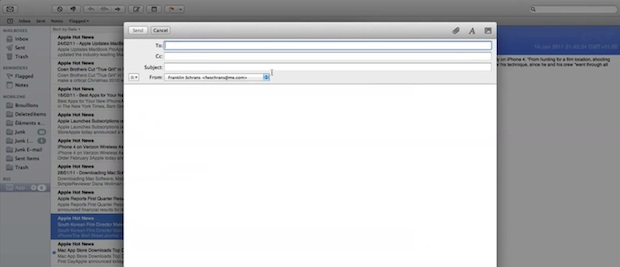
As usual this is very easy to reverse if you want the Mail reply-to animations back
Re-Enable Mail Animations in OS X
defaults write com.apple.Mail DisableReplyAnimations -bool NO
defaults write com.apple.Mail DisableSendAnimations -bool NO
Relaunch Mail app for the changes to take effect.
I like the animation, but like the rest of the eye candy it can be distracting and even make OS X feel slower than it needs to be.
Related, if you don’t like the new interface of revised Mail.app, you can also easily change back to the classic layout which shows the new mail on top of messages and displays may more messages all at once.
Update: Updated to disable both animations, thanks to Joe Ferrante for tip via comments!






hello everyone,
need that tip on Mavericks.. because I use a triple screen config, and Mail app is on the screen connected with a USB Display Link.
Sometime (but often) animation from Mail, when sending mail, make a general crash. Mac Os X automatically restart !
I’m shure that’s that. before, I was using a keystroke to show the desk, and sometime, animation of all windows was making the same crash….
Help :-)
I’ve spent a couple hours trying to get rid of those nervewracking animations! apple support person just helped me via chat. i had downloaded the AndreasVerhoeven link but my computer wouldn’t let me install because “unidentified developer”. i had to change settings in “Security & Privacy” in System Pref’s (to “allow apps from anywhere”. …if anyone else out there didn’t know like me…
FOR THE LOVE OF GOD how do we turn these off in Mavericks? Am I the only one who these don’t work for in Mail 7.0? These stupid, superfulous animations are driving me nuts because I spend my entire day in Mail. They might be “cute” for some grandma who sends an email every few hours, but they are ridiculous for any power user…
Finally found it this morning:
https://github.com/AndreasVerhoeven/NoMailAppAnimationsOnMavericks
Does anyone know how to disable the animation that occurs when multiple messages are selected in Classic view? Each new one slides into the viewer and if the messages are large, you can accidentally select more than you want because Mail won’t keep up.
I tried this command to expose available animation defaults but it shows nothing, not even the ones listed above.
defaults read com.apple.Mail | grep -i anim
I never noticed these animations until after I read this article, ha! Now that I see them, I don’t really mind them, but I like them to be faster (not eliminated entirely). I’d like the same for the iCal page flip–speedier, not nixed. Any ideas?
thanks for the fix. sometimes it’s the little stuff that matters.
I have tried this, and verified using “defaults read com.apple.Mail…”, restarted Mail, and rebooted the computer, but it still does not work. I have also tried with a lower case m in com.apple.mail. Am I missing something?
THANK YOU for showing me this. I use Mail as my primary communications tool, and those pesky animations have been bugging me since the start, stealing my time.
Thanks again.
Your application very lot of 1 time u refresh after ur iphone gd work
This does not work for case-sensitive file systems, you need to change the case of the file:
com.apple.mail
Not the lack of capital “M”.
Thanks, good catch. Was wondering why the original hint wasn’t working on my Mac.
[…] Source < defaults, Lion > « Resuminator […]
All of these new animations are straight out of iOS, getting us primed for the full switchover I guess…
to disable the send animation all together where the messages slides up out of the screen when you click send.
defaults write com.apple.Mail DisableSendAnimations -bool YES