
How to View & Mount Hidden Partitions in Mac OS X with Debug Menu in Disk Utility
By enabling a hidden debug feature in Disk Utility, you are able to both view and mount hidden partitions on hard drives in Mac OS X. Hidden partitions include things like Linux swap, GUID partitions, a Windows Recovery drive, and the Mac OS X Recovery HD partition, and once they’re mounted they can be edited or formatted just like any other drive. There are many cases where you’ll want access to these hidden partitions, and we’ll show you exactly how to do that.
How to Enable Debug Menu in Disk Utility to Show & Mount Hidden Partitions in Mac OS X
Before gaining access to the hidden partitions you will need to turn on the hidden debug menu within Disk Utility:
- Quit out of Disk Utility, and launch Terminal to type the following defaults write command:
defaults write com.apple.DiskUtility DUDebugMenuEnabled 1 - Relaunch Disk Utility and look for “Debug” to appear alongside ‘Help’
- Click on the new Debug menu and pull down and select “Show every partition” so that a checkmark appears next to it
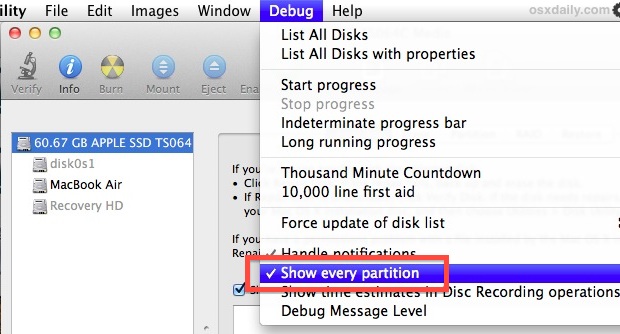
- Now the hidden partitions will displayed alongside mounted visible partitions, but they will appear grey rather than black
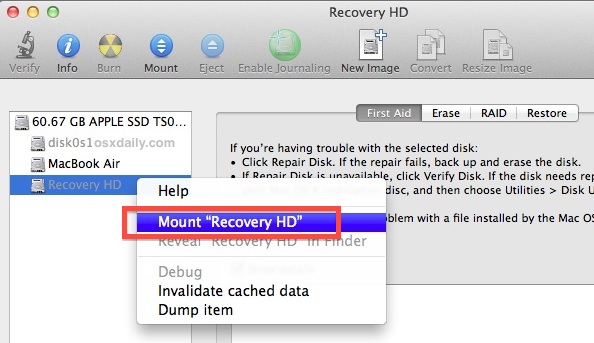
- Right-click on the greyed out partition to mount and choose “Mount [Drive Name]”
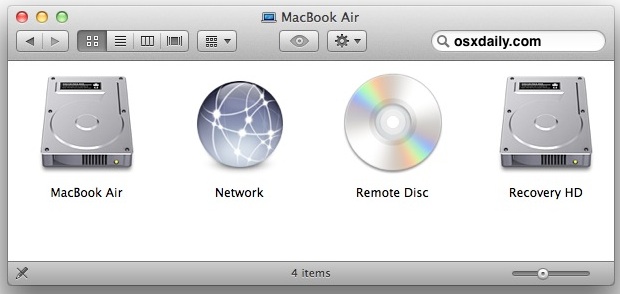
Going back to the Finder, you’ll now find the hidden partition is now visible as any other drive, and it will even appear on the Desktop if you have icons shown there. Be aware that if you start moving or deleting files on crucial partitions like Recovery HD, they very well may not work when you need them to.
It’s really not recommended without a compelling reason (like downgrading to 10.6), but you can delete “Recovery HD” using this method to make the drive visible. That may be necessary if you’re planning on undoing a dual boot between Snow Leopard 10.6 and Lion but otherwise is likely not a good idea.
How to Disable the Disk Utility Debug Menu on Mac OS X
To hide the debug menu again from Disk Utility, use the following defaults write command:
defaults write com.apple.DiskUtility DUDebugMenuEnabled 0
Note this applies to versions of Mac OS X prior to El Capitan, like Yosemite, Mavericks, Mountain Lion, and Lion, as the Debug menu was removed from later versions of Disk Utility in MacOS Mojave, Catalina, High Sierra, Sierra, etc.
If you know of any method to enable the Debug menu in later versions of Mac OS X, share with us in the comments below.






Lion Disk Utility Debug is working with El Capitan
I’m using a copy of Lions Disk Utility along side El Capitans DU
I had a hunch the debug command might work and I had nothing to lose
only my backup.
I’m only hoping it’s going to work in Catalina.
See “Hrutkay Mods” video. He also provided link for Lion copy… bless him.
https://www.youtube.com/watch?v=h9ohfsIdvWI
Zipped up Lion copy download
FYI It’s never a good idea to download and run applications or scripts from random untrusted internet sources
I mean if I’m not a trusted source by now… We’ve got problems… Just sayin’
Hi.
the “Mount recovery HD” for the selected disk remained in grey, i am not too sure how to proceed. please advice
I’m on Yosemite 10.10.5, but I can’t see the debug function. Very frustrating. What else can I do?
Very useful information; many thanks. I tried it out (on my trusty 2008 Aluminum MacBook, with partitions for 10.6 thru 10.11), and found:
As noted in comment above, this does not work in 10.11 (El Capitan), presumably because of the introduction of System Integrity Protection (SIP). Apple is locking everything down.
However, it does work in 10.10 (Yosemite), *and* once the Debug menu is enabled, the Recovery partitions for 10.11 and later (thru 10.14 Mojave, which I have on an external drive) are visible in 10.10’s Disk Utility, can be mounted and inspected.
At first only a few .plist files can be seen; use a utility such as OnyX to show hidden/invisible files, and you can see and open BaseSystem.dmg, which is where the meat is. (There is some variation in organization among the MacOS versions.)
There is of course no Recovery HD for Snow Leopard, as the feature was introduced with Lion.
Not able to see debug running 10.7.5 and I’m in admin only mode
@avoiceintheshadow,
I can confirm the debug mode is available as per the article. I’m running 10.7.5 too. Make sure you copy pasted the command exactly as presented without quotes and with all spaces necessary and/or without extra spaces were they’re not. Disk Utility has to be re-launched, you won’t see the debug menu appearing on the go right after you execute the command.
Not able to see the debug option in the menu. I am running it as admin only.
This no longer works in OSX 10.11 (El Capitan). Probably because Apple has locked debug mode access for all default apps.
Tengo problema que indican con el ejemplo.
Lo realize y en terminal escribi
me dio respuesta
“command not fount”
Ayuda por fa vor .No he podido instalar Lion Montain ,ya que no aparece el “RECOVERY HD ” :(
Agradecido de cualquier ayuda
Does not work in Mavericks (10.9.5),
Yes this works in Disk Utility in OS X Mavericks and OS X Yosemite, all versions. You’re mounting it wrong. You’re viewing it wrong.
can view partion but it wont mount IO error 22, 19
even with debug done and disk warrior and disk repair
and drive genius 3
10.8.8 Hitachi 1tb 2 Partitions both journaled with ops on both
Thaaaaaaaaaaaank yoooooouuuuuuuuuuuuuuuuuuuuu
very so MUCH!!!!
this also works in 10.5
I should be able to duplicate the “Recovery HD” partition to create a portable recovery disc right… ?
There’s no need to duplicate Recovery HD itself, instead you should use the official Lion Disk Maker utility from Apple which will create a portable recovery drive out of a DVD or USB Key. It’s available for download at:
http://support.apple.com/kb/DL1433
We discussed the Lion Disk Tool, it’s requirements, and how to use it here:
https://osxdaily.com/2011/08/08/lion-recovery-disk-assistant-tool-makes-external-lion-boot-recovery-drives/
My Linux & Linux swap partitions have always been in Disk Utilty greyed out. Doing this only adds the 200mb system partition before my Lion partition.
Also neither the actual Linux or the Linux Swap partitions mount after selecting “mount” from the control click menu.
Thanks for sharing this. It works also in Snow Leopard. Note that the debug menu will be available only for users that are Administrator.