
Make an Invisible Folder and Hide Files in Plain Sight on Mac
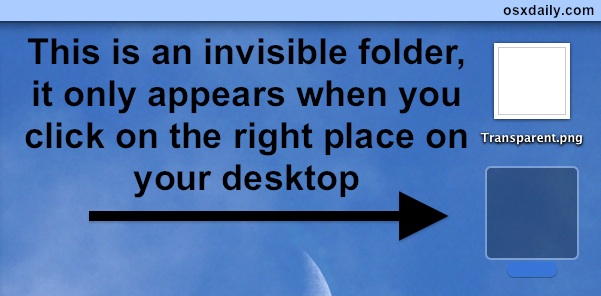
Want to hide some files in plain sight on a Mac? This walkthrough will detail how you can make an invisible folder on the Mac that features some unique properties; the invisible folder will be invisible to the eye when browsing in Finder, but the folder will not be invisible to the click. Instead, you’ll use a secret click in a specific location to access the invisible folder.
Sounds neat, right? It is, this is a really great trick that I first learned many years ago to obfuscate files in plain view, and it still works great in modern Mac OS releases too. It’s a multi-step process, here’s how it works:
How to Create an Invisible Folder on Mac OS
- Right-click here and save this transparent PNG file to your desktop as ‘transparent.png’
- Go to your desktop and open “transparent.png” into Preview and hit Command+A followed by Command+C – this selects the entire files contents and copies them into your clipboard
- Now go back to the Mac OS X desktop and hit Command+Shift+N to create a new folder, name the folder nothing by hitting the spacebar a few times
- Now select the folder named nothing (” “) and hit Command+i to “Get Info” about the folder
- Click on the folder icon in the upper left corner and hit Command+V to paste the previously copied transparent.png file as the folders icon
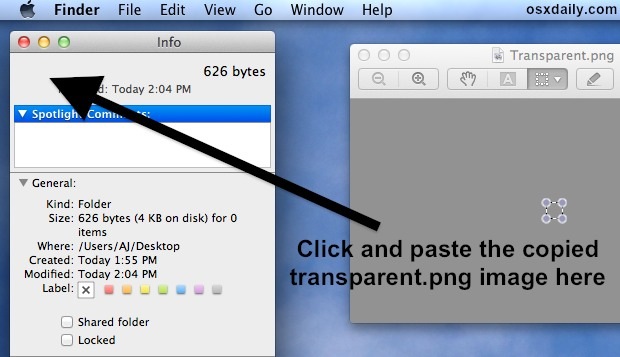
Your folder is now invisible to the eye. In some ways this is preferable to creating a hidden folder by prepending a . in front of the name because it’s still accessible from the Finder’s GUI with a well placed mouse click, and as I mentioned before it doesn’t require the use of the Terminal to create. It’s also advantageous because it doesn’t show up if someone makes hidden files visible.
I would suggest burying this folder somewhere in an obscure place on the desktop or elsewhere to further obfuscate any attempts at finding it
Just remember the contents of the folder are not invisible, and could still be found via Spotlight or Recent Items if someone knew what to look for. To do that, you’d have to exclude the folder from Spotlight search and then clear out the Recent Items from time to time.
Here’s what such a folder will look like if you open it, notice the window bar has no name in it:

I learned this in 6th grade to hide files and apps from prying eyes, and despite it’s simplicity it worked to store games, movies, and pictures on school computers without anyone knowing where they were kept. Believe it or not it works, and if you have limited access to the Terminal it beats using the period method to hide folders. Of course you can also turn to the command line and use chflags to hide folders on the Mac too, but if you use that approach than the folder will not be accessible with a secret click like this method detailed here is. Use whatever approach is suitable for your needs, there are a lot of ways to accomplish this and with varying degrees of folder invisibility.
If you know of another better way to create invisible folders hiding in plain sight, then do share them in the comments below!






Saving the transparent thing doesn’t work, but copy and paste works. weird!!!
you could use dis method for hiding apps to! just press cmd+i and u will get it
I click on the place to get the transparent PNG file, I go to a website but nothing happens
U no u can find the stuff in spotlight search right?
you know that you can exclude the folder from spotlight search right?
For me it does not work.
REally cool can fool dumb teachers with this.
#TROLLINGDUMBBBTEAACHERS
Great trick, I’ve included it in a tutorial and linked to this. I just like a nice minimalist desktop without all the clutter. In my version I keep short file names, so it’s just to make them less obtrusive. You click on the file name to open it.
[…] to hide a folder or two on a Mac? A while back we showed you how to make invisible folders and to even how to make hidden folders in Mac OS X, but now we’re going to demonstrate how to […]
[…] inspired by osxdaily.com […]
To avoid the problem with list view, couldn’t you put the invisible folder inside a visible one that has nothing else in it?
When someone clicks on the visible folder, the list will look empty (though you’ll have to hide the status bar too, otherwise it’ll say ‘contents 1’.
I can’t really see much practical application for this in terms of security, but it’s nice trick teachers could use to get kids interested in learning about how computers work.
I remember doing this back in the day with floppy disks. Maybe mid 90s. We had some game where you kill Barney, very violent for the time.. We all made copies of the disk (no internet), and made them invisible so if a teacher walked by they wouldn’t notice it on the desktop.
I won’t use it to really hide stuff. I find it useful for just helping keep my desktop uncluttered. I’ll use it as a quick temporary folder to store stuff.
This is a cool idea. But there a few problems. If you set your desktop view to icon view, it means you have to deselect “Show item info” in View Options in order to disguise the number of items in the invisible folder. You also can’t organize your desktop content by Kind, because that will force the invisible folder to the top, instead of being obscurely placed somewhere else on the desktop. Just wondering if there are any possible workarounds to this?
Oh, and one way I found to easily make the invisible folder visible is to use the cursor and draw a selection around where the folder is. That way, you can click on its invisible name and open the folder. It doesn’t work for me if I just click on where the invisible folder is located.
Also if you use anything but thumbnail view in folders, you can just as easily find the hidden folder through the finder.
Another way of saying “how to hide your pron”
Nice trick!
Cmd+p didn’t work for me… use cmd+v instead.
:)
Oops, typo corrected.
Thanks!
Doesent seem to work for me with Lion (10.7.1) the folder creates OK, but you can select it to open, just nothing happens
Same problem here, I’m also using Lion.
This happens for me too. The sad thing is, I actually already put stuff in it.
Wait, I just figured out a solution to the problem! First, highlight the icon and then right click (or ctrl + click) and hold it. That way a list will pop. While still right clicking, move the mouse over to the “open” and let go. And there you have it!
Or you could click+drag over it and double-click its name.
Works with a space as the name.
no, just use your arrow keys or press tab and you could open your folder!
Actually all u have to do is highlight it then you can click on it then open it :)
i know, me too! it doest work 4 mac :P
Cool stuff – This is great in icon view, but keep in mind that the folder is basically revealed in list view.