
Enable Motion Blur in Mission Control for Mac OS X Lion

Mission Control in Mac OS X Lion has a hidden motion blur effect that can be enabled quite easily:
- Enter Mission Control as usual
- Press Command+M to enable motion blur
- Re-activate Mission Control to see the effect in action
You can then see the blur effect by moving about with the standard Mission Control actions, from entering and exiting into Mission Control, clearing the desktop windows, switching between desktops, to selecting apps and windows.
It’s a nice effect, but the motion blur can get slightly choppy on older Macs or machines with less available RAM, which is probably why Apple didn’t ship the effect as enabled by default. You can always disable blur by pressing Command+M again.
Similarly, a blur effect can be enabled in Launchpad by using the same keyboard shortcut. Both of these bits of eye candy were seen in the original presentation for OS X Lion at the “Back to the Mac” event.
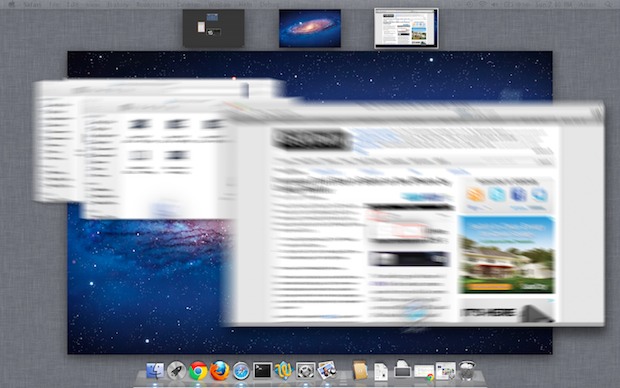
The Blur in Mission Control does not appear to exist in the oldest nor most modern versions of Mac OS X so this is limited to the mid releases (for now anyway).






Disappointingly, it doesn’t work in Mountain Lion.
Nice feature, if only it worked.
Apple had this as default in the first beta of Lion and then took it out. Glad you of this down cause I thought no one cared about the motion blur.
10.7.3
It doesn’t work!
ye same. why would they delete such a cool feature!
not working…..
[…] via OSXDaily […]
Why? The Lion interface sucks enough without this.
It makes my CPU usage go up like crazy.
It’s working flawlessly! The blurring makes switching look faster :)
(iMac 27″ 2011 with 2gb vram)
Nevermind, I got it.
Now, how do I get rid of the blur??
[…] dopo giorno si scoprono piccole chicche nascoste in OS X Lion e quella portata alla luce ieri da OS X Daily è davvero divertente. In pratica è stato scoperto che attivando Mission Control e premendo cmd+m […]
[…] Enable Motion Blur in Mission Control for Mac OS X Lion Enable Motion Blur in Mission Control for Mac OS X Lion… Source: osxdaily.com […]
No sir, I don’t like it.
[…] dopo giorno si scoprono piccole chicche nascoste in OS X Lion e quella portata alla luce ieri da OS X Daily è davvero divertente. In pratica è stato scoperto che attivando Mission Control e premendo cmd+m […]
Yes it looks cool but, firstly, you have to re-enable it after a logout/restart and secondly in Launchpad I get some graphical disturbances (some X shaped figures) between icon lines. I guess it’s not completely polished yet!
happens on me as well. using mbp 2010 i7 with nvidia gt330m. so yeah it’s not completed.
It depends on the GPU.
If your macbook pro have discreet graphics there is no slowdown.
But the option disables automatically after the reboot, how can i enable it permanently?
[…] Enable Motion Blur in Mission Control for Mac OS X Lion […]
Motion Blur in Mission Control is simply übercool. Cannot surrender enabling it, though I’m not convinced of the same effect in Launchpad (where it tooks way more resources – at least it feels like this).
I suddenly have motion blur while minimizing and maximizing on the desktop, cool!
I’d love to see the motion blur when moving between spaces in normal view.
[…] via […]
Can still notice the slowness on my MBP even for a 8GB RAM running on 256GB SSD
Yeah it’s also slow on my MBP core i7 with 8GB RAM. I guess that’s why Apple disabled it by default because it’s not ready yet.
Neither of those specs matter in this case, it’s the power of the GPU that this depends on.