
Enable Internet Sharing in Mac OS X to Turn Your Mac Into a Wireless Router
Did you know you can turn your Mac into a wireless access point by using Internet Sharing? Internet Sharing works for nearly all versions of Mac OS X, from 10.6, to OS X 10.7 Lion, 10.8 Mountain Lion, OS X Mavericks, and beyond, and with internet sharing enabled, your internet connected Mac will broadcast a wifi signal that can be used by another Mac, PC, iPad, iPhone, or whatever else you need to get online from.
Though it may sound like an advanced feature, internet sharing is actually really easy to set up on a Mac, and if you follow along you’ll have it working in no time at all, effectively turning a Mac into a wireless router.
If you’re wondering when and why this is so useful, here are some common situations where Internet Sharing is particularly helpful:
- You don’t own a wireless router – no problem, let the Mac become one
- There is only a wired internet connection (ethernet) available, and you need to get a wireless-only device online, like an iPad or MacBook Air
- You’re at a location that charges internet access per device, rather than a flat rate for all devices, this is fairly common at hotels and airports
- Skirt the connected device limitations of Personal Hotspot (iOS) and Internet Tethering from mobile phones
Hotels in particular have a bad habit of charging customers a per device fee rather than a single per room cost for internet access, using Internet Sharing gets around that greatly inflated expense.
The setup we are going to use in this example is as follows: Wired internet connection -> Mac -> Other Devices, here’s a simple diagram to demonstrate this:
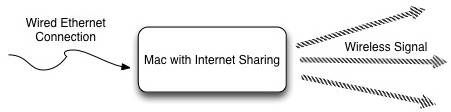
The wired internet connection can come either from something like a hotel or office ethernet network, or even directly from a cable modem or DSL modem from a standard broadband provider. Once everything is up and running, you can connect many devices to the Mac’s signal just by connecting to it’s broadcast SSID (the router ID). It’s easy to set up, let’s get started.
How to Share Internet from a Mac to Other Computers & Devices
We’ll walk you through the process of setting up a secured wireless access point, broadcast from an internet connected Mac to be shared with other Macs, PC’s, iOS devices, or anything else:
- Connect the ethernet cable to the Mac
- Launch “System Preferences” from the Apple menu and click on “Sharing”
- Click on “Internet Sharing” from the left menu
- Select the pull-down menu next to “Share your connection from:” and choose “Ethernet”
- Alongside “To computers using:” check the box next to “Wi-Fi” or “AirPort” (name depends on OS X 10.8+ vs 10.6)
- Next click on “Wi-Fi Options” and name the network, and then click to enable security/encryption, and then type in a WEP or WPA2 key as the wireless password
- Click “OK” and confirm that you want to start internet sharing
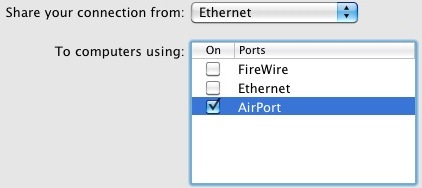
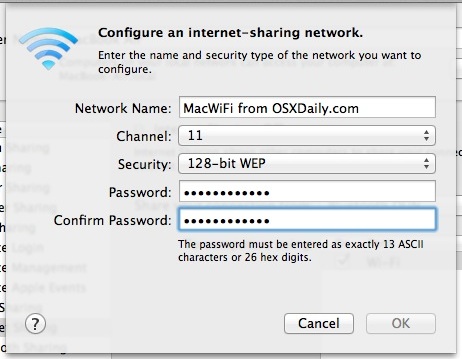
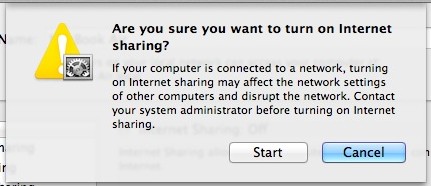
You’re done. Your Mac is now broadcasting a wireless signal that can be picked up by any other wi-fi enabled devices.
Connecting to the Internet through the Shared Mac Wi-Fi Hotspot
Connecting to the Mac’s shared internet connection is now the same as connecting to any other wireless network, the process of which is generally the same for each device, though obviously it will be slightly different per operating system. Basically, all you need to do is treat the Mac’s broadcasted signal as any other wireless router: Find the wifi access point name you set (known as the SSID), enter the wireless password, and you’re online as if you connected to any other network.
Literally any wireless equipped device can connect to the Mac shared connection at this point, whether it’s another Mac, a Windows PC, linux box, XBox, Playstation 3, an iPhone, iPad, Android tablet, Apple TV, you name it, as long as it as wifi support it will treat the Mac broadcasting it’s signal just like any other router and won’t know the difference.
In terms of security, the network is relatively secure thanks to password set during the setup process, if you forgot that password you just have to disable security and re-enable it to set a new one. The newest versions of OS X support WPA2 encryption, adding even more security to the network, but older versions of Mac OS X offer WEP which, while certainly better than nothing, is less strong than WPA.
The Mac puts out a strong signal, but if you’re a perfectionist, you could then run the Wi-Fi Diagnostics tool and get the optimal signal for the network by reconfiguring the setup by rearranging things physically. For most purposes though, whether it’s in a brief hotel or airport usage situation, so long as the devices are fairly close enough together the optimization is less important, and you won’t need to worry much about getting things perfect.






I changed the DHCP 169.X.X.X number to a manual IP within the range of the “MAC” router 192.168.2.X and it was off to the races for internet! Without this change, I couldn’t get out of the internal network.
Why my mac can’t load some website after turning on internet sharing from ethernet to wifi? My browser shows “the location where the webpage located isn’t respond”. But i’d never faced this problem before.
I would like to connect a DD-WRT (WRT-54GL) router to my Mac with an ethernet cable and share my WIFI from and external hi-gain USB WIFI adaptor which can reach the house from the workshop 150m away. The airport card cannot handle distance around the workshop. a simple ‘share internet connection” won’t reach the distance. So Anyone know how to do this?
Please note that this is the reverse of what most need to do:
[Modem+Router+WIFI] wireless transmission to:
[WIFI_Adaptor] connected via usb to:
17″ MacBook Pro connected via ethernet to:
[2nd_Router] (In Bridge Mode or AP mode??) via WIFI connected to:
[To Other devices]
Hi guys,
So I’m sharing my internet just for personal use. I want to either whitelist myself, or blacklist someone from the internetsharing. Either way is fine.
It’s not enough to just change the password.
This is bc I live with 2 roommates, but our neighbor is useing it aswell. I think one of my roommates gave him the password. If I change the password, he’ll just tell him and they will know I’m on to them.
Any help is very much appreciated.
Sorry for the broken English.
When setting up the internet sharing, what channel should it be on?
What does this warning mean:
“if this computer is connected to a network… blah blah… it could mess up other computers… blah blah… please contact the system administrator first”
If I use “internet share” how can it mess with my other computers?
This is about internet sharing from a Mac, not about a ‘blah blah’ message. Furthermore, having spent 20+ years with IT I have never in my life seen a “if this computer is connected to a network… blah blah” error before, or any error with “blah blah” or “mess up” in the alert dialog.
This is because in order to share internet the mac becomes a DHCP server issuing IP addresses to devices that request them on the network. If you have your mac connected to a work network then your mac may issue addresses instead of your works DHCP server causing those devices to be misconfigured and not work correctly til your mac is removed and the other devices are told to renew their DHCP lease
[…] work ethernet, home wi-fi with VPN, telecommuting hotspot with an iPhone or a tethered Android, a shared Mac hotspot, […]
[…] you can tether a Mac to the Android smartphone to use it’s internet connection, and then use internet sharing on the Mac to have the Macintosh turn into it’s very own wireless hotspot. This then […]
Trying to set up the wireless feature on my Mac OS X, Version 10.6.8. I have my computer connected with an Ethernet cable to my Internet Modem. I do not have the “Ethernet” option available from the “Share your connection from:” drop-down menu. These are my options:
1) Bluetooth DUN
2) FireWire
3) AirPort
4) AirPort 2
How can I get the “Ethernet” option?
Thank you Thank you Thank you Thank you Thank you!!!!!!!!!!!!!! :-D
[…] the computers internet connection as routed through the iPhone by setting up internet sharing for Mac or by using something like Connectify for Windows – yes, you are sharing the same iPhone […]
So ive managed to set up the internet sharing so my macbook is working as a router but my iphone cant connect, it picks up the signal and tries to join but never fully joins, am i doing something wrong?
Kirsty,
did you ever figure out how to fix this problem?
I have to do this every time I switch my Mac on – it seems to forget the setting. Anyone else have the same problem?
I’ve been having this issue on multiple Macs now. Sharing is not working after a reboot.
When you go to the sharing control panel, all settings seem to be right but the internet connection is NOT being shared. I have to turn it off and on to make it work again. This bug has been around for a long time now and makes it unusable for me. Do a search and see how many people are having the same issue.
my ipad under wifi settings just shows the spinning bar as if it is loading the wifi connection but doesnt actually connect it is very annoying. did anyone have this problem?
[…] Sharing preference panel options were changed a bit in OS X Mountain Lion, and while things like Internet Sharing remain, the Web Sharing preference panel was removed. The Apache web server remains bundled with […]
Tried it without password and it worked great (could surf, play games etc), but a bit worried about security, so tried encrypting with WEP (tried 40 and 128) but somehow after that my iPod can’t connect anymore to it.. So frustrating….!! Any idea why, though?
Tried it without password (I’m using Lion 10.7.4) and it’s working. :)
I am trying to do the reverse, receive a wifi signal from my apartment through airport and send it out through ethernet to my router. But the router never receives the internet signal. Is there another setting I need to adjust? I cannot just go out and purchase a bridge because the internet requires you click through to proceed.
Thanks,
This worked on my MacBook so that I can use my iPad3 without a router. My cable Internet provider is Optimum (formerly Bresnan) and turning internet sharing on did not seem to effect my service.
Since a few days i am experiecing a problem. I am able start internet sharing from macbook pro, my adroid phone easily latches it on the open network and i can surf, but at the same time i am not able to use internet on the mac. It also happens vice versa. i have noticed that if my internet sharing is ticked on but wifi on, sometimes i am never able to open any Google sites but all other sites are working. if i tick off the internet sharing, all sites including google/ gmail starts working. Something really strange and i am not able to get a proper solution.
I am on lion 10.7.4
can someone guide. i want to use it as smooth as butter like before. please catch me on twitter @vishaldm
Does the mac have to be connected to the router with an ethernet cable? im trying to extend the radius of the wifi signal
Hussen T, I have the same problems that you have mentioned above. Waiting in great anticipation for someone who can come to our rescue.
Further, when I go to system preferences>> sharing and Internet, it says Internet sharing is off but when I click on the airport icon in my lap top menu bar it says Internet sharing is on! Doesn’t make sense…
Shawn, I am having the same problem! I set up Internet sharing and am trying to turn it off but can’t. I still can’t see any available WiFi networks. The funny thing is that I can’t surf the web on my laptop but my iPad and iPhone can use my laptop as a connection to surf the Web! I have googled this many times and there seems to be absolutely no reply re: how to turn Internet sharing off even though I’ve gone through the system preferences>>Sharing>>disable Internet sharing. Even a restart doesn’t help. Please let me know if you find a solution…thanks!
Can someone tell me why this does not work at hotels that require you to login with a username password. I followed the steps exactly, I got my ipad to find the hotspot and also connected to the hotspot. Once I loaded Safari or any app that requires an internet connection, my Ipad wont connect to the site.
My laptop that I am using right now is connected to the hotels internet using the ethernet cable and a login that the hotel gave me. Once I set my laptop into wifi sharing, all my devices can connect to the hotspot but none of them actually get any internet access. Any suggestions?
same thing is happening to me in hotels i dont get why my ipad or iphone cant actually use internet since it is connected sort of but when i try to facetime or safari it says im not connected. also the check mark to see if its fully connecte just has the spinning loading symbol
please help
Hey!
I tried to set up an internet sharing & it doesn’t work. worse, now I can’t get rid of the internet sharing & the network I tried to set up.
so now in the airport icon in the menu bar looks like a arrow & only shows me the network I tried to set up. impossible to connect to my home wifi network!
what can I do?!?
thanks!
I followed the guide and managed to set up the wireless network. I did this to access the internet through my iPad.
Now I can access my email on my iPad, but for the life of me I cannot surf the internet. Crazy I know, but I would really be happy if anyone can advise me on how to overcome this problem.
Further information to my problem —I get a message that says “AirPort has the self-assigned IP address and will not be able to connect to the Internet.”
Same here. What’s more it *always* works at my office for up to 8 computers I have connected but it drops all the time at home. Why oh why oh why? Grrrr…
Frustrated now. This worked great for me until I upgraded to 10.7.4 and now the connection is constantly dropping. I’ve reset everything (router, iMac, iPhone) multiple times and it’s not helping. Occasionally an off/on switch of Wi-Fi on iMac and iPhone will temporarily bring it back but that’s not an acceptable solution. I own a Mac so that it will WORK and now it doesn’t. Any ideas?
Same problem – very annoying. Have you found a solution yet?
Deleted the password – now internet sharing works, but everyone can use it. Not a acceptable solution for me..
Big problem …!!
My new iPad3 is asking for a password..!! And I have forgotten the password I ve been using earlier on my iPad1 ..!!!
How to solve this problem..?
I would be very thankful for any assistance.
Kind regards, Johan
maybe you can just create a new wifi network with a new password?
I have been using this for several years now. It works fine on Snow Leopard, and I believe it also works on Lion. What is not often mentioned is that you can also use it to enable Ethernet access of non-WiFi devices to access a Wireless net. An excellent feature which I hope Apple continues to support.
Strange. I set up Internet Sharing a few OS versions ago, and the “Airport Setup” screen had a “Security” dropdown to choose between WEP, WPA, WPA2, and WPA2 Enterprise. Now, running 10.6.8, the “Security” dropdown is gone, and WEP seems to be the only choice. Yet, when I enable sharing on the machine, it still uses the previously-configured WPA2. So, maybe the work-around is to boot into an older version of the OS, configure WPA2, and the boot back?
remember to turn firewall off!!
hey
i never get a connection. always a self assigned ip.
any ideas ?
10.7.3
iphone 3gs 5.1
thanks
I’ve been doing this for a little while now. Yes, you mac needs to be constantly on for ti to work, but work it does. I live in a little cottage where it’s just me and my cat, but with this method I can use my android tablet and iphone wirelessly without a router. As mentioned, also good for when you’re travelling. It amazes me how many hotels still don’t have a wireless connection, just an ethernet cable sticking out of the wall.
I got to share internet through iMac with wep128 with iPhone. B
ut the PC cannot connect.
I think because of Wep encoding (not sure therefore not accepted by windows).
If this is the problem, is there a way to use WPA ?
thanks
And how can I share my internet using N wifi, i can create only G adhoc ;[
is there any way to change the WEP to WPA2?
Strange. I set up Internet Sharing a few OS versions ago, and the “Airport Setup” screen had a “Security” dropdown to choose between WEP, WPA, WPA2, and WPA2 Enterprise. Now, running 10.6.8, the “Security” dropdown is gone, and WEP seems to be the only choice. Yet, when I enable sharing on the machine, it still uses the previously-configured WPA2. So, maybe the work-around is to boot into an older version of the OS, configure WPA2, and the boot back?
It should be noted that enabling Internet Sharing this way is likely to cause one’s computer to fail to go to sleep.
Does not work for me.
“Wi-fi has the self assigned IP address 169.x.x.x and will not be able to connect to the Internet.”
“Network name: Internet Sharing: On”
My ethernet connection works ok. Wi-fi devices still can’t use it.
I tried this at work – but when I start the WiFi-Diagnosis-Tool I can see that my set up network has no signal… I tried it with WEP and without (just to check if this causes the failure).
The Channel (10, I tried others as well) isn’t used by any other network around here (my early 2011 iMac has a AirPort Extreme-Card in it) – anyone any ideas why there’s no signal?
Anyone actually got this working on lion?
Yes I am doing it with Lion
mine doesn’t actually share the connection? please contact me on twitter to help me: @Llionv
You are actually encouraging people to setup WEPs!? Come on guys, that is insane! The internet sharing on OSX, even though it could be really useful if it supported WPA2, should NEVER be used and should be considered obsolete. Nobody should be using WEPs in 2012.
using it all the time, hope apple doesn’t think like that and removes this useful feature (like it has been doing with other stuff on lion)
I’d like to share my connection from airport to airport. Is there a way to create a virtual adapter a la windows 7?
Did you ever learn if it is possible to share internet from a computer that is getting connection wirelessly. Wi-fi to wi-fi?
Does the source computer need to be tethered?
I’d like to share from my connection airport to airport. Is there a way to create a virtual adapter a la windows 7?
It doesn’t work for me. I set it up just like you said, with my MacBook connected to ethernet. All went well until I tried to use it. Found the name I’d set up on my Android phone, selected it, entered the WEP password, phone said “obtaining IP address” for a few minutes, and then went to “Disabled WEP secured”, and never connected. Tried several times…same result. Nice idea, I would love to use it at home, but I can’t make it work, and I don’t know why.
Try setting it without WEP encryption or by using a different encryption strength. Figures that if any device was to have a problem though, it’s an Android trying to connect to an Apple… LOL.
No, it’s an Android trying to connect THROUGH an Apple.
Tried it both ways, first with 40-bit WEP, then wide open. Same result – first says “obtaining IP address” then “Disabled”. Oh well…
Make sure your password is 13 characters
I have the same problem. For the 1st time, it works well with my android phone. the phone can connect to the network I shared. I enjoyed using it for a week. then, the next week I got this problem. The phone only said “obtaining ip address”.. I tried to restart my phone, but nothing changed. then I tried to restart my macbook, and finally I can connect my phone again to the network sharing. until the next few days (4days perhaps), the phone said “obtaining ip address” again. I tried to restart my macbook again, but nothing happen until now.. the phone still saying “obtaining IP address”.
This works.
Also it must be ensured that if your mac shows 2 ports or more (namely ethernet, wifi …) do not check ethernet option.
An oldie but a goodie Tip. Been doing this for years now
Great trick, didn’t know you could do this!
The problem is that the Mac only provides a WEP connection which means the password is easily hacked.
Investing in an Airport Express will provide better security. Another good solution is to use one of the VPN services out there. This will allow you to connect to the internet over an unsecured connection, like your Mac on WEP, and still be secure.