
Convert Video to an Audio Track Directly in Mac OS X
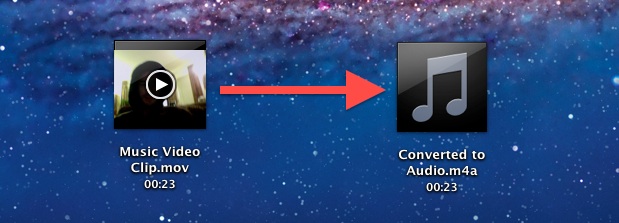
Converting a video file to an audio track is made extremely easy with the help of the media encoding abilities of Mac OS X that are built directly into the Finder. With this, you can convert many popular movie formats into audio tracks, including video files of .mov, .m4v, .mpg, and mp4 format. The resulting converted audio track is a 256kbps m4a file, which can be further adjusted if desired.
Using the video to audio conversion tools in OS X are very easy:
Quick note: if you don’t see the “Encode” option, here is how to enable the encoders.
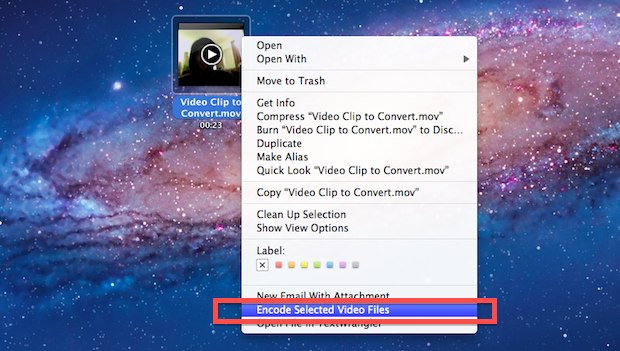
- Locate the video you want converted to an audio track and right-click on it
- From the bottom of the menu, select “Encode Selected Video Files”
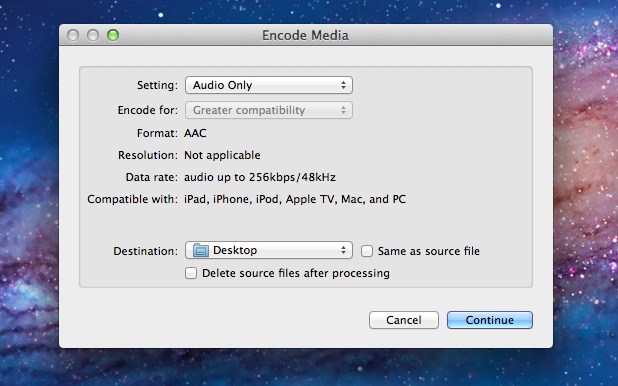
- At the “Encode Media” window, pull down the contextual menu next to “Setting” and select “Audio Only”
- Click “Continue” or set the destination to another location if necessary
The encoder works very fast, and you’ll end up with a .m4a audio file of the same name in the same folder as the source video. Open the file to bring it into the iTunes library for playing and syncing to an iPod or iPhone.
Speaking of iTunes, you can use the same Finder encoders in OS X to convert audio files to m4a format, which can then be added directly to iTunes as well as if they were any other audio or music file in the iTunes Library.
Update: Don’t see the Encode options when you right-click media files? Here is how to enable them






You need an audio extraction which can be found for Mac. Video Editor (Trim/Cut/Rotate/Merge/Extract…) + Screen/Voice Recorder + HD Video/Audio Converter + Video Player
I recommend Avdshare Audio Converter which can Batch convert AC3 to AIFF or convert AIFF to AC3, I hope this will help you.
thanks, never noticed that function before ;-)
[…] you want to remove the audio track from a movie completely? Although it can’t be done right in the Finder like extracting, it is very easy to ditch the background audio do with the help of […]
great trick thanks
Wow, that pretty much eliminates most of my need for Sound Grinder.
The Automator action that does the encoding for the service acts as a front-end for the afconvert command line tool. If you want to see the command strings used by the service, look in the Console app after running the service. It will show every command line string done by the service!!!!! More info here:
Transcoding music videos to audio files works great for me, but when I add the audio file to iTunes, it still shows the video icon in the library, and when I go to Get Info -> Options the Media Kind dropdown has “Music Video” instead of “Music”. In the Summary, the Kind is “AAC audio file” and the file extension is “m4a”. How can I force the Media Kind to “Music”?
This problem is annoying. How come iTunes doesn’t allow to change the Media Kind to “Music” even if it already knows it’s a audio file. Hope someone can dig into it and find out a way to change Media Kind.
You can do this with QuickTime
[…] Via | OSXDaily […]
Can you call this converter in terminal?
[…] encode and convert video and audio to other formats right on the desktop. We just covered a tip on how to convert video to audio using the media encoder, but it turns out this feature isn’t enabled by default for all Mac […]
I convert stuff all the time. Wow, it’s funny how stuff is buried deep in a menu though. It should just be right in the edit menu instead.
Or you could just use Piezo.
@Michael, mine didn’t either, at least not visible. But check under Services when you right click. It’s there. I bet there’s a story on making services visible on the context menu (in fact, I remember such an article being here in the last week or so).
Combining this trick with the Easy Youtube Video Downloader (save as .mp4 file type) in Firefox means converting will be much easier than waiting for the sometimes flaky save as 128 mp3 option in Easy Youtube Video Downloader.
My system (Lion 10.7.2) does not have this option in the context menu. Is there a system setting to activate this option?
The menu item s/b there if your file is on your desktop. If it’s in iTunes simply drag the file to your desktop to create a copy. Then right or control-click on it to bring up the menu.
Wow… How bout converting songs?
It’s a pain in my ass that converting songs using itunes ;)