
Change (Spoof) a MAC Address in OS X Mountain Lion & Mavericks
A MAC address is a unique identification number assigned to network interfaces, these can be attached to physical hardware like NIC and Wi-Fi cards or assigned to virtual machines. On some occasions, you’ll need to change a MAC address to another ID.
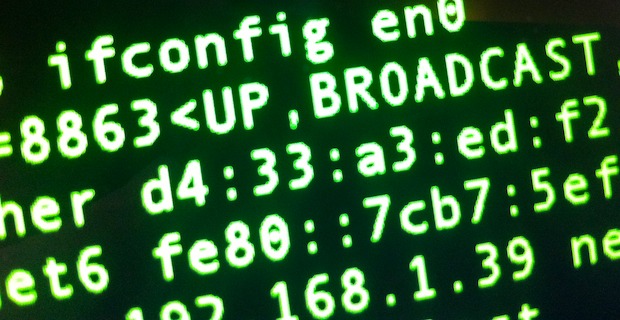
We’ve received a few questions about this recently because the process of changing (sometimes called spoofing) these addresses has changed slightly from version to version in Mac OS X. With that in mind, we will show you how to change a MAC address in the latest versions of OS X 10.7, 10.8 Mountain Lion, and 10.9 OS X Mavericks, and OS X 10.10 Yosemite.
Launch the Terminal found within /Applications/Utilities/ to get started.
Get a New MAC Address
The first thing you’ll want to do is retrieve the intended MAC address. If you have one in mind then use that, but if you aren’t trying to spoof a specific address and just need a random one, use the following command to generate one with openssl:
openssl rand -hex 6 | sed 's/\(..\)/\1:/g; s/.$//'
MAC addresses are always in the format of xx:xx:xx:xx:xx:xx, yours must conform to this format in order to work. For the purpose of this walkthrough the randomly generated address of “d4:33:a3:ed:f2:12 ” will be used.
Changing the MAC Address
If you aren’t in the Terminal yet, open it now. We’ll use the interface en0 for this, but yours could be en1 (read notes at bottom). The command for changing the MAC address is as follows:
sudo ifconfig en0 ether xx:xx:xx:xx:xx:xx
Replace “xx:xx:xx:xx:xx:xx” with the desired MAC address, in the example case this will look like:
sudo ifconfig en0 ether d4:33:a3:ed:f2:12
Hit return and enter the administrators password to set the new address. To confirm it has been changed, type the following:
ifconfig en0 |grep ether
You can also find it in Network preferences, though the GUI doesn’t always report the MAC change immediately, instead waiting until the network connection has been cycled.
Notes & Troubleshooting
- If you aren’t sure which interface to use (en0, en1, etc), type “ifconfig” and find it that way. For MacBook Air without an ethernet port the en0 is usually the Wi-Fi interface, whereas a MacBook, iMac, Mac Mini, MacBook Pro, or any Mac that has an ethernet port will probably use en1 for Wi-Fi instead
- You may want to note the default hardware MAC address before beginning
- Some Macs will use the following command instead:
sudo ifconfig en1 Wi-Fi xx:xx:xx:xx:xx:xxOS X Yosemite, Lion, Mountain Lion, and Mavericks and later renamed ‘airport’ to Wi-Fi and thus the naming change
- You will need access to an admin account or have the root user enabled
- You need to disassociate from a connected wi-fi network before the new MAC address will register
- This has been tested on a MacBook Air and MacBook Pro running OS X 10.7 OS X 10.8, OS X 10.9, and OS X 10.10, older versions of OS X can go here
The whole process should take no more than 15 seconds or so, as demonstrated in this video:






Thank you. Great article!
I’ve done this many times before but since the update today it doesn’t work. I’ve tried everything and I put the same stuff as always in but when i try to confirm that I’ve changed it it comes up with the same address. Someone please help
If I change my MAC Address, will I lose all my important files? I need to know because my dad will punish me if I break the computer. Thanks in advance.
Lol, not break, sorry. I mean ruin the data.
Mike, get off your computer now. Get back to school.
So I have done this all and successfully changed the Mac number, now where is this magic internet connection? To me I am in the same boat as before with my own Mac number looking at a long list of password locked wifi signals…
It won’t allow you to get through a encrypted system. But if there is a wifi connection that will give you some free time but then wants you to pay after the free time (like xfinity public hotspots) you can keep on changing the Mac address to get unlimited free internet.
So for example Xfinity public hotspots will give you a complimentary hour. So once that hour is up you can change your mac address and get another free hour. Repeat again and again for unlimited free internet
Does the change of the MAC Address change also the public IP address on FTTH on Mac OS X 10.9.4 (Mavericks)? Thanks.
I was getting the same “bad value” message on following the interactions on here. How I got mine to work was by first going to System Preferences/Network/Advanced/Hardware and changing Configure to Manual; then by using:
sudo ifconfig en0 ether xx:xx:xx:xx:xx:xx
where xx:xx:xx:xx:xx:xx is the new MAC you want to use and en0 is the interface you want to change, in this case my wi-fi connection. To check which one’s which, use:
networksetup -listallhardwareports
This is working for me as I’m typing it from a hotel chain that tries to make you pay if you want more than the initial 30 mins. per day.
Hope it helps.
So, when I do the default command everything works, but unfortunately I play on the Wi-FI… So When I go to spoof the mac for the en1 interface I get the message:
ifconfig: Wi-Fi: bad value
I have been entering addresses found by the random generator and tried addresses from the other generating commands in the comments, which doesn’t even generate for me.
Any help would be appreciated, thanks!
Even with Wi-Fi you need to set its “ether” (i.e., ethernet) address. Thus, try:
sudo su
ifconfig en1 ether xx:xx:xx:xx:xx:xx
Also, the Wi-Fi adapter needs to be on (so connect to some random other network first)
Note: for xx:xx:xx:xx:xx:xx you can try just adding one to your current ethernet address
I did this procedure and then checked it using the command “ifconfig en0 |grep ether” which show the new mac address i chose. So it seems all good but i went to System preferences > Network > Advanced.. and it’s still show the real mac address!! is that normal?
I tried many times with different mac address, the Terminal told me it worked each time but not in the system preference/network! :(
Whenever i change my mac address it is fine, but once i shut it down it always goes back to the default address im trying to change, any ideas??
Whenever i change my mac address it is fine, but once i shut it down it always goes back to the default address im trying to change, any ideas?
The easiest solution……. USE LINUX..
ER no every network problem I have encountered on linux has been 10 x more complex then on a mac.
you do you use linux right and understand what easy means???
Ok i made it work but it resets on restart.
Is there a way to set random mac address upon each restart?
Neither of this works for me. I either get “ioctl (SIOCAIFADDR): permission denied” or “ifconfig: Wi-Fi: bad value” if I use the alternative command from the tips on the bottom.
I have the root user enabled. Please advise?
How did you make it work after that error?
[…] (the unique ID attached to a physical network interface), but aren’t comfortable with the command line approaches that we’ve discussed before, an excellent free preference panel called LinkLiar makes it […]
With the computer serial number I can get the original MAC address? I lost my macbook and I need the mac address.
FYI, system updates seem to undo this little change reverting back to the original MAC address. Doing the procedure again fixes it, no issues.
[…] Change (Spoof) a MAC Address in OS X Lion & OS X Mountain Lion […]
I made a simple Preference Pane for this: https://github.com/funkensturm/LinkLiar
Maybe it will help one or the other. I find it kind of convenient.
OK, I’ve tried this in the past … everything goes as it’s supposed to … but then the Internet connection won’t work … I don’t have wireless … I have a router through the Internet company, like with a wire that connects right into the comp—I’m not sure if that’s a factor. I know the router itself has a separate mac address of its own … I’d like to change that too … but for now I’m willing to settle for just the first problem … Can someone help me w/ this?
OSX 10.7.4
I am able to successfully change the MAC address and it does in fact show up on the router, in the DHCP table, and via a network scan done by another device.
However, the GUI still shows the Apple MAC address, though it doesn’t seem to make a difference out on the network.
-Doc
BTW, I don’t use a random MAC address … I want to retain a bit of privacy when on public hotspots, so my Macbook Air is named “Dell User” and my MAC address prefix is one that is registered with Dell.
Same here. Change shows on router but not in Network Pref > Wi-FI > Advanced > Hardware > Mac Address
And the change is only good until a reboot then it reverts back to the original. Would be nice not to have to change on a reboot. I just have to run a small script on startup but still…
did you sort out an answer to this?
openssl rand -hex 1 | tr ‘[:lower:]’ ‘[:upper:]’ | xargs echo “obase=2;ibase=16;” | bc | cut -c1-6 | sed ‘s/$/00/’ | xargs echo “obase=16;ibase=2;” | bc | sed “s/$/:$(openssl rand -hex 5 | sed ‘s/\(..\)/\1:/g; s/.$//’ | tr ‘[:lower:]’ ‘[:upper:]’)/” | xargs sudo ifconfig en0 ether
This should generate and set a new random valid MAC.
If anyone knows a better way or find any error in code please share. :)
Great tip, thanks for this!
Regarding:
openssl rand -hex 6 | sed ‘s/\(..\)/\1:/g; s/.$//’
Can anyone help modifying the line for creating a random but VALID MAC such that it is always a locally administered (not multicast) one?
OK. I work on OS X Lion 10.7.3… I tried the procedure, sure it changes your MAC so it displays in your terminal window. The thing is I cannot connect to any of the wireless networks(!). It doesn’t work. Each time I try to connect almost instantly a comment ‘Connection time-out’ displays. Each time I have to revert to the original MAC address in order to have internet access.
Any help?
Thanks,
DT
I have the same problem… I need to spoof my MAC address to get back into my iTunes match account on the same damn laptop/account I bought it on.. I have 1 month left before it resets, but now that I know I can just change my MAC address I’d definitely do that instead… Any help would be deeply appreciated!
I changed my mac adr. for eth., but when i restart my computer it returns to the original?Why?
It’s a real change or masking?How can i save it permanently?
Thanks in advance!!!
You can just write a shell script like so
#!/bin/sh
sudo ifconfig en0 ether a1:b2:c3:d4:e5:f6
save it as bootup.sh
go to your terminal and where the bootup.sh is do
chmod 755 bootup.sh
now you want to put that file in you /bin directory
you can always use the “Go to Folder” function of the finder under the menu header go and type /bin
to make it autoloading on boot you’ll also need a launchd script
in a text editor put in something like this
Label
com.user.bootup
Program
/bin/bootup.sh
RunAtLoad
save that as com.user.bootup.plist
in the Terminal do
chmod 744 com.user.bootup.plist
and put it in /Library/LaunchAgents
WARNING:
DO NOT put it in LaunchDeamons instead of LaunchAgents as a launchdeamon will continously run forvever even if you kill the command
Enjoy
sorry, do the bash script without sudo
I did to change the MAC in the console, but the change isn’t shooing up in the GUI (Network Preferences Pan) at all -no matter how often I reconnect :( Is there anyway to force that?
Hi, I have a problem…when I try to change address with sudo ifconfig en1 Wi-Fi xx:xx:xx:xx:xx:xx it ask me the password but I cannot type anything…anyone can help me?
write the code and don’t care if it is visible. The code and enter
You should take care that the random MAC address you use is “locally administered” and not Multicast:
ruby -e ‘puts (“%02x”%((rand 64)*4|2))+(0..4).inject(“”){|s,x|s+”:%02x”%(rand 256)}’
You should not just randomly generate a mac address without knowing how these are assigned. The least significant bit of the first byte MUST be 0 otherwise it will be considered a multicast ethernet and arp to some routers will be ignored.
See http://en.wikipedia.org/wiki/MAC_address, specifically the section on addressing:
If the least significant bit of the most significant address octet is set to 1, the frame will still be sent only once; however, NICs will choose to accept it based on different criteria than a matching MAC address: for example, based on a configurable list of accepted multicast MAC addresses. This is called multicast addressing.
same procedure, if you wrote down the original MAC address… :)
How do you revert to the original MAC address?
run the command again with your default in place, or reboot
The MAC layer address is used by the local network router and switch. It is not used once packets leave the local network so I have no idea why anyone would need to change the MAC layer address.
A lot of networks and routers filter access by MAC address, changing it to an approved address can be necessary.
kinda sounds like a hacking situation…
Not necessarily. IT runs into this all the time when network resources are determined by MAC. Swapping a failed ethernet card changes the address, in some organizations it’s faster to jot down the old number and spoof it rather than waiting x many days to get some other departments approval for the new hardware.
You know airport wifi where you get 30 minutes, on 30 mb free.
Change your MAC. Free unlimited wifi :)