
Secure an iPad or iPhone with a Stronger Passcode
The default passcode for iPad and iPhone uses a fairly simple four digit numerical password, these are certainly better to use than nothing, but they can be somewhat easy to guess because statistically many people use common passwords or some variation of a simple theme, like a repetition, countdown, or birth year. An easy way to add more security to an iOS device is to disable simple passcodes and utilize the full keyboard, allowing you to type out complete passwords of varying complexity, instead of the simple numerical passcodes that are initially used.
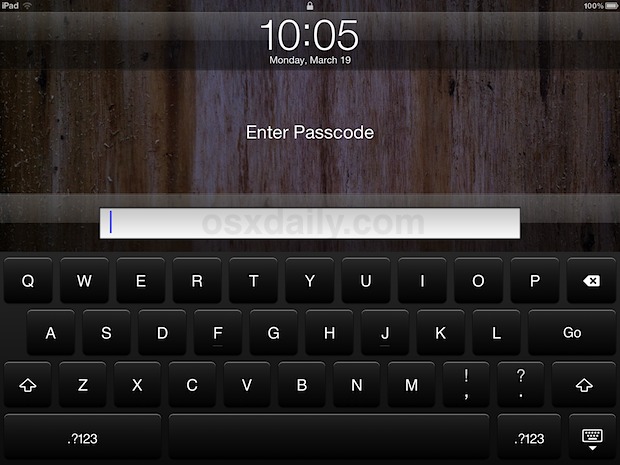
Here is how to further secure an iOS device by using the strong passcode option:
- Tap on “Settings” and tap “General”
- Tap on “Passcode Lock” and enter the current passcode
- Next to “Simple Passcode” slide the ON button so that it’s off
- Enter the old simple 4 digit passcode, and then enter the new password based on the full keyboard and special characters
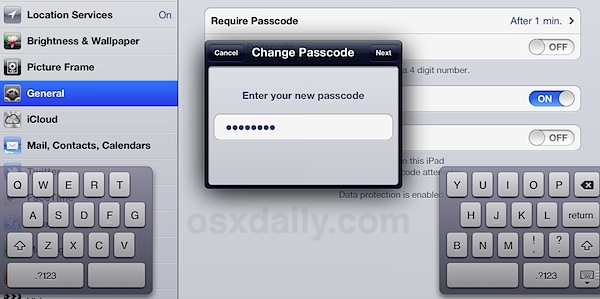
You can now use a combination of letters, numbers, and special characters, though using the latter can be difficult to remember since their placement is different on the iOS keyboard than a standard QWERTY layout.
Don’t set something so complicated that you can’t remember it yourself, though it isn’t too difficult to reset if you need to, assuming you have access to a computer.
For those especially concerned with security, you can also set the iPhone or iPad to “self destruct” and automatically erase all data after 10 failed password attempts. This is also a fairly good anti-theft countermeasure, just make sure you don’t forget it yourself or you could accidentally wipe your device.
Remember, even if you do not use the strong passcode option, at least use the default level of pass code protection with numbers, this insures some level of security and privacy as users will need to enter the proper code before being able to get beyond the lock screen.






[…] and peace of mind… taking this theme a bit further, consider disabling the simple pass codes and going with a more secure variation that uses the full keyboard for the […]
[…] discussed the strong passcodes feature before as a great way to secure iOS devices, and that’s where this tip begins. Here’s […]
[…] works from the Locked Screen in iOS, letting you get things like the weather, make quick phone calls, and a variety of other […]
[…] single-user devices, this feature can be extremely useful, but it’s best used in conjunction with a strong passcode to prevent people from accessing websites with sensitive data. […]
[…] to help protect your personal data in case you happened to lose the device (don’t forget to use a strong passcode too). In an ideal world, there would be different power management settings for auto-locking for if […]
meeehh… doesn’t work on the old stinkin’ 3G ….
[…] this tip with a secure lock screen passcode and Find My iPad/iPhone (configured within iCloud set up) to provide some added security and to […]
If the iPhone “self-destructs,” can you then restore it from your backup?
Yes. If you wipe it remotely though, it has to be unlocked with the help of an authorized computer and iTunes, which is typically by its rightful owner.
If you use the regular 4 digit passcode, it can be figured out in around 40 minutes, it’s a really good idea to use a larger code.
You can punch in 10,000 number combinations in 40 minutes?
You must also have great nunchuck and bowhunting skills!
Don’t forget iCloud with Remote Wipe for iPad and iPhone as well
Other than being safer I actually think it’s easier to type a passcode in with the full keyboard than the tiny number pad in the center of the screen.
my iphone not opening it is just bringing out iphone is disabled and that i should connect to itunes