
How to Unhide Purchases from App Store on iPhone & iPad

Need to find or reveal hidden App Store purchases so that you can access and download them again in iOS or ipadOS to your iPhone or iPad?
It’s easy to find and unhide app purchases directly on an iOS / iPadOS device, though the exact technique will depend on what version of iOS or iPadOS you have on the device itself.
To get started, grab the iPhone, iPad, or iPod touch, and then do the following in accordance with the version of iOS / iPadOS you are using:
How to Re-download Hidden Purchases on iPhone and iPad (with iPadOS, iOS 13, iOS 14, and later)
In modern versions of iOS and iPadOS system software, here is how you can re-download any hidden app purchases in the App Store on iPhone or iPad:
- Open the App Store app
- Tap the account button, which is usually a photo you chose for your Apple ID near the top of the screen
- Tap your name or Apple ID, sign in if requested
- Scroll down and choose “Hidden Purchases”
- Locate the app you wish to download, then tap download
You can repeat this process to find and re-download any hidden app from the App Store that is associated with your account.
How to Re-download Hidden Purchases from iOS App Store on iPhone and iPad (iOS 12, iOS 11, iOS 10, etc)
In some other iOS system software versions, downloading hidden apps from the App Store is as follows:
- Open the App Store
- Tap the ‘Today’ tab at the bottom of the screen
- Tap on your profile avatar logo in the upper right corner of the Today screen
- Now tap on your Apple ID, then sign in with the Apple ID password if requested
- Scroll down to find and tap on “Hidden Purchases”
- Locate the app you want to re-download and tap the download button, it looks like a cloud with an arrow flying out of the bottom of it
You can repeat this process to find and re-download any hidden app from the App Store.
This works with iOS 12, iOS 11, iOS 10, iOS 9, iOS 8, and iOS 7. But earlier versions of iOS are still in use, and if you’re on one of those versions you’ll want to follow the directions below instead.
How to Unhide App Purchases in iOS 6 and earlier
Got an older iPhone or iPad and want to unhide purchases there? Here is how to do that;
- Launch the App Store
- Scroll down to tap on “Apple ID: email@address.com”
- Tap “View Apple ID”
- Enter the password for the account
- Scroll down and tap on “Hidden Purchases”
- Find the app(s) you wish to unhide, and tap the “Unhide” button
- Find the unhidden apps under the “Purchased” section of App Store
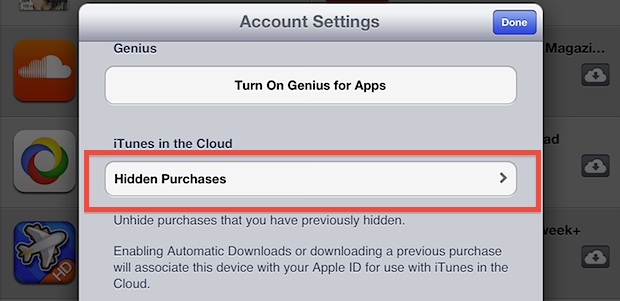
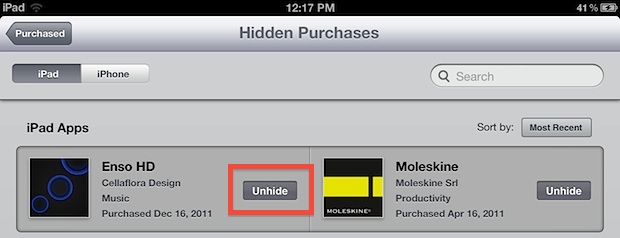
Remember, you can always hide a purchase from the App Store again by swiping next to its name in the purchased list.
As you can see, Apple has changed how to download hidden app purchases several times, but the functionality still exists, you just need to know which version of iOS or iPadOS you are using.
If you have any tips or suggestions for downloading hidden apps from your App Store and Apple ID account, share in the comments!






These instructions are COMPLETELY wrong…
Seth, there are three different approaches to unhiding / re-downloading hidden App Store purchases in iOS or iPadOS, and it depends on the version of system software the iPhone or iPad is using. Make sure you pick the proper steps for your particular system. Hope that helps!
Thank you. I thought I was doing something wrong.
I believe the older IOS have it. The new IOS you can see hidden purchases but you cannot unhide them. Tap your profile pic in the app store then go to hidden purchases but there is no way to unhide them. I hope they know of this bug.
I’m struck by how universally faulty this hide/unhide function is. I have a brand new XR running the latest iOS, and there is no “hidden purchases” option under iTunes in the Cloud in the App Store app. This is where Apple Support directs you, it’s where other sites on the web direct you, and it’s the solution posted here. This solution does not work. I then manually tested it after “hiding” a few old apps I don’t use anymore, then went back to the directed path – nothing there. At all. Not even an option to view a blank page.
This isn’t your fault, it’s Apple’s, and it’s yet another example of their deep plunge into Microsoft-dom; this is *nothing* compared to their recent screw-ups. But seriously – you need to really test these solutions now, it’s not easy enough to take Apple’s literature for granted anymore because it’s rubbish now. Look at this one comment thread! Everyone is losing applications they paid for, some by accidental swiping. It’s faulty. Thank you.
I tried also your instruction but my iphone will just hung. There is no unhide button appear.
I hid an app in the app store by mistake as I was scrolling. I tried getting it back, but there is no hidden purchase option to be able to get the app unhidden! My 6s plus updated to iOS 11 yesterday! 🙁
Thank you so much. This really helped. I’ve spend over 200 dollars in music and I hide some by accident one day. This fixed my problem! 💕
There is no restore hidden apps.Apple lied!When I hide apps alls they do is disappear and I have tried every method but nothing worked.
I can’t find hidden purchases on my iPhone 7
Nice answer. Solved my problem in seconds! Great!
In my iPad, I don’ see the unhindered button, it’s only the open button. It’s definitely a bug.
I mean “unhide button”
I’m using an Apple iPad.. I can not find option to in hide apps.. Can you please help me??
I’m using an iPhone 4S with the latest iOS and I do not have this either. Apple ID, Payment, Country/Region, Turn on Genius for Apps, and right below that it states:
“iTunes in the Cloud
Enabling Automatic Download or downloading a previous purchase will associate this device with your Apple ID for use with iTunes in the Cloud.”
Which I assume it probably the section this info is about, however I have done both of those and still no hidden apps buttons or switches
I went through your steps on my iPhone 3gs and couldn’t find “Hidden Purchases”; is this only for newer iPhones? I do have the latest iOS.
This should be on any device that uses iOS 5 or later. What do you see instead? The setting doesn’t show up if you don’t have any hidden apps, that could be it.
I have a iphone6 and there is no such thing on mine either! Followed your directions and DONT HAVE THE BUTTONS YOU SAY THAT IS THERE!! You are wrong with these directions or ALL these iPhone are different!! So now what do we do when the directions are wrong?