
How to Transfer Outlook Contacts to iPhone Without Syncing or Using iTunes
Have you ever needed to move an entire Outlook contact list to an iPhone without using iTunes to sync the device to a computer, and without deleting the contacts already stored on the iPhone?
No problem, here’s a simple two stage process on how to migrate all contacts from a Windows PC with just about any version of Outlook.
This guide is focused on transferring Outlook contacts from Windows PC to iPhone but it will also work with an iPad or iPod touch too.
How to Export Outlook Contacts as iOS Ready vCards from Windows PC
From Outlook on the Windows PC:
- Select all contacts in Outlook and forward them all to yourself as vcards
- Save all the attachments as vCards in a temporary easy to find folder, such as c:\temp
- Open a command prompt (Start menu, Run, type “command.com”) and type the following commands:
cd c:\temp

copy /a *.vcf c:\allcards.vcf
The last commands are essential because it joins all of the Outlook contacts together into a single vCard file that can then be easily imported into iOS and the iPhone.
How to Import the Outlook Contact List into iPhone
Your next step is to use the traditional email method of transferring contacts to the iPhone without the assistance of iTunes.
You should probably back up your iOS device before proceeding just in case the Address Book gets messed up:
- From Outlook, create a new email and attach the newly created “allcards.vcf” file to it, send this to whatever email address is setup on the iPhone
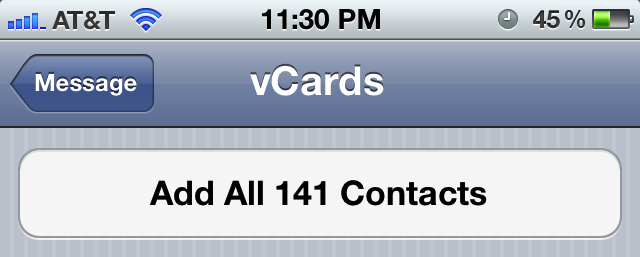
- From the iPhone, open the email address and scroll down to the attachments list, tap on the “allcards.vcf” file and then choose “Add All ## Contacts”
Verify the import worked by returning to the iPhone home screen and tapping on the Phone icon and then “Contacts”, where the Outlook contacts should now appear within the iOS Address Book alongside any other contacts that previously existed.
This is a great tip for people who are switching from Windows, changing jobs or computers, or if you just want to pull a long existing contacts list to an iOS device without having to sync and associate the device to that computer.
Thanks to EK for the tip!






another version:
— export from Google contacts, select the last option for exporting vCF format (for importing into Apple Address Book or another application), and save to file
—login to iclouds account via webpage, select the contact option and import the vcf format contact file
— all contacts will copy to iPhone after sync with iclouds,
if you want keep contacts copy in iPhone, uncheck again contact sync option with iclouds and select the option keep the contact on iPhone….
—
For all those who are reporting Access is Denied issue
the simple thing to do is run cmd prompt as administrator.
Steps are working, but require manual interaction each time.
I hate iTunes and iCloud related stuff, they are too clunky.
Why not sync them via Google, automatically?
Loved these easy instructions, it worked seamlessly. I am not the most comfortable person typing instructions but just follow the directions. Read the comments, they are also instructive.
I have exactly the same problem as dan chase. Does anyone have a solution for this?
Found the solution; the problem is due to sending the email from Outlook using rich text format; change it to plain text format, so other email programs can read the attachment.
For all those who are reporting Access is Denied issue while executing the command, Select the folder goto Properties and uncheck Read only in case if its already enabled. This should solve the problem
This page explains exactly how to transfer the contacts from Outlook to iPhone (including Outlook 2013)
Thanks for the info……very useful!!!
Very helpful article . A technophobe like managed to copy all the contacts from my BTyahoo mail to my new IPAD really easily and quickly. Sadly Apple support couldn’t offer any advice on how to do this !
SUMMARY
–a slight variation to this, see the BEST WAY below
–use GMail account as middle point to import then re-export and corrects excessive formatting,
–re-exporting to import to iPAD via email
BEST WAY
–modified method of above
–sync outlook contacts with gmail,
— save your contacts to VCF from outlook as described above
–log into your google account and import to google contacts
–merge your contacts for duplicates, etc
–export from Google contacts, select the last option for exporting vCF format (for importing into Apple Address Book or another application), and save to file
–email yourself and attach the generic VCF file
–double click on the google contacts exported VCF file, wait up to 30 seconds and showed all 682 contacts
BENEFITS
–excessive Microsoft Outlook formatting is interfering with the ascii character arrangement with parsing in non -Microsoft applications, in my case it affected 2 different files with different data
–Google mail to the rescue – import into Google Contacts then re-export as generic VCF, it corrects the formatting issues from Microsoft
it does not fully work as the orig article is written, I would agree that the concept is the best so far but there are bugs with it because of Microsoft excessive formatting
–attempted with 682 contacts and gives options to import 32 so not importing all contacts in the file, checked in notpad++ and all contacts are present, showing issue with formatting causing issues
–broke it down into sections, contacts a-g, h-p, r-z and re-attempted, issue continued – options were to import 32 on the a-g, 18 with the h-p and 97 on r-z.
–with modifications this is the best option
Awesome steps brother…
Worked like a charm…
Thanks very much….
Cheers!
“I put the files in the c:\temp folder. When I run the command, I get the message:
contact1.vcf
Access is Denied
0 files(s) copied.
c:\temp>_
Is there something folder-access-wise I need to modify?”
I had this issue, the simple thing to do is run cmd prompt as administrator.
Start Menu > Type CMD in the find bar, when i shows up on the program list RIGHT CLICK ON CMD, then choose run as admin. This will get rid of the access denied issue.
Wonderfull!
This worked really well! Super way of getting all your contacts accross. Only thing is that it failed to produce the email when forwarding as vcard with over 1000 contacts. (like mentioned already before in this tread) I tried many free apps and batchfiles and what not. This is by far the best and simplest way of getting your contacts accross.
Super article. Much appreciated!
Worked great ..ingenious!
this saved my life! thank you thank you thank you!
This worked on my Vista using Shawn’s command line except that all the contacts have pages of html code in the notes field and they’re all duplicated.
Going to try syncing with Google now which I’d rather not do but I have to have my contacts.
This all started with my updating the iPhone to IOS6.
Did you ever get a resolution to the text showing up in the notes section. Same is happening to me.
This worked beautifully. Absolutely no hiccups. Thanks a million !!!!! i have stored this mail, in my mailbox. whatever happens in future, i can simply resend the mail to iphone and repeat the last step. I’m indebted!!
venkat
WHen I do this, my iPhone 4s recieves it as winmail.dat rather than the vcard. My regular mail recieves it normally. The iphone won’t do anything with the file. maybe an iOS5 thing?
I put the files in the c:\temp folder. When I run the command, I get the message:
contact1.vcf
Access is Denied
0 files(s) copied.
c:\temp>_
Is there something folder-access-wise I need to modify?
Must be a Windows7 issue; it worked in XP. Thanks for this super easy tip. My wife is very happy
I’m on Win7 and had the same problem. If you change the last line of code to:
copy /a *.vcf c:\temp\allcards.vcf
it will work. This saves the file in the same directory that houses the .vcf files. Hope this helps.
Hi Shawn, I have tried your suggestion and it’s still not working.
The system cannot find the file specified
0 file copied..
any suggestion?
I’m on Win7, thanks.
I am having the same issue. I have tried both of the final commands “copy /a *.vcf c:\allcards.vcf” and Shawns code of “copy /a *.vcf c:\temp\allcards.vcf” and it isn’t working for me either!
Makesure you when you highlight all of the contacts in OUtlook, that you use the Action drop down menu to select “Forward as Vcard” or whatever it isays… don’t just select all the contacts and right click and select “Forward” b/c it sent them as MSG files. At least this was the case for me (Outlook 2003, Windows XP). When I used the Actions drop down menu and selected “Forward as VCard” it worked great.
Hi. Had same problem, it listed first contact then said access denied. tried the copy/a *.vcf c:\temp\allcards.vcf code and it worked fine.
many thanks!
You sometimes need to open up CMD as Administrator, it gives you that option if you right click on CMD.
Useful post, Thank you!
Some might face an issue with selecting all contacts and seding them due to Size or Max Attached Object restrictions (specially if using corporate email). The solution would be to do them in batches, by highlighting the contacts in phases, Right clicking, and selecting Send Full Contact -> In Internet Format (VCard). It will create an email and attach the contacts in .vcf format.
You can then just select all the attachments and copy paste them into a folder without having to send the email.
Just my 2c.
TA
Is there a way to do the same thing with the notes from outlook?
Good article, not a “DUH” one :)
Here is how mIcrosoft tells you how to do it:
http://office.microsoft.com/en-us/outlook-help/synchronize-outlook-and-apple-iphone-or-ipod-touch-contacts-HA010266802.aspx
That’s for syncing however, not for copying over.
Start Menu > Run is not always available : I recommend using the keystroke Windows(Flag key)+R.
Then please don’t write command.com this may not even work : type “cmd” without the quotes of course.
By the way nice article.
Fair enough, old habits die hard with the old “command.com” :)
Wish I had known about this months ago, I used the sync from Outlook method and it torched my existing contacts. So annoying. Importing and adding is always better.
Thanks for the post, will use in the future!