
How to Use Panorama Camera on iPhone to Take Panoramic Pictures

The Panorama camera is one of the better features of the iPhone Camera app, it makes taking incredible high-quality panoramic pictures ridiculously easy without adding any additional apps to your iPhone.
The amazing photography feature is built directly into iOS now and works on all modern iPhone devices as part of the Camera app.
If you’re unfamiliar with the iPhone panorama camera feature or you just haven’t used it yet, this walkthrough will show you how to use it, as well as offer some tips on getting good panorama images.
How to Use Panorama Camera on iPhone
In modern versions of iOS, including iOS 11, 10, 8, 9, etc, accessing and using the iPhone Panoramic Camera feature is very easy, it’s one of the options within Camera app:
- Open the Camera app and swipe over on the lower options until the “PANO” option is selected
- Tap on the camera button as usual, this starts capturing the panorama image, keep the iPhone steady as you pan the image slowly
- When finished, tap on the camera button again to complete the panorama image capture
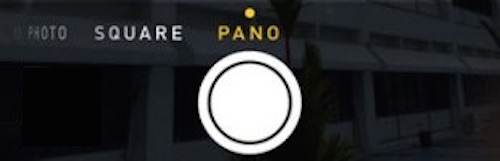
Your panorama image will be stored in the Photos app along with other images as usual.
Panorama photos can be quite large in file size and resolution, so be prepared for handling a large image if you are going to share, edit, or otherwise use the image.
There is virtually no wait time while the final picture is rendered as a result of how Apple basically “paints” the picture live as the panorama is taken.
You can click the image below to see a full size panorama image of some really nice scenery shot on an iPhone:

5 Tips for the Best Panorama Photo Results
- Hold steady and aim to center along the provided line
- Move slowly horizontally to allow for lighting adjustments as image pans
- Tap an area of neutral lighting for the initial exposure, avoid exposure lock in dramatically varied lighting situations
- If you do end up with artifacts and/or regions of black pixels, use Crop directly on iPhone to clean them up instantly
- You can also shoot panorama photos from left to right, or vertically, just by tapping on the camera or rotating the iPhone
Once Panorama is active, moving slowly and holding steady to “paint” your panoramic photo gives the best results. If you move too quickly the camera won’t have time to adjust properly to lighting changes, and artifacts can appear on the final image either in the form of black pixels for areas that are missed or out of the guide line, or in the form of chunky transitions. You can see an example of the chunky transition artifacting that can occur from a quick motion at the far right corner of this otherwise very nice sample panorama image from an iPhone 5.
Panoramic pictures are stored in the Photos app Camera Roll as usual, and you can email or send them through messages as you’d expect. If you want the highest quality version of a panoramic image, you’ll need to connect the iPhone to a computer and transfer the photos by USB, otherwise it will be automatically compressed and reduced in file size and resolution down to somewhere between 5000×1000 and 8000×2000 to save data usage and make it reasonable to open on iOS devices and in email. The original panoramic photos are gigantic, coming in around a whopping 20,000 x 4000 pixels, so be prepared for iPhone storage space to disappear rapidly if you take a lot of these.
Click below to launch an absolutely beautiful sample iPhone panorama shot, the resolution is reduced from a full size 20k x 4k to 5597 x 1024 (a big thanks to Ryan for taking this amazing picture and allowing us to post it!):
Taking a Panorama Picture with iPhone and Earlier iOS Versions
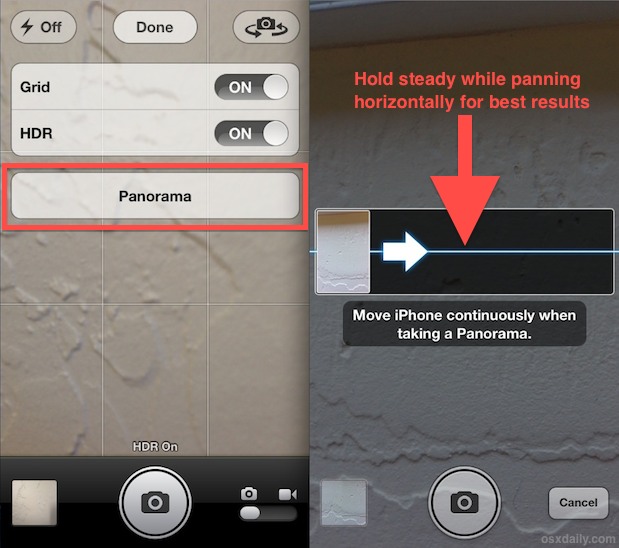
In prior versions of iOS, accessing Panorama Camera mode is available though it is slightly different. Here’s how in iOS 6 for example:
- Open Camera (from the lock screen is the fastest way)
- Tap “Options” at the top, then tap “Panorama” from the menu
- Tap the camera button to start taking a picture, then move slowly while keeping iPhone stable as the panoramic image is drawn
- Finish by reaching the end of the panoramic guide line or by tapping the camera button again
Finally, though the built in Panorama Camera is limited to new devices like the iPhone X, iPhone 8, 7, Plus models, 6s, 6 Plus, 5S, 5, and 4S, older iPhones are not totally out of luck… if you have an iPhone 4, iPhone 3GS, or you want to take panoramics with an iPod touch or iPad, an excellent third party app called Dermandar is available for $2 on the App Store.






Download iPad app called DMD. Does a nice job of panoramic photos. I think the app was either free or very low cost. C
Does anyone know why this feature is not included on the iPad 3?
An easy way to import the original is by turning on the automatic photo import feature of Dropbox. Mine came in at 7,392 x 2332.
How on the iPhone?
Interesting, I’ve got iOS6 on 4S but the pana camera doesn’t seem to be there. Anybody knows anything about it?
It’s under the Options menu. I don’t have a 4S but it is there on my 5.
It’s there on my 4S
There’s actually no need to move the phone horizontally to get a good panorama shot. My wife took a lovely pano of a very tall waterfall while on our vacation last weekend. What you DO have to do is move the phone consistently along that line – whatever direction that might be.
Wow I did not know this, how cool!
For anyone else, rotate iPhone and activate panorama sideways to get vertical panorama.
That shot of Zion would be an excellent wallpaper for multimonitors if it was just a tad larger and the artifacts weren’t on the edge there.
HINT HINT