
Resolving Stubborn Wi-Fi Connection Problems in Mac OS X
A fair amount of Mac users have encountered long lasting Wi-Fi connection issues, whether it’s a dropping connection, a refusal to reconnect after waking from sleep, or any other number of oddities pertaining to wireless networking. Often these connection problems can be resolved with renewing a DHCP lease and changing the MTU size, but sometimes things are more stubborn and a wireless connection will continue to drop or throw unusual connection errors when waking from sleep. If you find yourself struggling with persistent wifi problems, try deleting all preference plist files associated with wireless settings in OS X:
Fix Stubborn Wi-Fi Problems by Deleting Preference Files
Before beginning, be sure to have the wi-fi password of your primary network handy. You will need it to rejoin the network.
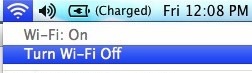
- Pull down the Wi-Fi menu and turn Wi-FI OFF
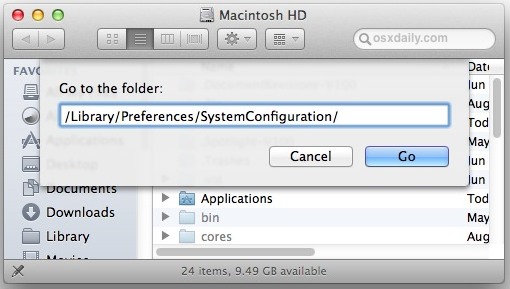
- From any Finder window, hit Command+Shift+G to bring up Go To Folder, and enter the following path:
- Locate the following files, copy them to the desktop for a backup, then delete them from the /SystemConfiguration/ folder:
- Empty the Trash and reboot the Mac
- Turn Wi-Fi back ON from the Wi-Fi menu, join your preferred network as usual
/Library/Preferences/SystemConfiguration/
com.apple.airport.preferences.plist

com.apple.network.identification.plist

NetworkInterfaces.plist

preferences.plist
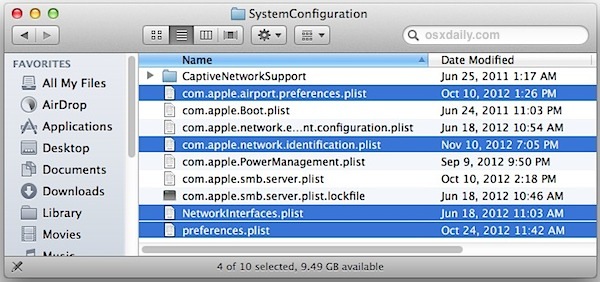
This process forces OS X to create all new preference files for wireless networking, which can be an effective troubleshooting strategy if the wi-fi problems began after upgrading versions of Mac OS X and even installing incremental system updates.
The wi-fi connection should now work as expected unless there’s a deeper problem, whether it’s a compatibility issue with the router (often resolved by this DHCP and MTU fix), a problem the router itself, or something as simple as network interference (here’s how to check connection strength and interference issues), which can often be resolved by reconfiguring a routers physical arrangement or changing it’s broadcast channel.
Let us know if this worked for you, or if you have any other helpful wifi troubleshooting tips.






I’ve just tried these steps and it still doesn’t let me connect, something else is going on here, I run a 2011 MacBook Pro with OS10.7.5 in 2021 so there’s a large possibility that’s the problem. I’ve just updated my iPhone 11’s operating system and when trying to connect to the phones mobile hotspot it asks me for WPA2 enterprise credentials:-
Mode: Automatic
username:
password:
I’m inputting the correct password for the mobile hotspot but for the life of me can’t discover what the correct username would be. I’ve tried the username of the phone and username of the laptop and nothing is working… any ideas?
Praise G-d! Awesome!
Missing one of the files, but worked fine with taking out only three i had.
Thanks and best regards,
B
It worked like magic. Thanks 🙏 Thanks 🙏
Yup this did the trick. AWESOME!!
i had only 3 of the 4 files (was missing the apple.network.identification.plist), so i just deleted the other 3.
Emptied the trash, rebooted, then connected to personal hotspot on Iphone 8 again. WORKED!!
Anyone know exactly what issues this solves, i.e., what’s gone wrong that this fixes? It’s solved my issues but I’m curious as to why it’s necessary and/or what exactly went wrong in the first place.
Thank you, I could find all the files but it worked for me!
my wifi keeps disconnecting as soon as it connects. or otherwise it’d say no ip address or self assigned ip adress. if anyone knows anything pls help !
This didn’t work for me. I only had 3 of the 4 *.plist files. Still can’t connect to iPhone hotspot.
Hi, i dont have this files on my Path. Can you Help me?
I was really desperate, I could connect to a WiFi network but could not find a way to connect to my iPhone hotspot. This trick solved the problem. Thank you so much!!
WORKED FOR ME THANKS!!! Make sure to empy the trash before restarting
Totally worked for me. Thank you!
High Sierra 10.12.6. I have tried all of these suggestions; rebuilding the preference files, renewing the DHCP lease, resetting the MTU, and deleting and rejoining the network. Nothing has worked. The iMac still drops the Wifi signal when it wakes up. Do you have any other suggestions? This problem coincided with the computer slowing down. Do I need to reinstall the OS? Thank you.
Works perfectly. Thank you so much!!!
This worked! Thank you so much!
Thank you so much for this! Been looking for an answer for a while! Life saver
Than you very much,the problem solved. You are a life saver!
Thanks a lot!
This worked like a charm on my Macbook Pro.
Thank you – this fix worked for me – deleting system prefs…
I was SO angry with apple who made it impossible to plug into the router directly when they removed all side ports. I really hate what they’ve done.
Thanks.
There’s usually some adapter or other that can connect you to ethernet, FWIW…
This is the best help i’ve had , no one else could help and i’ve had this problem for a while and this page is amazing !!!!!!!!
Glad to hear this was helpful for fixing your Mac wi-fi issues Devon, thanks for reading!
Thank you!
This worked for two MacBooks (one a Pro) when High Sierra appeared to kill Wi-Fi.
Apple instructed that backup and reinstall OSX. That failed. Your solution worked perfectly, first time.
Hal-a-luejah! I have been trying and trying, searching all the Apple boards, and deleting the files from the system configuration folder FINALLY did it. Thank you!!
Thanks! you saved my rickcomputer internet!!!!!
After a bit of tinkering, I discovered the four missing files:
1)com.apple.airport preferences.Plist
2) com.Apple.network.identification
3)Networkinterfaces.Plist
4)preferences.Plist
were residing in the system folder but were not in the preferences folder in the home/user folder. This was, to me a surprise, the files in the system folder carried a fresh date. So that was interesting.
Oddly enough, when the computer sits idle for several hours or all night I click the mouse ( not a restart) the screen shows and it logs right on to the wireless/airport
and the connect thing shows a full strength connection !!
This I noted yesterday after a full day of work and then it happened this morning (letting me add to the drama that I describe here.
So a few additional items to help characterize this strange behavior with the network connection. I am thinking now that the problem is more with the network/ router setting for this individual computer out of a total of 5 in the house that perform. I also add that the battery in this MBpro (vintage 2006 model 1,10) has been bad for at least a year and has zero charge. I keep it plugged in all the time. So I will get a new battery hopefully today and remove that as a variable.
Any help by comrades on this site appreciated.
My internet connection has been working but deteriorating over the past couple of months with out changing any settings knowingly. So it has worked in the past. Very recently the connectivity became very problematic requiring troubleshooting.
I had a similar problem 2.5 years ago and had put the network related .plist files (4) into the trash. Never put them back in preferences until yesterday. I don’t understand why trying to connect that new .plist files were not generated when trying to connect via WIFI. Everyone says the computer generates new plist files most every time you start an application…
I had noticed they were missing from preferences so I put them back in from the trash. So I have been running for 2.5 years with no preference files ( Preference. plsit, Network interfaces, airport and another) for network in the preferences. I did not empty the trash in the meantime. Now I cannot connect at all.
So all other computers in the house connect easily, So I will try a direct hard wired connection to see if that works, but I can’t understand why this is such an issue especially with Macs. Since my Macbook Pro is from 2006, running 10.6.8, my next computer will likely be a PC. The macs have had this type of issues for years and years just do a google search, it’s like a cancer.
Any advice…
Awesome, worked like a charm.
Thanks so much
As someone posted much earlier simply turn wifi off, go to system prefs->network and add a new location, call it whatever, then reboot. This worked in sierra. Make sure you know wifi password first though.
THANK YOU. deleting the preference files worked for me. you saved my life.
THANKS!!!
The very first suggestion of deleting preference files worked for me! Been fuming for a while about not being able to connect to most wifi networks. You’re a life saver!
Hi there
I’m about to run this fix but the file names seem to have changed for the OS X El Capitan version
Can you update the names of files to be deleted/moved?
thanks… this’ll be a lifesaver
Thanks! This helped!!
Brilliant! This worked like a charm on the new Mac OS Sierra beta – immediately after install my wifi would just keep cycling and not connect to any known network, confirmed it wasn’t an access issue in keychain (as I have experience before) and then found this – booting into safe mode seemed to help as well.
can someone tell me how i should reboot the computerr?
If the Mac is frozen:
https://osxdaily.com/2014/10/06/force-reboot-frozen-mac/
If the Mac needs normal reboot:
https://osxdaily.com/howto-restart-mac/
THIS WORKS! had a stubborn wifi problems connecting to hotspots, turnning wifi off and following the directions, rebooted and turned wifi on and it SOLVED
thank you!
Thank you! Thank you! Thank you! This saved me from another long and painful conversation with my internet provider!
This is excellent! The only thing that worked for me! Thank you!!
Thank you.
thanks alot for this
You are bloody brilliant ! I tried to fix this for hours !
Then tried this and it worked
Happy New Year for 2016
You absolute legend, thank you!
Just in case anyone else has the problem I had:
The wifi connection on my MBP was dropping every 20mins or so (connected to a Virgin SuperHub)-and I was almost convinced that there was something wrong with the router.
Wireless diagnostics suggested that one of my neighbour’s routers had the wrong country code.
But when I ran a the same wireless diagnostic on another MB on the same WiFi connection, it didn’t drop out at all-so then I knew I suspected that there had to be a fault my MBP. I then found your article, and it solved the problem immediately (albeit some of the files now have slightly different names-given that I’m on OS X Yosemite). So thanks again!
Hi
I’m trying to do this as I’m having exactly this problem… but as you say, the file names have changed… can you remember what the new equivalent file names are?
thanks
Worked perfectly for me! Thanks a lot
Hi there, do you have similar instruction for a Dell Inspiron ultrabook (PC Windows8), I’m losing c80% of speed even sat next to the router which is bringing in 150Mbps. Please help, I’m at my wits end. Thanks
Amazing! Thank you!
Thanks so much! It worked like a charm.
This worked for me. It kept saying connection time out but its all good now
Thank you sir!
I have been wrenching myself to death for months on this issue… Fixed!
You are King
Thanks a lot
My problem solved .
many Thanks again
I followed the steps and the issue persists. How do I create a new network ?
I just tried this — worked for me ! thanks so much !
This worked! Thank you!
I was having this exact issue on Mavericks 10.9.2. Tried a number of fixes; nothing worked until I unchecked ‘File Sharing’ and ‘Printer Sharing’.
Frustrating.
Ummmm I’m on mavericks and the .plists have most definitely changed names. Any help?
I am getting connection Time out error everytime I try to connect to my Home Wifi. All other devices in my house use the same wifi without any issue. I followed the above steps and found that com.apple.network.identification.plist file is missing in my mac.
PS: I am using mac boo air OS X 10.9.5. Really appreciate some help.Thanks
Same problem. Please help!
I followed all of the above steps, but on reboot i just get the loading spinning circle thing so now i can’t even turn my airport back on!
Please help
I tried this and it didn’t work, BUT I found that our internet router had a WEP security and I think Yosemite over looked that type of security so it would connect to the router but not the internet.
I then changed the security to WPA2 and voila internet is good on my OS X!
just spent 5h on phone w phone company & then apple tech support and this worked in 5 minutes!!! THANK YOU!!!! Your list just needs to be updated: removed “com.apple.network.eapolclient.configuration.plist” instead of the second one on your list.
Ok thanks :D
thank you, worked directly!
very hard to find a correct answer.
macbook pro 13′ 2012
Is it possible a power saving config is doing this ?
I noted that even the mouse lost connection for a few seconds and then reconnected by itself again.
Amazing!!! Worked first try and I am not “tech savvy” so to speak. Thanks
Thanks this is the only thing that works. This problem is a real nuisance and “pain in the neck” problem but thanks to this solution it now works. It seems to erase it’s memory of the settings that are causing the problem and now my late 2013 iMac connects with my wiFi every time……thanks a million…..it is much appreciated
Guys, you made my day! I was getting so frustrated and after a few days i have been able to fix it thanks to your advice.
Cheers!
AMAZING fix! My computer was working perfectly in the U.S.. but after moving overseas, it just stopped. I’ve never had problems before and figured it must be the wifi where I am, but no one else had the problems I did.. Thank you genius solution poster!!
Really works.. Thanks!
Thank you Thank you Thank you!
I was ready to fly-kick this iMac into tomorrow.
deleting the plist files as described worked perfectly for me – thank you so much
I tried almost everything and at the end the easiest solution fixed my issue with the bad wifi connection. Just turn Bluetooth off!! It seems that Mavericks has trouble when both services are turned on. I hope that Apple is working on an update. I need my bluetooth working because of my wireless mouse.
Thank you so much for this. I tried other fixes from other sites (such as deleting the airport entries in the keychain) but wasn’t successful. This made problem go away.
Thanks. worked first time.
thanks! it worked!
Worked perfectly, Thank you
just buy a WIFI USB Adapter like this for mac http://www.amazon.com/gp/product/B00DTZYHX4/ref=oh_details_o00_s00_i00?ie=UTF8&psc=1
This fixed my problem. Thank you!
Thank you so much for this solution, which worked first time.
I did all the things outlined at the start of this article and it made not an iota of difference. Then, on a whim, in preferences → network → advanced → I clicked ‘require password to change networks’. Magic! Back to the sparkling performance of yesteryear. I have been tearing out my (remaining) hair for weeks. Mac OSX v. 10.6.8. (It is still ok 24 hours later.)
For some random reason this worked for me. Doesn’t make much sense really but worth a try. Not that confident that it will last but happy for now =) Thanks for your suggestions! Had problems after upgrading from Yosemite to El Capitan and this fixed it… for now… will let you know.
Great this one worked for me to, all the others failed and i too didnt have one of the files to delete
Thank you. I did a LOT of stuffs. But your solution works!
I am not finding one of the plist files in my pref folder. I am using OS 10.9.1. and don’t see the com.apple.network.identification.plist. there is this one com.apple.network.eapolclient.configuration.plist
Is it the same?
i’m also using 10.9 (mavericks) and am wondering if these two files are the same…
Wow this worked! I’ve had this problem for so long tried everything and I ve been able to only work with Ethernet. Thank you thank you thank you for this post!!!!
Worked for me after restart. thanks a lot.
I applied the solution and it seemed it worked for a while but the problem occurred again.
I looked at the problem suggested by Gary that it has to do with the country code. I live now in Germany. I checked the setup of my Time Capsule and apparently the signal from there was with UK CC. I changed this setup to Germany and since then all goes smoothly.
Actually I have an impression it goes faster!!! :)
So check first the setup of your router.
Cheers!
Greg
Thanks a million. Worked like a charm
This fix worked for me on our iMac, finally! I have tried each of the fixes that osxdaily has suggested and none have worked until this one.
The WiFi connection would drop out after a certain period of not being used, then when we come back and try to reuse the iMac, after searching for WiFi signals it would latch onto an unlocked neighbors signal.
Thanks so much for your help!
Jim
Any thoughts on percipient wi-fi connection problems on iPad? Second Generation? Sometimes even making a hot spot with my iPhone 4 doesn’t result in actual internet access on my iPad. Not the end of the world but frustrating.
So far so good. No Wifi problems to speak of over the past few days. MBP connects to Airport Extreme and other routers with no need to reboot.
i do not have com.apple.network.identification.plist in my folder
Me too =(((
ME too :(
after deleting other 3 plist files now my wi fi is not getting detected in the list (all other neighbour’s wi fi are visible though)
By any chances… is there any trick like this one working for bluetooth?
Dont delete this file my laptop get worst then I put this file back problem gone
com.apple.network.identification.plist
I’v never experienced any WI-FI connection / dropping problems with Mountain Lion until I recently moved (2,000 miles) I’m using the same Modem & router but a slower internet connection ( 10Mbps down to 3Mbps) due to cost. Now I get dropped at least once a day. Would any of these suggestion from this article or the article from August 2 address my problem, or would it be a internet provider (Time Warner Cable) issue ?
Be aware; if you use Rowmote. The app will not recognise you computer as is use to. You’ll have to name you computer again. In /system preferences/ network / share. Just name you computer as it use to be namned. Done and ready to go!
what to do to the files copied to desktop then?
If the method above worked, then you can just throw them in the trash. If it didn’t work you may want to delete the replacements that came up and put those files from the desktop back where they came from. I like to put a ~ in front of the file name instead of dragging it to the desktop. I’ve started doing this after I dragged somebody’s .plist to the desktop and totally lost it.
I have been suffering from WIFI re-connection problems when waking my MacBook Air running both Lion and Mountain Lion, but I have finally worked out what has been causing the problem.
I suspect that many people who live in built up areas with many wireless networks around them may also be suffering from this too.
The problem is 802.11d – when your WIFI wakes from sleep the first thing it does is to listen for a wireless network beacon signal to determine what country it is in and then it restricts it WIFI radio to _only_ listen on the frequencies for the country detected.
Hence, if you have a neighbour with a wrongly configured country code then your machine will only listen on the frequencies for that country. I live in the UK and have a neighbour with a WIFI router wrongly configured for TW (Taiwan) – My Macbook then cannot see my Wireless N network as the channel is not one used in TW.
I suggest checking the WIFI network country codes in your vicinity to see if you might be suffering from this using the WIFI Scanner built into Mountain Lion: https://osxdaily.com/2012/07/31/wi-fi-scanner-mac-os-x-mountain-lion/
You can also check your syslog to see if it is configuring your WIFI radio for the wrong country:
Nov 9 18:18:11 GarysMacBook kernel[0] : en0: 802.11d country code set to ‘TW’.
Nov 9 18:18:11 GarysMacBook kernel[0] : en0: Supported channels 1 2 3 4 5 6 7 8 9 10 11 56 60 64 100 104 108 112 116 120 124 128 132 136 140 149 153 157 161 165
My wireless N network is on Channel 48 and hence not seen – hence the failure to connect.
The trouble is, I have put a letter out to all my neighbours explaining the problem and how they can fix it, but the WIFI router is still wrongly configured. I don’t know who owns the router as I have about 20 WIFI networks around me – about 10% of the time my WIFI still won’t connect to my WIFI network as it sees the TW WIFI Beacon before mine.
I think that the 802.11d spec needs changing so that the country is not set on the first WIFI radio beacon detected as this can be wrongly configured. The strange thing is, I only see this behavour on my MacBook and not my iPhone 5 or my Windows laptop, so it must be possible to work around the spec.
Maybe I can report my neighbour to OFCOM regulator in the UK, but I can’t see much hope in this.
At least I know the problem, if I can’t fix it.
I hope this helps some people as it was bugging the hell out of me.
Gary
It worked! Thank you so VERY much!
On my 2012 MacAir I seem to have cured my wifi connectivity problems by shutting off airport, opening key chain, under the Key Chain menu choose First Aid and run repair, and then turn airport back on. When I did this I noticed that errors were found in the key chain regarding my work network (a MS Exchange network).
Four days in, no more slowness connecting, not connecting without reboot, or problems connecting upon wake from sleep.
I’m giving it a test drive over the next few days to see if it clears up a persistent bug I’ve had since installing M.L. where it would take two warm boots to load the wifi connection properly on a Airport Extreme as well as other routers that I access at different times in the course of my work.
I’ll try to remember to report back with findings.
my imac does this while connected via ethernet….will it work for that as well?
Nos ha jodío mayo con las flores…
Great—now what about a fix for the iPhone?!?!?!?!?
The easiest thing to try first is to recycle the router (turn it off and back on). I had to do that every week or so on my old Netgear router, though my newer, top of the line, Netgear router doesn’t seem to require recycling.
If I do what you suggest, is it going to erase all my passwords for networks already saved in my MacBook Pro?
Thank you,
Antonio
Your passwords should be stored in keychain and should not be impacted by removing a preference file, but custom DNS and IP settings will be lost. I would write down your WiFi passwords somewhere beforehand though if there’s one you can’t remember.
Thank you, Martin. The problem is that many passwords are stored in the computer and there is no way to look for them. That makes the task of writing down beforehand quite difficult. I appreciate and I hope all of them are in the keychain.
Martin, That reminds me. I had an issue with my home wifi connection that was caused by duplicate keychains. I could connect to my network but overtime would get disconnected. I tried the preferences to no avail. The problem has not occurred since removing the duplicate wifi network system and login keychains.
Creating a new network location in Network Preferences also worked for me
Me too, that is basically what is described in this article but less extreme.
Thanks, Didi. I restarted my computer after creating the new location and it hasn’t given me trouble since.
cool, ill try