Search

Top Posts

Comments

  • Zachary Waldowski: The Nvidia 9400M, which is on anything current but the high-end MacBook Pros, high-end iMacs, and...
  • Pona: good good :)
  • Porno İzle: very nice thank you
  • Mitch Haile: Normally I don’t reply to this stuff, but since you _are_ calling me a liar, 1. It’s a...
  • David: unfortunately this photo has either been doctored or is a complete fake. hopefully its the former 6 monitors...

Categories

Recent Posts


Archives for OS X Apps

Download Google Books

download google books Google Books is a pretty amazing virtual library filled with who knows how many books, magazines, periodicals, and whatever else you might expect to find in a brick and mortar library. Some of the books can be downloaded and saved as a PDF with just a click, others are restricted, but thats where Google Book Downloader comes in. Simply give the program a Google Book URL or Book ID, and Google Book Downloader will generate a PDF of that book (or at least the portion that is accessible via the web). This is so useful for anyone who wants a virtual copy of a book stored locally on their Mac (or iPod Touch, or iPhone, or even the iPad!). This is about as easy as it gets.

So you want to save a Google Book for later? First, find a book on Google Books
downloading a google book on a mac

Now just paste the URL or book ID into the application and it will start the download:

google book download mac

Your Google Book is now saved as a PDF and it can be read or viewed from anywhere, independent of the web and an internet connection. Awesome! Google Book Downloader is free and open source, so if you feel like poking around the code it’s freely available on the developers site.

HacThePlanet: Google Book Downloader
Download Google Book Downloader now

Find a fast DNS Server

fast dns server

There’s no shortage of DNS Server options out there, with Google DNS, OpenDNS, your own ISP’s, and the gazillion of others available to use. The question remains though, which of these DNS servers is going to be fastest for you? And how do you know which is fastest? NameBench is a free application that will run a set of benchmarks based on your web browsing history and tcpdump, and will report back the fastest domain name server for you to use. In some cases, switching to the suggested domain name server can be a considerably speed increase, with noticeably faster page loads. Check it out for yourself.

NameBench home

find fast dns server

[ TechCrunch ]

Facebook Chat in iChat

facebook chat Facebook recently announced that they opened Facebook Chat up to 3rd party instant message clients by using the Jabber protocol, which means you can now use Facebook Chat seamlessly from inside iChat and talk to your Facebook friends without being logged into the Facebook site.

How to setup iChat to use Facebook Chat:

* Launch iChat
* From iChat, select the iChat menu and scroll down to “Preferences”
* Click on the “Accounts” tab icon and click the “+” sign in the corner to add a new account
* In the “Account Type” menu, select “Jabber” to enter information relative to your Facebook account
* Enter your Facebook Username (your username is in your vanity url, facebook.com/your_name), you can find or set your Facebook username by going here on Facebook.com
* Enter the password to your Facebook account
* Now under the “Server Options” settings, enter the server as ‘chat.facebook.com’ and the port as ‘5222′ (without quotes obviously)

facebook chat ichat

Facebook has an official Chat page on Facebook.com if you’re confused or need additional help setting up the Facebook IM clients, but the setup procedure is practically identical regardless of what IM client you are using.

Keep in mind you are not limited to iChat, with Jabber support you can actually use Facebook Chat with Adium, iChat, Pidgin, and just about any other multi-use instant messaging client that supports the Jabber XMPP protocol.

Distraction Free Writing Space with OmmWriter

I’m a big fan of distraction free writing space, and so far WriteRoom has this market cornered pretty well on Mac OS X. OmmWriter looks like a worthy contender though, it’s got a beautiful unobtrusive interface and is complete with a relaxing background and subtle peaceful sound effects… if that sounds a little cheesy it sort of is, but it’s actually pretty nice to write in! The goal of OmmWriter is ” a humble attempt to recapture what technology has snatched away from us today: our capacity to concentrate.” and I must say it’s pretty effective at doing this. It’s currently in free beta and well worth checking out if you’re a writer of any sort. Be sure to check out the video below to see it in action.

OmmWriter developer home
Download OmmWriter free beta

Delete pages in a PDF document

You can delete specific pages from a PDF file with the built-in Mac Preview app, just select/highlight the page you want to delete and then hit the delete key. This is really useful for paring down large PDF documents if you only need a few select pages, this is bound to make any student or researchers life easier when emailing or printing documents.

delete pages in pdf

In the above screenshot example, I have deleted multiple unnecessary pages within a research PDF document before I printed it, my school charges for each page so reducing the printed page count is particularly valuable. You’ll notice that the PDF page numbers don’t change though, which is both good in that you can quickly identify which pages are missing, and bad if you are hoping the pages would reorder themselves after others were deleted.

Immediately create a new Stickies note with Shift-Command-Y

instant stickies note You can instantly create a Stickies note from anywhere in Mac OS X by highlighting the text or image and hitting the Command+Shift+Y keys. In the screenshot example, I pulled a text snippet from Wikipedia into a new Stickies note instantly by using the key combo. I use this all the time when researching and gathering information for projects, yet another Mac feature that I can’t live without!

Track the touch input of your Mac Multitouch Trackpad

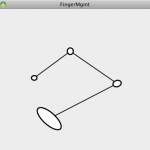
If you’ve ever wondered what your Mac Multitouch Trackpad is doing, download this fun little application. It tracks multitouch input and shows you just how sensitive the multitouch surface really is, detecting up to 11 input points, and also knowing the surface area. Not the most useful app in the world it’s certainly a fun way to see what your multitouch is up to and to get a glimpse of the technology behind the scenes of our favorite laptop computing surface. Multitouch trackpad Mac required (works with the Magic Mouse too apparently), and this supposedly works on some 2008 MacBook/Air/Pro models as well but I’m not able to test them specifically.

mac multitouch trackpad input

Lericson Programming: Multitouch on Unibody MacBooks

Download now

Instantly Create a Stickies Note

You can instantly create a new Stickies note from within Safari by highlighting text, images, or both, and then hitting Command+Shift+Y

instant stickies note

I just recently discovered this and use it nonstop now, it’s a great way to gather information, images, links, and whatever else, to keep handy for later.

Sync your Mac Address Book with Google Contacts

sync address book with google contacts

You can easily sync your Mac’s Address Book contacts with your Google Contacts, here’s how to do it:

* Launch Address Book
* Click on the “Address Book” menu and select “Preferences”
* Click on the “Accounts” tab
* Select the “On My Mac” under the left accounts
* Check the checkbox accompanying “Synchronize with Google”
* Click on “Configure…”
* Enter your Google Account login, click “OK”
* Then click “Sync Now” from the menubar
* Now your Address Book is synchronized with your Google contacts!

This walkthrough is set within Mac OS X 10.6 Snow Leopard but the ability to sync Google contacts with Address Book is within 10.5 as well (users have mixed results, I don’t have Leopard 10.5 so I am unable to help much). Syncing makes everyones life easier. Your Gmail contacts will now be the same as what is on your iPhone, Mail.app, and anything else that uses the Mac Address Book!

Update: I apologize if the above instructions weren’t clear. If you’re having troubles, one of our helpful readers, Steve Guttbinder, suggests the following:

This process uses iSync to synchronize. You need to manually hit sync from the menu bar OR use iSync. The menu bar icon is the SAME as the MobileMe sync icon (since that uses iSync as well). If you do not manually hit sync, it will NOT DO ANYTHING, you merely just set it up.

Thanks for the tip Steve!

VLC Player for Mac OS X may be dead

vlc for mac Update: VLC has posted this clarifying the state of the VLC for Mac project, stating ‘VLC for Mac death is “greatly exagerated”‘, and emphasizing that the majority of development issues are in regards to the GUI, apparently it’s not as perilous as the web has assumed.

VLC Player for Mac OS X may well be nearing the end of it’s life, unless some Mac developers can step in to take over support of the codebase. In a sobering reality check, VLC developer Rémi Denis-Courmont says the following:

There are now effectively zero active developers for MacOS.

As an immediate consequence, the 64-bits releases for MacOS has already been put on hold.
I don’t need to mention the stale status of the MacOS user interface.
If it goes on like this, MacOS support may be discontinued as of VLC 1.1.0. There is nobody to make the necessary updates to the MacOS support code, for instance to support the new VLC video output architecture.

Taking into account the learning curve to VLC development, I think it is fair to say that the situation is now critical.

VLC is my favorite video player by far, it’s cross platform compatible and works flawlessly with nearly every video type thrown at it. I really hope some capable developers step in to take over the Mac OS X division, it would be very sad indeed if Mac users lost out on any further VLC releases.

VideoLAN Forums: VLC is looking for Mac OS X Developers