How to Enable Low Data Mode on iPhone & iPad for Wi-Fi Networks
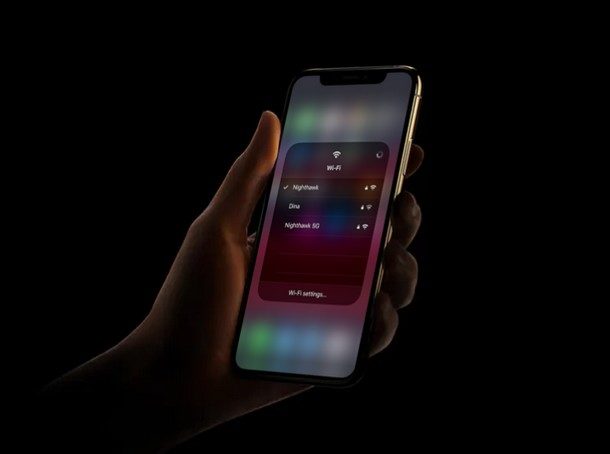
Looking for a way to reduce data usage on a wi-fi network while using your iPhone or iPad? This trick is for you.
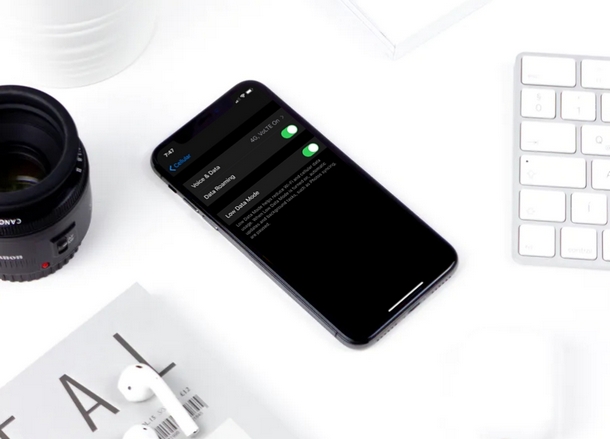
Depending on where you live, Internet may or may not be expensive. If you’re living in the United States, there’s a good chance you’re paying a higher bill for your broadband connection and cellular data compared to one of your friends living in Europe or Asia. If internet bills are burning a hole in your wallet, you might want to tone down your data usage. With the release of iOS 13 update, Apple has introduced a new feature called “Low Data Mode” that claims to reduce Wi-Fi data use when activated, and a similar Low Data Mode for cellular data usage exists too. Many people have limited data when they’re using their home internet use (or a cellular network) to browse the internet, so this feature should come in handy if you’re nearing your data cap, or you just want to reduce the bandwidth used by iPhone or iPad on a wi-fi network.
If you’re interested in trying this out for yourself to see if you’re able to conserve your monthly data usage while on a wireless network, you’re in the right place. This article will be discussing exactly how you can turn the low data mode feature on for Wi-Fi networks. If you’re interested in using Low Data Mode on cellular, then go here instead.
Part of how this feature works is that it aims to limit your data use by pausing automatic updates and other background tasks, thereby reducing the amount of data used on the iPhone or iPad. So, without further ado, let’s get straight to the procedure and enable this feature on a specific wi-fi network.