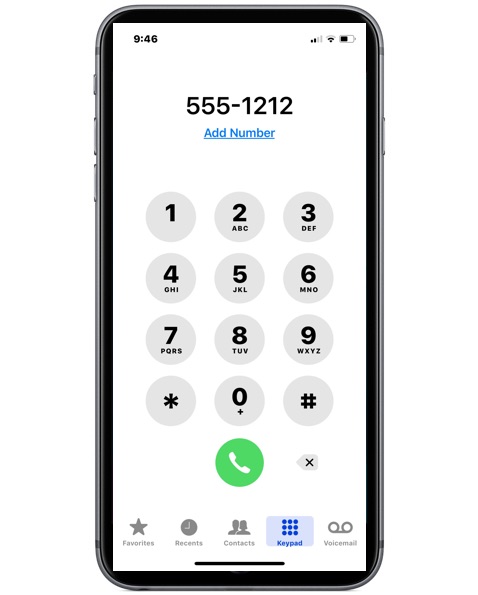
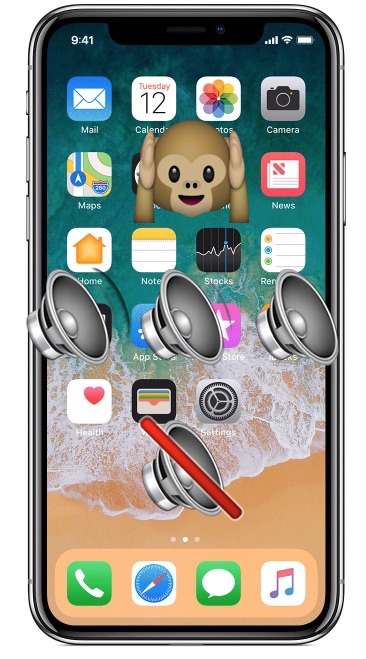
iPhone users may wonder how they can mute the dialing sound effects that are played when a phone number is being dialed into the numeric keypad on an iPhone. Each time you press a number button on the phone keyboard, a new sound effect plays. Some of you may be thinking, that’s great and all but how do you turn off those sound effects when dialing a number, so that I can dial a number in silence from the iPhone?
It turns out there is a way to silence the audio sound effects when dialing phone numbers on an iPhone, read on to learn how to accomplish the task.
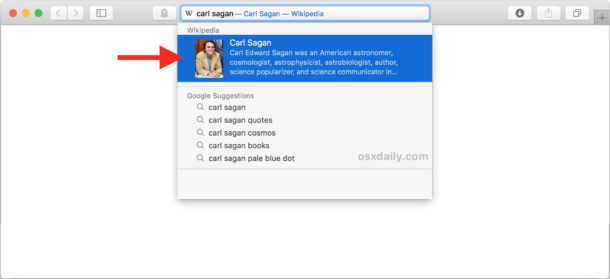
The Safari browser for Mac offers a feature called “Safari Suggestions” which detects what you’re typing into the URL bar / search box and, much like the name implies, offers suggestions based on what you typed. For example, if you type “AAPL” into the Safari Search box, you’ll see the stock price for that ticker symbol as it appears directly under the Safari address bar, or if you type “Carl Sagan” you’ll see a short blurb and a link to Wikipedia appear under the Safari URL bar.
Many Mac users undoubtedly like Safari Suggestions since it can offer a shortcut for searching and finding specific information, but some users may not appreciate the feature and would rather disable it.
It’s April Fools day, which means the internet is basically full of baloney and nothing ca can be trusted or taken seriously. But rather than feed you a lump of imaginary doo-doo, we typically like to share general Apple pranks for April Fools Day around here.
This year we’ve got a silly prank that works great for iPhone, iPad, Macs, or any other computer or device that has a lock screen… it’s totally harmless but can cause a brief freak-out to an unsuspecting person… it’s the good old fashioned broken glass wallpaper trick!
Live Photos are the fun animated images captured by modern iPhone and iPad cameras. Essentially each Live Photo is a still image attached to a short movie clip, and much like movie clips there is a key image that can be set to represent the picture as a thumbnail. Changing that key photo can be desirable if the Live Photo thumbnail preview doesn’t really capture the image well, and you can instead scrub around in the Live Photo for a thumbnail that better represents the image.
This tutorial will show you how to change and set a Live Photo key frame photo in iOS, which will change both the thumbnail of the Live Photo as well as the picture you see when you browse to the Live Photo in the Photos app on iPhone and iPad.
Have you noticed the iPhone X ringer volume goes from loud to low? Often iPhone X, iPhone XS, iPhone XR, iPhone XS Max users notice that the iPhone X ringtone will sound very quiet after initially sounding loud, but despite pressing the volume up buttons they can’t get the iPhone X ringtone to sound loud again, it’s just stuck quiet. Don’t fret and there’s nothing wrong with your iPhone X for exhibiting this behavior, in fact this is actually a feature.
If your iPhone XR, iPhone XS, iPhone X rings loud but then gets quiet and stays quiet, but you’d rather have the iPhone X ringer volume stay loud all the time when getting a call, read on to learn the proper settings adjustment to stop this behavior. The end result will be that iPhone X sounds loud on incoming calls all the time and the iPhone X will stop quieting the ringtone volume itself.
Apple has released macOS High Sierra 10.13.4 for Mac users who are running High Sierra on their computers. Separately, Security Updates 2018-002 for MacOS Sierra and Mac OS X El Capitan are also available for Mac users running prior system software builds.
Apple has released iOS 11.3 for iPhone and iPad. The final version of iOS 11.3 includes multiple bug fixes, performance improvements, and several new features.
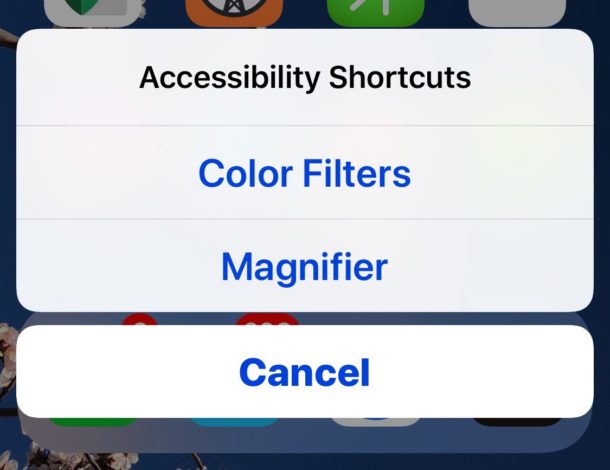
The Accessibility Shortcut in iOS allows users to quickly enable and use various accessibility features on an iPhone or iPad, giving near instant access from just about anywhere to features like AssistiveTouch, Invert Colors, Color Filters, the Magnifier, Reduce White Point, Smart Invert, VoiceOver, and Zoom.
For example, a great usage for the Accessibility Shortcut is to quickly access the Magnifier feature of iOS, or to toggle Smart Invert on, or to temporarily turn the screen greyscale, or zoom the display to read some text or element that is too small to distinguish without that extra zoom level.
There are nine possible Accessibility Shortcut options to choose from in the latest iOS releases, we will show you how to set the Accessibility Shortcut to customize it for your own use, and of course we’ll show you how to use the Accessibility Shortcut on an iPhone and iPad as well.
Want to play an mp3, m4a, or audio file on a Mac, but you don’t want to add that MP3 or audio file to your iTunes Library?
There are a few different ways to accomplish this task; one approach allows you to play an audio file in an iTunes playlist without copying it to the iTunes music library, and that works in iTunes for both Mac and Windows, and two other approaches will allow you to play audio files and mp3s on a Mac without using iTunes at all, instead utilizing either Quick Time or Quick Look, thereby never adding those audio files into iTunes or any playlist.
If you’re an advanced Mac user who spends a considerable amount of time at the command line, you likely have Homebrew installed by now. So, how about sharing a list of some of the best Homebrew packages available for Mac users?
Want to take a single window and make it full screen on a Mac? This is a fairly common activity for Mac users, particularly if they’re used to the Maximize window button on a Windows PC. It turns out there are a few ways to accomplish the maximization of windows on Mac OS, it’s a deceptively simple task on a Mac, as the two methods we will discuss here are quite different from one another.
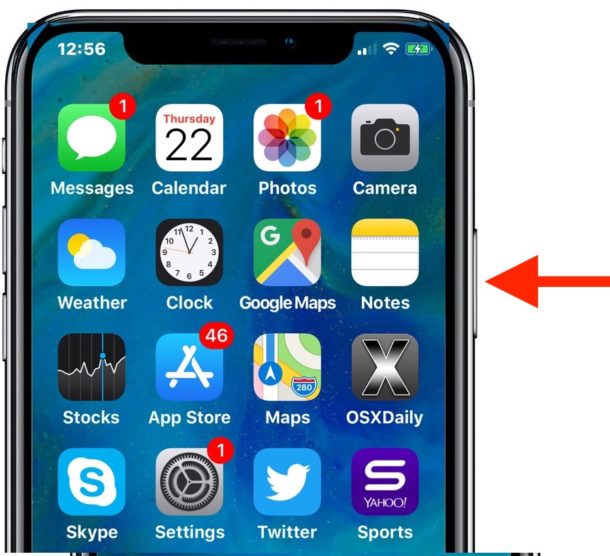
The iPhone X side button performs an impressive array of functions, working as a power button, a screen lock button, a summon Siri button, summoning Apple Pay, accessibility shortcuts, part of the snapping screen shot sequence, part of a steps to force restart, and more. That’s a lot of work for a single iPhone button! Some of the those features require double pressing or triple pressing the Side button on iPhone X in rapid succession, and while the default speed may seem acceptable to most users, others may wish to adjust the click speed of the side button on iPhone X to be a bit slower to perform those same double and triple-press actions.
This tutorial will show you how to adjust the click speed of the side button on iPhone X.
By default, the Maps app for iPhone will use voice navigation when giving directions. Voice navigation and talking directions is also the standard setting for Google Maps on iPhone too. But sometimes users can accidentally toggle the voice navigation settings off when they didn’t intend to, or forget to turn the voice navigation settings back on if they were disabled at some point.
Not to worry, if you want spoken directions from your mapping applications then this article will show you how to enable (or re-enable) voice navigation directions for both the Apple Maps and Google Maps apps on iPhone.
Oh yes, with a simple command string you will have an ASCII art party parrot bobbing its head in your Terminal window. Are you excited yet? Of course you are!
Facebook may be the worlds largest social network, but it’s also no stranger to controversy. Whether you’re just tired of Facebook, or even just tired of hearing about the never ending various controversies and how they may impact you, one simple solution is to delete your Facebook account.
Deleting a Facebook account is permanent and irreversible. Once you delete a Facebook account, that’s it, there’s no more Facebook for you, and all related photos, posts, messages, and other data will no longer be available to you – unless you sign up again of course.