How to Start a Simple Web Server in Python 3 on Mac
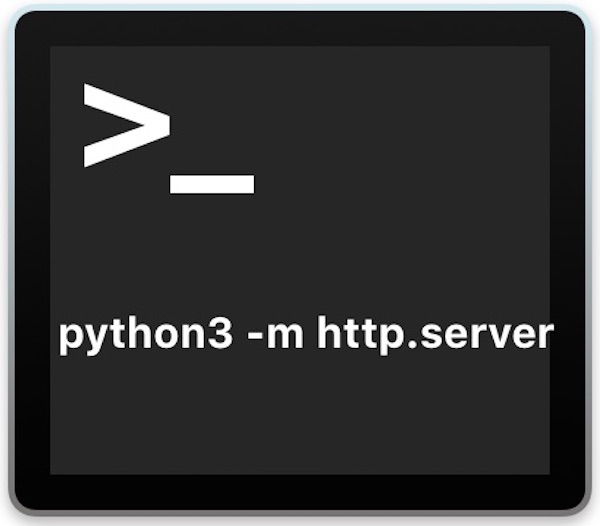
If you’re a Python user you may already be familiar with the handy trick that allows you to instantly create a simple web server using an easy command string entered in the command line of Mac OS. But if you’re a Mac Python user who has installed or updated to Python 3, then you will find the traditional command string from the prior Python versions does not work to initiate the web server in new Python 3.x+ releases.
Not to worry, the simple web server Python trick still works in Python 3 for Mac (and for Linux and Windows too of course, but we’re obviously covering MacOS), it’s that the command syntax is just slightly different. We’ll show you how to start a simple web server with Python 3 by using the new Python 3.0+ equivalent of the python -m SimpleHTTPServer command.