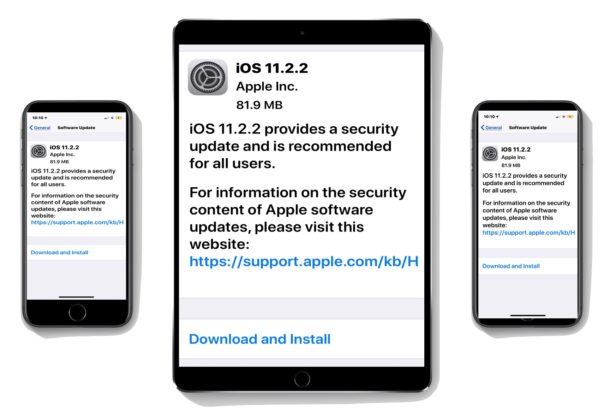
Apple has released iOS 11 beta 10 for enrolled iPhone and iPad devices, along with tvOS 11 beta 10 for Apple TV users participating in the developer beta testing programs.
Separately, a new public beta of iOS 11 is also available for user testing as well.
The iPhone and iPad can capture amazingly high definition video in 4K, 1080p, and 720p resolution, and while those movies will look fantastic they also create large file sizes. While you can always change the recording resolution of video in iOS ahead of time, another option is to compress video after the fact, thereby reducing its file size dramatically. Compressing video is helpful particularly if you want to share a video from an iPhone or iPad but you’re finding the movie file size is too large for a standard file transfer, message, or email.
We’re going to show you how to compress video on an iPhone or iPad to reduce the file size or lower the video definition quality. Compressing video is not a feature that is built into iOS natively however, so we’ll be relying on a free third party app that does the job quite well.
iOS Settings used to be easily accessed by going to the Settings app and then to the clearly labeled “iCloud” section of Settings, but modern versions of iOS for iPhone and iPad have changed how iCloud Settings are labeled and where those configuration options are located. This has led to some amount of confusion with some users who look for iCloud Settings but no longer find a clearly defined iCloud Settings section on their iPhone or iPad Settings app.
Not to worry, locating and accessing the relocated iCloud Settings on iPhone and iPad is actually easier than ever before, once you learn where to look in the latest versions of iOS anyway. So if you’ve been wondering where the heck iCloud Settings went to and how to find them, wonder no more, we’ll show you!
If you use the Reminders app on the Mac, you may wish to print out a reminders list, maybe it’s a grocery list or a checklist of things you need to do. Curiously, the Reminders app for Mac does not include the ability to print, however. So how do you print a reminders list from a Mac or reminders in iCloud?
This guide will show you how to print reminders lists from a Mac, this is using a workaround method that offers perhaps the simplest way to print out reminders in MacOS. You can use this method to print any reminders list whether it’s on the Mac or whether the reminders are synced to the Mac over iCloud from an iPhone or iPad does not matter.
You can determine a files encoding and character set through the command line in Mac OS (and linux) by using the “file” command, which helps to retrieve general and specific information about a file type.
Have you ever wanted to delete every email from a Gmail account? Maybe you want to permanently delete every email message in Gmail to start fresh, or maybe you’re giving a Gmail account to someone else, or you just want to clear every email from a Gmail account for whatever the reason.
If you want to completely delete every single email message in a Gmail inbox you can do so through the Google Mail web client, and this tutorial will show you how to do just that.
Apple has released iOS 11 beta 9, macOS High Sierra beta 9, and tvOS 11 beta 9 for users in the developer beta testing programs. Additionally, iOS 11 public beta 8 is available, which is the same release as the dev build.
Are you having a busy day, and wondering what is next on your Calendar agenda? Maybe you forgot when that appointment is tomorrow? Or perhaps you’re wondering if you’re free next Tuesday for a meeting at a specific time? You can ask Siri to tell you, utilizing the virtual assistant as a little personal assistant on your iPhone, iPad, or Mac.
Interacting with Calendar using Siri is one my favorite set of Siri command tricks, and if you get into the habit of using it this way it may become one of yours too. The Calendar on iPhone, Mac, and iPad is one of the most useful features of iOS and Mac for anyone who is maintaining a busy lifestyle or a lot of appointments and meetings, whether work, personal, or both, and combined with Siri the Calendar is even better since you can request all sorts of information with the digital assistant.
Safari for Mac has a nice little known feature that allows you to expedite the process of visiting websites based on a URL stored in your clipboard. This simple trick is called “Paste and Go” and you’ll only find it available under the proper conditions, including having a website link in the Macs clipboard and if you’re in the URL field and using an alternate click. But despite being hidden, it’s simple to use and works great.
For example, let’s say you have “https://osxdaily.com” stored in your clipboard from copying that URL from anywhere – be it a document, somewhere on the web, a message, or anywhere else. You can use the Paste and Go trick to immediately load that website in Safari with a single paste action, rather than pasting the URL into the address bar and then hitting the Return key to load the webpage. It basically removes a bit of friction by reducing a step in the process, speeding up your browsing habits with Safari on the Mac a bit.
Apple has released iOS 11 beta 8 and macOS High Sierra beta 8 for developer beta testing. Additionally watchOS 4 beta 8 and tvOS 11 beta 8 are also available for developer preview.
Some Windows users may wish to run the Apple Safari web browser on a Windows PC. Usually this is developers or designers who need to confirm compatibility or to support a particular end user experience with the older Safari PC browser.
Well there’s good news if that describes you; it turns out that you can download, install, and run Safari on Windows still, even running Safari on Windows 10. But there’s bad news too, and a bit of a catch: it’s an old version from 2012. This is because Apple discontinued development of Safari for Windows several years ago, and thus current Safari for Window version is dated, missing many features, isn’t up to date with security patches, and likely has some other issues too. Accordingly, it is not appropriate for most users to download and install Safari in Windows, but it is available if you need it for whatever reason.
iTunes Authorization grants the ability to access your own stuff obtained from iTunes, but each Apple ID has a maximum limitation of five computers per Apple ID that can be authorized. Because of that five computer limit, you may eventually run out of available authorization slots for an Apple ID, and a new Mac or Windows PC may be blocked from accessing purchased iTunes content until that new computer is authorized. If you have hit the authorization limit of five computers, and/or you no longer have access to a computer to directly deauthorize iTunes on a specific machine, your next option is to use a “Deauthorize All” function instead.
Using “Deauthorize All” will deauthorize every computer attached to the Apple ID from accessing iTunes content, unless or until those computers have been re-authorized again through iTunes.
Have you ever wanted to quickly find every screen shot you have on a Mac? With a little-known search trick, you can easily list every single screen shot file on Mac OS. Going further, you can also search by names in screen shots, types, and dates as well, all by using the Mac Finder search or Spotlight search functions with a particular search parameter.
The Personal Hotspot feature of iPhone and iPad cellular equipped models allows you to use the devices mobile connection as a wi-fi hotspot for other devices and hardware to connect to. It’s an incredibly useful feature that gets a lot of use for many users.
As you may have noticed when setting up and turning on Personal Hotspot, a wi-fi password is automatically generated and assigned to the Personal Hotspot router service, and it’s often a string of gibberish which is not exactly easy to remember or to easily tell someone else. With a simple effort you can change the wi-fi password of a Personal Hotspot in iOS to something much easier, here’s how you can do that.
If you’re a Facebook user and an Instagram user, you probably would love to automatically post your Instagram photos to your Facebook profile so that all of your “friends” can see your amazing Instagram pictures, right? Of course you would, that’s the whole point of social networks, right? The good news for you is that Instagram and Facebook make it easy to cross-post between accounts, you just have to link the two.
This tutorial is going to show you how to automatically post Instagram images to Facebook.
Apple has released the sixth public beta versions of iOS 11 and macOS High Sierra to users enrolled in the public beta testing programs, along with iOS 11 beta 7 and macOS High Sierra 10.13 beta 7 for developers. The public beta and developer beta builds are the same despite having different version numbers.
No major new changes seem to be included, as the beta builds likely focus on refining the operating systems for the near future public release. Read more »
Have you enabled another keyboard language on your iPhone or iPad that you no longer want? Maybe you’re bilingual or were learning a new language and thought it’d be useful. Or perhaps you have discovered a new keyboard language that you never added and you’d like to remove it from iOS? Any added language keyboards appear under the little globe icon on the keyboard of an iOS device if they are enabled, that allows for quickly changing the keyboard language, but if you no longer want a keyboard to appear in that list then you’ll have to remove it from the iPhone or iPad.
If you have another languages keyboard that you want to delete from an iPhone or iPad, read on to learn how to remove keyboard languages from any iOS device.