How to Get Weather Info for Locations from Maps on iPhone
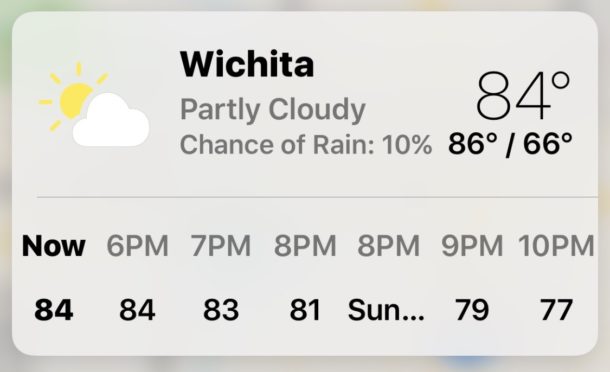
Did you know you can get the weather in the Maps app of iOS? Obviously the Weather app on iPhone will tell you the temperature and forecast of locations, and with a little exploration you can also view detailed weather info too. That’s great, but it’s in the Weather app. What if you’re driving or exploring the in Maps application in iOS, and want to get the weather report of your destination or of a specific location, directly from the Maps app on iPhone?
The latest versions of Apple Maps for iOS include a little weather report widget that will give you the temperature and weather info of a particular location in Maps. Going further, if you have an iPhone with 3D Touch, then you can use a little 3D Touch trick to get a weather forecast directly from the Maps app in iOS and even add that destination to your Weather app too.