
Get More Usable Screen Space on a Retina MacBook Pro by Adjusting Resolution
Apr 14, 2014 - 6 Comments
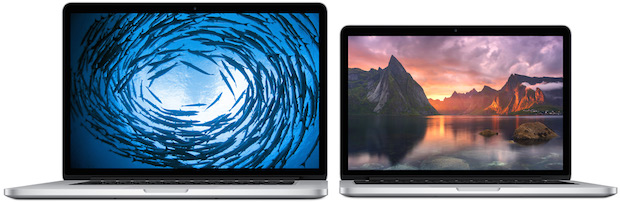
The MacBook Pro with Retina Display takes an ultra-high resolution display and scales onscreen elements down to effectively double the pixel count, providing for ultra crisp images and text on the screen. While the default resolution settings are undeniably gorgeous, you can also choose to manually adjust the screen resolution to either show more space on screen, effectively adding to your available screen real estate and desktop workspace, or choose a smaller resolution that will offer larger crisper text.
Each Retina MacBook Pro model offers these display settings, though the display panel size ultimately determines how many options you’ll get, with the larger 15″ screen having an additional selection available than the 13″ model.
By Paul Horowitz - Mac OS, Tips & Tricks - 6 Comments
 The Mac has long used the straight quote style for double and single quotes, looking like ” and ‘ respectively. It’s been that way for as long as I remember, but if you’d like to change the quote style to something else, perhaps a bit more fanciful, you can do so through a settings adjustment.
 Want to show US Holidays in your iOS Calendar? There are a few ways to accomplish this, and we’ll cover the two simplest methods. First is a direct subscription to the official US holidays calendar offered from Apple, and the other syncs the same calendar from a Mac that
 Did you know that
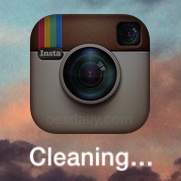 You may have noticed that some iOS apps will turn dark as if they’re being launched and simultaneously rename themselves as “Cleaning…”, seemingly out of the blue and at random. This is demonstrated happening with the attached iPhone screenshot, showing the Instagram app going through the process. So the big question for many users is, what’s going on here and why does that iPhone or iPad app say it’s cleaning?

 The next time you’re using the Maps app in Mac OS X to plot a road trip,
  If you need to record some simple sound or audio on a Mac, you can do so easily using a bundled app that comes with Mac OS X, without having to download any third party utilities. That app is QuickTime, which may come as a surprise to some users as it’s typically thought of as a movie viewing application, but believe it or not it has video,



