Wondering if your Mac will run OS X Mountain Lion? Most new Macs will, but here’s how to quickly find out for sure if yours is supported by the latest Mac OS version.
The Golden Master seed of OS X Mountain Lion has been released to developers. Golden Master (GM) builds are typically the release version of software, indicating that a public version will arrive very soon. The GM build is 12A269 for Client and 12S302 for Server.
Registered developers can get a download code for Mountain Lion GM directly from Apple’s Dev Center, that code can be redeemed through the Mac App Store as usual. Developers can also download a new version of Xcode 4.4 development suite.
OS X Mountain Lion is versioned as Mac OS X 10.8, and includes over 200 new features, many of which are borrowed from iOS, including iMessage, Notification Center, Share Sheets, Game Center, Notes, Reminders, Dictation, and significantly enhanced iCloud integration.
Today only, Amazon Deal of the Day is offering some amazing discounts on ultra-fast SSD drives. The Kingston SSDNow V+200 drives offer whopping 535MB/sec read and 480MB/sec write speeds, giving huge performance boosts to just about any computer they’re installed in. If you’ve been looking to upgrade a Macs hard drive to an SSD, it’s hard to find a better deal than these at 65% off:
Be sure the drive fits your Mac before buying. Most reasonably modern Macs will accept 2.5″ drives without issue, and replacing hard drives on most MacBook, Mac Mini, and MacBook Pro’s is fairly easy, though you’ll want to be at least somewhat technically inclined and comfortable working on the inside of a computer to do it yourself. iMac will also take the drive, but it’s a bit harder to get into. iFixit has a variety of great walkthroughs to facilitate the process if needed.
Apple recently simplified the way Xcode is installed, bundling everything into a single /Applications/Xcode.app/ directory and removing the /Developer directory that used to exist. There are some advantages to this approach, but one of the annoyances is that you now have to launch the iPhone or iPad simulator by opening Xcode first. Well, that’s not entirely true, you can actually still directly launch iOS Simulator without opening Xcode first by creating an alias.
Note that modern versions of Xcode and OS X call the iOS Simulator simply “Simulator”, where you go will depend on which version of OS X the Mac is running.
If you don’t have Keynote installed on a Mac but you need to view a keynote presentation slides or a keynote file, don’t fret – you can view them all directly in Preview, the bundled image app in Mac OS X.
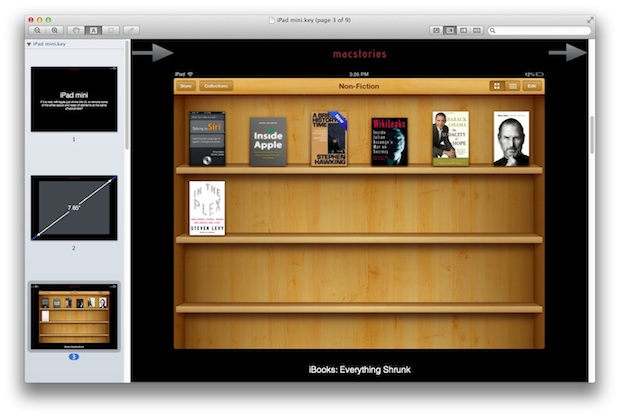
With so many rumors of a smaller iPad mini floating around, it’s sounding increasingly possible that Apple may indeed make such a device. Assumed to have a 7.85″ vertical display, it would be about 2″ smaller than the current iPad, so how would that feel and what would it look like?
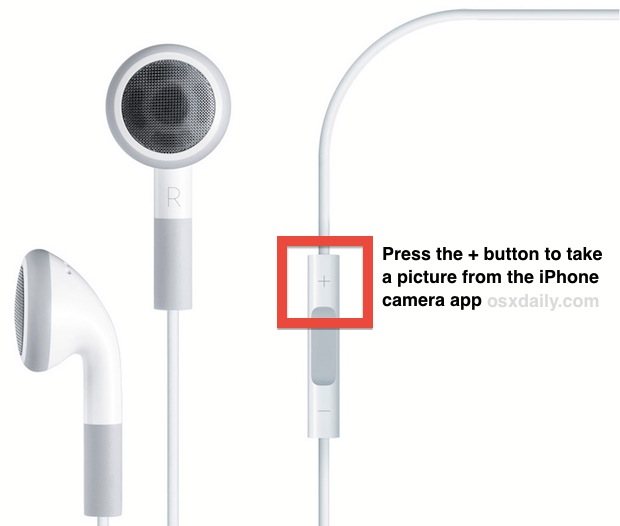
Did you know those white Apple earphones that come bundled with an iPhone can double as a remote shutter button for the iPhone camera?
With the additional length of the earbud cable, you can end up taking better group pictures, better selfies, and even better low-light photos because it can dramatically reduce camera shake. There are all sorts of fun uses for taking pictures from iPhone or iPad with the earbuds.
Give it a try yourself, this tutorial will show you how it works.
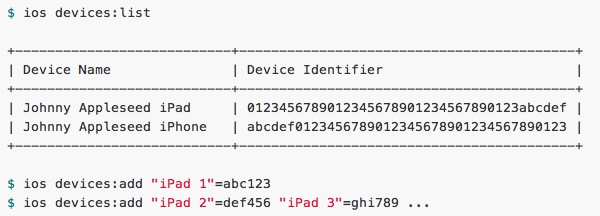
iOS Developers typically have to login to Apple’s Developer Center website to manage provisioning and devices. That’s not terribly inconvenient, but it certainly could be easier, and that’s where Cupertino comes in. Cupertino is a third party command line interface to the Apple Dev Center and iOS Provisioning Portal, letting you add and list devices, profiles, certificates, and app id’s, all from the terminal and without using a browser. Read more »
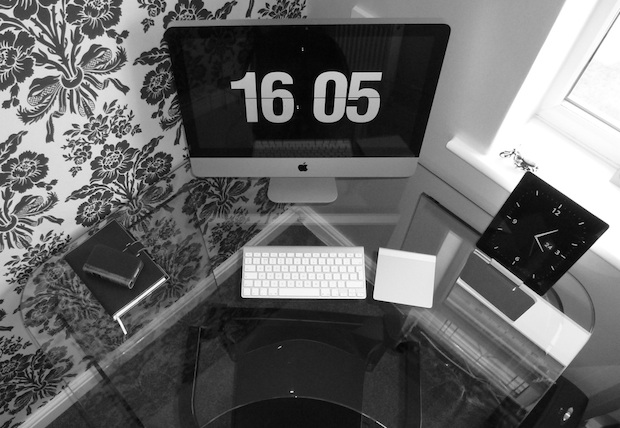
Clean minimalist setups go very well with Apple hardware, and this weeks Mac setup from David M. is no exception. With some great hardware and some very snazzy real wallpaper, this workstation is functional and attractive. Gear shown includes:
The New iPad (3rd generation) sitting in an Apple Dock
iPhone 4 nestled in a TwelveSouth BookBook Case
Philippe Starck Louis Ghost Chair
Staten Glass Corner Desk by John Lewis
Castelli Arles A5 Notebook c/w Parker Rialto Pen
Not shown are two Apple Airport Express stations, one to control internet access and the other to stream music via AirPlay.
The clock app on the iPad looks great but I couldn’t figure out what it is, if you know be sure to chime in the comments.
Have a Mac setup you want featured here on OSXDaily? Take a good picture or two, give us a description of the hardware and what you use it for, and send it to us at osxdailycom@gmail.com
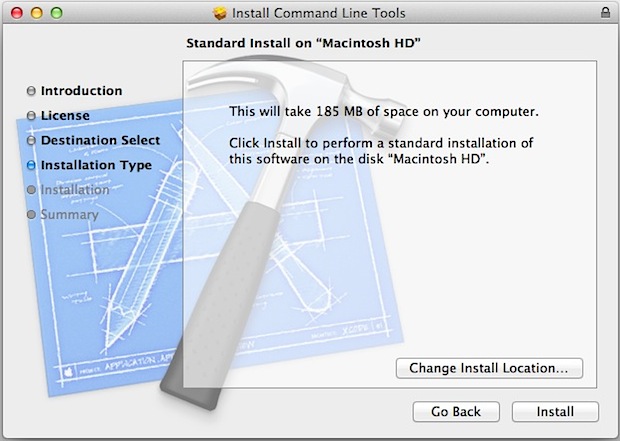
If you compile your own software you probably know that GCC comes bundled in the rather large Xcode package, but what if you just want to have gcc and LLVM without installing the entire Xcode package? Apple now offers an option to do just that, and it’s called Command Line Tools, available as a separate download from Apple Developers. Read more »
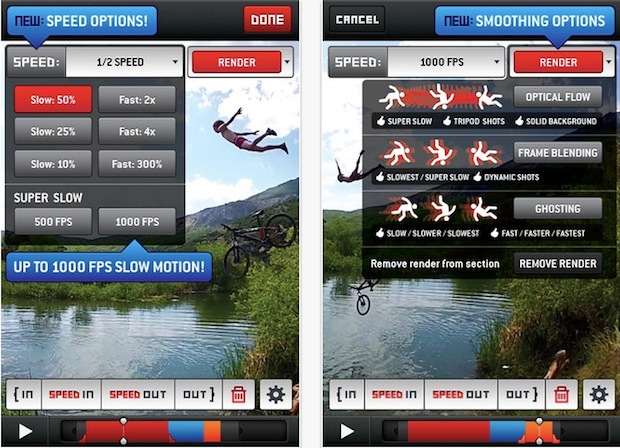
If you have ever tried to slow down a standard video clip you’ll have noticed the movie gets choppy and stutters, that’s a common problem due to the frame rate staying the same despite the video slowing down. The solution for older iPhone and iPad devices to this is to shoot a video at higher frames-per-second, which you can now do with the help of an awesome free app called SloPro.
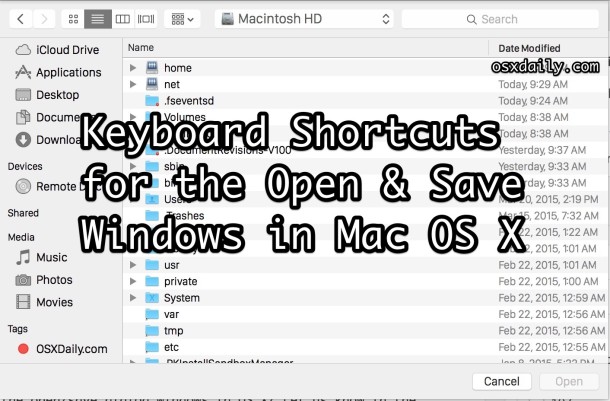
The next time you end up in an Open or Save dialog window in Mac OS X, try out a few of these helpful keyboard shortcuts to make navigating around the dialog and filesystem much faster.
If you updated or downloaded an app from the iOS App Store on the iPhone and iPad, or an app from the Mac App Stores recently and it crashes immediately on launch, there’s a fairly easy solution that should be able to resolve the crashing app issue; you should delete the app and re-download it from the App Store to resolve the problem.
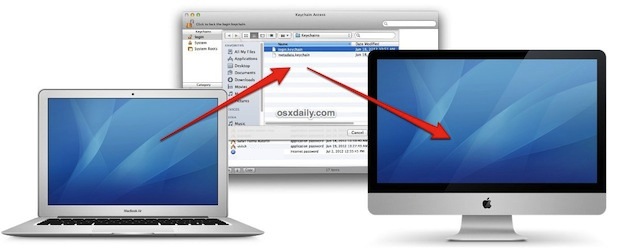
Most Mac users are best served by using the easy Migration Assistant tool to copy all files, folders, preferences, and login data from one computer to another. This isn’t always an option though, perhaps because a hard drive is failing, or maybe you just prefer to manually migrate only very specific data from an old Mac to a new one. Keychain login data and keychain passwords can be copied from one Mac to another Mac manually this way, if need be.
Aimed at advanced users, this article will focus on transferring all passwords and login information you have stored on one Mac to another Mac, effectively transferring all crucial login data that is handled by Keychain. Read more »
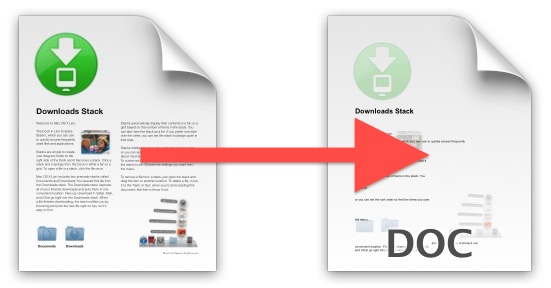
PDF files are generally not intended to be edited, but what happens if you have a pdf document that you want to edit with something like Word or Pages? Or what if you need to convert a PDF to a Doc file so that you can make a few changes? The easiest thing to do is convert the PDF to a .doc file, and while there are plenty of paid apps that offer to do this for you, you can do it for free from any Mac, Windows, or Linux PC using nothing but your web browser and the free online conversion tool ZamZar.
If you just need to convert a PDF or two while preserving text and images from the document, this is probably the best way to go since it’s free and is very easy to use, though there are a few limitations.
DS_Store files are hidden system files that reside within almost every folder of Mac OS X, they contain folder-specific information and settings, like what view to use, icon size, and other metadata pertaining to their directory.
Though ds_store files are invisible to the average user, if you’re sharing with a Windows PC or have hidden files shown in Finder you’ll see them in every folder, and if you’re trying to force a change like which view to use across all directories in Finder, you may discover the .DS_Store files are in the way, thus it’d be reasonable to want to delete and remove ds_store files on a Mac. Read more »
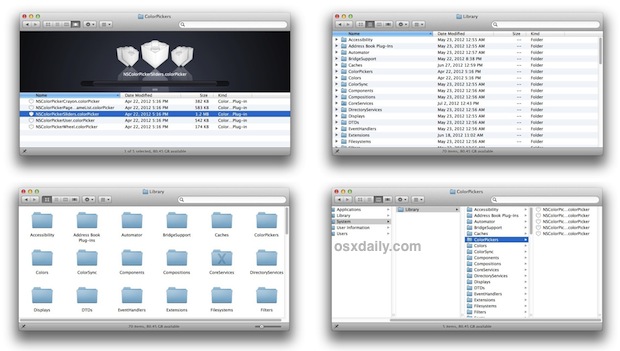
Unless it has been disabled, any Finder window in Mac OS X has the View option buttons in the windows toolbar. From left to right you can select icon view, list, columns, and coverflow. You may have noticed the window view style doesn’t always persist across Finder windows though, even if you selected “Always Open With _ View” in the View Options. One way to get around that is to change the Finder windows view style default through the command line with the help of defaults.
The clock in Mac OS X sets itself automatically by default, but if you want to set the precise time or are looking for a command line solution to set system time, you can do so with a tool called ntpdate, or the standard ‘date’ command.



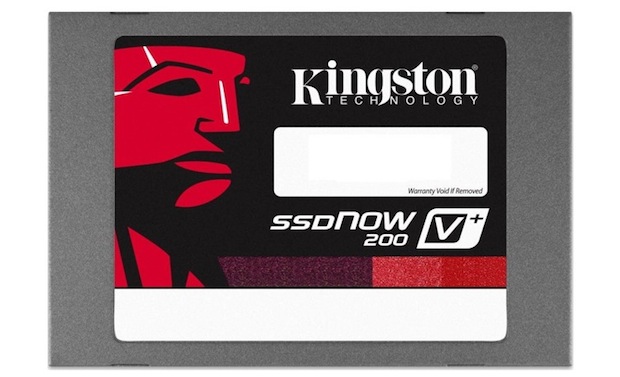
 is offering some amazing discounts on ultra-fast SSD drives. The Kingston SSDNow V+200 drives offer whopping 535MB/sec read and 480MB/sec write speeds, giving huge performance boosts to just about any computer they’re installed in. If you’ve been looking to upgrade a Macs hard drive to an SSD, it’s hard to find a better deal than these at 65% off:
 (67% discount)
  (65% discount)