One of my favorite iTunes features is the ability to fade songs in and out of each other with the Crossfade setting, this makes for a seamless music listening experience as each song gradually fades out and into the next and is certainly a worthwhile option to enable.
By default, this crossfading songs option is not turned on though, so here’s how to change that and flip it on to make for a more enjoyable iTunes listening experience.
GameStop.com is offering a pretty cool promotion for those Starcraft 2 fans out there, if you pre-order the game on their site, they’ll email you a free key for the beta… this is particularly awesome since the beta is due out for Mac OS X very soon.
According to Joystiq, Blizzard will be releasing the Starcraft 2 beta client for Mac OS X sometime in April, meaning very soon. Proof of this is on the beta client download page, where the Mac client download is visible but grayed out (see screenshot below).
A thread on Battle.Net Forums indicates that the Starcraft 2 DVD will include both the Mac and PC version, so this would suggest the pre-order version available from GameStop.com would be that cross-platform installation disc. This is not confirmed however, so if you’re uncomfortable playing the game under Boot Camp than you might want to wait to find out for 100% sure if all Starcraft 2 installation DVD’s are PC and Mac since GameStop won’t refund the purchase once the beta key is mailed out.
So if you want your Starcraft 2 Beta key, head on over to GameStop.com for the pre-order. The final version of Starcraft 2 is due out for both Mac and PC sometime this year.
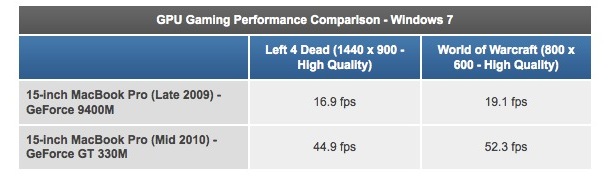
If you’re interested in gaming on a MacBook Pro, pay attention. The new MacBook Pro with the Core i5 processor and GeForce GT 330M graphics unit performs significantly better than it’s predecessor with the GeForce 9400m. Check out the above performance comparison, Left 4 Dead on the new MacBook Pro with the 330m chip runs at 44.9 FPS, nearly three times better than the 2009 MacBook Pro with it’s 9400m GPU. World of Warcraft shows practically the same performance boost: 52.3 FPS on the new MacBook Pro versus 19.1 FPS on the old model. Whoa. Now it’s worth mentioning that Anandtech (the source of the benchmarks) ran these tests in Windows 7 under Boot Camp, so that may skew the results a bit when compared to running something like World of Warcraft or the soon to be released Starcraft 2 in Mac OS X. I’d be really curious to see how the new MacBook Pro units perform with native Mac OS X games, if the performance boost is the same that’d be pretty incredible.
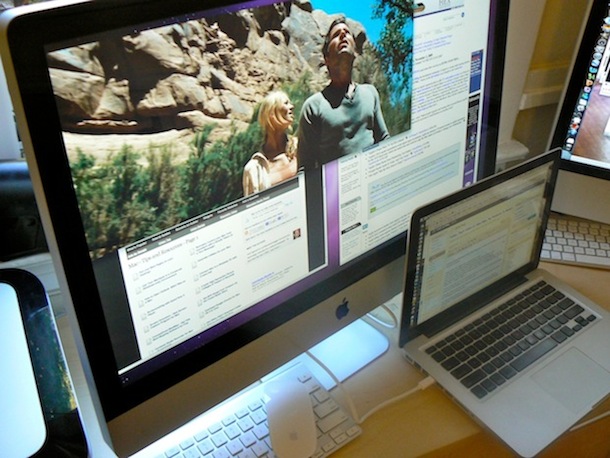
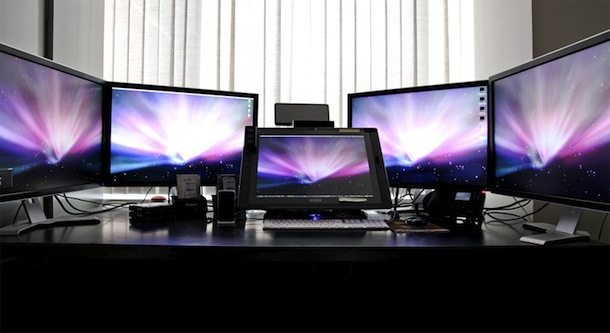
One of the coolest features of the 27″ iMac is it’s beautiful LED screen with a whopping 2560×1440 resolution, but what’s even cooler is the ability to use that gorgeous display as an external display for another Mac. So if you want to use an iMac as an external screen for another Mac, you’ll need to use a featured called Target Display Mode and select the 27″ iMac as the video input. That may sound complicated but it’s really pretty easy, let’s walk through this:
Do you want to keep yourself or your employees from wasting time on certain websites? Maybe you don’t want your child to see some of the virtual trashbins of the internet? By editing the /etc/hosts systems file, you can block any website, and here’s how to do it.
Many of us have been looking for a nice and simple iPad stand, preferably a good one that is also affordably priced since it remains to be seen how useful they are.
Now we may have a prospect, as James sent us in this picture of the Logitech Alto Express Notebook Stand being used as a “perfect stand for the iPad” that apparently makes “typing 100x faster and easier.” Not bad considering it’s $10-$25 either if you get it on the sale price.
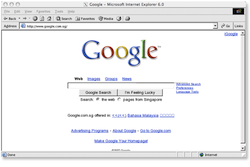
So you need to run Internet Explorer on your Mac and you don’t want to bother with a full Windows install in something like Parallels. What are you left with?
Try WineBottler, it runs off of Wine and ‘bottles’ various Windows apps into launchable .app files that sit in your Applications folder like any other Mac app. There’s several packages included in WineBottler but the ones you are interested in using are Internet Explorer.
Download Internet Explorer for Mac
Downloading Internet Explorer for Mac directly can be done with IE5, but as we mention below Microsoft stopped supporting it officially after this version. Later versions of Internet Explorer can be downloaded and run through the WineBottler app within Mac OS X, the instructions below will walk you through this process with versions 6, 7, and 8.
Here’s how to get Internet Explorer running on your Mac using WineBottler: Read more »
Booting into safe mode in Mac OS X is a troubleshooting trick that can help to diagnose many common system problems, and even some more obscure issues with Mac OS X. While safe mode is considered an advanced troubleshooting technique, it’s easy to use and easy to exit out of, meaning just about any experience level should be able to try it out.
Let’s learn a bit more and see how to boot into safe mode, what safe mode does, and how to exit and return the Mac to it’s normal boot state. And yes, this works in all versions of Mac OS X, from Yosemite to Mavericks, Mountain Lion, Snow Leopard, you name it, you can boot into safe mode with it.
If you are trying to view invisible files through the Mac sFTP / FTP client Transmit, stop looking around in the Preferences and View Options because it won’t be there.
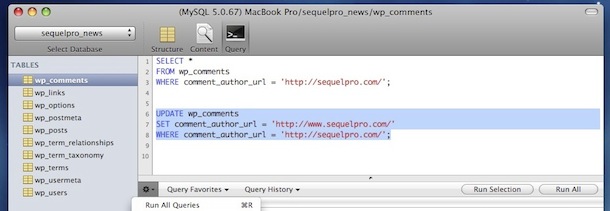
I’ve long been looking for a good MySQL manager for Mac OS X since I’m not a big fan of phpMyAdmin and the other tools out there. Yes there’s always the command line too, but sometimes it’s nice to have a GUI for such tasks. Then I came across SequelPro recently and I think it might fit the bill. With it’s beautiful interface, you can easily connect to local or remote MySQL servers, easily run queries in it’s awesome query editor that’s complete with auto-completion, and everything else you’d expect. Development is ongoing so this already great app is only going to get better.
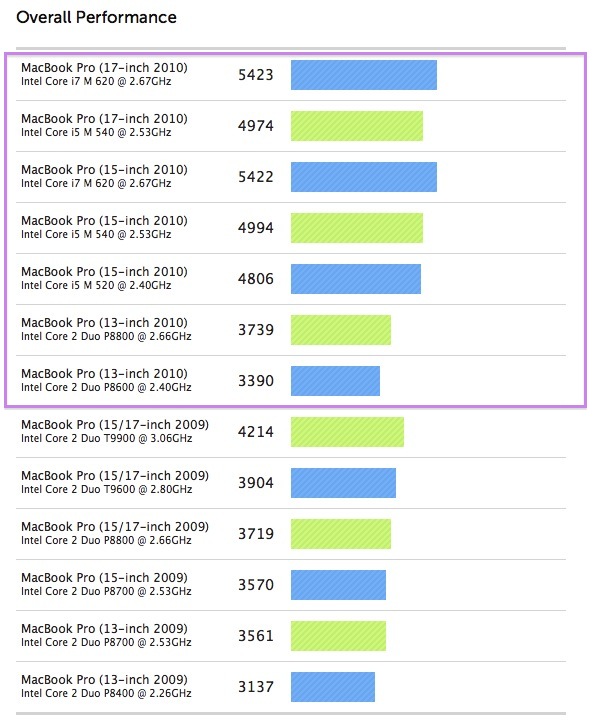
This chart displays the GeekBench scores of the new 2010 MacBook Pro models versus each other and the older 2009 models they replaced.
As you can see from the scores, the MacBook Pro Core i5 and i7 models really blow away their predecessors, while the MacBook Pro 13″ model with it’s Core 2 Duo processor gets a smaller bump in the benchmarks.
This is in line with earlier MacBook Pro benchmarks showing the 50% performance gain when moving from the Core 2 Duo chips to the Core i7.
The above chart was put together by PrimateLabs, who notes the following (emphasis mine):
It’s no surprise the new laptops are faster. It’s interesting to note, though, that the slowest Core i5 is faster than the fastest Core 2 Duo processor despite running at a much lower frequency (2.40GHz vs 3.06GHz). This is a result of the architecture improvements in the i5 and the i7. For example, Turbo Boost and Hyper-Threading provide a nice boost to processor scores; single-threaded workloads benefit from higher processor frequencies while multi-threaded workloads benefit from extra hardware threads. Memory scores (especially Stream scores which measure raw memory bandwidth) are higher due to the integrated memory controller on the i5 and i7.
PrimateLabs goes on to recommend the base MacBook Pro 15″ Core i5 and maxed out RAM, which isn’t surprising considering the huge performance gain of the Core i5 processor, and more RAM is always good with Mac OS X. I would generally agree, and add that the optional high resolution screen of the MacBook Pro 15″ is a really compelling upgrade.
So let’s pretend that maybe you want an iPad or a bigger screen iPhone, but you don’t want to pay pay for one. Hmmm, but you already have an iPhone? Well then, have we got a solution for you!
Making your Mac desktop background look attractive goes beyond just eye candy, it can help to improve your focus or give some inspiration. We’re going to show you how you can easily change the wallpaper on your Mac, and you can set the desktop background to any picture you want.
Whether you’re a minimalist and just like simple solid color or gradients wallpapers, or you want a great looking sunset, or maybe just a family picture as the background, it’s all a piece of cake to set and customize the wallpaper to your preferences.
This applies to all versions of Mac OS X system software, so it doesn’t matter what version of Mac OS X is running on the Mac, you can customize the background pictures the same way using any method. We’re going to focus on the three primary methods of changing the Mac desktops background wallpaper in Mac OS . First, from an image file on the Mac desktop or elsewhere in the Finder, second will cover changing to a default or other option from System Preferences, and finally, using Safari with an image you found on the web to set as the Macs wallpaper.
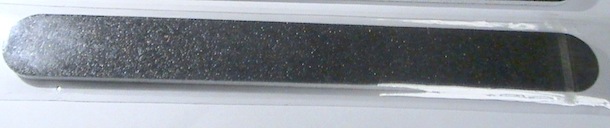
The MacBook can have some pretty sharp edges near the wristpads, and some people find this uncomfortable if they’re resting their hands on their laptop for extended periods of time. The solution to your MacBook’s sharp edges: use a nail file. Yes, just a generic nail file.
Basically you’ll just want to treat the sharp plastic edge of the MacBook as a giant nail, and just gently file it down a tiny amount so that it smooths the corner edges a bit. Really you can use anything that is abrasive and harder than the plastic: nail files, fine grain sand paper (watch for scratching elsewhere!), a knife sharpener, a friend of mine even used a dull butter knife by sliding it back and forth. You aren’t trying to file the thing down to oblivion, just a few quick light rubs and the sharp edges will be gone, creating very little plastic dust and leaving behind a nice smooth edge.
Not all MacBook’s have the really sharp edges, it seems to be a random quirk that occurs in the case molding process. Obviously if yours isn’t bothering you, don’t mess with it.
What about the sharp edges on a unibody MacBook Pro?
You can do the same thing you’ll just need a tougher file (like a metal file) since you will be filing down aluminum instead of plastic. If you need assistance or a guide, there’s even a video of a guy filing the edges on his unibody MacBook Pro. I have no direct experience doing this with the MacBook Pro since the edges on mine don’t bother me.
Obvious disclaimer: We aren’t responsible for you damaging your MacBook. If your MacBook or MacBook Pro has extremely sharp edges that are seriously disrupting your computers usability, a visit to the Apple Store is probably wise.
Here’s a good side-by-side comparison showing the viewable difference between the new MacBook Pro hi-res screen option and the standard display. The new 2010 MacBook Pro 15″ model with optional high-resolution screen running at 1680×1050 sits on the left, alongside an older MacBook Pro with the standard 15″ display running at 1440×900 on the right. Note the additional visible images and information on the high resolution screens display.
Thank you Andrew for pointing us to the pictures over at MacRumors forums, check out the thread if you want to see the full resolution shots. The original poster has this to say about the screens:
1) The difference in resolution is very noticeable; especially websites with a lot of text or images; if the site has a lot of white space and they are not coded to stay together, then there is even more white space.
2) The color is alright, but the brightness seems a bit dimmer than the older anti glare; I have both set to the same brightness and both have been calibrated with a Huey Pro.
3) The vertical viewing angles still sucks; it’s a TN panel, so I’m not surprised; look like the older one. I tried taking a picture of this, but my P&S is also a POS.
4) Horizontal angles are also like the older one. I took a picture, but I don’t if you can tell, but the high-resolution one looks a bit yellow from the right
It’s worth mentioning that both of the MacBook Pro’s featured in the pictures are also the antiglare screen model, which is why the black bezel and glass isn’t seen. In fact, you can’t get a new MacBook Pro 15″ with an antiglare screen unless you also get the hi-res screen upgrade. The classic glass & black bezel screen is available at both standard resolution and HD models though.
Update: also from MacRumors, here’s a picture of the new MacBook Pro 15″ high-res anti-glare matte screen version vs the new MacBook Pro standard res glossy version.
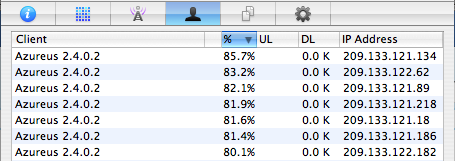
PeerGuardian is a free open source tool that allows you to easily block large numbers of IP addresses in Mac OS X. It automatically maintains an internal IP blacklist to block IP’s deemed unsafe or dubious in nature, and also allows for multiple IP lists with the ability to block entire protocols. Other features include logging and maintenance tools to see what exactly is being blocked. Many people use PeerGuardian in conjunction with an extensive external IP blacklist when using P2P file sharing applications and networks to better maintain their security and privacy.
Many Mac users are surprised to note that Apple.com is a blocked IP in the PeerGuardian IP list, but HTTP and FTP traffic from Apple.com will flow through fine (ie: websites, Software Update, Apple web services, iCal, etc). This can lead to some problems with other Apple accessed servers though, like .Mac mail, some iChat traffic, and the Network Time Protocol. Of course you can manually edit the IP block list and remove Apple entirely if this is too restrictive for your needs.
If you’re a heavy P2P user, you’d likely benefit from downloading and installing PeerGuardian.

 One of my favorite iTunes features is the ability to fade songs in and out of each other with the Crossfade setting, this makes for a seamless music listening experience as each song gradually fades out and into the next and is certainly a worthwhile option to enable.
 is offering a pretty cool promotion for those Starcraft 2 fans out there, if you pre-order the game on their site, they’ll email you a free key for the beta… this is particularly awesome since the beta is due out for Mac OS X very soon.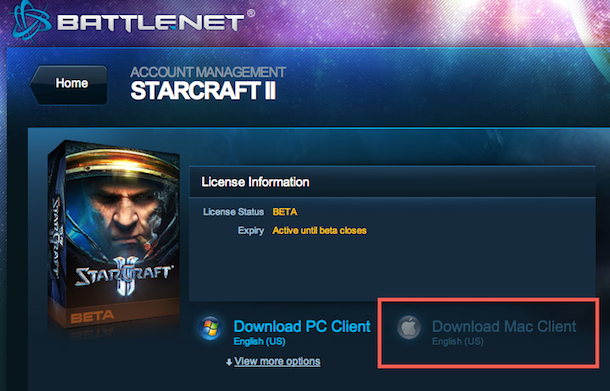
 Do you want to keep yourself or your employees from wasting time on certain websites? Maybe you don’t want your child to see some of the virtual trashbins of the internet? By editing the /etc/hosts systems file, you can block any website, and here’s how to do it.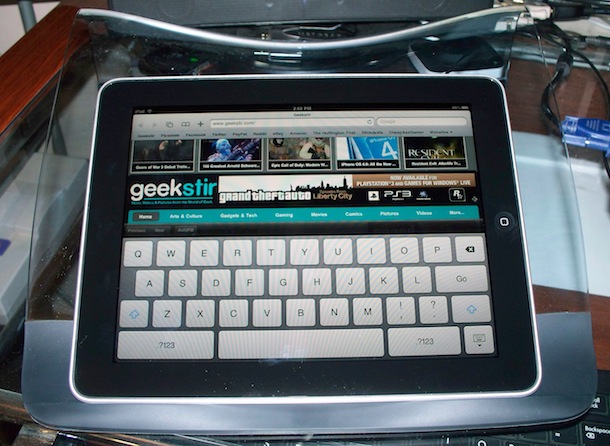
 being used as a “perfect stand for the iPad” that apparently makes “typing 100x faster and easier.” Not bad considering it’s $10-$25 either if you get it on the sale price.
  So you need to run Internet Explorer on your Mac and you don’t want to bother with a full Windows install in something like Parallels. What are you left with?
 Booting into safe mode in Mac OS X is a troubleshooting trick that can help to diagnose many common system problems, and even some more obscure issues with Mac OS X. While safe mode is considered an advanced troubleshooting technique, it’s easy to use and easy to exit out of, meaning just about any experience level should be able to try it out.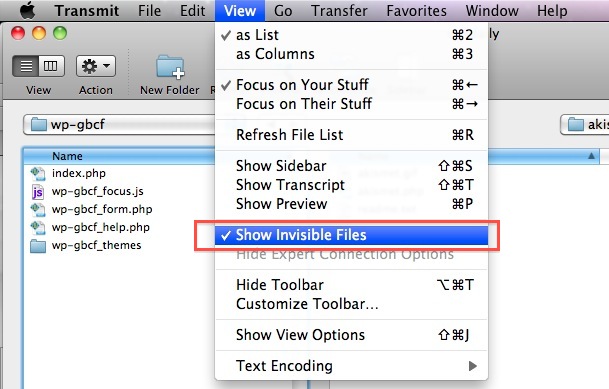
 and maxed out RAM, which isn’t surprising considering the huge performance gain of the Core i5 processor, and more RAM is always good with Mac OS X. I would generally agree, and add that the optional
 Making your Mac desktop background look attractive goes beyond just eye candy, it can help to improve your focus or give some inspiration. We’re going to show you how you can easily change the wallpaper on your Mac, and you can set the desktop background to any picture you want.


 depending on the model, with free shipping included.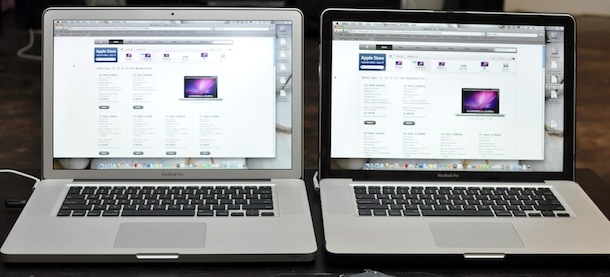
 PeerGuardian is a free open source tool that allows you to easily block large numbers of IP addresses in Mac OS X. It automatically maintains an internal IP blacklist to block IP’s deemed unsafe or dubious in nature, and also allows for multiple IP lists with the ability to block entire protocols. Other features include logging and maintenance tools to see what exactly is being blocked. Many people use PeerGuardian in conjunction with an extensive external IP blacklist when using P2P file sharing applications and networks to better maintain their security and privacy.