
Mac OS X 10.5 Leopard 9a343 screenshots
Feb 26, 2007 - 7 Comments
 We’re all anxiously waiting for Apple to release Mac OS X 10.5 Leopard, which is due to be out sometime in the next few months. To whet our appetites even more, the Mac rumor website ThinkSecret has posted a series of 28 pictures of various new features, updates, screensavers, and additions to the latest build of Leopard 9a343. How much of what we see here will appear in the final version? Time will tell. Enjoy the screenshots at ThinkSecret:
By OSXDaily - Mac OS - 7 Comments

 The folks at the



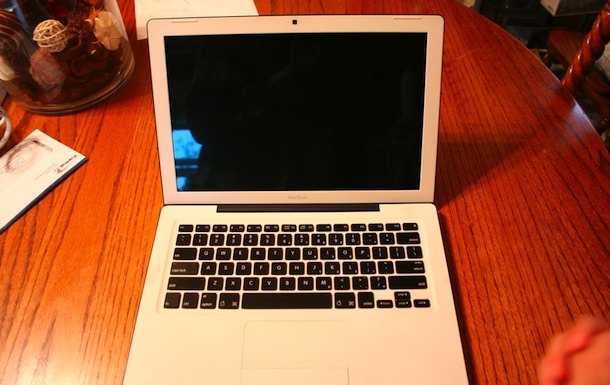
 iAlertU is a free alarm system for Intel Mac laptops and works like this: you activate the alarm via your remote or a menu, and if your Mac is moved or disturbed the screen starts flashing and a blaring an alarm sound. How does it do this? It uses your Mac’s built in SMS sensor to detect any movement of your Mac. If you spend a lot of time in libraries, coffee shops, or any public place, this app could really come in handy. While iAlertU is a really fun and creative program, be aware that it is beta software and therefore subject to some issues.
 Apple spends a lot of time fine tuning our favorite products, resulting in stellar looking hardware and software, particularly visible in Mac OS X. It’s not hard to impress your friends and colleagues with the appearance, fluidity, and many great features we all enjoy. But if you’re in the mood to brag and be flashy, here is a list of five fun tips to show off some of the eye candy that’s built right into OS X.
 The title says it all, you can send and receive SMS text messages through AIM, Messages, or iChat by following these simple instructions. If you are so inclined, there is even a simple bash script allowing you to interface with iChat through the command line for such purposes. This is a great tip, and apparently the ability to send SMS messages through the AIM protocol has been around a while, and it still works today as long as you have AIM setup.
  Spotlight is probably the greatest feature to hit the Mac OS in years, once you get used to using it, going to a PC without it feels hopelessly inadequate. I use Spotlight for everything from launching applications, retrieving pictures, searching for old emails, literally just about everything. If you aren’t using Spotlight, you’re missing out. If you are using Spotlight, every now and again, the Spotlight menu mysteriously stops working (apparently this is more common since some OS X updates), and we’re going to give you a few methods to troubleshoot Spotlight and get it back in full working order.
 The Unofficial Apple Weblog is confirming older reports from MacRumors that the upcoming version of iChat (to be bundled with Mac OS X 10.5 Leopard) will include voicemail features. The MacRumors report from December of 2006 says that users will be allowed to create a video greeting to serve as an answering machine message of sorts. A couple screenshots have surfaced of this feature, with TUAW posting the most recent, reproduced below. Of course like all Apple related rumors you should take this with a grain of salt. Concocted screenshots and fake imagery have long been part of the Mac rumor mill, and although these look legitimate, we just won’t know until the release of Mac OS X 10.5 Leopard, scheduled for later this Spring.



