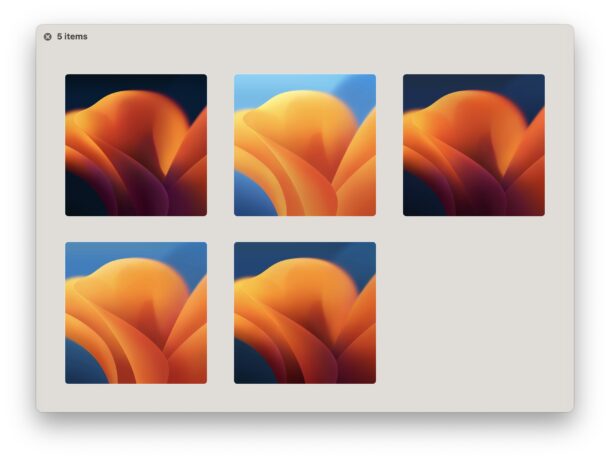
Grab the MacOS Ventura Default Wallpaper

MacOS Ventura includes new default wallpaper, but you don’t have to fiddle with installing the beta or wait for the final version to get your hands on the snazzy new desktop background decoration.

MacOS Ventura includes new default wallpaper, but you don’t have to fiddle with installing the beta or wait for the final version to get your hands on the snazzy new desktop background decoration.

If you installed the iPadOS 16 beta onto an iPad and now regret doing so, perhaps because it’s too buggy, or it doesn’t have the features you were hoping for like Stage Manager, you can remove iPadOS 16 from your iPad and revert back to iPadOS 15.
This tutorial will show you how to downgrade from iPadOS 16 beta back to iPadOS 15 stable builds.

Did you install the iOS 16 beta but now you’re having second thoughts about running it? If you want to downgrade from iOS 16 beta and revert back to a stable iOS 15 build, you can certainly do that.
The method covered here will downgrade an iPhone from iOS 16 back to the latest stable version of iOS 15, however it will erase the iPhone in doing so. This means if you did not create a backup to the computer from iOS 15 before installing iOS 16 beta, you will lose everything on the iPhone by downgrading.

Though Apple is now primarily working on beta versions of iOS 16, iPadOS 16, and macOS Ventura 13, the company is continuing to also work on beta versions for the current generation of system software. With that in mind, Apple has just released the third beta for iOS 15.6, iPadOS 15.6, and macOS Monterey 12.5, to anyone who is enrolled in the beta programs but who hasn’t jumped forward to the major future releases.
It’s likely that these software versions include minor bug fixes and security enhancements, and they are unlikely to contain any major new features or changes.

When you go to share a photo, link, or anything else on iPhone, you’ll notice that the iPhone will have a list of suggested contacts to share things with. Often these sharing suggestions are helpful and people you do in fact regularly communicate with, but sometimes someone will appear that you just don’t want to see, share things with, or be reminded of. Maybe it’s your boss, an ex, an unpleasant person, a coworker, or someone else you just don’t want showing up in your suggested sharing menu on your iPhone, so let’s fix that.
Let’s take a look at how you can remove a contact suggestion from the Sharing list menu options on the iPhone (or iPad).

Looking to share your location with your family members to let them know where you are? Tired of having to make phone calls to tell someone how long it’ll take until you get home? In that case, you’ll be pleased to know more about Location Sharing for iPhone and iPad, which allows you (or they) to share location as you move from place to place.

You can play Fortnite on iPhone again, thanks to the impressive capabilities of GeForce Now. No, the Fortnite app is not back on the App Store for iPhone or iPad, but it is available to play by streaming from the web through Safari and the Geforce Now service, and believe it or not it works pretty well.
![]()
If you have credit cards saved into Apple Wallet on the iPhone for ease of use and Apple Pay, like the Apple Card, then you may occasionally run into a situation where you need the CVV code number, or security code number, that is associated with that credit card.

Want the iOS 16 default wallpaper on your iPhone or iPad, but don’t want to bother with installing the iOS 16 beta onto your device? That’s understandable.
Fortunately, you don’t need to install any beta software just to get a new wallpaper.
Apple has released MacOS Big Sur 11.6.7 for users still running the older macOS Big Sur operating system.
The small system software update apparently includes a fix for Mail app and other mail applications that failed to open attachments.

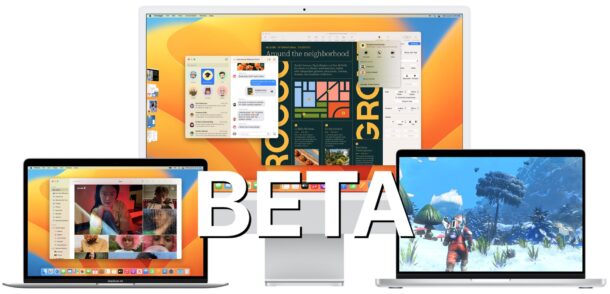
MacOS Ventura beta is available to install and run for Mac users who are interested in trying out the developer version of the upcoming Mac operating system.

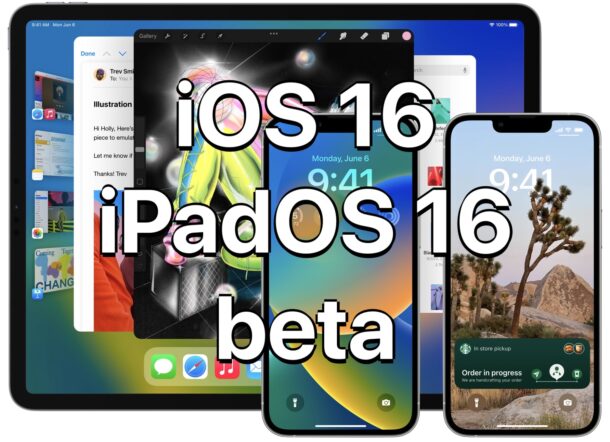
iPadOS 16 will bring some significant changes to the iPad, particularly for users that have an iPad with M1 chip. If you’re interested in trying out iPadOS 16 beta right now, you can do so through the developer beta program.
Apple just recently released the first beta of iPadOS 16 to those enrolled in the Apple Developer program, so if you don’t mind running buggier than usual system software on your iPad, you may enjoy taking the plunge and trying out the new beta iPadOS.

If you’re excited about iOS 16 for iPhone and don’t want to wait until the public beta next month, or the final version in the fall, you can install the iOS 16 developer beta right now.
The first beta of iOS 16 is available to download for those registered in the developer program, so if you have a device you don’t mind running buggier beta system software on, you may be interested in using the beta release on your device. Let’s take a look at the necessary requirements, and the general process of installing the beta of iOS 16 onto an iPhone.

Apple has released the first beta version of macOS Ventura to users enrolled in the registered developer beta testing program.

Apple has released the first beta versions of iOS 16 for iPhone and iPadOS 16 for iPad to users enrolled in the developer beta testing programs for Apple system software.

iPadOS 16 has been announced by Apple, and it includes some powerful features that iPad power users are sure to appreciate.

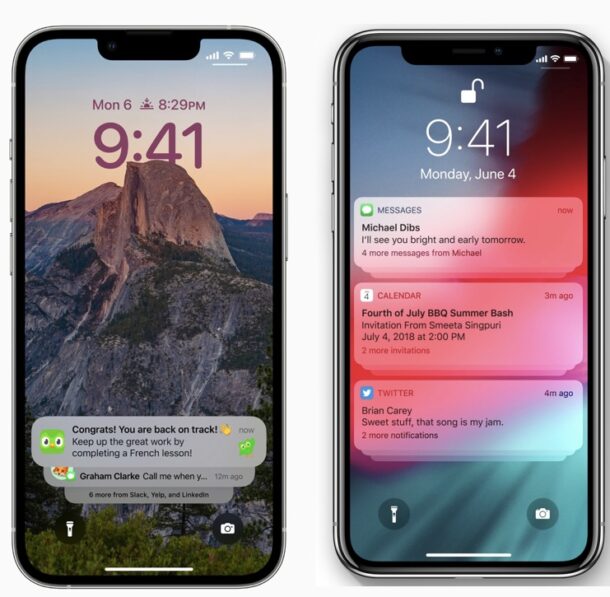
Apple has unveiled iOS 16 for iPhone, featuring a new customizable lock screen, updates to iCloud Shared Photo Library, the ability to recall and edit sent iMessages, Mail scheduling, and more.

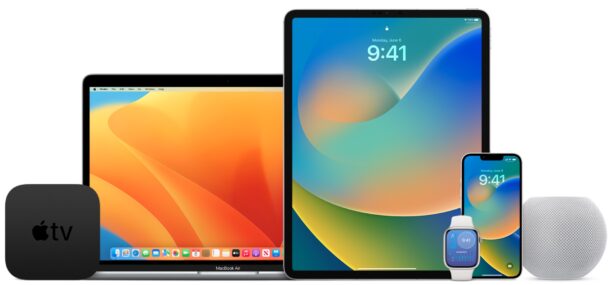
Apple has announced the next generation MacOS operating system, and they’re calling it MacOS Ventura.
MacOS Ventura includes a variety of new productivity features, refinements, and capabilities that seem to be aimed at remote working.