
PDF Editor for Mac OS X – What’s the best way to edit a PDF on your Mac?
 Need a PDF Editor for Mac? I did too, and this is what I learned. Adobe Acrobat Pro
 is great software with some killer features, but it’s expensive. Acrobat is hard to beat in it’s functionality, but if all you’re looking to do is make small changes and edits to PDF files, spending $350 for a PDF Editor might be a bit overkill. So what are some other options for a Mac PDF Editor?
Best Free PDF editor for Mac
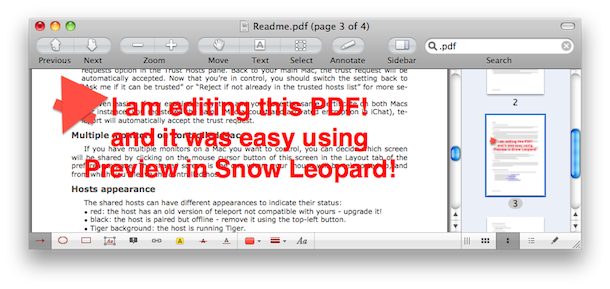
Preview – FREE – included in every Mac OS X install, the most recent version of Preview in Snow Leopard lets you make all sorts of annotations to PDF documents. In the Snow Leopard version, you can draw shapes onto PDF’s, and write text directly to PDF files for things like a digital signature. It’s basically a limited PDF editor, for free, and there’s no download required! If you’re looking for a free PDF editor solution, I highly recommend just using Preview.app that is already included in Snow Leopard!
Other Free PDF Editors for Mac
Skim – FREE – we’ve written about Skim before, and it works pretty well for making quick notes to PDF documents.
Scribus – FREE – an open source desktop publishing app that has limited PDF editing abilities, and the ability to create your own PDF’s
Best Paid Solution for Editing a PDF on Mac
I say this is a tie because PDFPen is great but a lot more limited than Acrobat, but if you’re just looking to make simple changes, save yourself $300 and buy PDFPen. If you’re a professional and you are going for advanced PDF editing and production features, get Acrobat, it’s expensive but there’s a reason: it’s extremely powerful.
PDFPen -$49.95 – a whole lot cheaper than Adobe Acrobat, with much of the same functionality in terms of making quick text edits to PDF files and the ability to edit faxes, OCR files, and more.
Adobe Acrobat Professional 9 – $350 – the grand daddy of all PDF editors, you’ll pay a fortune for it, but if you’re really serious about creating, editing, and modifying PDF’s this is the best way to go. There is an upcoming version X (10) too that will have even more powerful features.






You should take PDFpen off your list. It’s diabolical. I’ve used quite a few PDF editors on Windows and it’s difficult to make heads or tales of PDFpen. Nothing about it is intuitive…
It’s really sad that Mac can’t have a decent PDF editor unless it’s Acrobat. All other alternatives are quirky and either lightweight or plain rubbish.
Foxit was very good under Windows. As was ‘Nitro’…
Personally I just use Preview to edit PDFs for simple purposes, or I will create a new document intended to be a PDF by printing it as a PDF. No new apps required.
Hi, I have been looking for an easy to use and not so expensive fully-featured PDF editor on MAC and finally found Qoppa’s “PDF Studio Pro” the most suitable one. It’s a great piece of software for quickly editing / creating PDF’s and very straightforward.
I can only recommend it to all who don’t want to use Acrobat, but need functionality.
The openoffice extension works awesome for PDF´s
I loved openoffice before but now even more.
https://www.arielch.org/aoo/aoo-pdf-import/
Thanks to Mark who commented in 2010 :) who sparked the solution!
Wayne – My workaround for the same problem was to go to my Applications folder and just launch Preview, then open my .pdf from within Preview – File/Open.
Hi Wayne,
Thanks for your reply. Unfortunately when I right click and select “open with” I get the option to choose between Adobe Reader, Billedfremviser (translates to Picture Viewer) , Safari or Other, but not “Preview” as you mention.
I have looked under “Other”, but I do find anything called “Preview”.’
Where to find it?
Thanks,
Thomas
Thnx, this saved me time!
Ciao!
Hi,
Nisus Writer Pro accomplished what neither of the following – MS Word 2011, Pages.app, TextEdit.app, Adobe Acrobat, Skim.app, Preview.app etc. – failed to.
Indeed, the MS Word-generated PDF was shed clear of hyperlinks; the Pages & TextEdit pdf conversions removed even text highlights/colours. Preview, Acrobat or Skim – nothing rendered the hyperlinks readable until I re-converted the original in Nisus Write Pro. The resultant file contained the formatting, including colours and hyperlinks, You can try this one:
videotoflashmac.com/pdf-editor-for-mac/
[…] This is a much better solution than the other free web based alternative we discussed recently, ZamZar, because it preserves just about every aspect of layout and allows editing for free as well, preventing the need for other editing tools. […]
I have the preview on the snow leopard 10.6 and I just want to make the text larger for my kindle reader. I have some book to put on it where the text is so small I need a magnifying glass sometimes. I have all the zoom tools to read the book on desk top, but I cannot open the pdf to make the text larger, to transfer to my reader.
and the magnify feature is not all that great on my version of kindle. so thought I’d try a pdf editor. is there some trick to open a pdf on an old book I got for free?
I found a pretty simple solution that seems workable. I open a PDF with Adobe Reader and then using the “Snapshot” feature found in the “edit”menu I take a snapshot of the portion of the PDF document that I want to edit. I can then simply paste it into Word and edit it…adding a text box, using text frames or shapes with a fill background to match the document in order to “delete” portions of the document, etc. Kind of limited but it has allowed me to edit many dozens of coloring book type pictures changing titles and descriptions from English to Spanish, etc. I tried a free download version of a PDF to Word convertor and found this just as easy to do. It is important for clarity of the image that you take a snapshot of that after you take the snapshot that you enlarge the view in Adobe Reader before you “copy” the image to then paste in Word. Hoep this helps someone and saves some $$. Cheers!
This just made my day. Lifesaver and moneysaver from a teacher’s point of view! Thank you!!
Just got a refund for my FoxitPDF purchase. It does not run properly with parallels.
Mike. I posted the Kudos for Foxit above. I am going to try PDF Studio as mentioned above. Foxit claims there is a print driver issue with their product in parallells coherence but I haven’t had an issue on several networks and a variety of printers/copiers. I am sorry you experienced that. Bummer!
Comment here if you find a “best” solution.
-adam
HELP! Highlight fades on PDF (MAC)
I always study with my mac and use the highlight function in PDF to highlight sentences with different colors. But the problem is my highlights sometimes seem to…fade (like the case u marked on real paper) Every now and then the color would become so light that I can barely see it..I can’t figured out what caused it because I use the same function with every document and it’s always fine in the beginning, but later on it just seems to happen randomly (and I can’t get the color back unless i follow the faint trace and mark them all over again)
Does anyone know how to avoid this?
P.S. I am using the Preview app.
My concern is in extracting the annotations (highlights, underlines, notes) out of PDF files.
(1) what is the best off-line tool that let’s me extract ALL my PDFS at the same time, with cross-references to time-stamp and originating file names?
(2) can someone points me to any description of the PDF “standard”? E.g. Skim on the mac lets you take notes and highlight but these are kept separately. Skim also doesn’t let you edit highlights created by Preview. I would like to understand
Needing full read and write-over capabilities I have maintained the acrobat suite. However, I discovered it is much more cost effective and actually better to buy Parallels+Win7+FoxitPro Business. FoxIt Pro is simply better than the original Adobe product for editing and creating PDF’s. They claim to be currently working on a Mac OS version. You can’t beat FoxIt on any platform.
Adam
Adam, I have to disagree. PDF Studio 7 Pro is the best PDF read and write-over application going!
In this discussion we’re talking about using it on Mac OS, and my business partners are also using it – one on Linux and one on Windows. We all three agree that PDF Studio 7 Pro has all the PDF creation, editing, and securing capabilities we need on any platform.
Plus, it sounds like your solution entails three different programs? Parallels+Win7_FoxitPro Business?? Instead, just get one program, PDF Studio 7 Pro, that runs on MacOSX, and have all the capabilities you need.
Angus. Good call. Foxit has yet to produce their MAC OS version. Ironically I was on the hunt again for a MAC option and came back through this thread. I only have 2 apps left that require windows. It might be time for me to abandon the old Dual OS (although it’s always impressive to show people). I think I will give PDF Studio 7 Pro a shot. Thanks again Angus! -adam
Open Office has a PDF extension that will load the PDF into a “Draw” document. You can then edit each element, including the text.
How did you write the text over the pdf? Is it a new version of Snow Leopard?
On Mine ( Mac 10.5.8) I don’t see the option of writing over pdf. In Annotations can add notes – but they appear on the side of the pdf – not ON it.
The text tool doesn’t do anything when I click on it.
[…] a PDF file created instantly by the print function. You can then view it later, use your favorite PDF editor for Mac (or Windows/Linux) to edit the PDF, distribute it online with something like e-Junkie, or […]
We’ve just released a new PDF Editor for the Mac, ‘Proview’.
You can get it here:
http://www.coherentpdf.com/proview.html
http://www.coherentpdf.com/proview.html doesn’t say anything about editing existing text, only adding text.
Does anyone know how to make Apple Preview’s added text boxes have a non-transparent background? (I’ve got 5.0.1 running on Snow Leopard 10.6.2.) Thanks! Skim has this option in its preferences, but Skim on SL will not export text boxes that other PDF readers can read.
Inkscape (www.inkscape.org) is a free, open-source vector graphics editor that will open and edit PDFs. It’s especially useful when your PDF contains vector based illustrations that require editing.
If you need advanced review and markup capabilities, PDF Studio is a powerful pdf editor that supports most PDF functions. It also maintains full compatibility with the PDF standard which means that your edited PDF documents will render properly in Adobe Reader and on all operating systems (mac and Windows) the same. PDF Studio standard is priced at $60, PDF Studio Pro is $95. Much more affordable than Adobe Acrobat. And PDF Studio can pretty much do it all.
PDF Studio cant edit existing text in pdf documents, what a shame
I confirm that PDF studio can not edit existing text content.
But PDF Studio 7 will allow this. The new version is coming out in December 2011.
Qoppa Software did get PDF Studio 7 out, and it DOES let me change content – text and images – in PDF documents!
The cost went up a little ($125 for the Pro version), and I, for one, think it’s well worth it! Staying on the topic of this discussion, this tool lets me fill interactive PDF forms, type contents onto the non-interactive forms that I scan in (directly from my own flatbed printer!), and then I can do what they call “flatten” those answers onto the form so they can’t be changed by someone else. I use the digital signature option, to lock the file and add a picture of my signature.
Because (as Lilou wrote before) the files PDF Studio saves or emails (by the way, directly from inside the tool, saving another export/copy/paste) are true PDF, other people on other systems can easily read them and read and verify my signature.
10.5 (Leopard) also had the PDF editing capability in Preview.
I tried using Preview but the PDF form I wanted to fill out didn’t have the proper fields / fields weren’t recognized by Preview. Do you know any way around this pls?
You can also use this free online PDF editor on a Mac using Safari or Firefox:
http://www.pdfescape.com
http://www.pdfescape.com will not handle files over 2MB or 50 pages, but it is free.
The limit is not up to 10MB and no more than 100 pages. Nice…