
Change File Associations in Mac OS X
 It really drives me nuts when files can be of the same kind but different type open different apps, I want to open all my images in Preview and all my video files in VLC. You can make Mac OS X open every file of a certain format type with a certain application by changing the file association from the Finder. We’ll show you how to change the file type association in Mac OS X so that you can set file kinds to open all in one application.
Note this will impact all of a certain file format type, meaning changing this for one PDF will impact all PDF’s, and so on.
How to Change File Type to App Association in Mac OS X
- Find the file type(s) that you want to change the application to open with
- Get Info about a file that is of that file type, say a .mov
- Click the ‘Open With’ arrow to expand an application list
- Choose the application you want all files of this type to open with (in this example we’ll use VLC to open all .mov files)
- Click “Change All” and then “Continue” when the confirmation dialog appears
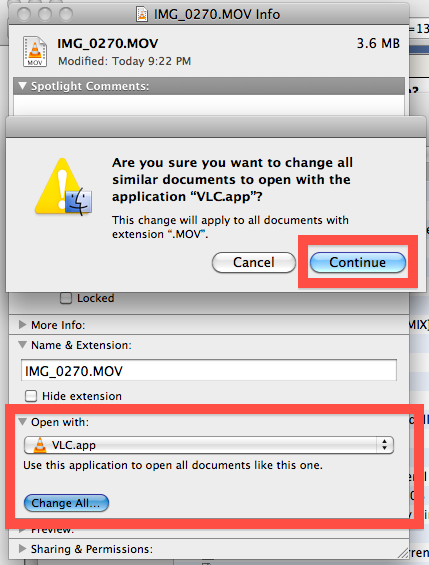
Now all of the files of that type will open in the application you specified. You can do this with any file type to keep things consistent.
I find this particularly useful after you have installed a new app that tries to take control over certain related file types, for example Adobe Acrobat Reader will hijack PDF’s from Preview and FlipForMac will do the same with WMV’s when I want to use VLC for all my video needs. There’s countless reasons to change file associations and the apps that are launched with them, so now you know how!
This works the same in all versions of OS X.






This doesn’t work when opening a file through Spotlight. I’ve uninstalled iTunes (don’t ask me how, I’m just happy to have survived it) but despite changing the default file associations of music, Spotlight (or MacOS) still tries to open music files with iTunes, which results in the icon opening and the closing instantly without anything else happening.
Thank you! I never would have figured that out on my own. It worked the first time. Woo Hoo! You just saved my sanity!
Here is a problem I am trying to solve…I am using El Capitan, and use Outlook 2016. I often save emails to the cloud, and to do so, I save them to my computer first. The sticker is, when I drag an outlook file to my computer, it defaults to .eml, and I have to change the extension to .msg so that my PC friends can view the file. Any thoughts on using terminal or other tools to change the default on this?
Awesome! Thanks for the PRO Tip!
Thanks it worked. Thumbs up! :)
What if you aren’t given the option to “Change All”?? This heap of junk thinks I’m gonna only want one MP3 to open with Winamp, not all of them. Keeps launching the ITunes rainbow wheel of death.
I seriously regret ever buying this IMac. Zzzzzz..
I’m having the same issue! I’m running 10.6.8 with iTunes 11.4. I’ve tried to assign CHANGE ALL for any music file format (particularly .mp3) to open with QuickTime but it keeps defaulting to iTunes.
Thanks for this post. Its simple solution once you know it..
My issue is similar but different. For some reason my Mac has got itself in a muddle with file associations.
I can’t click on an attachment in an e-mail (I use iMail) and have the file open in MS Word/Excel etc (I use Parallels). I have to now save it first to my hard drive.
I also can’t open files directly from Finder by double clicking. I have to open them from within the application, i.e. launch Excel first, use the File, Open option and search for the file on my Hard Drive.
This persist despite the fact that I’ve done the “Get Info” bit and associated the files with the correct applications.
Any help would be appreciated.
Thanks
I can get it to change all of my files but if I reboot I need to go through the process again. I have 10.7.5
Thanks Dude!
Was looking for a solution to this issue!!!
Thanks. Really helpful
This doesn’t work at all. I have Lion, 10.7.4, and there is no “Change All” option that I can find.
Whoops, never mind, I was going straight to “Open With” in the RC menu, I missed the bit about hitting “Get Info” first and working in there. (Without that, you can only change it for one individual file, not for a file type.) OK, this works fine for me in 10.7.4, thank you very much.
THANKYOU!!!
this has been driving me a little nutty… put up with for 6 months… i must learn to come to osx daily faster……
thankyou
[…] many users, not seeing filename extensions is probably fine, but I often set custom file associations, and knowing the extension will let you know what app is going to open with each file without […]
nothing, rubicode included, seems to be able to re-associate .indd files with InDesign 5 after installing 5.5. after choosing InDesign 5, the pulldown menu simply reverts to 5.5.
Hey did you solve the INDD issue defaulting back to CS5.5.. I have the same issue!
thanks, mate!! much appreciated!
[…] in the pre-Lion way through the “Get Info” menu for a one time use or by hitting the “Change All” button in a files Get Info window, but the new option-right click method is much faster, easier to […]
I needed this and you were #1 on google. You’re a savior and deserve to be there ;-)
OMG thanks so much this has been annoying me for months!! damn quicktime always associates itself with files it cant even play lol
Thanks – this has been driving me nuts as long as I’ve had my Mac, seem to always put up with it, but this morning I decided, no more!
great, thanks a lot. It solved my issue of switching bit torrent client.
[…] Open With menu is fairly adjustable in its default behavior, you can also learn how to change a file types association across the board or on a per file basis for more specific […]
[…] default behavior of that specific file. If you click the “Change All” button you will change that file types association across Mac OS X, causing all instances of that file to open in the application you […]
This works… I changed m4vs to launch QT, rather than VLC. But the new file icons are blank, i.e. no QT-type icon is displayed.
Thanks! Everytime I tried to open any .mp4 files, it tried to start up VMware Fusion and play it with Windows Media Player!!!! HA! Quite vexing I can tell you!
Thanks a lot! QuickTime can’t use AVI files without help, but for some reason avi files had qt associated by default. Now I can use my favorite, mplayer osx extended, with just one click. :D
@Kevin – Great tip! Antoher OSX Must have added to my list!
RCDefaultApp preference pane makes things a lot easier…
http://www.rubicode.com/Software/RCDefaultApp/