
Rotate Mac Screen Orientation
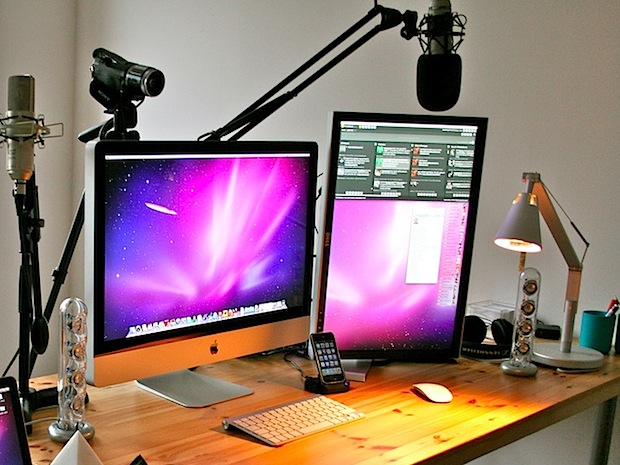
A little known trick allows users to rotate the Mac screen, thereby allowing a display to run in a vertical 90 degree orientation, or even in a flipped mode. Display rotation is possible on any monitor connected to any Mac, whether that’s an external display or even on the the primary built-in screens of a MacBook Pro, Air, or an iMac. As you may have discovered already, this is not an option which is visible immediately in Mac OS preferences, instead users will need to access a hidden pull-down menu within the Display preferences to toggle and adjust the display orientation setting into portrait or landscape mode.
How to Rotate the Mac Screen Orientation into a Vertical Layout
Here’s how to access the screen rotation option in all versions of Mac OS X:
- Launch System Preferences from the Apple menu
- Hold down the Command+Option keys and click on the “Display” icon
- On the right side of the Display preferences, look for the newly visible ‘Rotation’ drop down menu
- Set the rotation you want, in this case it’s likely to rotate 90° for the display to be into a vertical page layout orientation on its side
- Close out of System Preferences to have the settings stay in effect
Depending on the version of Mac OS, things may look slightly differently in the Displays settings panel. Mac OS X Mavericks and later reveals a few additional options alongside the “Rotation” menu, as do displays that are Retina compatible.
Additional Display Rotation Options for Macs
There are options beyond the popular standard and sideways layouts for both built-in and external screens. Pulling down the menu reveals the four Display Rotation options available to Macs, indicated by their degree of rotation as follows:
- Standard – this is the default setting of all Mac displays, with the screen in a standard horizontal orientation as intended by factory settings
- 90° – rotates the screen onto it’s side into a vertical layout, likely the most desirable and useful setting for those looking to use a sideways display
- 180° – this essentially flips the ‘standard’ display option upside down
- 270° – flips the display and also rotates it into a vertical position
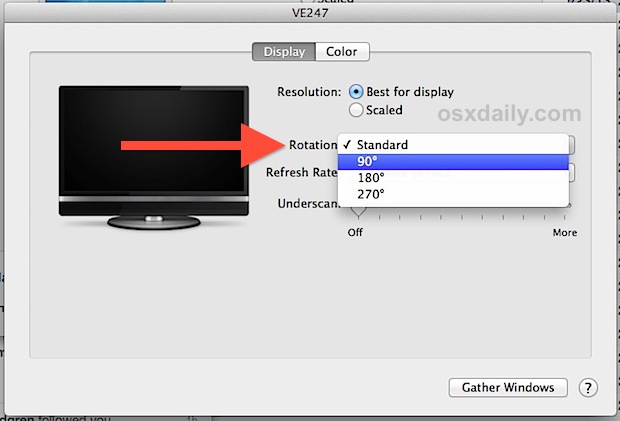
If you have an external display attached to your Mac, you will have noticed that you can adjust the screen orientation on the external display by using the Display System Preference unique to that screen. This allows users to configure secondary monitors to run in the vertical position (portrait mode), rather than the default horizontal (landscape mode) that screens are typically shown with.
Prior versions of Mac OS X like Snow Leopard, Mountain Lion, and Lion have the rotating functionality but without some of the scaling and refresh options, shown here:
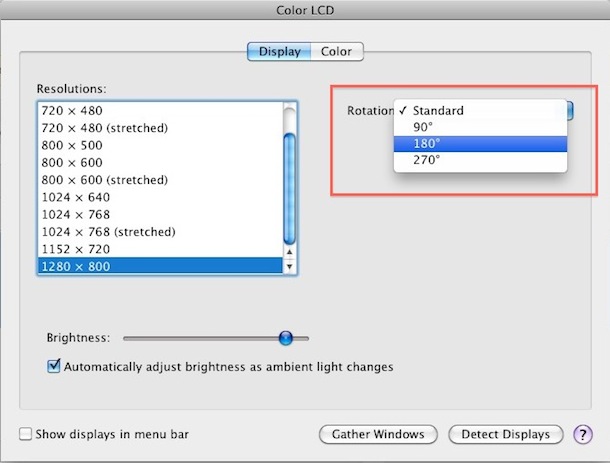
If you flip the screen vertically, you’ll notice that the mouse is flipped as well (essentially it’s inverted), this is pretty confusing at first and it definitely makes for a good prank to play on someone. Of course the real reason to rotate the Mac screen is to accommodate for different display setups, although rotating the internal display is a bit of an oddity which is likely why the setting to do so is hidden by default.
An example of a Mac with an external screen that has been placed into portrait mode have been shown several times in our Mac Setups features, including the image up top from here and here. You’ll find it commonly with developers and designers, as the vertical screen offers a great way for viewing full screens of code, page layouts, browsers, and just about anything else that requires a large amount of tall screen real estate.
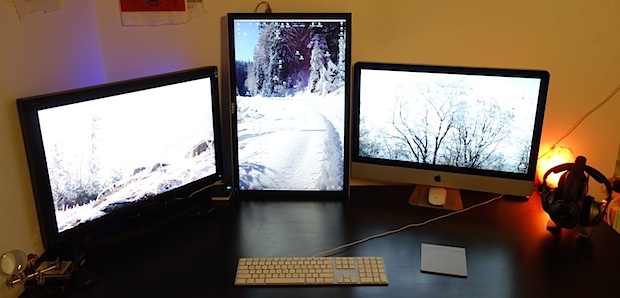
Keep in mind that by rotating a monitors orientation this way, you will also rotate the screen resolution of the hardware. For example, a display that shows at 1280×900 will become 900×1280 when switched 90° into the vertical portrait orientation. Mac users who own iPads should be familiar with that concept already, as it works basically the same way.






you saved me. I googled with different key phrases but did not get the solution. It appeared to me that it was not possible on my MacBook air. But, I had a lucky day. I landed on this page tand here the secret was revealed.
I flipped my screen 180 degrees and now when I try to go back to change it, it says “Preference Error. Could not load Displays preference pane.” so now my mac is stuck with the screen upside down.
HELP
Dell UP2715 portrait mode not support with OS X Sierra?
I was working this morning normally, reading sheet music in portrait (vertical) mode with my mac mini and my movie led 24 with loctek and Vesa, i am a Classical Guitar
I just got the legend of Dell home monitors up2715 K and arrives these afteernoon
I just installed it next to my mac pro tube and I just carried a tremendous snub or better crochet in my eye
By turning the dell to portrait mode, easily with its fantastic base, and enter in preferences of mac system <screens and see that the possibility of rotation does not appear to 180",360" etc neither pressing the keys + command, appear in the down the botton but not look nothing and in the Dell function botton aseeing that in the preferences of the Screen is turned on (Autorrotate) but the mac desktop does not rotate, neither deactivating this option of the Dell monitor, and returning to the preferences of mac os, never change
I can rótate phisically the monitor but mac preferences select directly Dell up2715 and not work in advanced mode
I feel a tremendous disappointment
you know you can turn the whole macbook sideway
Yo, dude best instructions I searched for concerning this topic and very much appreciated will follow you to the end of macdom
Thanks, ed.
I’m running Mac OS X El Capitan (10.11) on my MacBook Pro, 15 inch and this worked perfectly for me. Thanks!
Feel like a chop, not getting this right. When I rotate my external display by 90, it rotates external monitor correctly, but it appears that it forces mirroring so my laptop monitor is rotated as well.
in addition, the trackpad pointer on the external monitor is pointed correctly and not moving incorrectly.
What am i missing ?
So the trick was that for some reason my older samsung S27B550 was switching to mirroring screens `automagically` when screen was rotated. So simply navigating to “Arrangement” tab and unchecking “Mirror displays” option was required.
This all was done using 2015 MBP 15″ on ElCapitan 10.11.6
Hi, I used the trick and it worked for me. But now I want to revert back to normal but the display tab in the system preferences is showing error and won’t open!
Kindly help, it’s very annoying reading upside down.
hi. I’m having the same problem! Did you find a way to fix it?
I fixed the same problem with this! :
Restart the computer in safe mode. Certain caches maintained by the system will be rebuilt.
https://osxdaily.com/2010/04/20/using-safe-boot-mode-in-mac-os-x/
He’s genius!
Hey Brent-
There was software created by http://www.portrait.com/ called Portrait Pro. They created software for OS9, but not for OSX. I’ve been looking for the software, but can’t find it. I also tried Radius SoftPivot, but this software only works with a Radius Pivot monitor.
Please let me know if you find a solution, been looking a long time.
Jeff
Any way to accomplish this on OS 9, if you don’t happen to have a Radius Pivot??
Do not attempt this on Yosemite 10.2. You have been warned.
Oooh. I have Yosemite 10.10.4. Did I screw up when I tried to get my HP w2207h to work in portrait mode?
No sign of the Rotate button on my iMac 27 Retina.
My iMac 27 Retina screen went blank about 20% of the way into a restart, could still connect via Screen Share from my Macmini down stairs and noted that the iMac 27 screen was in Portrait Mode.
I had to buy and install the “Rotate Screen” App to get the screen back on the iMac 27 Retina.
Neds a fix urgently, but Apple developers on Thanks Giving holidays this week.
Super, thanks! Just lost about an hour, intensely pulling hair, cursing, etc etc ;-) All because I wanted to try and see what it looked like if I rotated my external screen 90′, just for fun… Oh did I have some fun!!
This isn’t consistently working for me, I have two external monitors and if I hold cmd+alt while doing the system preference thing it shows the rotation drop-down for the monitor without the rotating base, and it doesn’t show it for the monitor with the rotating base.
It’s worked before, and this has happened before, it usually requires a reboot or two with the monitors plugged in & doing the cmd+alt trick.
i am on mac os x 10.7.4
if this helps! :D
it doesnt show on mine, i am pressing the right keys and clicking the right icon, but it still isnt showing!
ive done it once before, so this may have affected it.
can anyone help?
Thank you so much. I have not used my 24″ monitor for ages and just could not remember how to rotate it back to landscape. I knew it was something simple so thank you for put this on here.
One way to handle the mouse:
Since I only do this for short periods (when I want to view a huge portrait photo in full resolution naturally) I just rotate my mouse physically by 90 degrees as well. Then when I move it left/right up/down etc., everything is natural. It isn’t very ergonomic, though, so I wouldn’t do that for long periods.
I expect if one physically rotates the monitor, too, everything is fine, but since the passive convective cooling form my iMac 27″ relies on the standard orientation (intake grill on bottom, exhaust slot on top), I’m leery of doing that with my iMac.
I would like to place my monitor vertically for a while but would the cooling situation really problematic?
Here’s why I had to do to add an HP 1740 monitor in portrait mode in Lion
same steps as above
– in Displays select show displays in menu bar
– in the menu bar select the HP1740 monitor
– the display preferences for the HP1740 then appeared on the HP1740
– then I changed the rotation to 90 degrees
I need to correct my own posting. Hold down the Command and Option keys at the same time.
To reinforce what others said:
Hold down the Shift and Option keys as you click on System Preferences in the Dock.
Keep holding these keys as you click on Displays.
The rotation option should appear.
I did this on System 10.6.8.
[…] awesome reader-submitted Mac setup features a MacBook Pro 13″ connected to the rotated monitor to the right, the little screen below is a 7″ Mimo display, and the iPad to the left is […]
[…] ready to drool. This multi-displayed Mac setup has an impressive five 23″ screens rotated into portrait mode, and a MacBook Pro 17″ sits atop them […]
[…] ready to drool. This multi-displayed Mac setup has an impressive five 23″ screens rotated into portrait mode, and a MacBook Pro 17″ sits atop them […]
I cannot get this to work no matter what I do. I am running Lion on a 2007 MacBook, any ideas?
[…] the left is a MacBook Pro 15″ Core 2 Duo with an SSD, the center rotated Dell 22″ screen, and on the right is a Core i7 iMac 27″ decked out with 12GB of RAM. […]
[…] you’re wondering, rotating a Macs screen orientation is just a matter of holding down Command+Option when you open the Displays panel in System […]
I have an imac with Leopard still and Cmd+Alt doesn’t work for me. But finally I found this small program which works fine: http://www.magesw.com/displayrotation/
[…] I’m pretty sure that OSX already had this feature. You might want to try this before parting with your $5. I suspect that the built in feature might not rotate your trackpad, […]
I am running Windows XP on a MacBook and have found while holding the Ctrl and Option keys together and pressing the cursor move keys (home-pgup-pgdn-end) orients the screen in the direction of the cursor key.
[…] same way that you rotate screen orientation on a display connected to a Mac can be done with the built-in display of a MacBook, MacBook Pro, or MacBook Air […]
[…] how you can rotate a Macs display orientation? Here’s a Mac setup that features just that… with a MacBook Pro. This a MacBook Pro […]
If you have trouble using this solution try EasyPivot, it’s available on the Mac App Store.
Tried the cmd/alt technique and did not work on my Macbook display :(
2007 Macbook running 10.6.6 here
Any suggestions? maybe a piece of third party software is capable of doing this? Tried DisplayRotationMenu, did not work either :(
10x in advance
Not working for me.
Tried all timing combinations of cmd/alt.
Please help.
I have a Macbook Pro 15″ w i7 Processor and NVIDIA GeForce GT 330M. The trick works to bring up menu, but when I change orientation to 90 or 270, it changes the aspect ratio, but does not rotate, so I end up with a tall, skinny, but un-rotated, screen.
I’m having this same issue. I have the same MacBook Pro, also.
I have the same Macbook Pro as John, and I also have the same problem. Although, I should note that the trick worked like a charm for a good 4 months or so before I stumble upon this annoying problem.The first time this problem occurred, I wasn’t paying attention to the last thing I did before the tall-skinny-unrotated screen (perfectly described by John).
I Googled some other apps mentioned on forums and tried Display Rotation Menu. Funny enough, the app changed the aspect ratio too, and didn’t rotate the display; giving me exactly the same tall-skinny-unrotated screen. Then I fiddled around and still no luck. A couple days later, still annoyed, I tried the System Preference Display trick again and it worked perfectly. The only thing that I could remember now is that within those couple of days, I did shutdown my computer (maybe a couple of times), but never attempted to solve the problem.
The second time the problem occurred, I remember I was watching a movie using VLC in fullscreen mode, with the display rotated using the System Preference Display trick. I remember pressing command + Q from the fullscreen mode and when I came back to my desktop screen, the display rotated as standard (automatically), and the aspect ratio is screwed, giving me the tall-skinny-unrotated screen again.
I have no idea how the problem went away the first time.
@John – have you find a solution to this?
How funny. Found the solution.
For those who are still unsure how to bring out the rotation option from System Preferences – Displays, here’s how you do it.
– open System Preferences like normal (if you have the icon on the dock, just a single, left click, you don’t need to press anything else at this point, or open it from where ever you can access System Preferences from)
– press and hold Option AND Command
– still pressing these two buttons, left click the Displays button in System Preferences
– you will see the Rotation menu on the right
– sometimes the Rotation menu disappears, then you have to close your System Preferences and start over
If you experienced the same problem as I have elaborated in my previous post, here’s a solution that worked for me.
– so you get the tall-skinny-unrotated screen after you select the 90º Rotation
– open a movie file (I only use VLC)
– and poof! the display will rotate as you have set them to be
Weird. I know. But hey – it works.
Non very easy to use, the mouse (trackpad) action stay in the horizontal mode, so to go up you must go right, to go right you must go down… etc…
Non very to use, the mouse action stay in the horizontal mode, so to go up you must go right, to go right you must go down… etc…
Thanks, Brandon. When I hold both keys, BEFORE opening System Preferences and THROUGHOUT the entire procedure, it works!
Pretty cool tip :P It can also be a hilarious prank to play on someone
I had the same problem as everyone else
1) close system prefs
2) hold down (i used left) option and command keys (throughout)
3) click system prefs, mine was on the dock
4) still while holding option and cmd keys click displays
there you go it should work now
[you need to hold down the command+option keys before launching system prefs then click on displays icon. now you can release the command+option keys.]
That didn’t work either.
Remember to hold down Command and Option at the same time then click on Display icon
Works for me, I can rotate my MacBook Pro 2010 any direction. Flipped is terribly annoying. 90 Degrees would be good for reading a book like jorge said, same with 270.
On my iMac9,1 running 10.6.5
I get the option to rotate my 2nd monitor, but not the main display on the iMac.
27″ LED CD + 23″ CD connected to Mac Pro here (10.6.5). Not hidden for me – rotation available on both monitors. Not Command+Option required.
you need to hold down the command+option keys before launching system prefs then click on displays icon. now you can release the command+option keys.
Thanks , yours was the only answer that helped me
David,
Thanks that worked for me also.
I am running 10.6.5 on Macbook Pro(2010). This feature doesn’t show.
I’m running 10.6.5 on iMac (bought in 2007). Unfortunately, this option does not show.
Great tip! very useful to read books on my macbook pro.