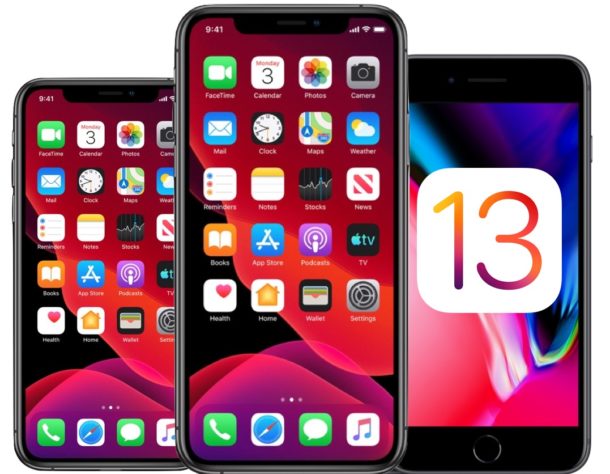
Apple has released iOS 14 beta 3 and iPadOS 14 beta 3 for users who are participating in the beta testing programs for iPhone, iPod touch, and iPad. Typically the developer beta rolls out first and is soon followed by the same build as a public beta.
Separately, Apple also released new betas for watchOS 7 and tvOS 14, along with a new update for macOS Big Sur beta 3.
Your Apple Watch is a wonderful exercise companion and it can not only keep tabs on your workout but provide insights into your health as well. Apple Watch Series 2 and later can also be used to track swimming, just like running or other activities. But the way Workouts handles a swim is slightly different. Don’t worry, we’re going to walk – bad pun intended! – you through it.
Did you buy a new Mac for your kid, maybe for school use, or just as a gift? If so, you might want to limit how long the Mac can be used on a daily basis and keep a check on their usage. Fortunately, this is pretty easy to do with Screen Time on the Mac.
If you are interested in finding a COVID-19 testing location, Apple Maps may be able to help track down a place where you can get tested for the novel coronavirus.
Finding COVID-19 testing facilities near you, or even in a different region, is quite easy with Apple Maps. Here’s all that you will need to do:
Did you know that you can undo and redo on iPhone and iPad with gestures? This is a very useful feature that is not well known, but once you master it you’ll be glad you did, and it works a lot better for some users than the “Shake to Undo” feature.
If you make mistakes while typing on your iPhone or iPad, you’re probably used to backspacing and editing your texts, but you might not necessarily be aware of the new gestures that have been added to iOS which makes text editing a lot quicker and easier.
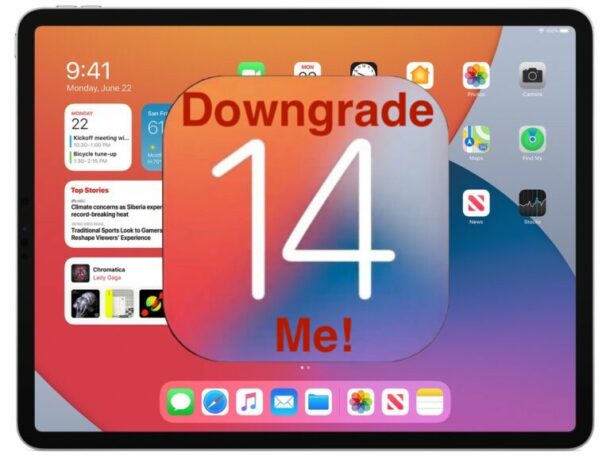
Want to downgrade iPadOS 14 beta and revert back to a stable release? By their very nature, system software betas aren’t generally known for their stability, and if you’re finding that iPadOS 14 isn’t up to snuff, you’re probably looking for a way to get out of dodge. Don’t worry, downgrading is a fairly simple thing to do, although you might find that keeping all of your data isn’t necessarily as easy as you’d hope. Even if you took a backup.
Advanced Mac users may wish to convert a MacOS Installer application into an ISO file. Typically the resulting installer ISO files are used for installing macOS into virtual machines like VMWare or VirtualBox, but they can also be used to burn the ISO to media to create a boot disk. This offers an alternative to creating a bootable USB flash drive for MacOS installers as well.
This tutorial will walk through the steps to create an ISO file of a MacOS installer.
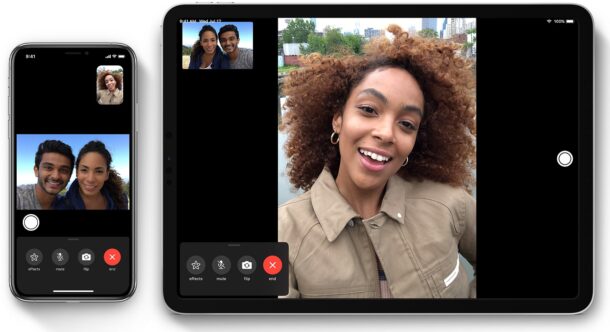
Apple’s FaceTime feature offers a free and convenient way to make video calls with other iPhone, iPad, and Mac users. Although it works seamlessly for the most part, you could occasionally run into FaceTime problems and connectivity-related issues.
In some cases, you may find a situation where you’re unable to start or join FaceTime video and audio calls. Or, you could get disconnected while you’re in the middle of a FaceTime call. This gets even more frustrating when you’re unable to figure out the reason why you’re experiencing issues, and there could be several reasons why FaceTime isn’t functioning properly.
If you’re facing trouble with FaceTime calls on your iOS device, don’t fret. In this article, we’ll walk you through the necessary steps to troubleshoot and hopefully fix FaceTime on your iPhone and iPad.
iPadOS 14 public beta is available for any curious iPad user to try out on their devices. Of course beta system software is less stable than final versions, so this is really only appropriate for advanced users, or those with a spare device they don’t mind lending to be in the beta test program.
For those interested in learning how to experiment with the iPadOS 14 public beta, we’re going to cover how to install it onto a compatible iPad, iPad Pro, iPad Air, and iPad mini.
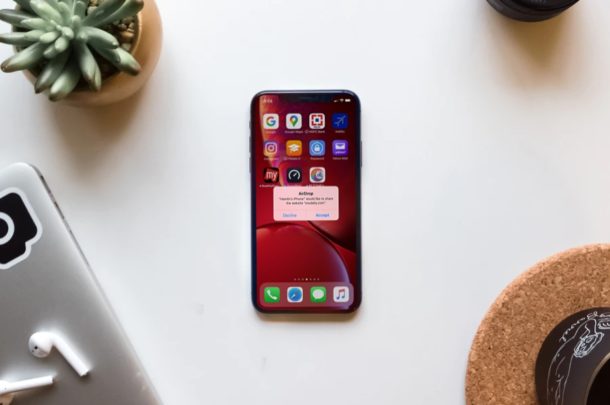
Do you want to quickly share photos, videos and other files from your iPhone to another iPhone, iPod touch, or iPad? Thanks to AirDrop, file sharing between nearby Apple devices is not only seamless, but it’s also a simple and fast process.
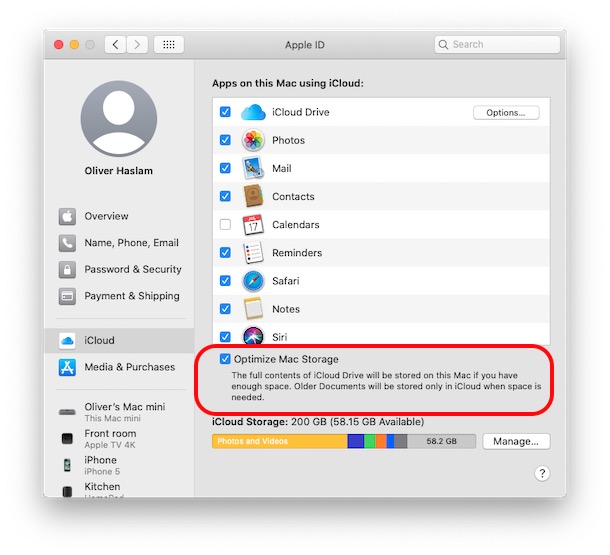
Optimize Mac Storage is a settings option available on the latest versions of MacOS that allow certain files, data, and documents to be stored on iCloud and iCloud Drive when storage on the Mac is running low, effectively offloading some data from the Mac to iCloud. This may be a convenient feature for some Mac users with a lot of iCloud storage capacity and great internet service, but other Mac users may find it to be frustrating or too inconsistent since the features usability is heavily reliant on a fast and stable high speed internet connection.
If you want to disable Optimize Mac Storage in MacOS Catalina 10.15 or later, this tutorial will show you how to do that. Additionally, if you want to turn on the Optimize Mac Storage feature, you’ll be able to do that too.
Some Mac users may wish to perform a clean install of MacOS Catalina onto a Mac. A clean install represents a fresh start, and it’s achieved by erasing all data from the Mac hard drive and then performing a fresh clean installation of MacOS Catalina onto that Mac. A clean install sort of feels like getting a new Mac in the sense that no data is on the device at all, there are no apps, no user accounts or user data, no system preferences or customizations, there is nothing left on the Mac at all, it’s just a blank new installation of MacOS Catalina.
Clean installs are not recommended for most Mac users and because the hard disk is erased it has potential to cause permanent data loss, so this is really only appropriate for advanced users with a compelling reason to format their Mac and start over, or if someone is selling a Mac or transferring ownership, or otherwise. Be sure you have a complete backup of your Mac and all important data made before proceeding.
Do you want to control your children’s iPhone or iPad usage by limiting the apps they use and the contacts they communicate with? Thanks to Screen Time, this is a fairly simple and straightforward procedure.
Screen Time allows iOS and iPadOS users to keep a check on their smartphone usage as well as offers a lot of parental control tools to limit the features that children and other family members are able to access. With Screen Time properly configured on your children’s devices, you can monitor their iPhone or iPad usage on a daily basis and restrict the content they have access to.
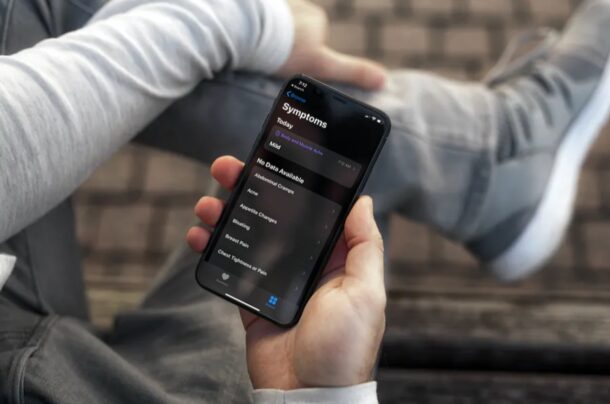
Do you use Apple’s Health app to track your activity and keep a medical record on your iPhone? In that case, you’ll be pleased to know that Apple has added a whole new section to add symptoms with the most recent iOS update.
Trying to install iOS 14 beta on your iPhone (or iPadOS 14 on iPad), but you’re finding the installation is stuck on “Preparing Update”? Luckily, this can be quickly resolved by forcing your device to restart the update.
Apple has released macOS Catalina 10.15.6, along with Security Update 2020-004 Mojave, and Security Update 2020-004 High Sierra.
MacOS Catalina 10.15.6 includes several bug fixes and security patches, and the Security Update 2020-004 for Mojave and High Sierra both include important security fixes for Mac users running macOS Mojave and macOS High Sierra.
Apple has released iOS 13.6 and iPadOS 13.6 for all iPhone, iPod touch, and iPad users with compatible devices.
iOS 13.6 and iPadOS 13.6 include a new toggle for adjusting installation of software updates, a digital car keys feature for compatible cars, a “symptoms” category for the Health app, along with other minor feature enhancements, bug fixes, and general improvements.
Separately, Apple also released MacOS Catalina 10.15.6 and Security Updates for Mojave and High Sierra Mac users, watchOS 6.2.8 for Apple Watch, and tvOS 13.4.8 for Apple TV.
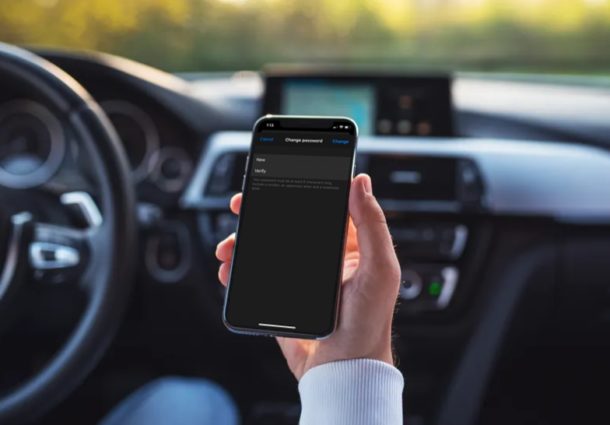
Looking to change your Apple ID password from your iPhone or iPad? There are multiple ways to go about it, but the most convenient way would be to change it right from the comfort of your device.