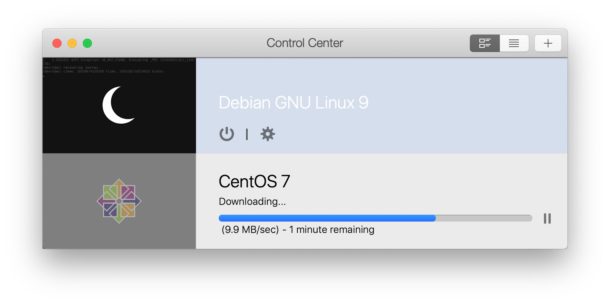
Need to delete a virtual machine from Parallels or Parallels Desktop Lite? Removing a virtual machine can be necessary when you’re finished using a particular environment, operating system, or VM for any reason, and it’s also common to remove unneeded virtual machines to free up disk space.
Here’s how you can easily delete a virtual machine in Parallels and remove it from the Mac (or Windows PC). Read more »
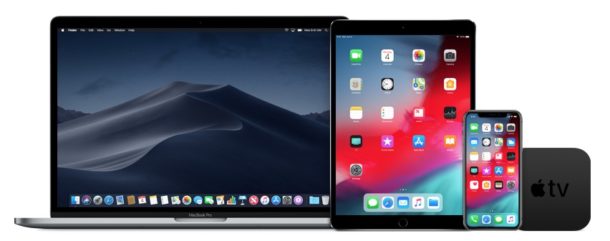
Apple has released the second beta versions of MacOS Mojave 10.14.5 and iOS 12.3 for users participating in the beta testing programs. Typically a developer beta arrives first, soon followed by a public beta of the same build.
Additionally, new beta builds are available for tvOS 12.3 and watchOS 5.2.1.
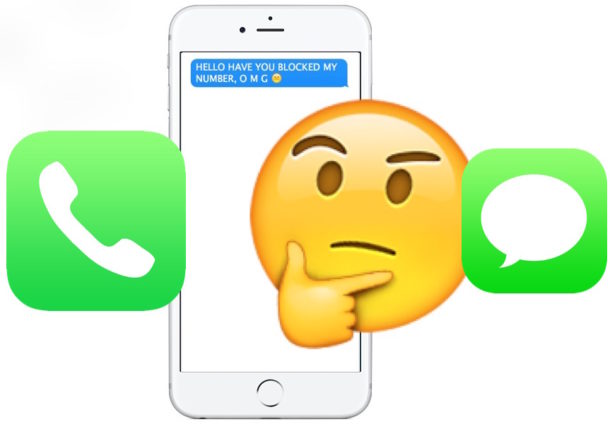
Have you ever wanted to know if someone blocked your number from calling them or sending them messages? You may be familiar with the process of blocking calls, messages, and contacts on the iPhone, but have you ever wondered if YOUR number or messages have been blocked? While Apple makes the blocking feature for texts and calls fairly subtle, and blocked calls can even still leave voicemails, there are a few ways you can try to determine if someone has blocked your number on iPhone. Read on to learn more!
If you have AirPods and an Android device, you might be interested in knowing that you can use AirPods with Android phones and tablets too. Connecting AirPods to an Android device is pretty straight forward (thought not as seamlessly simple as the iOS setup) and once the two are connected and paired you’ll be able to use them as the wonderfully convenient wireless headphones that they are.
Want to change the voice of Siri on a Mac? There are numerous voice options for Siri available, and on the Mac you can change the voice of Siri to be male or female, and you can even change Siri’s accent too.
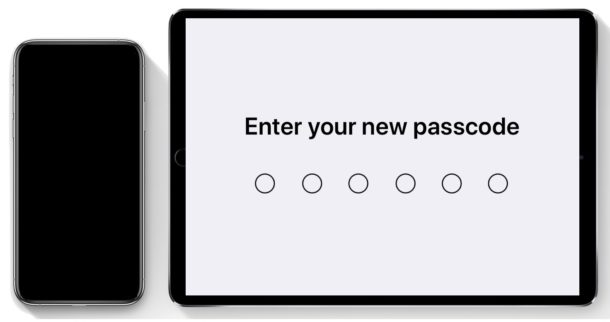
A passcode is used on iPhone and iPad as an authentication method to access and unlock an iOS device, often as an adjunct or alternative to the biometric authentication methods of Face ID and Touch ID. Most iPhone and iPad users enable an iOS passcode when setting up their iOS device, but later some users may decide they would like to change the device passcode to something else.
Changing the iPhone or iPad passcode can be done at any time on an iOS device. You can choose from a variety of different passcode options including using a variation on digit length which lets you change back to a 4 digit passcode or a longer digit passcode, or even change to an alphabetic or alphanumeric password to unlock the iPhone or iPad rather than a numerical passcode. Read on to learn how to change the lock password for an iPhone or iPad.
Using SSH, or Secure Shell, is a very common way to establish remote connections to Mac and Linux machines from the command line. If you’re a systems administrator, or if you have SSH enabled on a Mac for another reason, you may eventually need to log off another users ssh connection. There are several ways to end a users ssh connection to a Mac (or Linux box for that matter, these tips apply equally there too), and we’ll cover a few of them.
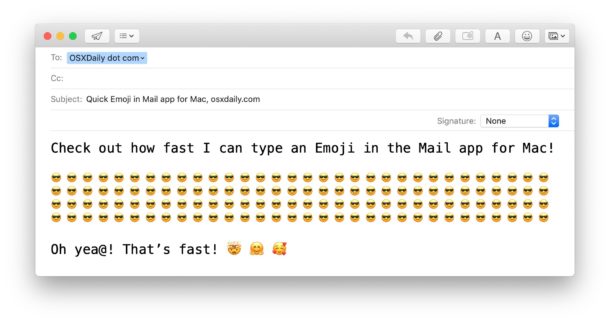
It turns out there’s literally an Emoji button in the Mac email client, but much like many users are unaware of the email formatting options in Mail for Mac, the Emoji toolbar is often overlooked too. Not to worry Emoji fans, here’s how to use it!
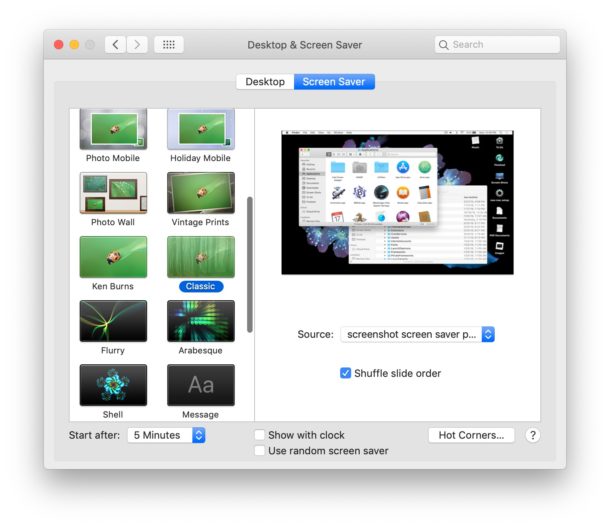
Love it or hate it, but it’s April Fools Day, which means much of the internet is even less believable than normal, full of extra stupid jokes and ridiculous claims. We usually like to offer harmless or goofy pranks as April Fools jokes and this year we’re going to focus on a very simple prank that has worked for desktop computers for ages: setting a screenshot as a screensaver on a Mac or Windows PC.
This prank works because the screen saver will look like the users desktop, except of course it can’t be interacted with, and assuming they have a locked screen saver password set, then the computer will initiate that login prompt with any mouse cursor movement. Of course simply entering the login information will end the prank immediately, which is why it’s mostly harmless but can certainly cause a bit of confusion in the interim.
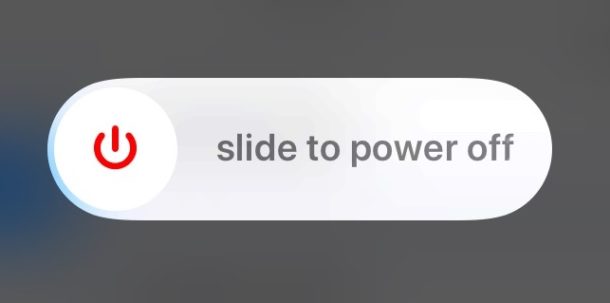
Want to turn off iPhone for whatever reason? Newer iPhone models have a different method of shutting down the device to turn off the iPhone compared to earlier model devices. This article will show you how to turn off iPhone XS Max, iPhone XS, iPhone XR, and iPhone X.
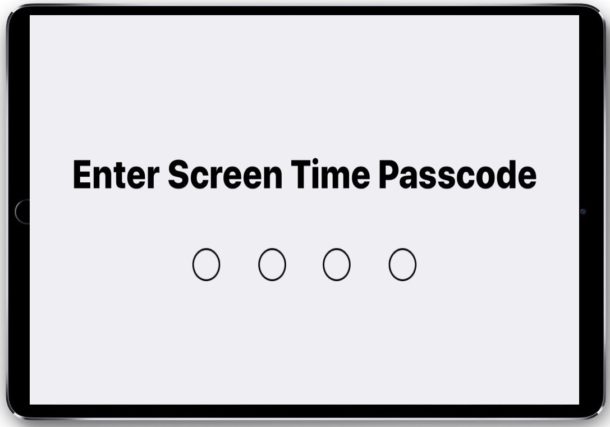
Screen Time is a feature on iPhone and iPad that tracks device usage for apps, websites, categories, and more, taking real-time usage data to report back just how long particular apps and types of apps are being used. You can even use Screen Time to block certain apps, websites, or even block and limit entire categories of apps and sites like social networking. Screen Time is quite helpful, and takes over the place that the Restrictions feature in iOS once held. But what if you’re going to use an app, or use Screen Time, and you’re presented with a Screen Time passcode screen, but you don’t know the Screen Time passcode?
For some users who updated to the latest iOS operating system, they may wander into Screen Time settings on an iPhone or iPad to discover that a passcode is already set, but they’re not sure what the Screen Time passcode is.
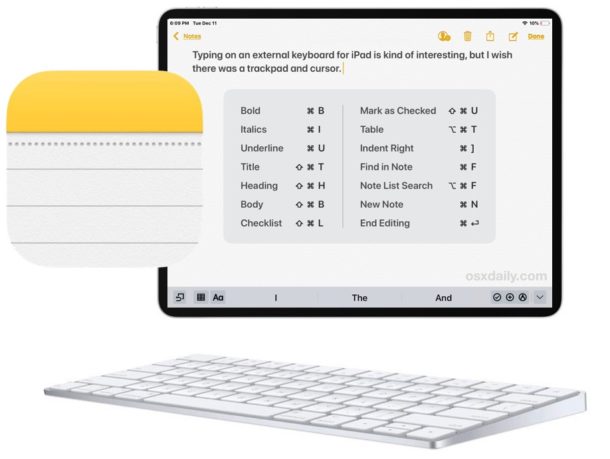
The Notes app for iPad has a variety of handy keyboard shortcuts available for usage within the app when a keyboard is connected to the device.
If you’re a Notes app user and use an iPad with an external Bluetooth keyboard, a keyboard case, or with an Apple Smart Keyboard, you may find this collection of keyboard shortcuts to be helpful to your workflow.
If you’re a Safari user who recently updated iOS or MacOS, you may occasionally run into a “Not Secure” message near the top of the screen when viewing some websites or while browsing the web.
That ‘Not Secure’ text is simply a notification from Safari that the webpage or website is using HTTP, rather than HTTPS. This is also reflected in the URL prefix of a website, for example https://osxdaily.com vs https://osxdaily.com
Do you like using Safari Reader View on the iPhone or iPad when reading a particular webpages articles or stories? Reader View in Safari can make webpages easier to read in some situations, and if you use the feature for some websites, or all of the web, you might appreciate enabling Automatic Reader View in Safari for iOS.
With this Automatic Reader View enabled in Safari for iOS, Safari will automatically enter into Reader Mode, either for specific website URLs as chosen, or for all web sites.
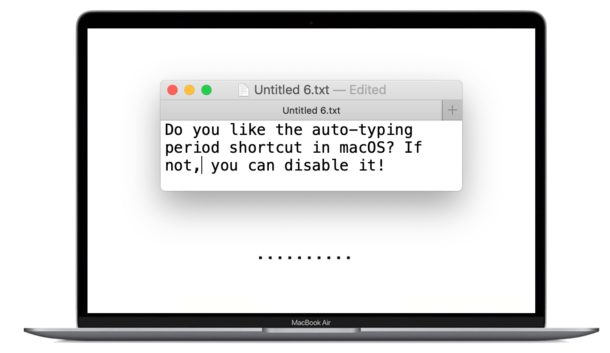
The default keyboard settings on modern Mac OS versions include a shortcut for typing periods quickly. This means that hitting the spacebar twice will insert a period automatically at the end of a sentence or word.
Automatically typing periods comes to the Mac from the iPhone and iPad world, and while some the period typing shortcut can be desirable for some Mac users, others may not like it as much. If you do not like the automatic period typing keyboard shortcut on the Mac, you can turn this feature off.
Apple has released iOS 12.3 beta 1 for users enrolled in the beta testing programs for iPhone and iPad system software, along with macOS Mojave 10.14.5 beta 1 for Mac users in the beta testing programs. Beta builds typically roll out to developers first and then later to public beta testers.
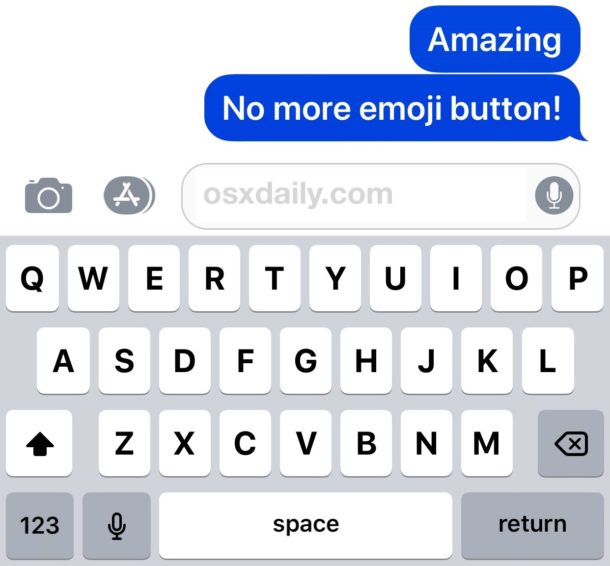
Don’t want the Emoji button on the iOS keyboard and wish it were gone? You can remove the Emoji button from the keyboard on iPhone and iPad, and by doing so you are effectively turning off Emoji in iOS so that it can’t be typed, nor can the Emoji keyboard be accessed. Disabling the Emoji button from the iOS keyboard can be desirable for many reasons, particularly if you accidentally hit the Emoji button and find that annoying, or if you simply never use Emoji and want to get rid of the smiley face button on the keyboard of iPhone or iPad.
We’ll show you how to remove the Emoji button from the iPhone and iPad keyboard, and also how to return the Emoji functionality back to the iOS Keyboard if you decide you want the Emoji button back again.
Apple has released MacOS Mojave 10.14.4 for Mac users running MacOS Mojave. The software update for MacOS includes bug fixes and enhancements and is therefore recommended for all Mac users running MacOS Mojave to install.
Notable bug fixes that may be of particular interest to some MacOS Mojave users include resolutions aimed at addressing wi-fi not working after the Mojave update, problems with Exchange accounts, issues with AOL passwords in the Mail app, a resolution to USB audio device issues on some 2018 Mac models, and more. Separately, the update includes support for Apple News Plus subscription fee service, updates to Safari, an update to iTunes, and more. The full release notes for MacOS 10.14.4 update are shown further below.
Additionally, Apple has released small updates for Mac users running prior MacOS builds including Security Update 2019-002 for MacOS High Sierra and Sierra, along with iOS 12.2 update for iPhone and iPad, watchOS 5.2 for Apple Watch, and tvOS 12.2 for Apple TV.