
Delete App Data from iCloud via Mac OS X
Mar 29, 2013 - 2 Comments
 Many apps for both iOS and OS X store documents and app data directly in iCloud, this allows easy syncing between devices and also provides a certain extra level of backup for some apps, since it’s all stored in the cloud. On the other hand, you may want to remove some of those documents and app data from iCloud, and that’s what we’ll show you how to do easily directly from Mac OS X. This is done through the iCloud preference panel similar to how you can manage and delete iCloud backups for iOS devices from OS X, though obviously rather than deleting a device backup it’ll only be application data or specific documents that is being removed.
By Paul Horowitz - Mac OS, Tips & Tricks - 2 Comments


 Bookmarks saved within Safari will sync between all of your other iCloud equipped devices, assuming you have iCloud configured correctly do so. This means a website you bookmark on your Mac will sync over to an iPad, and something bookmarked on your iPhone will sync back to your Mac, iPad, and Windows PC, and vice versa. Bookmarking syncing is incredibly useful, and if you haven’t enabled it yet be sure to take a minute or two to do so.
 Some countries use fahrenheit, others use celsius, and if you’re an alien on an unusually extreme planet maybe you even use kelvin… whatever the case we’ve all run into the situation where someone from elsewhere is referring to a temperature in a scale you’re unfamiliar with. Obviously if someone in the USA says “wow it was 10 degrees!” that means it’s really cold weather, but if a native German said the same thing, that’s quite mild weather. Rather than trying to do the funky math in your head, just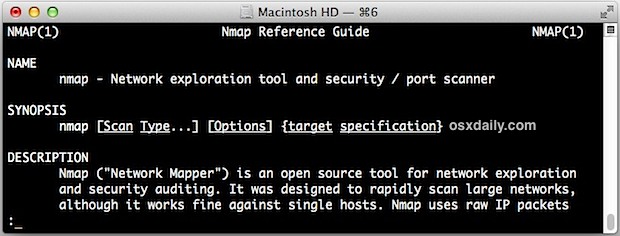
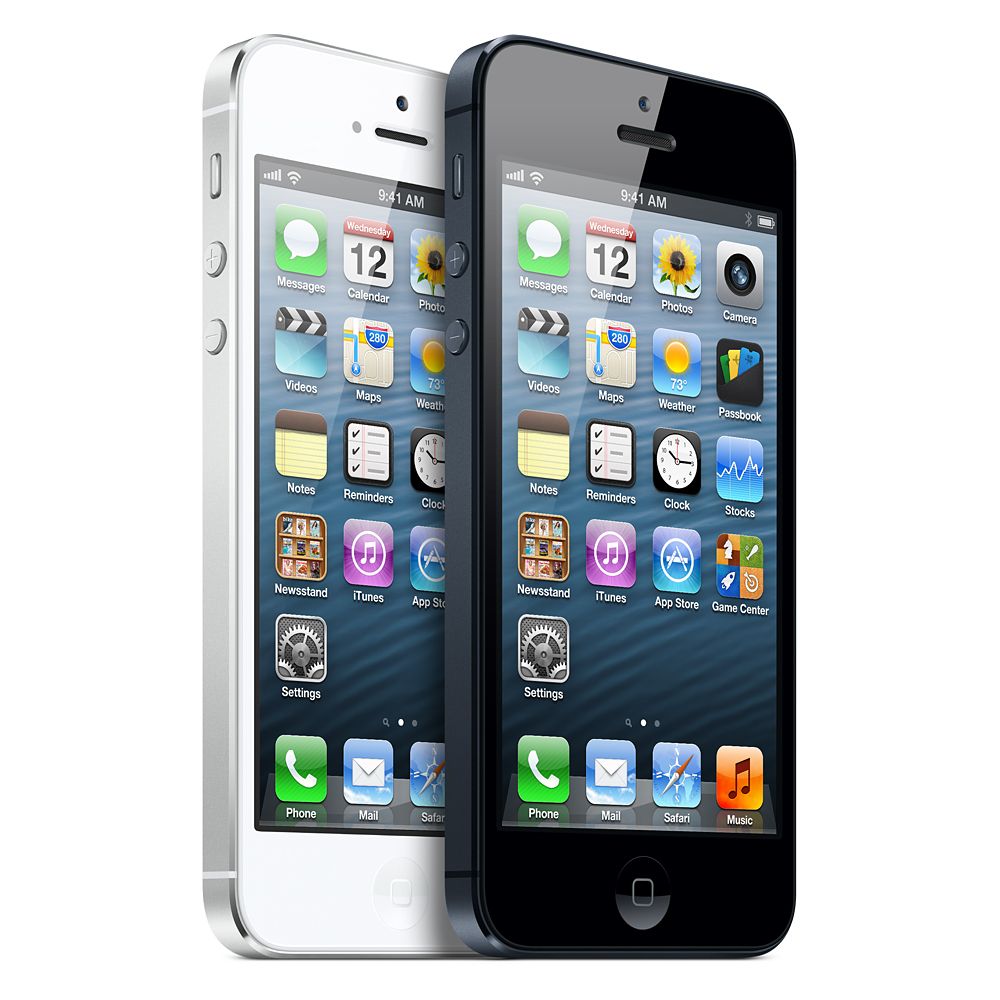 T-Mobile will begin to offer the iPhone on their USA network starting April 12. Unlike other US carriers, the
  As we all know, any time a photo is taken with the iPhone camera, a little shutter sound accompanies the snapping of the picture. That sound effect is all software, and so though you might expect there to be a simple settings change to toggle that sound effect off, well, you may be disappointed to learn there just isn’t such a setting.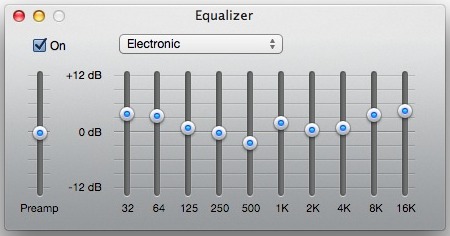
 Using the automatic log out feature is a good way to bring an additional layer of security to a Mac. It works just as you’d expect; after a predetermined amount of time has passed without activity, the active user account logs itself out. This means all currently running apps close out as well as all documents which save in their current state through the Versions & Resume features. Then, in order to use the Mac again, someone will have to log back in with appropriate user and password credentials, thereby preventing unauthorized access. And of course because of the relatively new OS X Resume feature, once you do log in again all of your past apps and documents will launch again where you left off.

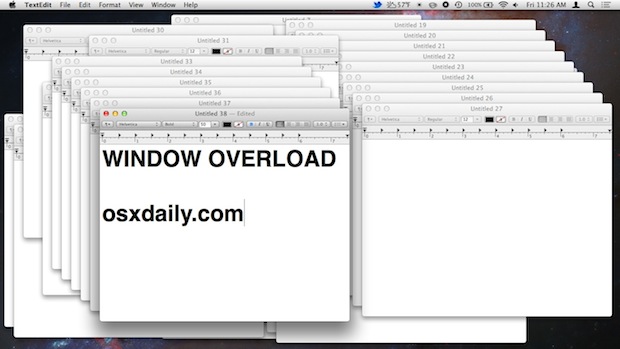

 As you know, OS X plays a sound when a new Notification pops up in Notification Center. That default sound is called “Basso”, a low toned sound effect that is kind of like a short tap on a low note piano key. CultOfMac hilariously describes the sound as a “frog fart”, and if you aren’t a fan of that alert sound and you don’t want to mute the sound effects for Notifications
  It’s not unusual for peoples names to change, for someone to switch jobs or phone numbers, or even for a company to change their name or information. It’s frustrating to wander into the Contacts app on the iPhone to discover a ton of entries for a single person or entity to cover each of those changes, so when you find your Contacts getting overrun with duplicates or multiple entries for a single person, take the time to clean them up, merge the contacts, and eliminate the duplicates.



