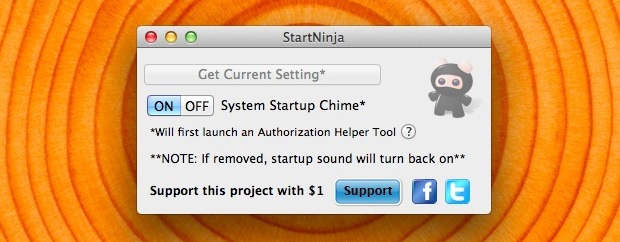
Macs have always had the classic boot chime that announces the system has begun startup or has rebooted, but if you’re in a quiet place you don’t always want that sound to play. You may know that you can temporarily mute the Mac by holding down the Mute key during boot or reboot, but if you are looking for a more permanent solution that doesn’t involve the terminal, check out StartNinja.
A free and simple utility that gives users the ability to disable the startup chime, StartNinja will keep the Macs boot sound quiet while allowing the Mac to retain normal sound function otherwise.
The default behavior for most command line tools is to show sizes in bytes, for tiny text files that is fine but when you start working with larger items this becomes difficult to read and interpret. The solutions is fairly simple, pass a “human readable” flag with the command, which will convert bytes to a much more meaningful human readable format of kilobytes (kb) , megabytes (mb) , and gigabytes (gb).
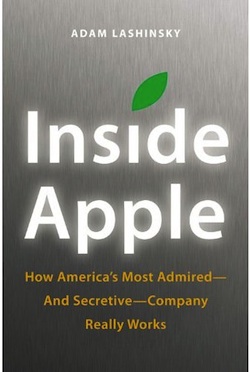
Apple fans have another book to add to their reading lists, this time focusing on the business side of things. Titled Inside Apple: How America’s Most Admired – and Secretive – Company Really Works, the reader gets an in depth look at Apple’s unique culture and internal processes, ranging from it’s legendary secrecy to how it creates and markets everyones favorite products.
Here’s the official description from Amazon:
INSIDE APPLE reveals the secret systems, tactics and leadership strategies that allowed Steve Jobs and his company to churn out hit after hit and inspire a cult-like following for its products.
If Apple is Silicon Valley’s answer to Willy Wonka’s Chocolate Factory, then author Adam Lashinsky provides readers with a golden ticket to step inside. In this primer on leadership and innovation, the author will introduce readers to concepts like the “DRI” (Apple’s practice of assigning a Directly Responsible Individual to every task) and the Top 100 (an annual ritual in which 100 up-and-coming executives are tapped a la Skull & Bones for a secret retreat with company founder Steve Jobs).
Based on numerous interviews, the book offers exclusive new information about how Apple innovates, deals with its suppliers and is handling the transition into the Post Jobs Era. Lashinsky, a Senior Editor at Large for Fortune, knows the subject cold: In a 2008 cover story for the magazine entitled The Genius Behind Steve: Could Operations Whiz Tim Cook Run The Company Someday he predicted that Tim Cook, then an unknown, would eventually succeed Steve Jobs as CEO.
While Inside Apple is ostensibly a deep dive into one, unique company (and its ecosystem of suppliers, investors, employees and competitors), the lessons about Jobs, leadership, product design and marketing are universal. They should appeal to anyone hoping to bring some of that Apple magic to their own company, career, or creative endeavor.
If you were a fan of the official Steve Jobs biography, you’ll probably enjoy this book too. You can get Inside Apple on Amazon.com for $16, Kindle and iBooks versions are also available.
We recently showed you how to password protect files and folders using encrypted Disk Images in Mac OS X, but if you have an external drive you can go a step further. By using encrypted disk partitions, any drive, be it a USB key, flash drive, hard disk, or whatever else, can be set to require a password before the drive can be mounted and the files accessed. Read more »
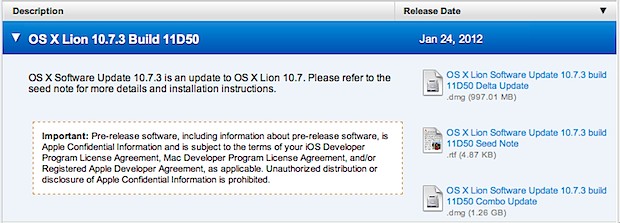
Developer build Mac OS X 10.7.3 11D50 has been released to registered Mac developers, this is the sixth dev build of the next update to Mac OS X, and arrives nearly a week after the last 10.7.3 build showed up.
With no known issues, the emphasis is still on iCloud, Address Book, iCal, Mail, Spotlight and Safari. MacRumors notes the builds description suggests “the main improvements in OS X 10.7.3 will be support for several new languages and fixes for issues related to smart cards, directory services authentication, and Windows file sharing.”
Several developer releases of OS X 10.7.3 have been pushed out with no known issues, although a final build hasn’t been made available to the public yet.
Apple has reported an absolute blowout first quarter for fiscal 2012, far exceeding any analysts expectations across the entire product lineup. Record iPhone sales, huge iPad and iPod sales, big Mac sales, giant revenues and profits, Apple is on fire. Take a look at some of these numbers:
Q1 2012 Financials:
$46.33 billion in revenue
$13.06 billion net profit
International sales accounted for 58% of quarters revenue
Gross margins of 44.7%
Apple is currently holding over $97,600,000,000 (yes, billion) in cash
Q1 2012 Hardware Numbers:
37.04 million iPhones sold
15.43 million iPads sold
15.4 million iPods sold
5.2 million Macs sold
Q1 2012 Other Numbers:
85 million iCloud users
140 million App Store downloads on Christmas Day alone
110 million visitors to Apple Stores
On the quarter, CEO Tim Cook says:
“We’re thrilled with our outstanding results and record-breaking sales of iPhones, iPads and Macs. Apple’s momentum is incredibly strong, and we have some amazing new products in the pipeline.”
Mac OS X Lion introduced automatic file locking for any file that hasn’t been edited recently. You’ll have noticed this when you try and open an older file and make changes to it, a dialog box asks to duplicate the file or to manually unlock it. This is fine for files that you don’t want to accidentally Auto-Save over, but sometimes it’s just plain annoying.
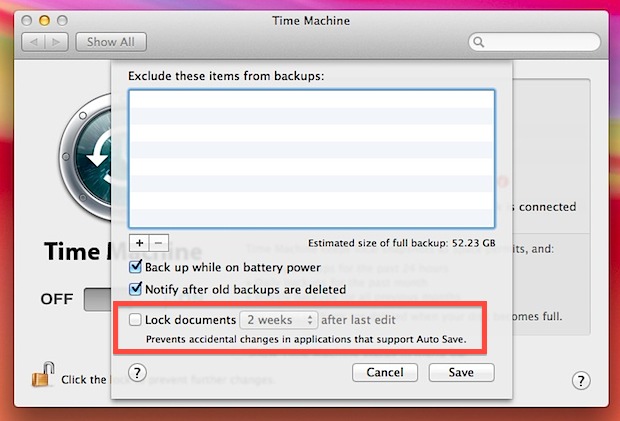
Disable Automatic File Locking in Mac OS X
Open System Preferences, click on “Time Machine” and then click on “Options”
Uncheck the box next to “Lock documents [2 weeks] after last edit”
Without file locking enabled, apps that support auto-save will overwrite the existing file. This is best disabled with either some variation of restoring the “Save As” option or an understanding of how to use Duplicate so that you files are not accidentally overwritten.
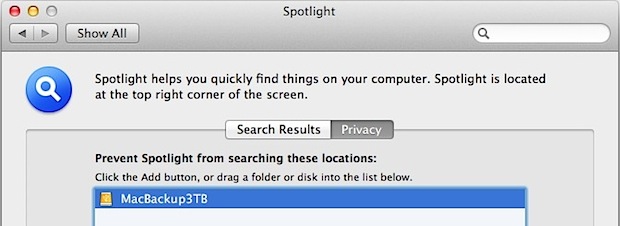
The default behavior for Spotlight is to start indexing any drive as soon as it’s connected to a Mac, a task that can take a very long time with larger volumes. The problem is that for larger external backup drives and Time Machine volumes, you don’t necessarily want it indexed by Spotlight. This is particularly true if the drive gets used on multiple machines, where indexing on each Mac isn’t necessary.
Preventing Spotlight from indexing a Time Machine volume, or any other external drive, is quite easy, however, which is what we’ll detail in this walkthrough. Read more »
Do you want to view the recent picture(s) you just took with your iPhone camera? Rather than closing out of the Camera app and then launching into the Photos app and then Camera Roll, you can go another route directly from the Camera app!
The A5 jailbreak tool Greenpois0n Absinthe has been updated to version 0.3, the third release is relatively minor but includes a few bug fixes and adds support for Linux. As before and as the name implies, the app focuses on jailbreaking A5 based hardware only, meaning the iPhone 4S and iPad 2, both of which must be running iOS 5.
If you already are jailbroken with the Abinsthe utility, v0.3 offers no advantages to you and does not need to be run again. If this is the first time you’ve run the tool, follow our guide on how to jailbreak iPhone 4S or iPad 2 with Absinthe.
Can’t remember what folder you stuffed that iOS app into? If you have a ton of apps on your iPhone or iPad, try rearranging them all by their actions (or by verbs), rather than by the apps category.
Although you’ll have to do this manually by moving apps around and renaming or creating folders yourself, it’s actually more intuitive and it’s easier to find things based on what they help you to do rather than some rough categorization that isn’t always the most descriptive. You could go beyond iOS and do this with OS X Lion’s LaunchPad as well, but the larger Mac screens and optional nature of Launchpad seem to make folders much less necessary there.
The powerful Vim text editor is a longstanding favorite amongst developers and sysadmins, and now it has been ported over to the iPad and iPhone. The version for iOS is full featured, including automatic indentation, visual mode, language-aware syntax highlighting, integrated scripting capabilities, macro recording and playback, place markers, multiple clipboards, and much more.
If you already use Vim, you’re well aware of the advantages, if you haven’t used Vim or you never bothered to learn it’s intricacies, it can seem confusing and rather foreign. I’ve never been a huge fan of VI or Vim myself, but for those who like the text editor this should be a great app to add to their iOS repertoire.
Due to the difficulty of touch typing at any length, it’s recommended to use a Bluetooth keyboard with the iPad or iPhone if you plan on using the Vim for anything lengthy.
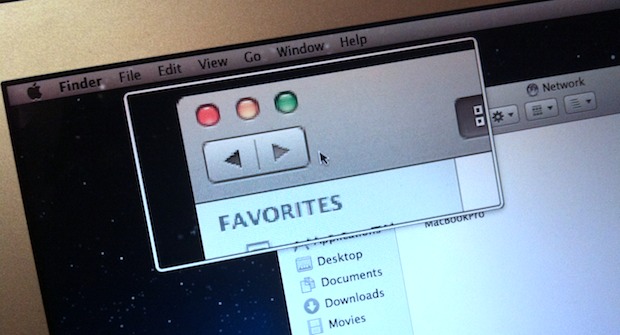
Another option when enabling zoom in OS X Lion and other newer Mac OS X versions is to use a smaller floating zoom window, rather than zooming into the entire screen. This allows you to zoom into screen elements using a small zoom window that hovers over screen elements, kind of like a virtual magnifying glass.
This is an accessibility feature but it’s useful for many Mac users. Additionally, some users may prefer this to the full-screen enlargement offered in the broader zoom trick, we’ll show you how to enable this feature in MacOS and Mac OS X.
As recently as 2002, most of Apple’s products were manufactured in the USA. What happened? Why is nearly everything, from Macs to iPhones, made in China now? The New York Times provides an in depth report on Apple’s move overseas, and it’s not as simple as you might think.
It isn’t just that workers are cheaper abroad. Rather, Apple’s executives believe the vast scale of overseas factories as well as the flexibility, diligence and industrial skills of foreign workers have so outpaced their American counterparts that “Made in the U.S.A.” is no longer a viable option for most Apple products.
If you enjoyed the “Mr Daisey and the Apple Factory” podcast, you’ll probably enjoy reading this too, as it sheds some light on the business decisions driving factories like Foxconn. Here’s an example on the challenge Apple faced when hiring skilled engineers in the USA vs China:
Apple’s executives had estimated that about 8,700 industrial engineers were needed to oversee and guide the 200,000 assembly-line workers eventually involved in manufacturing iPhones. The company’s analysts had forecast it would take as long as nine months to find that many qualified engineers in the United States. In China, it took 15 days.
The lengthy read also includes several anecdotes about Steve Jobs and Tim Cook, as well as plenty of quotes from other unspecified current and former Apple executives. If you’re interested in Apple and Apple history, don’t miss it.
Modern versions of Mac OS X include a great tool called tmutil that lets you interact with with Time Machine from the command line. It’s a powerful utility that has a ton of options, and we’ve used it before to disable local snapshots, but for the purposes here we are going to use tmutil to compare Time Machine backups and list changes between the compared backups.
Launch the Terminal from /Applications/Utitilities/ and let’s get started.
The Greenpois0n Absinthe A5 jailbreak utility for iPhone 4S and iPad 2 on iOS 5 has been updated to version 0.2, and now includes a Windows release alongside the Mac OS X version.
In addition to bringing the jailbreak to Windows PC’s, the new version aims to resolve some of the earlier database problems, white screen errors, and white icon errors that some users encountered during the process. If you had problems with the first version of Absinthe and gave up on jailbreaking, try again with this version. If you’re already jailbroken, you don’t need to bother and this version doesn’t offer any changes to you.
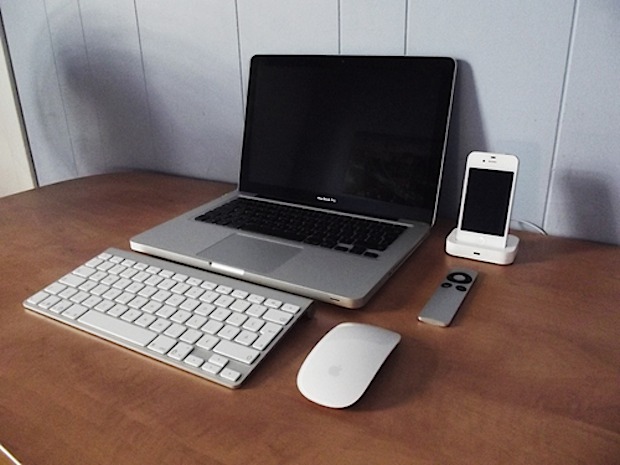
Simple desks are often the best, with nothing unnecessary to distract you from getting things done. This nice nearly wireless reader submitted Mac setup comes to us from Roland C. Sure there’s a power cable for the iPhone and probably for the MacBook Pro too, but the rest of this is uncluttered joy. Here’s what’s featured in the shot:
Macbook Pro 13″
iPhone 4s
Wireless Keyboard
Magic Mouse
Apple Remote
Thanks for sending this in Roland! Send in your desk shots to: osxdailycom@gmail.com
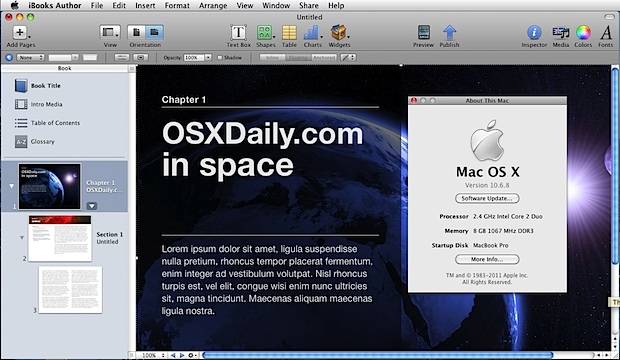
Apple’s free interactive book creation app iBooks Author was just released, allowing for anyone to make multi-touch iBooks for iPad. Unfortunately it’s officially for Mac OS X 10.7 only, and if you try to install it on Snow Leopard, you’ll get an error message. With a little work we can get around that error message and install and run iBooks Author in Mac OS X 10.6.8.
This is not supported by Apple, although the app appears to work fine and if you just want to explore the application it’s more than enough. If you plan on publishing with iBooks Author, you should use OS X Lion though.
From the Mac OS X desktop, hit Command+Shift+G and enter /System/Library/CoreServices/
Locate SystemVersion.plist and make a backup copy of it to the desktop
Locate the keys ProductUserVisibleVersion and ProductVersion and change their strings from “10.6.8” to “10.7.2”
Hit Control+O to save the file
Now launch the Mac App Store and find and download iBooks Author
After iBooks Author is finished downloading – do not launch it yet, instead open /Applications/ and find the app, then right-click on it and choose “Show Package Contents”
Now open the folder “Contents” and locate and open “Info.plist”, you can use nano or your favorite text editor
In Info.plist, look for “LSMinimumSystemVersion” and change the accompanying string from “10.7.2” to “10.6.8” and safe the file
Almost done! Now go back to the SystemVersion.plist file and open it again:
Locate keys ProductUserVisibleVersion and ProductVersion again, but change their strings from to “10.7.2” back to “10.6.8”
Save SystemVersion.plist
Launch iBooks Author
The iBooks Author icon will probably keep it’s strike through it, but the app opens fine and everything seems to work. You may also need to upgrade to iTunes 10.5.3 if you want to sync the iBooks to an iPad.


 Apple fans have another book to add to their reading lists, this time focusing on the business side of things. Titled
  , the reader gets an in depth look at Apple’s unique culture and internal processes, ranging from it’s legendary secrecy to how it creates and markets everyones favorite products.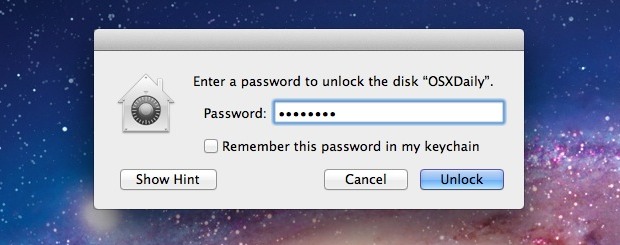
 Apple has reported an absolute blowout first quarter for fiscal 2012, far exceeding any analysts expectations across the entire product lineup. Record iPhone sales, huge iPad and iPod sales, big Mac sales, giant revenues and profits, Apple is on fire. Take a look at some of these numbers: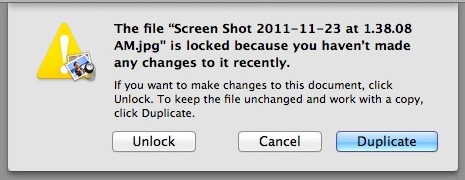
 Do you want to view the recent picture(s) you just took with your iPhone camera? Rather than closing out of the Camera app and then launching into the Photos app and then Camera Roll, you can go another route directly from the Camera app!
 The A5 jailbreak tool Greenpois0n Absinthe has been updated to version 0.3, the third release is relatively minor but includes a few bug fixes and adds support for Linux. As before and as the name implies, the app focuses on jailbreaking A5 based hardware only, meaning the iPhone 4S and iPad 2, both of which must be running iOS 5.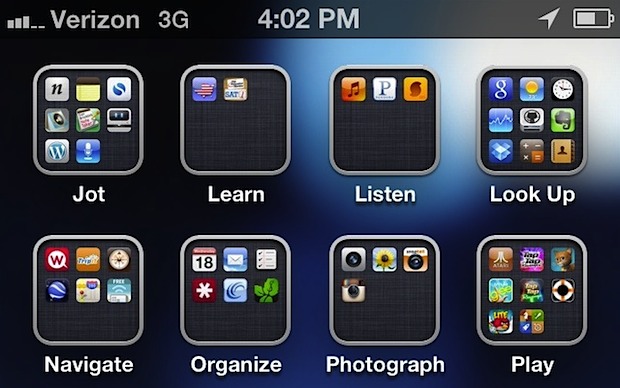


 Modern versions of Mac OS X include a great tool called tmutil that lets you interact with with Time Machine from the command line. It’s a powerful utility that has a ton of options, and we’ve used it before to
  The Greenpois0n Absinthe A5 jailbreak utility for iPhone 4S and iPad 2 on iOS 5 has been updated to version 0.2, and now includes a Windows release alongside the Mac OS X version.