Install Lion Final Release Over Lion GM
First a quick note: if you’re a developer who is running the Lion GM build 11A511 there is technically no need to install the Lion Final, both builds are 11A511 and identical. That said…
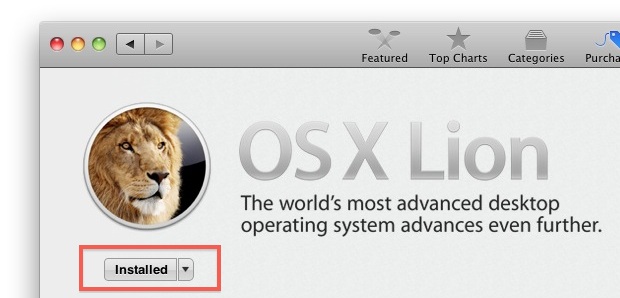
If you are running the Mac OS X Lion GM build and you want to buy and install the Final release of Lion through the Mac App Store, you’ve probably noticed that you’ll get an error message in the App Store. The solution? Simple, you just need to hold Option and click on the Install button to be able to install the final release over GM. You can also do this through the “Purchases” tab in the Mac App Store, just hold down Option to enable the “Install” button.
This is also a way for those who inappropriately downloaded Lion GM to ‘come clean’ and pay Apple for the final release. It’s only $29.99, and if you haven’t bought it yet, you really should.
Again, there isn’t much reason for developers to do this, but it’s a good tip anyway from The Loop.
Update: Some users are reporting sporadic issues with this, here is a clarification from our comments:
To clarify for everyone:
Hold option/alt when clicking the App Store icon.
Keep option/alt held down, and navigate to OS X Lion in the App Store.
Keeping alt/option held, you will see OS X Lion is now available for purchase, instead of being marked as ‘installed’.
Click it!
Basically, hold option during App Store launch and during each click through to “Purchases” and then to “Install”
 Alongside the


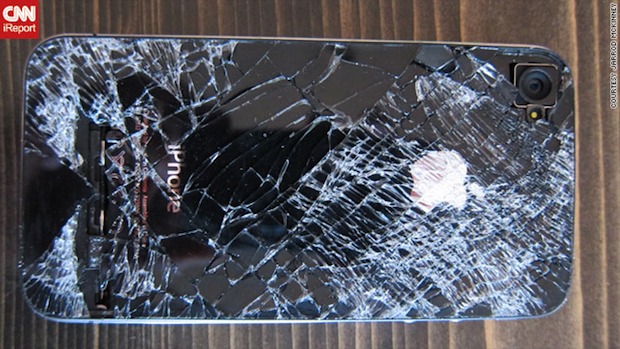
 , an iPhone 4 has survived a fall from 13,500′ after slipping from the pocket of a skydiver.
  Using the command line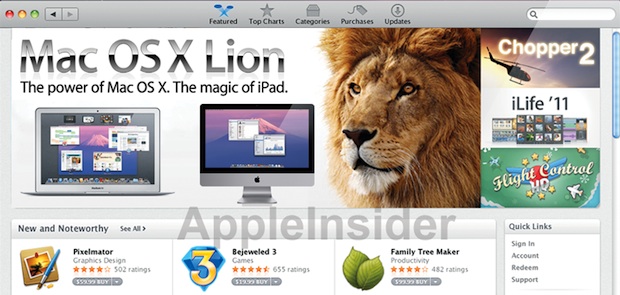
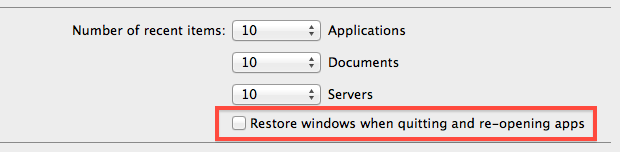
 One of the new features in OS X Lion and OS X Mountain Lion is the “Resume” ability for all applications to save their last state, meaning when you relaunch the app or reboot your Mac, the application will “resume” and reopen again showing all of the windows and data that was last in use. This is a great feature for some apps and situations, but there are also times where you don’t want past app states to reappear.
  The recently released