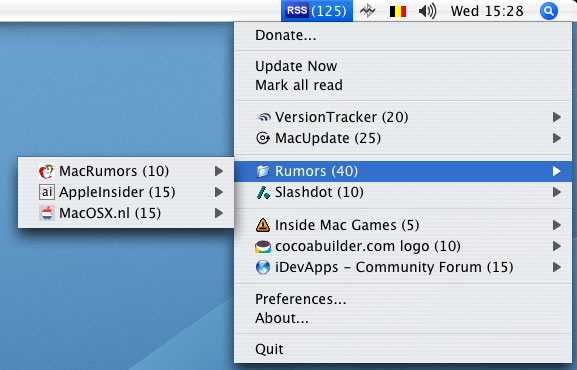
Are you constantly checking your favorite RSS feeds? Me too, I am pretty much addicted to my favorite sites. Thankfully, RSS Menu makes it really easy to keep on top of all the latest posts coming out of our online world, by sitting in my menu bar and notifying me if there are any new posts. It works just like the Google Notifier or Facebook Notifier and has a nice little RSS icon that lights up to let you know there are new posts to be read. RSS is dead? I think not.
If you know a phrase that is contained within a document, but can’t remember the document file name, try searching for the phrase that you know appears within the document. Make this phrase search even more precise by putting the phrase itself within quotation marks, for example “all rights reserved” will find all files that contain that exact phrase only.
I love icons and customizing my Mac desktop, so I decided to share with you all my personal bookmark list of free mac icons. These are the sites I visit when I want to change my Mac appearance and all the icons that define the OS X desktop and dock. Of course if you’re on the other end of the spectrum and you hate icons you can hide all desktop icons in Mac OS X, but that’s not the purpose of this article. You are here for great icons, so if you too are an icon geek, look no further.
Mac’s have a very distinct startup sound that chimes whenever they boot, this is fine for most people but if you’re in a quiet office or library it can be very obnoxious to have the loud startup sound announcing to the world that you are on a Mac. Thankfully there’s a nice little utility that’s easy to install and works just like any other Preference Pane on your Mac. Aptly named StartupSound lets you adjust the volume of your Mac’s startup sound, and of course to stop it chiming and mute it entirely. Read more »
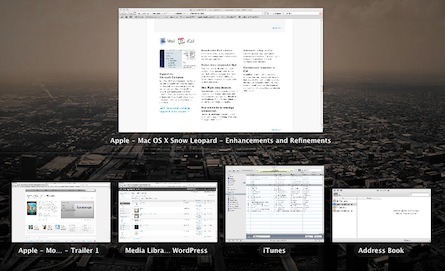
Snow Leopard changed the way the Dock behaves when a Dock item has been clicked on and held down, since 10.6 it launches Expose for that specific application. You may recall how Leopard handled the click-and-hold though, which was to launch the contextual menu (the same one you get when you right-click in 10.6). Using the Terminal and the defaults write command, you can alter this behavior between the 10.5 contextual-menu and 10.6 Expose style click-and-hold Dock behavior. So launch your Terminal:
Show contextual menu rather than Expose when Dock item has been clicked and held (like 10.5) defaults write com.apple.dock show-expose-menus -bool no; killall Dock
Revert to Expose upon click-and-hold (10.6 default) defaults write com.apple.dock show-expose-menus -bool yes; killall Dock
I actually like the new Expose click effect (which is slightly different in 10.6.2 than it is in 10.6), so for me this is a matter of “If it ain’t broke, don’t fix it” but to each their own.
Converting a PNG file to JPG, or converting JPEG to PNG, is really easy in Mac OS X. You can use the built-in Preview utility to perform the file format change quickly, and Preview is a great choice since it’s bundled with all versions of MacOS and Mac OS X, meaning it does not matter what version of software you have installed on the Mac. No additional downloads are necessary, Preview is built right in on the Mac.
Have you ever had an iPhone experience cellular data problems? Maybe the iPhone has an inability to connect to a cellular network, or some other cellular connection issue occurs that makes it unable to send and receive data or even calls.
If an iPhone is experiencing cellular connectivity and cellular data issues or problems, you may be able to resolve your cellular or general network data problems with a relatively simple trick, which is to reset the iPhone Network Settings. This article will show you how to do just that.
It’s Sunday funday again… and though this doesn’t really fit into a ‘fun’ category it’s sure interesting anyway… we bring to you a rather unfortunate incident that caused a MacBook Pro to be pierced with a bullet hole, right through the screen! Yikes! Read more »
The above image was generated with ShapeCollage, which is a great free Mac software program that allows you to create some pretty fancy photo collages, fitting into various shapes (even ones you define yourself) and text barriers.
It’s surprisingly quick and very easy to use, basically you just drag and drop images into the application that you want to create your photo collage out of, set the parameters of your collage, and then click ‘create’ to save it at whatever size you want. Does it get much easier to make photo collages?
If you’ve ever wondered what your Mac Multitouch Trackpad is doing, download this fun little application. It tracks multitouch input and shows you just how sensitive the multitouch surface really is, detecting up to 11 input points, and also knowing the surface area.
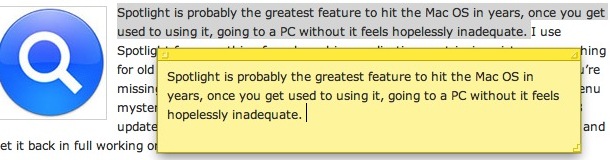
Want a block of text to float over your Mac desktop so that you can reference it easily? That’s a perfect usage for the Stickies app in OS X, and using a little known trick you can instantly create a new Stickies note from within Safari.
The secret to this trick is quite simple: you’ll need need highlight some text, images, or both, and then just hit the following command key sequence: Command+Shift+Y
If you know some specific attributes of a file, application, or item you are looking for on a Mac, you can use Spotlight Search Operators to dramatically narrow down your returned results in the Mac OS search feature. For example, if the file type of a document you are looking for is a PDF, you can pre-qualify search results by using operators to return only PDF’s within Spotlight. There are tons of search operators to use, and some can get very specific. Let’s jump into this a bit to learn more.
Remember, to access Spotlight search on a Mac, hit the Command+Spacebar keys together. Then just type in the little popup search box to start narrowing down the queries and returned items. Spotlight adjusts files live and on the fly depending on what is looked for and specified, thus if you want to try an operator it will immediately adjust the search to accommodate the search operator request.
Here are a some sample operators and parameters to enter before your search query that you can try yourself in Spotlight for Mac OS X:
You can easily open OS X Finder windows containing any search results from the Spotlight menu.
After you have entered a search query into Spotlight, highlight the item you want by navigating to it in the search results, and as the desired item to be opened in the Finder is selected, hit Command+R to reveal the item within the Mac Finder.
Did you know the Mac has a little file inspector tool that can be used in the Finder for quickly getting information about files, folders, and anything else selected in a Finder window?
The File Inspector is basically a dynamic “Get Info” window on the Mac, as it adjusts depending on what you select in the Finder of Mac OS. This is very useful for so many reasons, but particularly if you frequently use the “Get Info” command in Mac Finder to reveal details about finder items.
If you’ve ever needed to get music off of your iPod or iPhone and onto a different machine, then you’ll know it’s not always as easy as you’d like it to be. Let’s say you got a new computer or lost your old one, but still have your iPhone or iPod with music files on it. Because the iPod/iPhone is attached to the old computer’s ID, you can’t just hook up the iPod to a new computer and expect to be able to get the files off. So how do you get music, pictures, and videos off of the iPhone or iPod? My personal choice is to use the easy, and free (for Mac users at least) Pod to Mac software, it’s no frills but easy enough to use and reliable.
Update: Pod to Mac was freeware, but now the developer is charging for Mac versions of the application on their site, you can still download the free version on BrotherSoft.com and possibly CNET
You can also transfer music files that you purchased through iTunes using iTunes itself, and if you’re feeling a bit more adventurous you can get music, videos, and whatever else off your iPod using just the Finder. The Finder method doesn’t work with the iPhone or iPod Touch though, so don’t bother if you’re using one of those. Instead of covering the iTunes or Finder methods myself, I’ll point our a nice how-to guide on Endgadget, check it out here:
When you go to change the file extension in Mac OS X you will get a dialog box notifying you that by changing a file type it may open in another application. Chances are if you are changing the file extension deliberately, you did this intentionally and the warning is not necessary, but it’s shown just in case.
That’s ok though, because a keystroke expedites the process. You can quickly accept this file type extension change by using a simple keyboard shortcut that’s pretty easy to remember: Read more »
Happy New Year to all of you from the writers of OS X Daily! It’ll likely be a slow day around here, but here are some of the more popular posts of 2009 to keep you busy for now:
I frequently get asked about the purpose of .DS_Store files by Mac users and Windows System Administrators who have a few Mac’s on their networks, where seeing the files turn up when hidden files are made visible.
Here is an explanation as to what a DS_Store document is in macOS and Mac OS X, what happens if you delete them, and how to disable their creation if you’d rather not have them around any longer on network environments. Read more »

 If you know a phrase that is contained within a document, but can’t remember the document file name, try searching for the phrase that you know appears within the document. Make this phrase search even more precise by putting the phrase itself within quotation marks, for example “all rights reserved” will find all files that contain that exact phrase only.
  I love icons and customizing my Mac desktop, so I decided to share with you all my personal bookmark list of free mac icons. These are the sites I visit when I want to change my Mac appearance and all the icons that define the OS X desktop and dock. Of course if you’re on the other end of the spectrum and you hate icons you can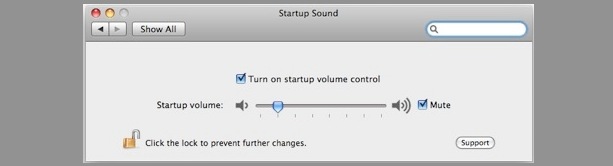

 Have you ever had an iPhone experience cellular data problems? Maybe the iPhone has an inability to connect to a cellular network, or some other cellular connection issue occurs that makes it unable to send and receive data or even calls.

 If you know some specific attributes of a file, application, or item you are looking for on a Mac, you can use Spotlight Search Operators to dramatically narrow down your returned results in the Mac OS search feature. For example, if the file type of a document you are looking for is a PDF, you can pre-qualify search results by using operators to return only PDF’s within Spotlight. There are tons of search operators to use, and some can get very specific. Let’s jump into this a bit to learn more.
 You can easily open OS X Finder windows containing any search results from the Spotlight menu.
 If you’ve ever needed to get music off of your iPod or iPhone and onto a different machine, then you’ll know it’s not always as easy as you’d like it to be. Let’s say you got a new computer or lost your old one, but still have your iPhone or iPod with music files on it. Because the iPod/iPhone is attached to the old computer’s ID, you can’t just hook up the iPod to a new computer and expect to be able to get the files off. So how do you get music, pictures, and videos off of the iPhone or iPod? My personal choice is to use the easy,