Looking for a free iPhone Twitter app that is awesome? Allow me to rave for a moment about Echofon (previously Twitterfon), it’s without a doubt the best free iPhone Twitter app I have found and it has become an integral part of my day. I know there are various paid solutions out there which are pretty cool too, but since Twitter is free, I’m looking for a free solution for the iPhone, and Echofon does exactly the job I need it to do and quite well. You can easily tweet out, follow your friends, and track @messages going back and forth, and so much more. If there is a better free iPhone Twitter app out there, I want to know about it!
I apologize to everyone that has seen this, but if you haven’t it’s pretty funny. It’s the entire Apple 9-9-09 keynote address condensed into just under two minutes of superlative adjectives. It’s incredible, awesome, easy, better and better, wonderful, remarkable, easy, amazing, awesome, amazing, amazing, easy, great, great, easy, great, amazing, awesome. It’s awesome. Check it out.
Though the Mac is fairly error free and tends to run much more stable than some of the competitors out there, many of us will find a bug or two in day to day usage anyway.
Sometimes the bugs are minor, sometimes they’re fairly major and can dramatically impact how Mac OS X or iOS works or behaves.
Bugs are just a reality of software development, but that doesn’t mean we as end users can’t do or say anything about it.
An interesting opinion piece on kottke.org can be summarized as: the iPhone is taking over the world. Arguing that between the iPhone’s built-in functionality and the myriad of apps developed for it, the iPhone is going to win the fight for consumers limited pocket and purse space, and many devices (and thus, companies) are doomed as a result. The readers digest version for those of you who don’t want to read the entire article says the following devices are either now or going to be in direct competition with Apple:
* Mobile phones (duh)
* PDA’s
* iPod (duh)
* Power and shoot cameras
* Personal computer
* Nintendo DS
* PSP
* GPS (duh)
* Flip video camera
* Compass (disagree based on personal experience)
* Watch (yup)
* Portable DVD Player
* Kindle
* Pedometer
* Tape recorder
* Heart monitor
* Calculator
* Remote control
* USB key
* etc
The iPhone and iPad are amazingly stable, but every once in a while you may run into an app that misbehaves itself and seems to become stuck in some infinite loop of iPhone-frozen madness. Thankfully, if you find yourself in that situation you can force quit a frozen application on your iPhone, iPad, or iPod Touch.
The secret to force quitting on an app in iOS is by holding down the Home button for 10 seconds from the shut down screen. We’ll detail the steps below for completing this procedure.
For anyone looking to have a great desktop Mac without paying a small fortune, creating a Hackintosh is becoming an ever-popular solution, and building a Hackintosh just got even easier. Assuming you have the supported hardware, this awesome tool from LifeHacker makes creating a Hackintosh Mac even easier by eliminating some of the more complex technical hacks in favor of running a simple installer! I absolutely adore Apple and their products, but I’m a big fan of the Hackintosh movement, in part because it’s fun and also because it’s a more affordable way to run the best operating system in the world.
If you’re in the market for a new desktop Mac, don’t ignore the Hackintosh option, especially with how easy this is getting to do… Check out the full article on Lifehacker.
The next super secret Mac OS X alpha is in the works! In an obvious jab at the feline obsession with Mac OS X build names, a satirical image of a 10.7 build installer has appeared on Flickr, titled…. Mac OS X 10.7 Ceiling Cat! I’ve never really understood Apple’s cat naming system, if anyone does please explain it to me, but Ceiling Cat does make you wonder what cat name we’ll see in the upcoming versions of Mac OS X.
We know that Snow Leopard added some features to Mac OS X, but what about the things that Snow Leopard took away? Waffle has an updated list of things known to be removed from Snow Leopard, and there’s some interesting stuff on there. Here’s what I found to be most interesting (and surprising) that was removed in Snow Leopard:
* AppleTalk Printing
* Project templates in XCode
* Preinstalled developer examples
* Preinstalled API documentation
* ZFS Support
Now obviously some of these things were removed to save disk space, but I’m actually really surprised by the XCode and developer examples/templates being removed. Many beginning developers lean heavily on examples and now it looks like you have to fish around on Apple’s Developer Connection website to find this information.
Other noteworthy things missing include PowerPC support (this was expected) and the QuickTime Pro for $29, but check out the full list here:
Bonjour is a great service that runs in the background of your Mac to auto-discover network resources, that is, it’s great until mDNSResponder goes haywire. I was recently in a very creatively crafted network environment that made Bonjour absolutely freak out and tax my CPU with a million processes, so I opted to just disable the service temporarily.
Generally speaking you should leave Bonjour enabled since it’s functionality is ubiquitously used throughout Mac OS X, but if you DO want to disable mDNSResponder, here’s how to do it:
Ever wondered what the ‘mdworker’ process was on a Mac? mdworker is short for ‘metadata server worker’ and if you’re still confused don’t feel bad. mdworker is basically the core technology behind Mac OS X’s awesome search engine Spotlight, it spiders meta data from your Mac and its files and creates a readable index so that you can find things practically instantaneously via Spotlight (command-spacebar).
We’ll cover some common questions and answers regarding mdworker on Mac, inspired by my recent switcher friend who arrived at the Mac OS platform from the other side, who tweeted me asking why mdworker is taking up so much CPU.
Squid is a web caching proxy that is wildly useful for those of us on slower internet connections or anyone that has reduced bandwidth availability, it reduces bandwidth by caching and reusing frequently accessed web pages and works with http and https. Squid has been particularly useful to me on business visits to places where broadband is a distant concept rather than the norm, it really makes the web usable in challengingly slow internet environments. Squid Manager is a nifty manager to use the Squid web caching proxy on your Mac, so if you’re in the market to use Squid on your Mac, be sure to check out Squid Manager.
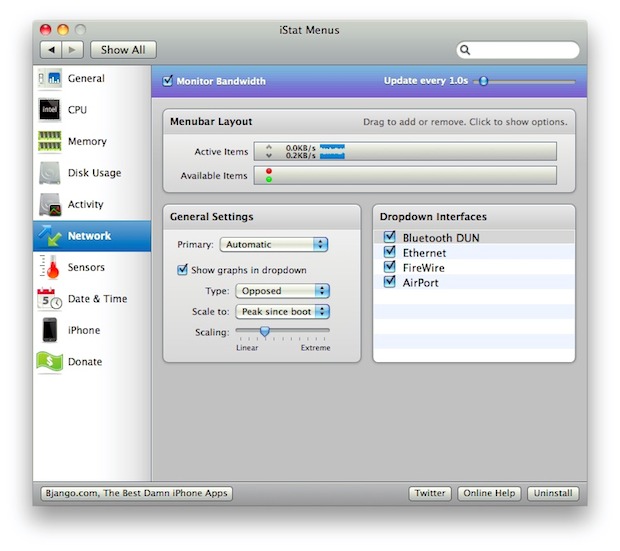
Every once in a while you stumble upon a Mac utility, app, or feature that you immediately fall in love with and wonder how you ever live without… well today and for me, that is iStat Menu.
iStats Menu has been around a while, but apparently I’ve neglected it to my own detriment because this thing is awesome.
Installing is a breeze and it becomes a System Preference pane, where you can adjust settings to monitor everything from the temperatures in your Mac, to CPU activity, disk space, bandwidth usage, and oh so much more.
If you ask me, this is an absolute must download for Mac geeks, so check it out!
iStats is highly configurable, so if monitoring system resources appeals to you then check it out.
Update: iStats was free for a while and a trial can still be downloaded for free, along with a full featured paid version. However, you can still download the free version of iStats Menu and get those features on older versions of Mac OS X.
Need a super easy and simple Stopwatch on the Mac, but don’t want to download anything like a third party app or utility? Look no further than the command line.
You can create an instant quick and dirty stopwatch via the Mac OS X (or linux) command line by launching the Terminal app and typing a simple command string.
Need a PDF Editor for Mac? I did too, and this is what I learned. Adobe Acrobat Pro is great software with some killer features, but it’s expensive. Acrobat is hard to beat in it’s functionality, but if all you’re looking to do is make small changes and edits to PDF files, spending $350 for a PDF Editor might be a bit overkill. So what are some other options for a Mac PDF Editor?
Best Free PDF editor for Mac
Preview – FREE – included in every Mac OS X install, the most recent version of Preview in Snow Leopard lets you make all sorts of annotations to PDF documents. In the Snow Leopard version, you can draw shapes onto PDF’s, and write text directly to PDF files for things like a digital signature. It’s basically a limited PDF editor, for free, and there’s no download required! If you’re looking for a free PDF editor solution, I highly recommend just using Preview.app that is already included in Snow Leopard!
Other Free PDF Editors for Mac
Skim – FREE – we’ve written about Skim before, and it works pretty well for making quick notes to PDF documents.
Scribus – FREE – an open source desktop publishing app that has limited PDF editing abilities, and the ability to create your own PDF’s
Best Paid Solution for Editing a PDF on Mac
I say this is a tie because PDFPen is great but a lot more limited than Acrobat, but if you’re just looking to make simple changes, save yourself $300 and buy PDFPen. If you’re a professional and you are going for advanced PDF editing and production features, get Acrobat, it’s expensive but there’s a reason: it’s extremely powerful.
PDFPen -$49.95 – a whole lot cheaper than Adobe Acrobat, with much of the same functionality in terms of making quick text edits to PDF files and the ability to edit faxes, OCR files, and more.
Adobe Acrobat Professional 9 – $350 – the grand daddy of all PDF editors, you’ll pay a fortune for it, but if you’re really serious about creating, editing, and modifying PDF’s this is the best way to go. There is an upcoming version X (10) too that will have even more powerful features.
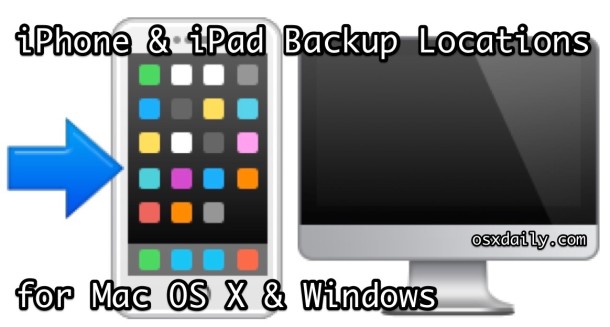
If you’ve looking for the location of your iPhone Backup files in the file system of a computer, then you’ll be pleased to know they’re easy to find even if a bit hidden. Whether you use Mac OS X or Windows, the iPhone backup process is basically the same; iTunes backs up all of your iPhone files, pictures, media, and identifier information to a specific directory on the computer, which iTunes then uses in the future to restore and sync the iOS device.
We’ll point you to the proper directory locations of iPhone and iPad backup files on a Mac or Windows… but do note that you should not mess with these iPhone backup files unless you know what you’re doing and why.
Burning an ISO in Mac OS X is very easy thanks to the built-in Disk Utility application that is included from Apple on every Mac. With Disk Utility being bundled with Macs directly from Apple, it also has the huge added bonus of being free, and although there are plenty of paid options out there, why buy something new or install new apps if you don’t need to? With that in mind, here’s how to use Disk Utility to Burn an ISO image onto a disc using just your Mac, and completely for free.
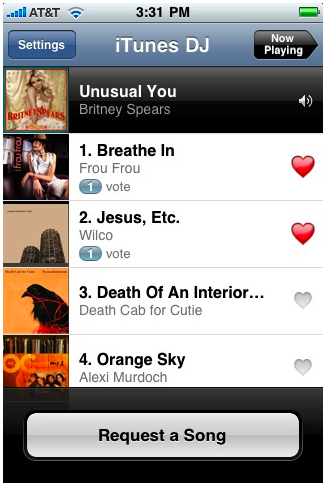
The new version of the Remote app for iPhone [iTunes link] has a great social feature that allows party guests with the app installed to connect to iTunes shares, see what’s currently playing, add songs to playlists, vote on songs to be played, and make requests.
As the linked posterous blog states: “This is the future of the juke box. The democratization of music wherever you are.”
How cool is this for iPhone party goers? It’s only a matter of time before this makes its way into bars, lounges, and nightclubs.

 Looking for a free iPhone Twitter app that is awesome? Allow me to rave for a moment about Echofon (previously Twitterfon), it’s without a doubt the best free iPhone Twitter app I have found and it has become an integral part of my day. I know there are various paid solutions out there which are pretty cool too, but since Twitter is free, I’m looking for a free solution for the iPhone, and Echofon does exactly the job I need it to do and quite well. You can easily tweet out, follow your friends, and track @messages going back and forth, and so much more. If there is a better free iPhone Twitter app out there, I want to know about it!
 Though the Mac is fairly error free and tends to run much more stable than some of the competitors out there, many of us will find a bug or two in day to day usage anyway.
  An interesting opinion piece on

 For anyone looking to have a great desktop Mac without paying a small fortune, creating a Hackintosh is becoming an ever-popular solution, and building a Hackintosh just got even easier. Assuming you have the supported hardware, this awesome tool from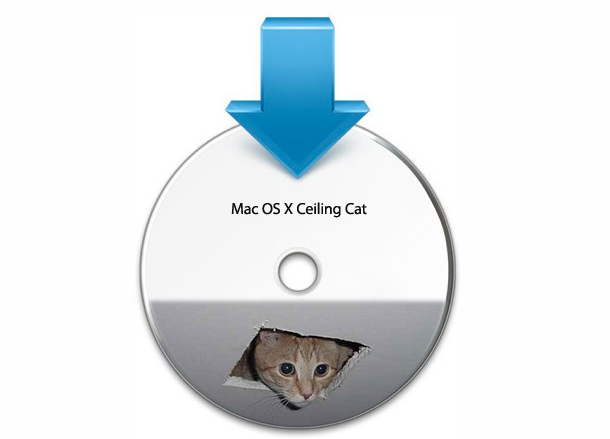
 We know that Snow Leopard added some features to Mac OS X, but what about the things that Snow Leopard took away?
 Ever wondered what the ‘mdworker’ process was on a Mac? mdworker is short for ‘metadata server worker’ and if you’re still confused don’t feel bad. mdworker is basically the core technology behind Mac OS X’s awesome search engine Spotlight, it spiders meta data from your Mac and its files and creates a readable index so that you can find things practically instantaneously via Spotlight (command-spacebar).
  Squid is a web caching proxy that is wildly useful for those of us on slower internet connections or anyone that has reduced bandwidth availability, it reduces bandwidth by caching and reusing frequently accessed web pages and works with http and https. Squid has been particularly useful to me on business visits to places where broadband is a distant concept rather than the norm, it really makes the web usable in challengingly slow internet environments. Squid Manager is a nifty manager to use the Squid web caching proxy on your Mac, so if you’re in the market to use Squid on your Mac, be sure to check out Squid Manager.
 Need a PDF Editor for Mac? I did too, and this is what I learned.
  is great software with some killer features, but it’s expensive. Acrobat is hard to beat in it’s functionality, but if all you’re looking to do is make small changes and edits to PDF files, spending $350 for a PDF Editor might be a bit overkill. So what are some other options for a Mac PDF Editor?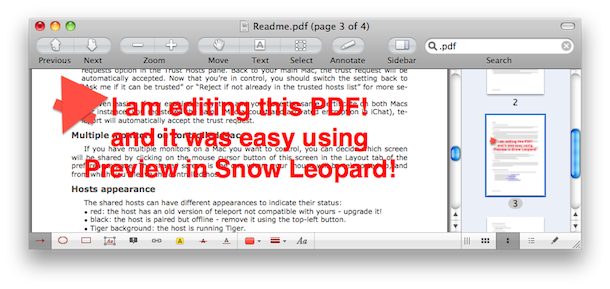
 The new version of the



