
Force Dictionary to Use One Window in Mac OS X
 If you regularly use Spotlight (or Services) to access the dictionary app in Mac OS X, you may have noticed that with each definition a new window is spawned. This can quickly lead to clutter, which annoyed TUAW enough to ask MacOSXHints for a solution. Like magic, MacOSXHints provided one and that’s what we’re sharing here. Basically, this causes Dictionary to only use a single window on the Mac.
This is accomplished with a defaults command string, so you need to have some command line experience or just copy and past the pertinent text below.
To force Dictionary to use only one window, launch the Terminal and type the following:
defaults write com.apple.Dictionary ProhibitNewWindowForRequest -bool TRUE
You can reverse this by changing TRUE to FALSE and re-executing the command.
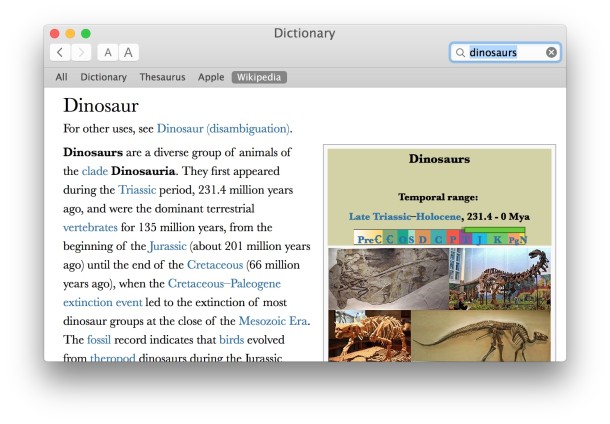
Relaunch Dictionary, and the change will take effect. Cool!
 and iMac Core i7 models, and the numbers are pretty amazing. The 27″ Core i7 model just barely underperforms a brand new $2999 Mac Pro. So what? Well, the 27″ iMac Core i7 model is only $2199, and it includes a massively beautiful 27″ LCD that doubles as a monitor. Wow. The iMac Core i7 model is a $200 upgrade to the Core i5, which is also lightning fast, but the performance increase from the Core i5 to the i7 is dramatic, so that looks to be money very well spent.
 The Command-Tab key sequence in Mac OS X works to summon a quick application switcher, it’s an excellent trick that many advanced users frequently use to switch apps and help multitasking, but it seems lesser known amongst Mac users in general. Even if you know of the Command+Tab trick, it turns out there are many more features available within the Command-Tab application switcher than just hitting Command+Tab itself, in fact you can navigate within the app switcher, hide apps, quit apps, and more.

 Listening to a great song that you think everyone should hear? You can easily share music with your friends thanks to iChat and iTunes, just drag a song from iTunes into an iChat window and off it goes! This may be Snow Leopard and iTunes 9 only, I don’t recall this feature working in Leopard.



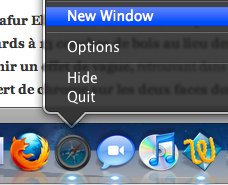 This works in many versions of Mac OS X
 Deleting cookies on the Mac depends on the specific web browser in use, thus if you want to delete all cookies, you’ll want to accomplish this for every browser app. Considering the web browsers most commonly used in Mac OS X are Safari, Chrome, and Firefox, we will show how to delete cookies in each of these browsers.
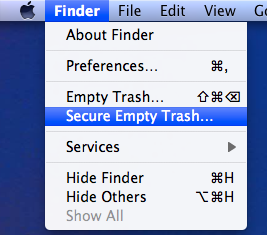 You can securely delete files from Mac OS X right from the Finder. This is by far the simplest method to securely delete something on the Mac, and the process is pretty straight forward, very similar to the normal procedure of deleting a file except that you will access a separate option to enable the ‘secure’ layer:



