Safari is really settling it’s spot as my preferred web browser. Sure, I miss the plugins in Firefox, but it just can’t beat the speed of Safari. You can make your Safari web browsing experience even better by using Command-Option-F to jump to the Search box, nice!
There are several different ways to rip dvd’s on your Mac, we’ll cover ripping DVD’s with HandBrake and with VLC here.
HandBrake is probably the best choice for ripping a DVD in Mac OS, and it makes DVD rips very easy to create in a variety of file formats. Basically the steps are this easy:
Insert a DVD into your drive
Launch HandBrake
Handbrake will then scan the DVD disk and read all the chapters and titles. Tip: be sure to select the proper title because if there’s any special features or extras on the DVD you could inadvertently rip that instead of the actual movie.
If HandBrake doesn’t automatically find the DVD just click on File > Open Source and manually select the DVD
Select the file format you want to export to and the destination (default is mp4 to desktop), and rip!
It will take a while to rip the DVD depending on the speed of your Mac but the ripped DVD will appear on your Desktop when it’s done.
Another option is VLC. VLC includes a simple DVD ripper, it’s not ideal simply because there are better ones out there (think handbrake) but if you’re in a bind VLC works. Here’s how to rip a DVD with VLC on your Mac: with a DVD in the drive, launch VLC, go to the File menu and select “Open Disc”, from there you can select “Convert” and adjust the starting positions to the right chapter, click ‘save’ and wait a while for it to rip! You can also get VLC from the Developer home.
Note that some versions of Handbrake require VLC to preview the rip, so download both of them!
Have you ever received a movie or video file where the audio and video isn’t synced correctly? This is most obvious when you’re watching people talk, where the lip movements don’t match up with the audio track.
Thanks to a handy capability in VLC, you can quickly sync audio to video in VLC by using key presses. This is incredibly useful to offset the audio on a video or movie if you find the audio and video tracks are not aligned correctly.
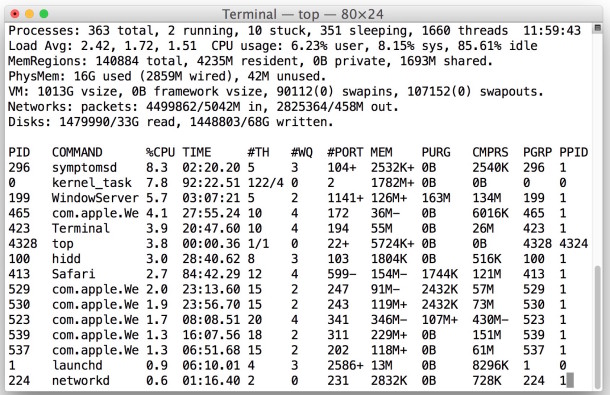
Following the CPU usage on my Mac is a mild obsession, and I usually use the Mac terminal command ‘top’ to do this but I noticed that top itself takes up a fair amount of CPU usage (5% or more). I made this complaint to a friend of mine and they told me to try this variation of the top command instead, which actually causes the top command to use less CPU, making it a bit more helpful and less of an impact on the overall system. This is great if you run top all the time like me.
DeSmuME is the best Nintendo DS Emulator for Mac OS X that I have found, it’s pretty full featured with save states, touchscreen emulation, movie creation, and more. My only complaint is the layout of the emulator being vertical, which is true to the DS, but it makes playing games sort of obnoxious particularly when you increase the screen size. If they enabled side-by-side screens for this DS emulator so I could play it fullscreen, I’d be even more enthralled with an already good app. If you’re looking for a Nintendo DS Emulator for your Mac, look no further.
Finally, a Facebook Notifier for Mac! I have long been a fan of Google Notifier for Mac, which sits in the menubar and notifies you if you get any incoming mail. Naturally I was excited to hear about Facebook Desktop Notifications, a new app that basically does the same thing but for Facebook. With this Facebook Notifier, items posted to your wall and messages sent directly to you will be published by Growl notifications to your Mac desktop.
For me, Facebook can be a huge distraction and time waster, anytime I log into the site it’s easy to let 30 minutes pass just keeping up to date with all your friends statuses and picture uploads. Facebook Desktop Notifications cuts down on this wasted time by notifying me of incoming messages and notifications, so basically I can waste less time on the actual site by logging into it less often!
Anything that helps me stay in touch and be more productive is a win-win in my book, so I’m pleased to have the Desktop Notification app installed. The app is beta but so far seems promising and I haven’t had any problems with it, you can download it from Facebook if you are interested.
Above image from TechCrunch, where I also learned of this little utility. There have been a few updates to the app and each one seems to be better and better.
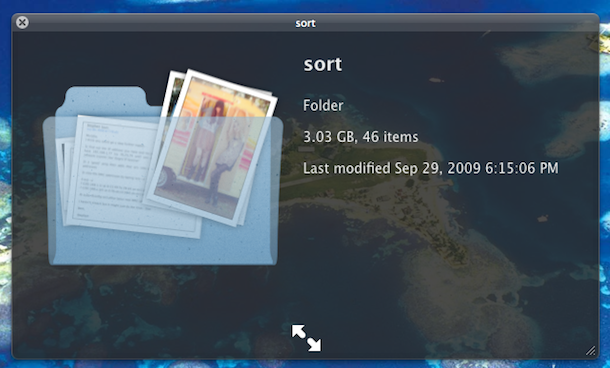
You can see a visual preview of a folders contents by enabling a hidden Quick Look feature. This is a rather nice eye candy improvement but I’m not sure that it’s use goes much further beyond that, see the above screenshot and try it out yourself to judge. To enable the Quick Look X-Ray folders, launch the Terminal and type:
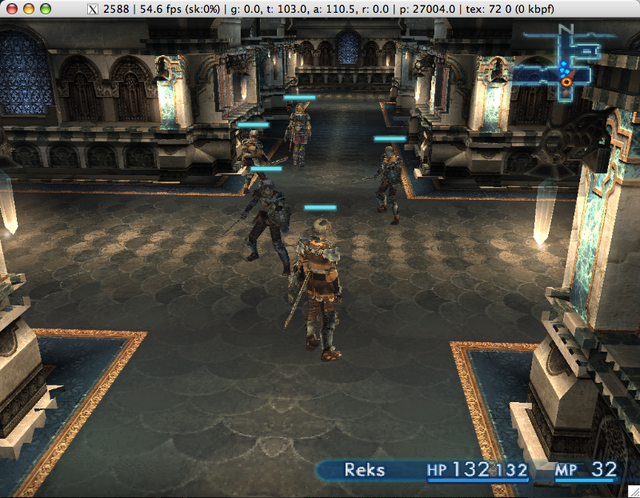
Looking for a PS2 Emulator for Mac OS X? Look no further then PCSX2, a full blown PS2 emulator for Mac OS X that works surprisingly well. I say surprising because it seems development work is a little infrequent and there are some features left to be desired, but it certainly works and the frame rate is pretty high on my MacBook. Finally, I can play all my favorite PS2 RPG’s right in Mac OS X! You can download it for free at the Developer home or just jump to Download now. You may want to check to see if newer versions are available, but as I mentioned, development is seemingly sparse. Enjoy!
Have an iPhone 3gs that you want to jailbreak? You’re in luck! iPhone 3GS owners should be happy now that they can easily jailbreak the 3GS with the new PwnageTool, but… according to the iPhone Dev Team:
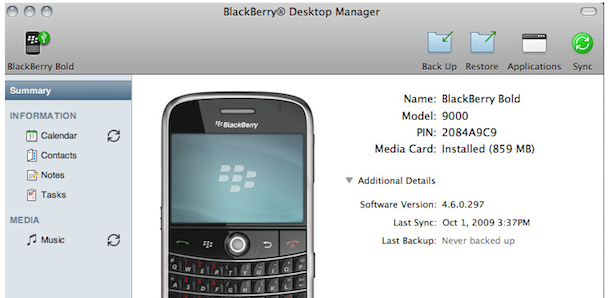
Blackberry owners can finally sync their Blackberry handhelds with their Mac using official software, apparently it’s fast and easy to use, so if you have a Blackberry, sync it to your Mac and check this out! Download here
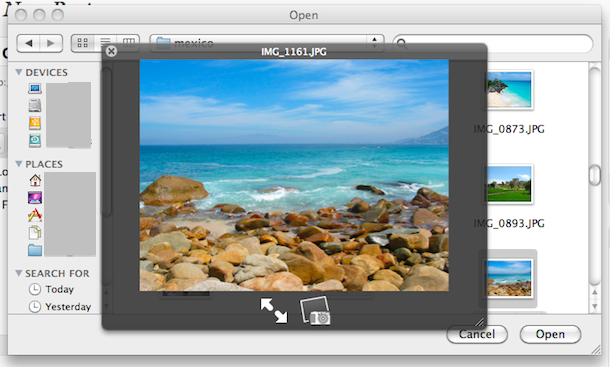
You can use QuickLook from inside ‘Open File’ dialogue boxes in any application! Try it out yourself, go to File -> Open File and hit the Spacebar (or whatever hot-key you assigned QuickLook) on an image or text file, and like magic QuickLook opens the file in preview mode so that you can be sure you are opening the correct file! As far as I know this is new to Snow Leopard, but what a cool feature!
Are you a traveler and flying on an airplane with your iPhone? Then this tip is for you!
You can selectively enable WiFi access while your iPhone is in Airplane Mode, meaning you can use a flights wireless internet service without the cell phone itself being turned on.
This is really handy since many flights are starting to have inflight wireless access, but in much of the world cellular use on airplanes is banned. That’s where this tip comes in, you can turn off your iPhone cellular modem but enable wi-fi, thereby allowing you to use the airplane flight wi-fi service but without using the cellular capability of the iPhone. Sound good? If you’re a traveler, of course it does!
OK this is a little random, but I came across one of those cute animals sites today that featured of all things… Dogs with Macs! If you don’t like dogs, well, just ignore this post, but dogs love Macs too!
Quick Look is one of the many Mac OS X features that make my OS choice cemented, I use it so often that I simply can’t live without it, and here’s a tip that I’ve been using a lot lately.
If you want to create an instant slideshow of images, simply select multiple images in a Finder window, and then hit Command-Option-Y to launch them into a full screen Quick Look mode. Now just press play, sit back, and enjoy!
Alternatively, you can hit the Spacebar to quickly enter Quick Look, and then manually select the Full Screen button, but the keyboard shortcut is much faster method. This is a really underused feature of OS X and deserves to get some use by anyone who frequently browses through images or just wants to show off some pictures to another party without any desktop clutter or launching additional apps.
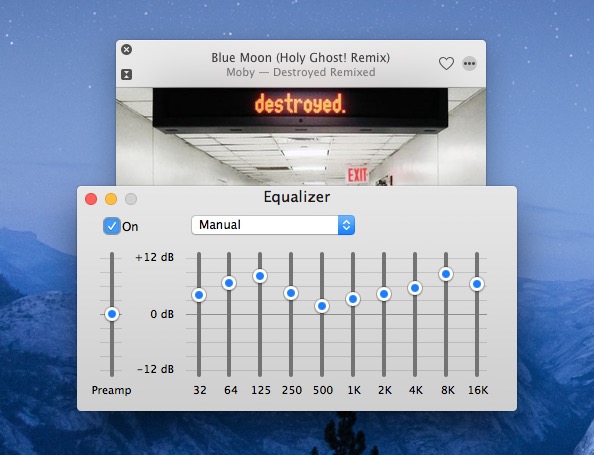
In what may be the boldest claim ever to hit iTunes users, what is said to be the best iTunes equalizer settings have surfaced on the internet. Now that is quite a proclamation obviously, but after seeing the bold statement, I gave the suggested settings a try with the iTunes equalizer, played some music, and it sounds really good!
The included image shows the so-called best iTunes Equalizer settings as follows:
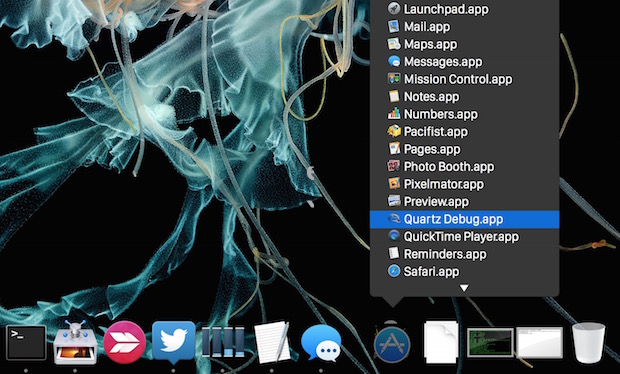
Stacks are what list items and folders turn into when pulled into the Dock of OS X. There are several views for Stacks, like a grid, or a fan, or a list in modern OS X versions. But with a little secret defaults string, a list view can be enabled in prior releases of OS X too.
Recently the LAN at my office had been running slower than usual, and I couldn’t pinpoint what was using up all the extra bandwidth. I had a suspicion that P2P traffic was to blame but I just couldn’t see anything obvious on the offending machine. So the question of course, is how do you see what processes are connecting to the internet or the outside world from Mac OS X?
Using the lsof command line tool, we can pass the -i argument to list only the active and open internet connections on our Macs, and we can find out if there’s anything peculiar (or in my case, something hidden) going on and connecting to an outside address, and, this command will also show you what the process ID is of the offending application or task, so that we can kill it and stop the activity if desired.
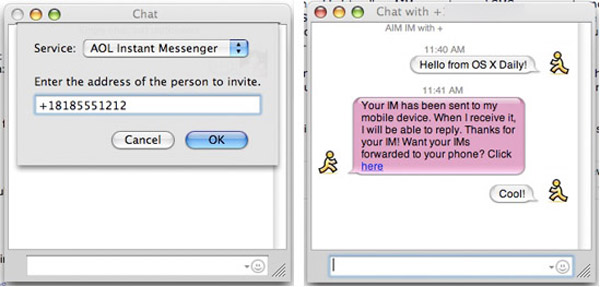
There’s several ways to send free SMS text messages, here’s the best ways I know of to send free texts from the computer, using either the AIM protocol (with iChat or Adium), Google’s GTalk within Gmail, and finally a free website known as GizmoSMS.
When using any of these methods, keep in mind the SMS messages may be free for you to send, but they are not necessarily free text messages for the other person to receive! Read more »

 Safari is really settling it’s spot as my preferred web browser. Sure, I miss the plugins in Firefox, but it just can’t beat the speed of Safari. You can make your Safari web browsing experience even better by using Command-Option-F to jump to the Search box, nice!
  There are several different ways to rip dvd’s on your Mac, we’ll cover ripping DVD’s with HandBrake and with VLC here.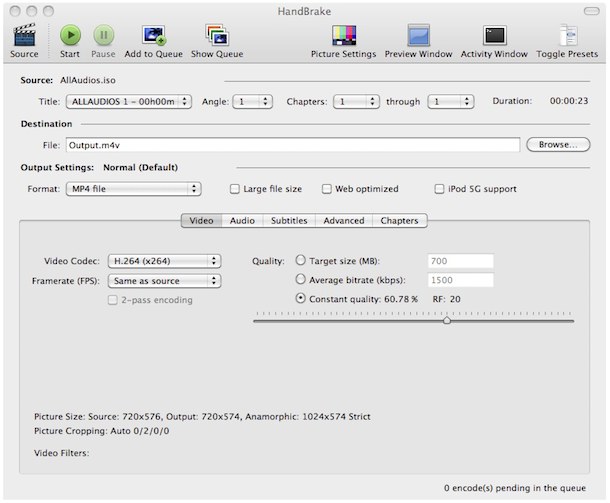

 DeSmuME is the best Nintendo DS Emulator for Mac OS X that I have found, it’s pretty full featured with save states, touchscreen emulation, movie creation, and more. My only complaint is the layout of the emulator being vertical, which is true to the DS, but it makes playing games sort of obnoxious particularly when you increase the screen size. If they enabled side-by-side screens for this DS emulator so I could play it fullscreen, I’d be even more enthralled with an already good app. If you’re looking for a Nintendo DS Emulator for your Mac, look no further.
 Finally, a Facebook Notifier for Mac! I have long been a fan of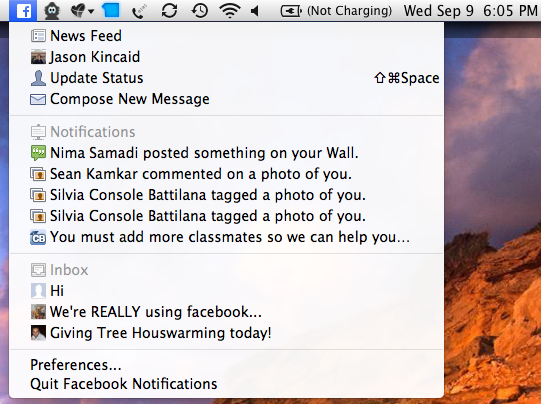




 Recently the LAN at my office had been running slower than usual, and I couldn’t pinpoint what was using up all the extra bandwidth. I had a suspicion that P2P traffic was to blame but I just couldn’t see anything obvious on the offending machine. So the question of course, is how do you see what processes are connecting to the internet or the outside world from Mac OS X?