
Check a Macs Uptime and Reboot History
 The “uptime” of a computer is how long it has been since it was last rebooted or started up. Since Macs are very stable and generally OS X users rarely have to reboot their machines, the uptime of Macs can reach impressive numbers. You can check the uptime and reboot history of any Mac if you want to find this information yourself, we’ll show you how.
Here’s how to check the uptime in days (or hours) and the rebooting history both via the Command Line of OS X, and also how to find ‘time since boot’ through the System Information profiler on a Mac.
How to Check a Macs Uptime
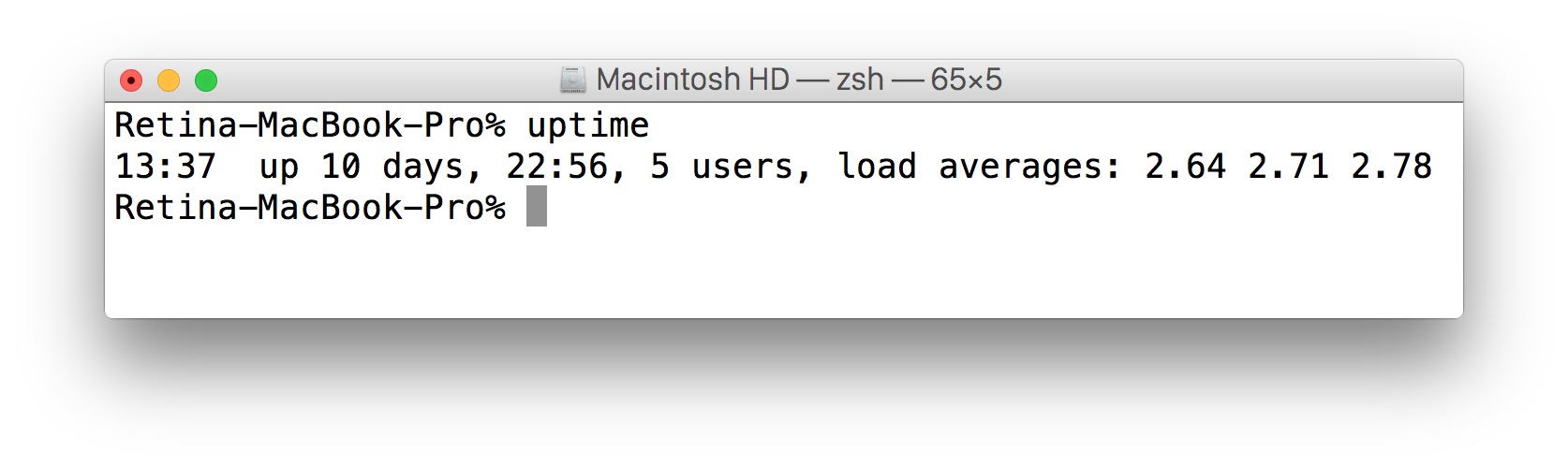
To check your Macs uptime, simply type ‘uptime’ in the Terminal. Terminal is an application found within /Applications/Utilities/ and is included in every version of Mac OS X.
uptime
Hit the return key and you’ll find the answer. The screen shot example shows a Mac with a 10 day uptime, but these numbers can easily reach into hundreds of days for some machines in some situations.
In the below example, uptime is reporting that we have a Mac that has been up for 21 hours and 40 minutes.
YourMac:~ user$ uptime

10:33  up 21:40, 4 users, load averages: 0.09 0.19 0.21
And another example on of uptime is reporting 24 days:
$ uptime

14:28  up 24 days, 22:06, 3 users, load averages: 3.41 4.21 4.08
The uptime will vary per machine, depending on how frequently it is rebooted, updated, shut down, and even crashed. Speaking of restarting a machine, you can also retrieve reboot history through the command line as well.
How to Check a Macs Reboot History
To check the reboot history of your Mac, type ‘last reboot’ in the Terminal. This will provide you with the dates and times of the last few reboots the machine has gone through.
YourMac:~user$ last reboot

reboot    ~                         Tue Sep 22 12:52

reboot    ~                         Sun Aug 30 23:17

reboot    ~                         Sat Aug 29 01:12

reboot    ~                         Fri Aug 28 22:07

wtmp begins Fri Aug 28 22:07
This can be extremely helpful when troubleshooting, or even just for finding out how often a Mac gets booted, and is a nice command to use in addition to uptime.
Find “Time Since Boot” from System Information
Outside of the command line, you can also retrieve uptime information from the more familiar GUI of Mac OS X:
- Pull down the Apple menu and hold down the OPTION key, then select “System Information”
- Click on “Software” on the side menu to see “System Software Overview”
- Look for “Time since boot” to see the uptime in days, hours, and minutes
This method is easier though it own’t provide you with user information, load averages, or the reboot history.
 Not to brag or anything, but I love the fact that that unless I have run Software Update, I rarely have to reboot my Mac at all, and while this might not be that exciting to most Mac users, for a relatively recent Windows convert I find this particularly nice. So naturally with my Mac geekiness I find it fun to check the uptime and reboot history of my Mac and others, it’s easy to do and it’s actually functionally useful too for troubleshooting certain Mac problems.
Updated on 5/16/2015, if you have an impressive uptime on your Mac, let us know in the comments.






Where is the record kept. I want to see the last successful boot of a disk that won’t boot anymore so I can restore to that time.
Is there a way to discover how many hours my iMac has been turned on since it was new? I used to be able to get that information way back when I was using a G3 or G4, though I can’t remember exactly how. I find it useful because I can never afford a new computer so it’s good to be able to see how much use a pre-owned one has actually had.
how can I check which program shutdown my macbook?
What does the load averages numbers stand for? Some go from 0.09 others to 4.29 what does that mean?
I checked my Mom’s PowerMac G4 and it had been up for 1720 days.
I think this might be a record. I have seen servers that serve almost a 1,000,000 customers shut off even 1/4th the time. Granted they have a lot more maintance to do, but that’s impressive. I respect Apple’s OS software stability standards.
Is it still going? I really think this might be a world record for computers.
It really isn’t. When it comes down to it, mac os is really nothing special.. I have windows systems with more than 8 years of uptime since a reboot that simply serve media from my storage array to all my other systems at home and over the internet on the road. Still running Windows 7 Ultimate. No issues with hardware or security as of July 2019. I also have linux machines that I built when I was in high school that have been running without a restart for over ten years, they’re running on 3kw UPS units. literally, they have not been rebooted since George Bush was in office. Still running strong.
Is there also a way to check the Mac’s SHUTDOWN history — as opposed to reboot? I know it sounds strange but I sometimes use that to tell how late I worked when I forget to track it. I usually shut down every night after finishing. I sometimes check the modification date on the last file I worked on, but when it’s just web browsing, that doesn’t work.
Use “last shutdown” ;)
Woohoo!
15:17 up 89 days, 3:10, 2 users, load averages: 1,77 1,85 1,76
hi ,
I turned my mac on a few hours ago but I see :
11:55 up 19:55, 2 users, load averages: 1.49 1.43 1.34 ,
what does this mean , & I tuned it off last mid night !!!!??
And I am the only one user of my retina?!
thanx for a clear reply.
Not sure about the uptime
But there is a root user and a normal user on Mac OS X. So “2 users” is normal
Longest uptime since I bought my iMac last year was almost 37 days! Woo-hoo!
reboot ~ Thu Jun 4 00:12
reboot ~ Tue Apr 28 10:43
(iMac 21.5″ 2014 version)
Thanks, quite useful!
Is there a non-Terminal/GUI way to check uptime?
For example, in Windows you can see it in the Task Manager.
Yes, you can retrieve the uptime from the System Information menu. We updated the article with instructions on how to do this on all versions of Mac OS X.
Thanks for the comment!
Great and usefill knowledge! thank you Bill.
[…] you’re looking for a record of a Macs boot history, try using the “last reboot” command instead. Similarly if you’re only looking to […]
[…] any updates or new apps recently, and my Mac hasn’t been rebooted in 9 days (you can check your Mac’s uptime with the terminal). It’s a bit of a mystery to me as to what caused it, but the above fix […]
“last reboot” doesn’t work for me for some reason (OS 10.5.8). I had to do “last | grep reboot”