
The Mac Task Manager
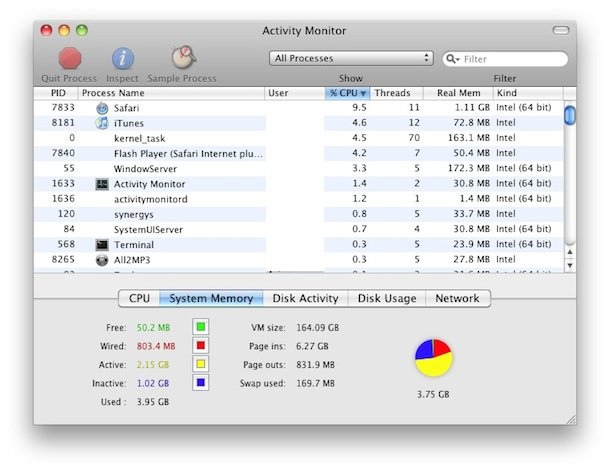
Many new Mac users are coming from the Windows world where they would access the Task Manager to end tasks and stop errant processes. The Mac has it’s own Task Manager but it goes by another name: Activity Monitor.
Activity Monitor functions in a very similar way to how Task Manager does in Windows, letting you easily view, manage, and end tasks, applications, and any active processes that are running in Mac OS.
If you’re unfamiliar with Activity Monitor or task management on the Mac in general, don’t worry, because despite it’s immense power and control, it’s not complicated to use. And you can access it and use the feature the same way in all versions of Mac OS, since Activity Monitor works the same from the earliest releases to the most modern.
The Mac Task Manager
Despite being named Activity Monitor many Mac switchers continue to refer to the utility as the Windows name of Task Manager, keep in mind that regardless of the lingo used it’s the same application utility being discussed and used.
Remember, the Task Manager for Mac = Activity Monitor!
Using the Task Manager in Mac OS X
If you’re used to Windows, you’d get to the Task Manager by hitting Control+ALT+DEL.
In Mac OS, it’s a bit different. You can launch the app directly within it’s containing directory, through LaunchPad, drag it into the Dock, or use Spotlight for quick keyboard access.
How to Access Access the Mac Task Manager
Activity Monitor is located in your /Applications/Utilities/ folder. The simplest way to get to Activity Monitor in Mac OS X is to use Spotlight as a keyboard shortcut for quick access:
- Hit Command+Spacebar to bring up the Spotlight search field
- Type in “Activity Monitor”
- Hit the Return key when “Activity Monitor” populates in the spotlight results
- You are now in Activity Monitor where you can manage and manipulate tasks
It’s often helpful to sort tasks by CPU, but you can sort them by name, memory usage, process ID, and use the search box in the upper right corner to be able to locate specific tasks that match names or characters.
Activity Monitor is very powerful because it not only shows you what applications are running for the active user, but it also displays system level tasks, kernel tasks, daemons, processes that belong to other users, quite literally every process will show up. If it’s running somewhere on the Mac, you can find it in this list.
Killing or Stopping a Task/Process with Activity Monitor
From within Activity Monitor, simply click on the task or application you want to end and then click on the (X) button or large red “Quit Process” button in the left corner of the app window.
You will get a warning dialogue as follows confirming that you want to force quit the process or app you selected:
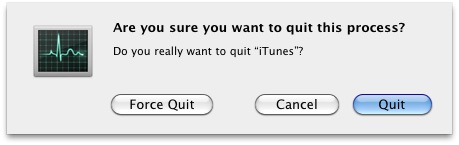
Assuming you have selected the process/application you want to end, click on the “Quit” button. If the app is being unresponsive, you can click on the “Force Quit” button instead to immediately kill the process and stop the application from running without any further warning.
Get System Stats, CPU, Memory Usage, Network, and Disk Info in Activity Monitor
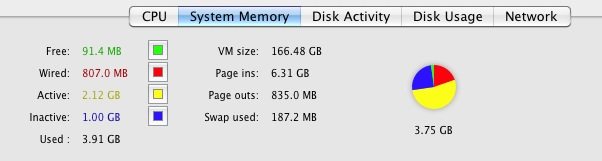
Looking at the bottom of Activity Monitor you can also get system usage information about your Mac. Just click on the tabs to see information about CPU, System Memory, Disk Activity, Disk Usage (space), and Network activity and usage.
If you want to see live system stats and activity all the time, minimize Activity Monitor, then right-click on it’s Dock icon to enable various system activity monitors right in the Dock which will show live graphs instead of the standard icon. You can set them to be specific to CPU (arguably the most useful), network, disk activity, and RAM usage.
Quick Tip for New Mac Users from the Windows World
Until new Mac users are more familiar with Spotlight and how their Mac works, I often recommend recent switchers keep Activity Monitor in their Dock for easy access. The good news is that you will rarely use Activity Monitor, since Mac OS and applications within it run much better than Windows, but it’s good to have it readily available in case something goes haywire. Typically if something does go wrong it’s likely to be a subprocess or plugin inside a web browser, like Java or Flash messing up and freezing up an app or tab in the process.






Anyone know how to do this for chromebooks? I’m having trouble finding references that aren’t intended for mac or pc..chromebooks are neither PC, mac, phone, or tablet..what can I do to make this work on there?
How can i quit my safari? Everytime i open it it freeze?
Thanks
Somebody please help. My Macbook is running at 180 degrees and is smoking hot. When I open up Activity monitor “scutil” is using up 80% and when I quit the process my Mac cools down. How can I quit “scutil” for good and keep it from reappearing as a CPU hog?
THNX …..
[…] beginning, launch the Terminal app, found in /Applications/Utilities/, and also launch Activity Monitor, which is in the same […]
[…] most powerful app and process management utility in the OS X GUI, Activity Monitor is a powerful task manager that will reveal not only all running and active applications, but also […]
[…] or not the Mac will often have fans running at full speed despite nothing unusual showing up in Activity Monitor. To top it off, the MagSafe charger light typically is not lighting up, and the computer […]
[…] all processes belonging to a single user account, you know it can be a frustrating task. Though Activity Monitor allows you to sort “Other User Processes” and select multiple processes, it does not […]
[…] page for pkill for more uses and flags, and remember that average Mac users will be better served managing tasks with Activity Monitor instead. pkill is not available to OS X prior to Mountain Lion. stLight.options({ […]
[…] begin, launch Terminal, and you may want to watch the UI-based task manager Activity Monitor so you can easily observe the CPU load and system […]
Thanks for this!
Thanks!
[…] the background so you’ll have to quit it by typing “qaz123″ or by finding it in Activity Monitor and killing the […]
[…] can quit these multitasked apps by double-clicking the Home button to bring up a task manager of sorts, and then tapping and holding your finger on an apps icon. You’ll then see a red […]
[…] currently active application without any confirmation dialog, and without having to kill it through activity monitor or the Force Quit menu. Just note there is no warning the app quits immediately without saving […]
[…] they need to, letting Mac OS X manage processes and resources for them without quitting apps or manual interaction through Activity […]
[…] OS X task management tool Activity Monitor includes an excellent and little known feature that lets you see precisely what files, ports, and […]
Thanks Man love this got rid and getting used to mac. Thanks
[…] Activity Monitor to see the before and after results yourself, you’ll find dramatic changes at the […]
[…] Activity Monitor can be used for more than just managing tasks and killing processes, it can also turn the Mac OS X Dock into a live system monitor where you can keep an eye on processor usage, CPU history, network activity, disk activity, or RAM use. […]
[…] red), and hit the red “Quit Process” button. Think of this as the Mac equivalent to a task manager from the Windows world and a more complex version of the second tips Force Quit window. If one of […]
[…] can monitor disk activity in Mac OS X by using the Activity Monitor app or several command line tools. Activity Monitor is the easiest and most user friendly, but the […]
[…] a ruckus. Using Chrome’s own solution is much better than taking a wild guess with the Mac OS X task manager equivalent and hoping you choose the correct process to terminate. stLight.options({ […]
FYI, on Windows systems that are set to us the Welcome screen or are joined to a domain, ctrl+alt+del opens the Windows Security box, which gives you the option to open the Task Manager, lock the computer, change the password, etc. To open the Task Manager directly, ctrl+shift+esc is the shortcut.
Regardless, thanks for the good, informative article!
[…] opening up Activity Monitor is confusing or intimidating to you, or you just find it hard to track down that errant Chrome […]
[…] much prefer this method to just showing CPU load in the Dock with Activity Monitor. One because it’s a smaller footprint, two it’s easier to spot more detail at the top […]
[…] other helpful tips for recent Mac switchers regard Internet Explorer for Mac and understanding the Mac Task Manager. stLight.options({ publisher:'fe5e0a84-1fac-40de-8014-9f89fc1cbe6a' […]
[…] apps are using your resources, if you are unfamiliar with it, it’s basically a command line task manager like Activity Monitor. My big complaint with top is that the default setting doesn’t sort processes by CPU, which […]
[…] want to dig out the Terminal or Activity Monitor to relaunch the Finder? No […]
[…] the task manager tool Activity Monitor (located in /Applications/Utilities/) and click to sort processes by ‘Name’ and look […]
[…] Device memory usage, including page in and outs (similar to the Mac Activity Monitor) […]
[…] Device memory usage, including page in and outs (similar to the Mac Activity Monitor) […]
[…] can also force quit apps with the task management utility Activity Monitor or by hitting Command+Option+Escape to bring up an app […]
[…] kick in the pants, you can use a free tool called Process Renicer. Launching the app gives you a task manager of sorts where you can double-click on any running process and then adjust it’s […]
[…] not “tasks” to monitor? Whatever, the point is that the Mac provides a very solid tool with its activity monitor in which you can find what’s running, if its eating through your resources, and what you can do […]
[…] encounter the process, however if you sleep your Mac, you may notice the process appear in the task manager or Activity Monitor upon the system waking. Sometimes you will the “find” process running concurrently with […]
[…] 19th, 2010 – No Comments You may have noticed that some Mac models display 3.75GB of RAM in the Activity Monitor when they have 4GB of RAM installed, but why is this? The answer is simple: your Mac has a GPU that […]
[…] leave all the documents and applications open, you’ll want to look at what is basically your Mac Task Manager, known as Activity Monitor. Here’s […]
[…] what if you’re a novice user, and you don’t know anything about the Mac OS X Activity Monitor? Suddenly your Mac is just painfully slow. I wonder how many tech support calls and Apple Genius […]
[…] you want, you can then go through and check CPU usage through the Mac Task Manager, known as the Activity […]
[…] the ‘vm_stat’ command, or by using the Activity Monitor (often erroneously called the Mac task manager by Windows […]
Wouldn’t it be much simpler to use Force Quit (cmd, alt, esc)?
That Helps! Thanks!
thanks!
use the force quit cant froce quit some hidden process
Wow been looking for that command for a while now thank you sir you are the man command + alt + esc is so awesome neat looking love OS X!!!!!