
How to Use the Screen Recorder on a Mac
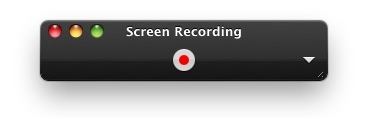
If you need to record screen activity on a Mac, you don’t need to download any additional software because the functionality is built directly into Mac OS X with the QuickTime app. Yes, the same QuickTime video player app that lets you watch videos also lets you record the screen of the Mac, and it’s remarkably simple to use. This is a great solution for most use cases since it’s free and bundled right into all versions of OS X.
Using the Screen Recorder in Mac OS X
The screen recorder function is included with QuickTime Player in Mac OS X 10.6 – 10.9 and later. Here’s how to use it to capture a video of the Mac screen in action:
- Launch QuickTime Player (located in /Applications/)
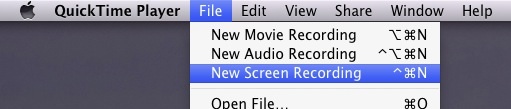
- Pull down the File menu and select “New Screen Recording”
- Press the Red button to start recording the screen activity
- To stop recording, either press the Stop Recording button in the menubar, or hit Command+Control+Escape
- Once the recording is stopped, the capture is automatically opened in QuickTime Player as “Screen Recording.mov” which you can then save and use as you’d like
QuickTime Player gets out of the way when you are recording the screen so that the activity is not obstructed by the application, this is also why it’s best to just use the keyboard shortcut to halt the screen recorder. Note that newer versions of the screen recorder will just hide the player completely, making it entirely invisible regardless of how it’s activated or deactivated.
There are options to have mouse clicks shown in the recording as well, which is an optional feature but if you’re using the record screen feature for demonstration purposes it’s a good one to enable since it makes clicks much more obvious by placing the circle around them. You can also record audio if you have a microphone, or set it to ‘line-in’ if you want to direct audio from the Mac to the recorded activity on display. To access those additional features, just click the little downward pointing arrow to reveal a menu that includes Microphone options, Quality options, whether to show mouse clicks or not in the recording, and also where to default to saving the file to.
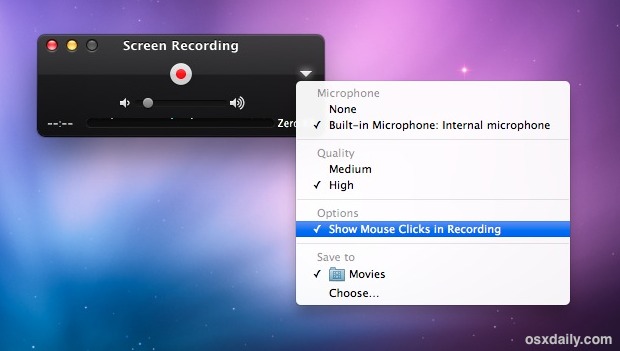
If there is a check next to the menu option it is enabled, selecting them again would disable the given feature. You will want to choose specific options before recording screen activity for them to apply to the saved video.
The default file type is .mov but you can export it as other formats as well using “Export” or “Save As”. So what do the results look like? There are plenty of examples on our OSXDaily YouTube page, here’s one of several:
A quick note for users of 10.5 or below: instead of paying for recording software, it’s often cheaper to just buy the Snow Leopard upgrade, or better yet, just jump ahead to Mountain Lion or OS X Mavericks if your Mac supports it. The newest versions of QuickTime Player include more Screen Recorder features making it worth it.
Enjoy this? Don’t miss more great Mac OS X tips.






Thank you
I have made a screen recording with QuickTime, but it is a .mov file format. I cannot see any means of saving as MP4 .
I’m on Mac Mojave
Using QuickTime to record streaming I keep getting a black screen. Audio comes in great, but no video. I have went to the Edit to try and change to safe mod however, there is no option to do so. Laptop is UTD on everything. Please help, thanks!
Thanks for the post about screen recorder.
I figured out my needs from here. I was about to make a tutorial of Camtasia, so couldn’t use Camtasia and needed another software for making screen video. Thanks for this tutorial
this litERALLY saved me thank you so much you’re a legend
Doesn’t record properly. After I have finished recording, I check my videos. But when I do, I can only hear the audio being recorded but cannot see the video(its just black). I used to record my Mac screen with Acethinker screen grabber, never had that problem.
Hmm.. I’m having trouble getting it to record the computer’s sound output. I don’t see any “system audio” option as mentioned in the comment above, only no microphone, built-in mic and line in. (I’m on El Capitan). I don’t even want to mix it with anything external, I just want to record sound from the computer– how do I do that? I tried both “line in” and “none” and neither of those options worked.
Awesome! I am a gamer and a YouTuber That ABSOLUTELY needed that! Thanks!
What about if you have multiple screens? How can you tell Quicktime which one to use?
D
can u add get a camera face recorder as well
Love QuickTime app. Very useful for me, as I am new to Mac. It does everything I need it to do.
I’ve been having a really hard time trying to record my Mac’s Screen + Internal Audio + Voice. I’m using QuickTime and it works fine when I’m not using an external audio interface but I want this content for Beat Making Tutorial purposes. How can I record screen + audio + voice on ‘Mac OS X El Capitan’ while having an interface connected? Does ANYONE have any suggestions for me please!!
Hi guys, using this for work at the moment and its nice and simple to use. Unfortunately this works both ways, I’m using a Saffire interface with one xlr input, it doesn’t seem like quicktime gives you an option for inputting in stereo or mono, and its defaulting to stereo, sending my microphone voiceover into the left channel only. Would anyone be able to suggest a quick fix for this in quicktime, or do I need some more sophisticated software? Its a shame if quicktime lacks this because its great otherwise! thanks a lot guys.
I have the Saffire Pro 40 also and I’m trying to make tutorials using D.A.W’s. I was having the same issue I hope someone can help us with this one because I can record screen + audio + voice without an interface but with it it’s just not working
I am finding that using the screen recorder makes my mouse clicks often not work, I usually have to click twice to put the cursor in a field. Because I want to make recordings to train people to use a CMS, I’ve enabled the mouse clicks to show, which means when I play back the footage you can see the circle appear twice, which isn’t ideal. More importantly, it’s really annoying when I have to try twice to put the cursor in a field. I have the most up-to-date OS, is anyone else having this issue? Sounds like it’s working well for most people.
The quicktime player will record all background noise as well when I recording the screen. So is there a way to record only the audio coming from the computer without background noises?
Yes, where Quicktime asks you to select the microphone, don’t choose the built-in microphone and choose system audio instead. Or choose no microphone and dub your sound in later. You can then add your own sound to the screen recording you captured.
This is great I recorded my screen on the Mac perfectly. Thanks.
I spent hours looking for a free open source screen recording for mac, it looks like camtasia has monopolised this space, and you need to sign up for an account and all that for a trial. I found I can do this easily from Quick time. Thank you so much guys. Monopoly sucks.
I followed a tutorial like this and recorded a video posted on YouTube :)
to record audio and sound just plug a cheap audio cable (male to male 3.5 inch cable) from the line in on your mac mini to the audio out on the mac mini, nice easy solution
It will not let me record a part of the screen… I try to click and drag, but it will not let me. The only option I have is to record the entire screen, which I do not want to do! Someone help please!
It worked for me. After I select ‘New Screen Recording’ from the File menu, I get a Screen Recording box. I click Record. Then I get the message to click for fullscreen or click and drag for a selection.
how do you remove Q quicktime player from Macbook pro’s screen, mine is right in the middle of the screen.
I’m running under Mavericks 10.9.5.
My input is a DVD created from a DVR, and it contains a single folder called VIDEO_TS which expands to other files with .BUP, .IFO, AND .VOB extensions.
Just inserting the DVD brings up the DVD Player and everything works fine, until I start a New Screen Recording under Quicktime. That grays out the screen and that’s what gets recorded — gray. (This same thing started happening when I was using Snapz Pro X to do the capture.) Both techniques used to work fine. I can’t say if it started failing when I upgraded from Snow Leopard to Mavericks. This failure does NOT occur if my input has a .mov extension.
Any help on this would be greatly appreciated.
Yes. Screen Recorder from Quicktime is pretty good, but not good enough for those who’d like to edit those screencasts. I recommend two apps, the one is Screenflow, and the other one is Ephnic Movie Maker.
I’ve tried both of them. But I end it up with Ephnic Movie Maker ’cause the price of Screenflow is a little bit high for me.
…except, that (at least in the crappy Mavericks) screen refreshing doesn’t occur while recording with Quicktime. That’s right, you can try recording actions in an application for a tutorial, and the screen doesn’t update – until stopping the screen recording, and then presto – the screen suddenly updates. More junk crapware from Apple.
Actually the screen recorder works great in Mavericks, and Yosemite, I use it constantly. And yes of COURES the screen updates and refreshes while it’s in use, what else would it do? You are probably using it wrong. Read the instructions and understand how to start and stop the screen recording before decrying the software, this thing works and it’s great.
To just record the system sound, use a free utility called “SoundFlower”. Just google it. It creates a virtual audio device that can be configured to be anything you like, including system audio. In QT, just select SoundFlower as the desired audio input.
Thanks. It seems like a simple process, but it doesn’t work. I want to record a live stream in Safari. I follow the directions above, open QuickTime Player (I’m running latest version in Mavericks), and click the red button. I navigate to the screen I want (it turned black and white for some reason, but oh well). However, there is no red button to turn off, nor is there any menu command to do that. So, I started recording. I finished after a while (by shutting down QuickTime (the only way to accomplish the objective), and Spotlight cannot find anything called Sound Recording.mov (or even Recording.mov). If any one has any suggestions for additions to the instructions that I may be missing, I’d be very grateful.
In order for the Mac screen recorder to SAVE the recording, you have to “STOP” the recording first, which is why the instructions specify this. Follow the instructions as described to stop the recording; “To stop recording, either press the Stop Recording button in the menubar, or hit Command+Control+Escape”. No where do the instructions say to quit the QuickTime app, so who knows where you got that idea but that is not what you should do.
Once the screen recording is stopped, you can then choose to save or export the file, as described. Yes the screen recording works fine in OS X Mavericks, I use it so often that I could write a book about it.
What is important to note is that the STOP button appears in the menu bar of Mac OS X only after the START button has been pressed, there won’t be a stop button if you haven’t started. If you don’t stop the recording and just quit out of the app, it’s not saving the video. You are experiencing what is known as “User error”, which is why it’s important to read instructions thoroughly rather than taking a guess.
Never knew about this, cheers mate!
Is there any way to select only a portion of the screen to record? If so, how?
The screen and audio recording works very well with Quicktime, but unfortunately it will record any background noise as well.
Is there a way to record only the audio coming from the computer? ie. I’m doing a playback but also recording at the same time?
Can’t believe this is built in. I love my mac more every day! I was really considering buying some software as well so thanks a lot :)
After the Mac OS x 10.9 mavericks, QuickTime requires pro license to capture screen….
QuickTime Pro costs about $22.
That is incorrect, Quicktime in OS X Mavericks is free and includes the screen recording and capturing feature as part of it’s standard featureset. There is no more QuickTime Pro for the Mac, it has not existed since Lion.
OMIGOSH! thanks so much. It really helped!
Thanks!
And can you open it with iMovie? If yes please tell me how ’cause i want to make videos but if i can’t get them to iMovie i can’t make those videos look good with sound please help me
Hi everyone!!
How do I open it on the same screen/table as Safari?? I want to select and record certain parts of safari screen, but when I hit the program button it changes the screen, and when i return to safari, the quicktime disappears!
How do I do that?
I’m new to mac, just bought 1 week ago and I’m still not used to it yet.
The question is the same for other programs, like Skype.. how do i let it floating over safari?? if I wanna see both open at the same time?
Thanks
does this record sound
You can add a separate audio track easily with iMovie.
how can you ‘upload’ the video to iMovie?
I FINALLY got the AUDIO to WORK, it’s not set up in the most obvious and user-friendly manner.
1. It’s better to use a headset. If not then turn the sound off completely on your speakers to avoid feedback.
2. When the record box appears drag the sound volume line to the right, half way is enough.
3. Also make sure you’ve checked ‘built in microphone’ from options (click on tiny triangle in box)
4. When you have finished recording, remember to turn your speaker volume back up to listen to playback.
THX ALOT YOU HELPT ME AS JESUS OTHER PEOPLE
You’re such a lifesaver. I spent over 5 hours trying to record screen and audio from my expiring online GMAT class through my PC and no luck. Windows 7 is fighting piracy so there is no stereo mixer option anymore. Anyway, ran into your post and pulled out my MAC and in less than 5 minutes, viola!!!!
Keep doing what you do,
Jenn in LA
thanks
I use this recorder for games mostly, and I look at other people’s videos and they look pretty good. But mine looks horrible when it comes out. I get about 2-4 frames per second on the clips. I don’t know if there is a setting I change to make it better. I have it on High Quality, but still doesn’t look good. Please help!
same problem its terrible on quality of frame rate
I have 10.5.8
it said audio recording and movie recording but then no screen recording? heeeelp!
Sounds like you are using QT 7. Try QT 8 or higher.
Great !!!
Thanks.
I was actually looking for a software to buy.
If you have external speakers plugged in to your Mac, most of them have a headphone port on the side or front. All you need then is a male to male headphone jack cord (available for a couple of bucks and sometimes at dollar stores). Run one end out of the headphone jack on your external speakers and the other end into the line in on your Mac. Then record with QuickTime and you’ll record your Mac’s audio.
To be able to hear it at the same time, just add a splitter (again, available at most dollar stores) out of your external speakers and plug both your headphones and the male to male cord into the splitter.
Control your audio volume with the volume knob on your external speakers.
$2 bucks and done.
Hi, thank you very much. this is very helpful!
For everyone that is interested, I have found that you can record audio output (computer sounds) and audio input (mic) while screen capturing simultaneously.
Just requires some additional hardware.
I think Quicktime recognises only input audio, and you can adjust where this comes from in: Utilities/Audio MIDI Setup. Thus you can loop the audio output back into the input through audio cables, or into a usb (if there is only one input/output socket, with this you may want an amplifier depending with what hardware you have chosen to input the audio back through the usb). Use either an audio splitter to join a mic to the audio channels running back into your computer, or into another usb socket and in Audio MIDI Setup, create an aggregate device and input both output to input audio and input audio under this group.
In Quicktime, before you record, select your custom input channels as your mic.
It is advisable to use another audio splitter so you can plug in either speakers or headphones to also listen while you record.
Hope this helped anyone, as I did this with a lot of trial and error :D
Awesome! Thanks :)
can you record video, game sounds and your voice at the same time?
can you pause with this
OS 10.6.8
I resurrected this doorstop to try recording a screen.
After selecting “new screen recording” nothing happens.
I mean, the menu grays out. but no red button or any other visible start button.
Nothing in the menu bar either.
Doesn’t respond to Command+Control+Escape either.
Well, i pulled the plug on it, goes back as it was.
A doorstop.
do you know a screen recorder that can record audio and video at the same time?
When I try ro record Minecraft fullscreen random flashes appear everywhere, can anybody help?
no but i am pretty sure that there is a mod that lets you record screens
i clicked the red button then it finished the recording and i can’t close it any more because the recording has to finished but it won’t plz help me
i fixed it so don’t give me a reply
it sucks that every time u record,it slowly takes away KB
Thanks! But is there anyway to record my screen with in-game sound and record the screen?
Yeah, I was wondering that, too. :S
Hit the arrow before recording and go to audio options then check built-in microphone to record your voice and choose your quality from high or medium
This is good to know! Is there a way to record audio — both my voice and computer sounds at the same time — in higher quality? I’m using my built-in mic and everything sounds echoey and stuff.
I’d really like to know this as well for the sake of doing “Let’s Plays” and tutorials.
Same here. Well, more of a machinima than a “Let’s Play”, but same basic premise. XD I want to do my own “Chell’s Mind” series, and that’s basically the same as a “Let’s Play”, but instead of being yourself, you’re being the character you play. XD Someone should tackle doing an “Atlas’s Mind” and a “P-body’s Mind”, just because I’d be interested to see how much dedication it would take to make a successful “Mind” series of a co-op game. XD
Did you mute your speakers? It kills the echoes for me.
I almost bought a screen recorder for a 1 minute video, this is so awesome to know – thanks!
[…] you are using QuickTime’s Screen Recorder or demoing new software to a group, here are three ways to make the Mac OS X cursor more visible […]
Works beautifully. Is there a way to record sound from the Mac’s in-built mic, or should I just overdub using iMovie?
When the black bar with the red Record button appears, click the down arrow to pull up a drop down menu. There you will see options for built-in audio.
If you hit the arrow in the recording menu/window it says audio options click and check the built-in microphone for it to hear your voice
I can’t get it to work. I’m running 10.6.7 and every time I got to create a new screen recording I get the spinning marble of death. I swear, it really seems like Snow Leopard is a step down in performance from Leopard. I’m wondering if I can run 10.5 on my 1 yr-old MacBook Pro. :\
The problem is most commercial screen capture allow for a portion of the screen to be captured. QuickTime does not provide this option. With the high resolution of even the lowest laptop screens, this makes for a huge movie file.
Actually I just tried it and after you hit the Record button you get a message saying to just tap to start recording the whole screen or click & drag to create a recording box. Worked great for me to just record the iPhone Simulator to send a quick video of gameplay to a client.
QT only gives you a screen selection box if it’s ver. 10.1, but not 10.0. You can only update QT along with the OS. And as I’m stuck at OSX 10.6.8 until I decide to get Mountain Lion – no dice.
Is there a way to speak over the screen recorder, in order to give directions?
It does not record audio. Only video.
Actually you can add audio I use it for a YouTube channel and add live audio over it while recording you just click the down-facing arrow on the side and under the heading microphone you select “Built-in Input: Internal Microphone also make sure the volume bar is switched all the way down because otherwise you get an echo
i recorded a video but am unable to locate it. . am scared i will lose it if i closed quicktime please let me know where i can locate the file
Save the screen recording file to the desktop or somewhere you can find it
I’m trying to make a YouTube video but i cant record the audio that’s in game. How do you record my voice and the in game audio at the same time?
actully it does go to audio options and check built-in mic for audio recording and screen recording hope this helps
Actually, for those who don’t want to upgrade to Snow Leopard (or can’t because- like me- you’re still getting plenty of use out of your G5 Macs), Snapz Pro X is only $69 US, and does a fine job of recording your screen activity (along with other capabilities). Sure, it’s not as cheap as Snow Leopard, but if you’re considering having to buy a new/used Intel Mac product, then it certainly is the cheaper solution.
Thank you so much… I downloaded this on my old Mac but after it died, I had to clear it and get rid… so when I bought my new mac I totally forgot what this software was called…
BEST piece of software I have come across as of yet!
Hi every one.
I’m using an older Macbook 4,1 on iOS X 10.6.8, and I have been unable to upgrade to QuickTime 10. I was recommended this software and it works perfectly: it’s called iScreen Recorder Lite and you download it from the App Store on your Mac. Here’s the link:
https://itunes.apple.com/us/app/iscreen-recorder-lite/id492976916?mt=12
Happy Recording,
Jonathan
I never knew about this. Awesome.
I use this for screencasts, works beautifully then to edit in iMovie
Yeah, it’s right. Awesome!
And Quicktime is really powerful
Well, my Quicktime doesn’t have “New screen recording” as an option! What do I do?
It worked for me. Maybe you should restart your computer/laptop. Best of luck.