
Change the Admin Password with Mac OS X Single User Mode
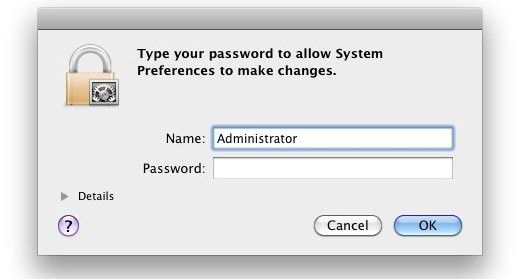
If you’re in IT, or just fixing Grandmas Mac, it’s not too uncommon to get a machine where you don’t have the admin users password. If you find yourself in this situation, you can easily change the Admin password, or any other users, simply by booting into Mac OS X‘s command line Single User Mode. I consider this to be essential knowledge for troubleshooting Macs.
Change an Admin Password in Mac OS X Single User Mode
This is a multistep process but it’s easy to follow:
- First you need to enter Single User Mode. Reboot the Mac and hold down Command+S at boot to enter into the command line.
- You’ll see a note where Mac OS X tells you that you need to run two commands in order to make filesystem changes, this is necessary so let’s handle that first
- The first command checks the Mac OS X filesystem for errors and fixes them, it can take a few minutes to run:
- The next command mounts the root Mac OS X drive as writable, allowing you to make changes to the filesystem:
- After the filesystem is mounted, you can reset any users password using the following command:
- You’ll need to enter the new password twice to reset and confirm the changes
fsck -fy
mount -uw /
passwd username
Note that a password will not be visibly typed when using the ‘passwd’ command, it looks as if nothing is being entered at all. That is standard practice in the command line world.
Changing Admin Password in OS X Lion, Mountain Lion, and later
For users with OS X 10.7.3 and later, including OS X 10.8+ Mountain Lion, there may need to be an additional step to load open directory. If you have issues with the above approach, try the following command sequence with newer versions of Mac OS X. Note the primary difference is using ‘launchctl’ between mounting the drive and changing the password:
#1 fsck -fy

#2 mount -uw /

#3 launchctl load /System/Library/LaunchDaemons/com.apple.opendirectoryd.plist

#4 passwd username
The password should now change as expected, where you can then reboot and use the admin user account as expected. Rebooting is possible through the command line by by typing:
reboot
Or by using the standard manual restart methods of keyboard shortcuts, shutdown, or holding down the power button. On the next boot the changed admin password will be usable as anticipated.
Don’t know the admin username? No problem
If you’re fixing someones machine and you don’t know the username to reset, just look in /Users with:
ls /Users/
Here you’ll see at least three items, .localized, Shared, and a username. The username is what you’ll want to change with the passwd command.
After the password is reset and confirmed, you can exit out of Single User Mode by typing exit or reboot. The Mac will now boot as usual and you’ll have access to the machine with the new password.
This is an easier and faster method than the approach taken for resetting lost passwords or using the Mac OS X boot DVD, because it’s changing an existing root users password rather than creating a new admin user account. Both work fine though, so you can use whatever method you’d like.
You can use the same approach to navigate around a sleep/wake lock screen, although you’ll obviously have to reboot the Mac meaning you will miss whatever is currently on the users desktop.






Funcionó esta en lion.
#1 fsck -fy
#2 mount -uw /
#3 launchctl load /System/Library/LaunchDaemons/com.apple.opendirectoryd.plist
#4 passwd username
*Después de load hay 1 espacio
saved me!! worked on 10.6.8 Snow Leopard
On an old mac os 10.4.x minimac, I had to
fsck -fy
mount -uw /
sh /etc/rc
passwd username
Mind the 3rd line. It actually sort of boots the system.
I can’t get this to work – new to inputting code. I have Mountain Leapord a newly refurbished Macbookpro (2015) I accidentally made my HD read only.
I’ve been trying everything to reset my password. i lost the ability to log in when i tried to upgrade to El Capitan…rrrrr! So i restored from my backup but now cant log in. I’ve tried the resetpassword method. i get to the screen and it appears to reset the password but when i reboot i still cannot log in.
so been trying the console approach above. when i run the passwd command it appears to be working, i enter the password twice, but then the console just hangs. It never comes back to a command prompt.
Any ideas? is my password file corrupt?
please kindly help me out, i am working in a company that all the system has 4 different users and every of them has password and the code and directory didnt work for me please kindly help me with better procedure,.. i want to take all the passwords off plz
It worked for me w 10.5.8! Thanks a lot! I found this post about Admin Password reset last night. I stumbled across a G5 Dual 1.8 at our town recycling center, in mint condition, w maxed-out RAM, PCI-X slots, Belkin 3-FireWire PCI card, dual DVI video card, and lots of useable software. The previous owner had not required password for logon, so initial testing was easy. To install any new software, or migrate my own disk contents over to it from my old PATA drives, I needed Admin access. So, this procedure saved the day.
This didn’t work for me, I found using the command + R guide was much easier. I knew what I was doing. and followed the prompts properly. When you get to your last instruction it says restart you literally have to make sure you’ve clicked on the correct word that says restart not close or any of that but restart. Try this method out if the above doesn’t work.
Hey does changing the admin password using single user mode put me in danger of deleting any of my files/documents/photos etc. from my mac?
Lock numeric can’t login cos I have numbers as part of my password what do I do please
The mac I am attempting to access is a bit older (about 7-ish years old give or take) and every time I try to do this, nothing really happens. The screen claims that there is no feed (I checked the connection multiple times and it even works just fine when booted up normally) and after a few minutes the fans “kick into overdrive,” then I get nervous and turn it of. This has happened every time I have tried this method. Is there something I can check or should do differently?
So for 10.7 – 10.8.3 users:
#1 fsck -fy
#2 mount -uw /
#3 launchctl load /System/Library/LaunchDaemons/com.apple.opendirectoryd.plist
#4 passwd username
Unfortunately, this does not work with Mavericks when attempting to reset the root password. The four steps work as expected, but then when booting in to the system and attempting to sudo to root (sudo -) from the command-line, the result is still “Sorry”, even when entering the correct password.
This method works for OS X Mavericks, be sure to enter the proper username and password
Ok, I have tried the original coding listed above with no results. I have since tried the route of the following.
mount -uw/
cd users
ls
passwd username
and changed the admin account password that you need to use to logon to the computer but apparently there is another admin account not shown in the above that prevents me from downloading any software updates from apple.
Powerpc G5 dual processor non intel running osx 10.5.8
For any Lion users having trouble with the passwd command not working in single user mode, try running this command before you run passwd:
launchctl load /System/Library/LaunchDaemons/com.apple.opendirectoryd.plist
This worked great.
So for 10.7 – 10.8.3 users:
#1 fsck -fy
#2 mount -uw /
#3 launchctl load /System/Library/LaunchDaemons/com.apple.opendirectoryd.plist
#4 passwd username
Thanks man. That did the trick. (10.9.4 on myhack)
this worked on a sierra single user boot recovery. needed the launch the service. THANKS!!!
What a life saver! I installed Lion and lost ability to run some critical software. Then returned to install Snow Leopard. Lost access as admin. This set of instructions were perfect. Thank you!!
I found that under Mac OS X 10.4 the passwd command did not work. It ended up being that you need to issue the following command
sh /etc/rc
wait a while, you will see a lot of start text scroll by. If a prompt doesn’t appear after a bit, try hitting the return key. Hopefully that will get you back to the command prompt. Then you can trying issuing the passwd command again. I found this try at http://superuser.com/a/359532
None of this helped.
When I enter “fsck -fy” in “:/ root#” it says “disk0s2: I/O Error. ** The volume Macintosh HD could not be verified completely.”
What’s the problem?
Typing in “mount -uw /” doesn’t work either.
omg i finally found a website that could help me!!this actually worked :)
Anyone know if there’s a way to reset filevault without old admin password or master password? I managed to change the admin password but now it’s giving me an error message saying that the filevault and admin password don’t match up and I need to type the old admin password, which I don’t have.
Thanks mate, it works!
Insane! I had lost my boot disk and forgotten my own password – happens with age :)… thanks so much for this! 10.6.8
I guess for Lion 10.7 one has the option to boot into Lion Recovery and can open Terminal and type “resetpassword”
Yup, this is correct.
Will this work for Lion 10.7 as well?
It doesn’t show for security reasons, just type new password, hit enter and retype to confirm, then type reboot , login with new password you created
@jim
Ok, I have tried the original coding listed above with no results. I have since tried the route of the following.
mount -uw/
cd users
ls
passwd username
and changed the admin account password that you need to use to logon to the computer but apparently there is another admin account not shown in the above that prevents me from downloading any software updates from apple.
Powerpc G5 dual processor non intel running osx 10.5.8
Why am i not able to type in the the new password…….every steps worked out perfectly but arriving at the password step…..when i type in something it doesn’t appear…..any idea???
I am having the exact issue that after I enter the passwd username command, I receive no error, just the prompt returns. I am using OSX 10.4.11
It doesn’t show the password; you have to type it in, press enter and then retype it, press enter and it will change the password.
You don’t see the password as you’re typing it in.
Uhmmm… no… That’s not how it works (in these older versions of OS X).
There is a 10-15 second pause after typing the command. If I type a new password it shows up on the screen and when the prompt returns whatever I typed is repeated giving me an error that the command (my password) is not found.
If nothing is typed, the prompt returns with no errors or confirmation.
Not sure whether it’s clearing the password or not…
This should have been mentioned in the guide, it is a crucial “detail”
Hey I bought a macbook (the all white ones) but i dont have the password to get into it, and i was wondering if anyone knows how to reset the password? i also dont have the disk
that usually comes with it. Thank you
I tried it and it worked but when I logged in and entered the new password, it says “Your user account password is different from your FileVault password.” It asks for the old user account password which I can’t remember.
Works very well with Snow leopard. I was able to change the password for user with admin rights.
Thanks a lot for the post ..
This does not work for me. When I type “passwd username” it says, launch_msg(): Socket is not connected
Passwd: Unable to open Directory node with name /Local/ Default. Node name wasn’t found.
What am I doing wrong? Help would be appreciated. Thanks!
Make sure you properly mounted the hard drive to the root directory.
mount -uw /
Chason, Not for me either. I bought a used MacPro and the previous owner left everything on it and would not give me the passed but did later. I still have his name on everything. I thought changing the Admin Pass would fix that but no, the same probs u have.
Thank you so much! However, I had an error when I typed “passwd user” (the shortname is actually ‘user’).
It says:
mount: illegal option — /
usage: mount [-dfruvw] [-o options] [-t external_type] special node
mount [-adfruvw] [-t external_type]
mount [-dfruvw] special | node
:/root# ls /Users/
.localized Shared user
:/ root# passwd Shared
passwd: The daemon encountered an error processing request. The daemon encountered an error processing request.
It is a new 27″ iMac with the latest OS but it is already registered under the name ‘user’. I couldn’t ask the password simply because of personal reasons.
Much appreciate your help!
Hey man – Im receiving the sa
E error(s). Did u happen to get a response?
I have had the same problem. What I think is that you need to enter the new password, but I don’t know where to do that…
You have to put a space between -uw and /.
Questions for the experts:
This didn’t work for me on single user mode in Lion 10.7.3. when the disk has been encrypted with FV2
Specifically, this scenario: disk is encrypted by Admin;
Standard user (with restart privileges) restarts in SU mode, unencrypting the disk.
However, attempting to change own or admin passed via
passwd
returns an unspecified error.
Various dscl command don’t work either, returning the error that /System/Library/com.apple.DirectoryServices.plist is missing (which is indeed the case).
I’m not sure, but I believe the issue is that with FV2 encrypted the accounts password files are not where they would be otherwise. Presumably, they must be in the Recovery partition, otherwise how could FV2 check the passwords on a normal startup?
I’m not sure if this is right, but it doesn’t seem that from SU mode you can look at the Recovery partition either, as
DiskUtil list
isn’t enabled.
Can anyone confirm any of this? Has anyone managed to reset either a user or admin password in SU mode on a Lion install with FV2 enabled?
Thx.
Hi!
This is definitely the case.
Once FileVault is switched on, you cannot change your password without entering the old one.
So I’m running an older imac (the swivel head) with Panther. How can I change the admin password using the SU mode? I’ve tried the above suggestion, as well as others, but nothing has worked. I’m techy, but not that techy. HELP!!!!!
If it is so easy to enter on a Mac what is the sense to have a password?
To prevent unauthorized remote access using SSH or other protocols.
Very little hacking actually happens at the machine. If someone gets a physical hold over your machine, and they know how to reset passwords like this, they own your computer now. But this usually means stealing your prized laptop out from under your nose (hard and risky), or breaking-into your house (which is at least 2 felonies in the US [theft and breaking-and-entering]; that’s very risky).
It means that they have to track you to your home or work, break in, then take over your computer, all without you noticing that there’s someone strange at your laptop.
Most hackers will take over a computer remotely, as you can do it from anywhere in the world (which means that foreign spies no longer have to infiltrate a society to get secrets), and that is what a password protects against.
If you have file vault turned on, it’ll stop these steps from working. :)
Once someone has physical access to your hardware – game over.
You could set a firmware password to prevent the various start-up functions (http://support.apple.com/kb/ht1352) but FWsucker can easily grab it. I believe there’s also a hardware method (adding/removing RAM and resetting PRAM) to disable the firmware password as wel.
Wow! Is it really that easy to get around password protection on a Mac? That’s scary!
What would be really scary is if you could back up the original password file, change the password, rape and pillage the machine, and then restore the original password file. I wonder if that’s possible :-(.
You can’t restore an original password using Kerbos login. You can, however, with any amount of software available online… scary stuff, but it’s protectable.
How can you restore the original password file?
its just a password reset at boot level – not rocket science! Just like saying “I dont have the keys to the car on me as they are locked inside but I can smash a window”
yes but you can set an open firmware password which can not be bypassed at all, if you forget that you are S O L
you can set a firmware password, this is more protected, but more dangures as forgetting this password woeld require opening you imac so IF you set the firmware password MAKE SURE you store it someware SAFE
Its just a linux BSD rehashed many times.
The theory is that if you have direct console access to a host (standing in front of the machine) then why shouldnt you be able to reset the root password. Its only our friends in microsoft that want to sell you cars with the hood welded shut!
Ever heard of the Offline NTFS Editor? It’s 3rd party, but makes it trivially easy to reset the root admin password in the SECURITY registry hive. This isn’t a Mac/Windows thing, it’s a computer thing.
I mean, come on. It’s 2014. Can we stop with Windows v. Mac now? Apple is 100x more restrictive with the App Store than Microsoft ever was towards developers, and if the Windows Mobile Store wasn’t so much of a goddamn travesty, Windows Phone 8 would actually be a serious contender for best mobile OS.
I miss 1996 too, but it’s time to move on.
Well said! And thank you for the perspective check & tips.
It’s really quite upsetting & a bit scary how ALL the major OS developers & many hardware manufacturers (with a few exceptions- mainly the open source world)) are becoming SO restrictive– ever increasingly!- of their customers (us!), the OWNERS of their devices, on what we can do with & how we can use the products we paid for! I dreading the day when they start selling computers with no administrator rights just like they do with the mobile devices- I’m surprised it hasn’t happened yet. Or worse, when they design an OS that has removed the entire concept of an administrator or root user- then we’ll really be screwed… no more rooting/jailbreaking, etc. Of course there will always be someone to figure out some way to gain control- but with increasing difficulty & risk.
At least we got net neutrality (apparently… for now…), I had my doubts at times.
NOW to my issue/question about this procedure: I’m on a VERY old iBook, running Panther I believe. I followed the instructions but I was given to opportunity to enter a new password, nor was any error returned. Is it possible the password was just cleared (and I’ll have to choose a new one next reboot)? Or would it even tell me if it failed or something…?
Well, according to the EULA, the software is only *licensed* to you, you don’t own it. So they can be as restrictive as they want on the software, the logic is that you can still use the machine.
For example, you could Format: C\ your machine and then partition your disk to run Ubuntu. No more restrictive software!
Or, you could partition your Mac and erase the partition securely, then put a new operating system on it.
Windows and Mac don’t make that much money off of their actual machine sales. They make money off of their software sales, and, thus, they *sell* you a machine, but they *license* you to use software.
nice
bookmarked!