
Enable HiDPI Display Modes in Mac OS X Lion with Quartz Debug
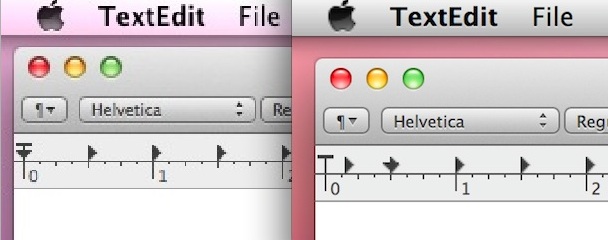
In what is some of the strongest evidence that Apple is working towards bringing higher resolution retina style displays to Macs, a series of hidden HiDPI resolutions can be enabled in OS X Lion.
Much like how iPhone UI elements handles it’s retina screen, the HiDPI modes in Mac OS X double the resolution of many onscreen elements, which would make the elements look sharper on very high resolution displays. Unfortunately, these aren’t particularly useful at the moment because no Mac screen currently supports a ‘retina’ resolution, and for now, using HiDPI basically just loads 2x sprites as shown in the screenshot up top. Regardless, this does provide some favorable support to recent rumors of retina Macs and it can be fun to to use, so here is how to enable these HiDPI display modes:
- Download and install XCode (free on the Mac App Store)
- Launch the “Quartz Debug” app, located in /Developer/Applications/Performance Tools/
- Pull down the “Window” menu and select “UI Resolution”
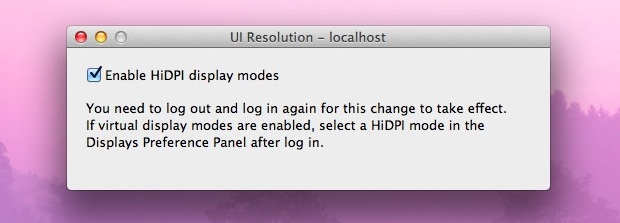
- Check the box for “Enable HiDPI display modes”
- Click “Logout” to log out and back into the user account
- Open “System Preferences” and click on “Displays” to see the HiDPI modes, shown with (HiDPI) next to them
As previously mentioned, using a HiDPI display mode has no practical purpose at the moment until a screen appears that can support the resolutions these modes are intended for.
There are also other bits of evidence scattered about in OS X Lion that suggest higher resolution displays are a work in progress, but when we’ll see such a screen on a Mac is anyones guess.






you can do it without installing xcode and quartz debug.
in mountain lion use this commands:
sudo defaults write /Library/Preferences/com.apple.windowserver DisplayResolutionEnabled -bool YES;
sudo defaults delete /Library/Preferences/com.apple.windowserver DisplayResolutionDisabled;
then logout/login and check display resolutions. it will be there.
works fine even with vmware fusion if you’re running os x 10.8 as guest.
it works fine if you need to use os x in virtual machine on retina macbook pro. today vmware and parallels don’t support retina in guest os x. but with this tweak you get the thing to work almost as it should: you will get scaled 1280px at max but it’s fine if you’re running windowed vmware/parallels.
[…] displays with some hacking: basically by downloading the Quartz Debug program (details for Lion and Mountain Lion) I can reduce the visible resolution to 960×540 pixel on my Full HD monitor. […]
The checkbox in Quartz Debug just changes one preference key. You can also edit the property list directly:
f=/Library/Preferences/com.apple.windowserver.plist; sudo defaults write $f DisplayResolutionEnabled -bool true; sudo defaults delete $f DisplayResolutionDisabled
After logging out and back in, the HiDPI modes should be shown in System Preferences.
QuartzDebug is not included with Xcode
4.3 anymore; now it’s a separate download from http://connect.apple.com/ called Graphics Tools for Xcode.
[…] recommends using this in combination with HIDPI mode, assuming you have a display which supports it of […]
[…] works the effective resolution is 1440×900 and the onscreen elements are just running in HIDPI mode. Apple provides an option to run at 1920×1200 through System Preferences, but as of now there […]
Like all apps from the Mac App Store, Xcode is just Xcode.app — there is no /Developer folder any more. Maybe this worked back in the Xcode 3 days?
HiDPI is quite useful on HDTVs, where the DPI increase is significant. The only downside is that many apps may have issues, since even 1080p then falls to 960×540, factoring in the 2:1 DPI increase, so some apps are cut off.
My Mac mini with HiDPI looks much better on my 46-inch 1080p LCD.
[…] terms – is happening right now. The iPhone got it in 2010, the iPad in March 2012, and Macs are around the corner. Rather than introducing resolution independence, Apple changes the ratio between logical pixel and […]
Just came across this post and check out Quartz Debug. HiDPI was enabled already on my 15in MacBook Pro with the high-res BTO screen option from June 2011. (1680 x 1050) It isn’t doing anything different from what I could tell from zooming in and comparing the shots with my menubar but maybe some update in the future will change it. I ended up just leaving the setting on as it was.
How much extra load will enabling this put on the graphics hardware even if the screen can’t handle it?? The practical reason for enabling it at the moment (if it works like this) is when you use the OSX zoom to zoom in on an area it should be less pixelated and easier to read / see. It could also mean screen shots are captured at a higher res.
The strong rumours suggest that Apple are going to significantly update all of their hardware this year, so I would guess very soon…
Looking forward the new retina iMacs. Agreed, this is not useful at the moment and more than likely HiDPI will be enabled by default. Cheers for the heads up.
I would have saved that post for when Retina displays are available.
I mean, “go here, download that, input this. It won’t do anything until you buy a Retina display, but it’s there all right.”
It won’t be necessary when retina displays are available, the HiDPI mode will be enabled by default. I think these HiDPI options are going to be left for developers who don’t yet have a retina display but need to test their graphics on the HiDPI mode.
No practical purpose? Seems like this would be pretty cool for old people and the vision-impaired when used on a standard screen.
Did you bother to try it? It’s not very practical at the moment.
[…] | OSXDaily […]
Cool article:
Please explain “using HiDPI basically just loads 2x sprites as shown in the screenshot up top” further.
Sprites are small images used as the basis for larger scenes, such as the images you see overlaid on 3D backgrounds in the original Doom game. Icons are thus sprites, but so are buttons (because a separate image is needed for it to change when you click it) and all other small components that make up your desktop. The reasons that our desktop getting bigger and smaller as we change resolution, is that these images are a fixed size (in pixels/dots on he screen, not mm or inches).
“Retina” is simply going back to the original copies of these images that were made in much higher quality, and saving them at twice the size as they are on non-retina Macs. This, in combination with a few code changes to make sure everything is spaced correctly apart now that the pictures are twice as big, is basically the whole Retina idea in a nutshell. Prior to this, and as far back as windows XP, it was called screen DPI, and due to Carlson’s inventions regarding printers, this kinda counts as yet another Xerox idea Apple have rebranded.